iPhone Stuck in Recovery Mode - Why & How to Fix it for Free

It is well known that the built-in Recovery Mode is an essential feature for troubleshooting serious issues on iOS devices. However, some users complained iPhone were stuck in Recovery Mode after update, and they could not get into their handsets. Depending on your version of iOS, you may see a black screen, Connect-to-iTunes, or Connect-to-PC icon. This article shares four solutions to help you get rid of Recovery Mode and regain access to your iPhone.
PAGE CONTENT:
Part 1: Why Is iPhone Stuck in Recovery Mode
Recovery Mode, also known as iPhone Restore Mode, is a special state on your iPhone for troubleshooting, software updating, or factory restoring. However, some users reported that they are always stuck on the iPhone Recovery Mode instead of restarting normally due to various reasons. To find out the possible causes, we reviewed user reports, Apple's documentation, and common troubleshooting cases, then summarized the possible reasons in the table below.
| Situation | Possible Cause |
| After iOS update | Interrupted or failed iOS update |
| After jailbreak | System files modified |
| After restore attempt | Firmware installation failed |
| iPhone keeps returning to Recovery Mode loop | Software corruption |
| iTunes/Finder cannot recognize iPhone | Connection or driver issue |
Part 2: How to Fix iPhone Stuck in Recovery Mode
| Method | Best for | Data Loss | Required Time | Require a Computer | Limitations |
| Force Restart | Users who want a quick fix for temporary software glitches without a computer and without losing data | No | <1 min | No | May not work if the system is corrupted or the device is stuck in a Recovery Mode loop |
| One-Click Exit Recovery Mode | Users whose iPhone is stuck in Recovery Mode after an update and want quickly exiting Recovery Mode without restoring the device or losing data | No | 1-3 min | Yes | Requires a computer |
| Update or Restore (Finder/iTunes) | Users who need to fix an iPhone stuck in Recovery Mode after an update by reinstalling iOS | Yes | 15-60 min | Yes | Erases all data, and the process may fail if the firmware cannot be installed |
| DFU Mode Restore | Users facing serious iOS problems such as Recovery Mode loops or failed restores and other methods fail | Yes | 20-60 min | Yes | Complex and erase all data |
Solution 1: Force Restart iPhone
When your iPhone gets stuck in Recovery Mode and won't restore, the first thing you should do is force restart your device. Then, you can connect it to a computer and try restoring your iPhone again. First of all, disconnect your iPhone.
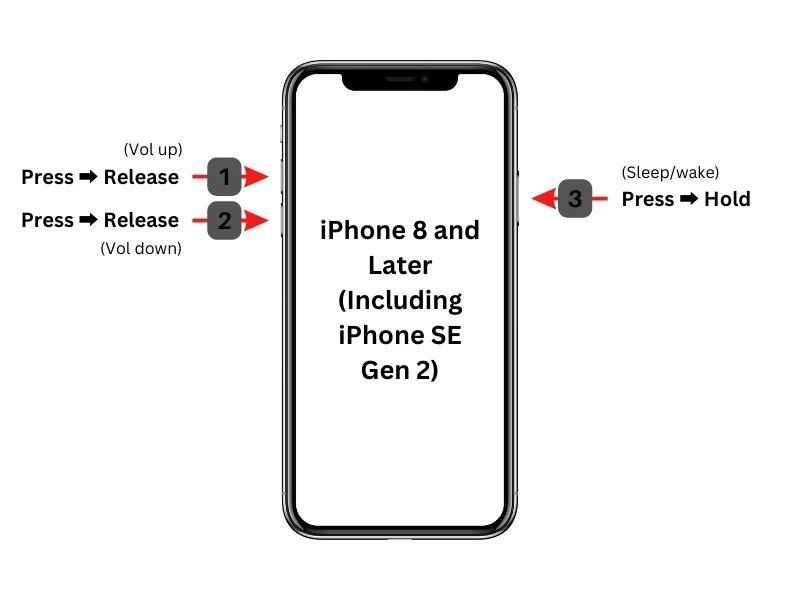
For iPhone 8 and newer
Press the Volume Up button and quickly release it.
Do the same thing to the Volume Down button.
Long-press the Side button until you see the Apple logo.
For iPhone 7/7 Plus
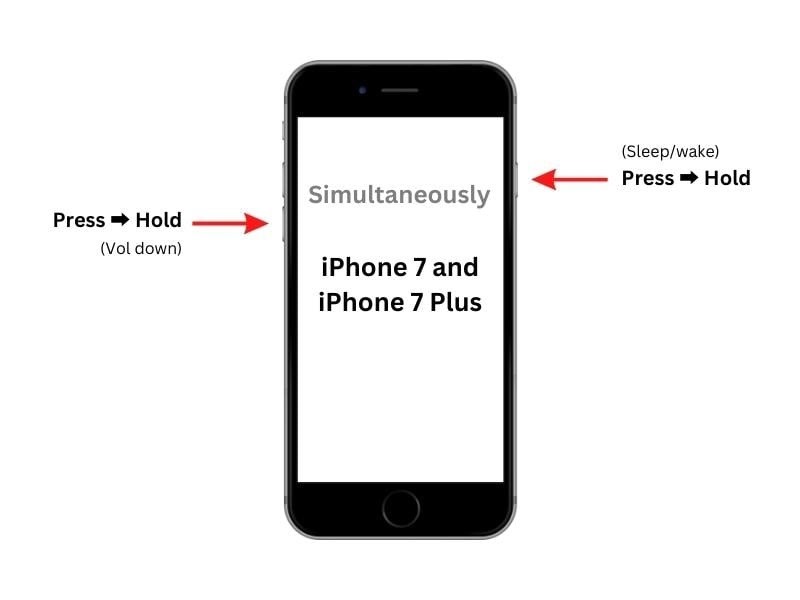
Hold down the Volume Down + Side buttons together.
When the Apple logo appears, release the buttons.
For iPhone 6s and earlier
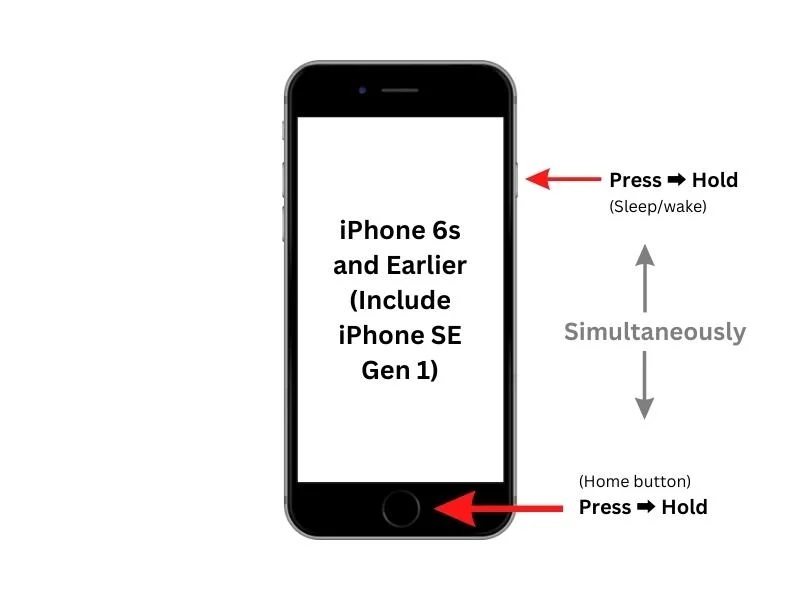
Hold down the Home + Sleep/Wake buttons simultaneously.
Let the buttons go once you see the Apple logo.
Solution 2: One-Click Exit Recovery Mode
If your iPhone is stuck in Recovery Mode after an iOS update and you have access to a computer, the easiest solution is to use Apeaksoft iOS System Recovery. It provides a free one-click feature to enable you to exit the Recovery Mode without restoring the device or erasing your data.
Step 1. Download and install Apeaksoft iOS System Recovery from the official website or from the button below.
Secure Download
Secure Download
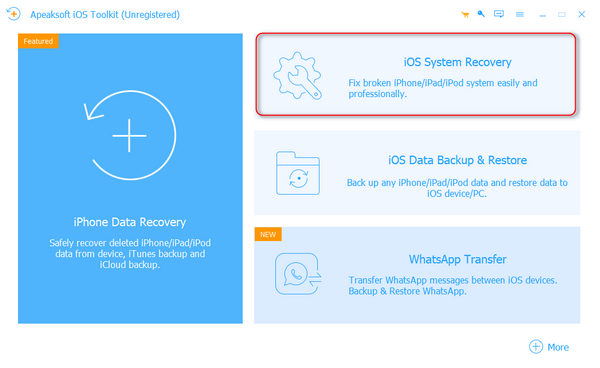
Step 2. Choose the iOS System Recovery option from the main interface.
Step 3. Click the Start Now button under the System Repair option.
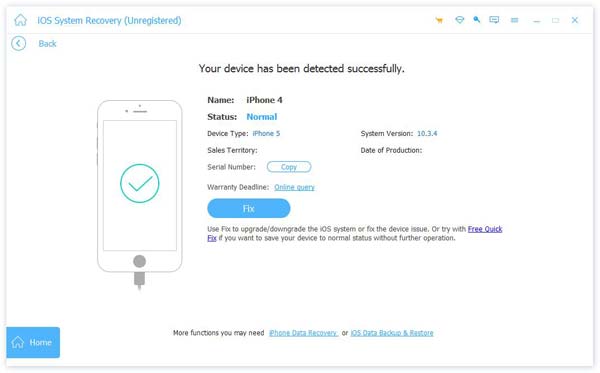
Step 4. Click the Start button and the software will detect the issue automatically.
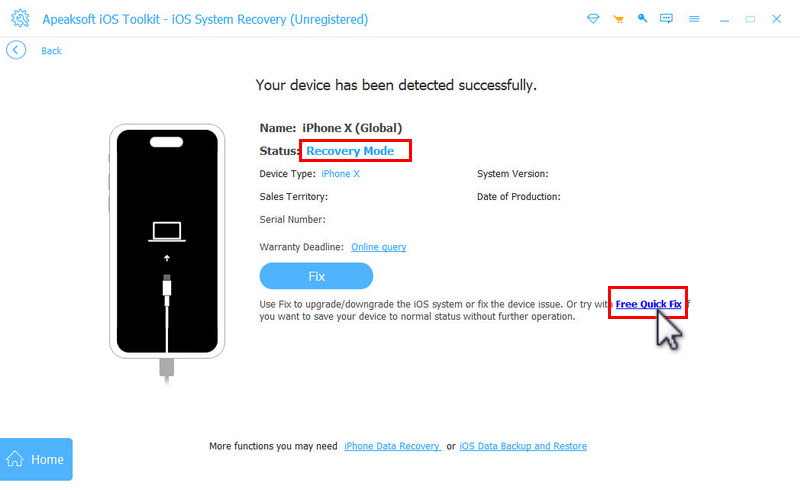
Step 5. Your iPhone will be detected in a Recovery Mode status. Click Free Quick Fix.
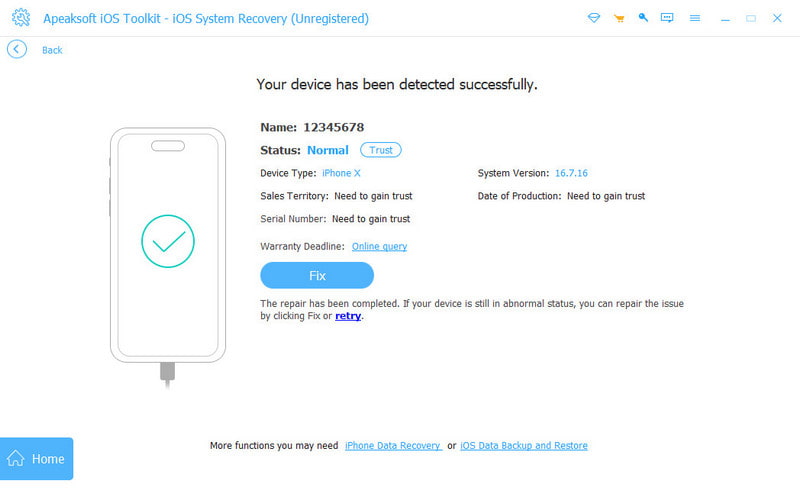
Step 6. Wait for your iPhone to restart automatically. Then, you will see the normal lock screen.
Solution 3: Update or Restore
When you put your iPhone in Recovery Mode, you actually want to update or restore your device. When it is done, your device will boot into the standard mode. In other words, that can fix an iPhone stuck in Recovery Mode.
Step 1. Connect our iPhone to a computer with a compatible cable.
Step 2. Open the latest version of iTunes or Finder:
On Windows, open iTunes.
On macOS Mojave or earlier, open iTunes.
On macOS Catalina or later, open Finder.
Step 3. Once it detects your iPhone in Recovery Mode, a dialog will appear.
Step 4. Now, you have two options:
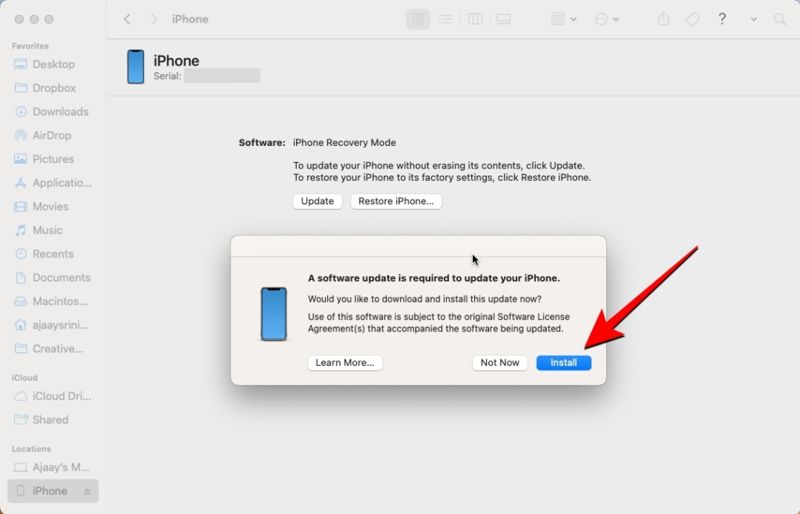
Update iPhone: Click the Update button to search for available updates. Once an update is found, click the Install button to update your device.
Restore iPhone: Click the Restore button to begin factory restoring your device.
Step 5. Once the process finishes, your iPhone will restart. Disconnect it and gain access to your device.
Solution 4: Try DFU Mode
If your iPhone keeps returning to Recovery Mode or cannot be restored through normal Recovery Mode, you can put your device in DFU Mode, troubleshoot software and serious system issues, and access your handset again. However, keep in mind that restoring iPhone from DFU mode will erase all your data. It can only be used as the last resort.
Step 1. Turn off your iPhone and connect it to your computer with a USB cable.
Step 2. Open iTunes or Finder.
Step 3. Put your iPhone in DFU Mode:
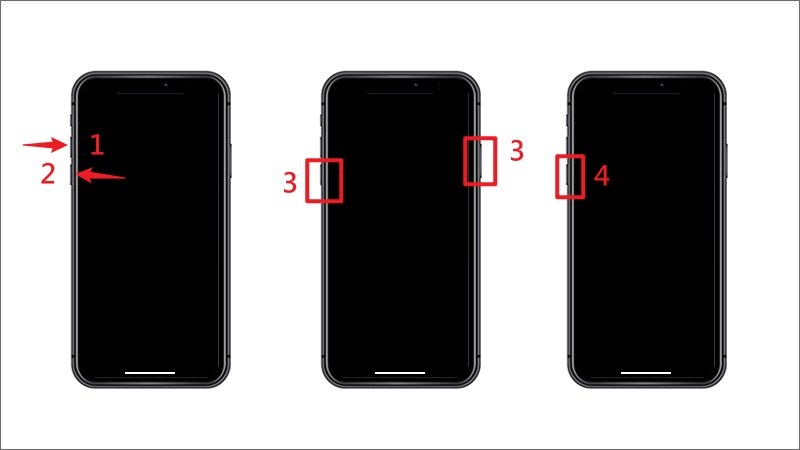
For iPhone 8 and newer
Press the Volume Up button and release it.
Press the Volume Down button and release it.
Hold the Side button and turn your screen black.
Keep pressing the Side button and hold the Volume Down button for 5 seconds.
Release the Side button, but hold the Volume Down button for another 10 seconds.
For iPhone 7/7 Plus
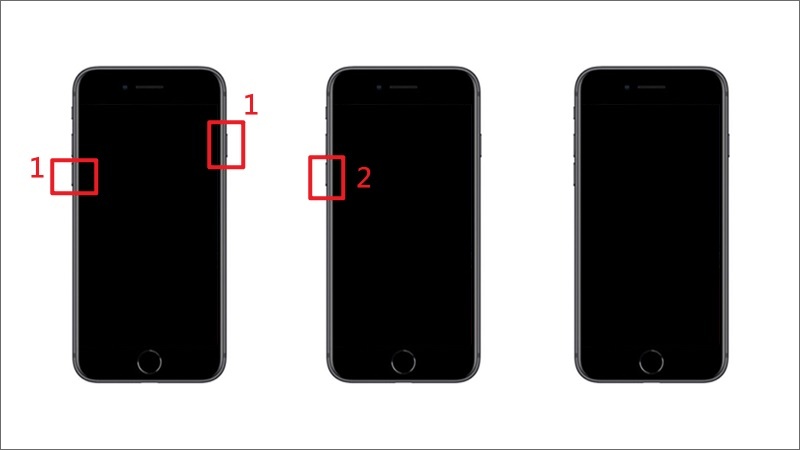
Hold the Volume Down + Side buttons for 10 seconds.
Keep pressing the Volume Down for another 5 seconds, but let the Side button go.
For iPhone 6s and earlier
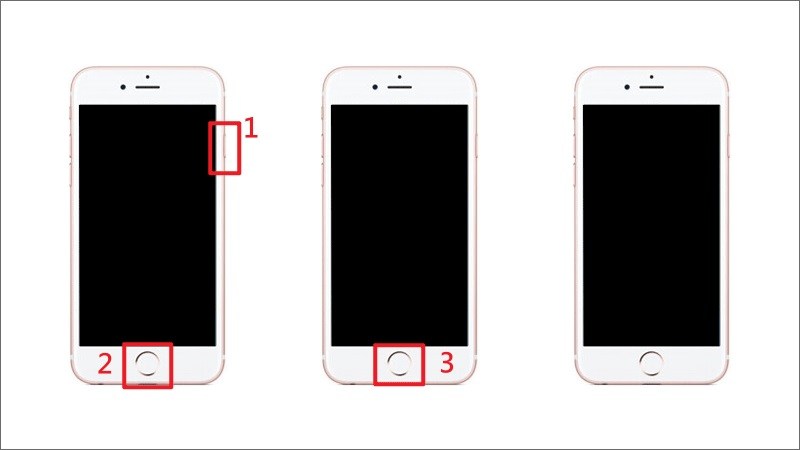
Long-press the Home + Sleep/Wake buttons for 10 seconds.
Release the Sleep/Wake button while continuing to press the Home button for another 5 seconds.
Step 4. When iTunes or Finder recognizes your iPhone in DFU Mode, click the Check for Update or Restore iPhone button.
Step 5. Follow the onscreen instructions to complete the process.
Step 6. When it is done, your iPhone will restart in the standard mode.
Part 3: Fix iPhone Stuck in Recovery Mode with iOS System Recovery
If your iPhone is still stuck in Recovery Mode after trying the methods above, or it keeps returning to Recovery Mode repeatedly, the problem may be caused by deeper iOS system issues. In this case, you should try some deeper system repair tools such as Apeaksoft iOS System Recovery.

Downloaded by over 1,000,000 users
- Fix iPhone stuck in Recovery mode after update.
- Fix iPhone keeps returning to iPhone Recovery Mode loop.
- Fix a wide range of software glitches.
- Update or downgrade the iOS version on your device.
- Support the latest versions of iOS and iPadOS.
Secure Download
Secure Download

How to Fix iPhone Stuck in Recovery Mode
Step 1. Detect software errors
Launch the best iOS repairing software after you install it on your PC. Hook up your iPhone to your PC with a Lightning cable. Click the Start Now button from the System Repair option to begin scanning software glitches on your device.
Step 2. Check iPhone information
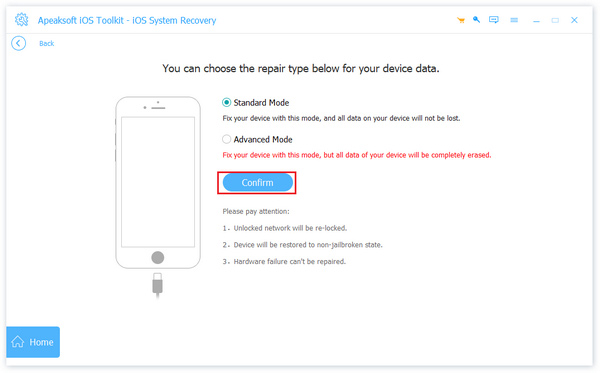
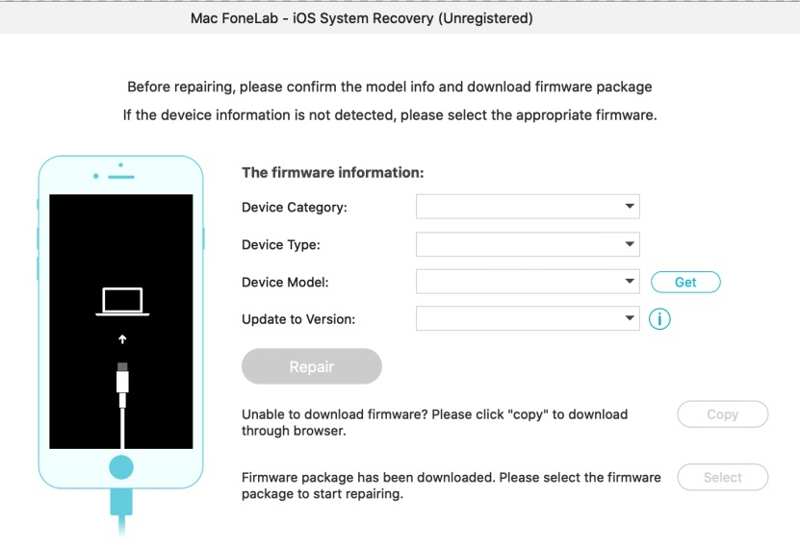
Once scanning is done, click the Fix button to move on. Then, select a mode: Standard Mode or Advanced Mode. Click the Confirm button to enter the next screen. Set your iPhone information, like category, type, and model.
Step 3. Fix iPhone stuck in Recovery Mode
Select a proper iOS version and click on the Download button to start downloading the firmware. When it completes, click the Next button to fix your iPhone stuck in the Recovery Mode.
Part 4: FAQs About iPhone Stuck in Recovery Mode
How long does it take to exit Recovery Mode?
Exiting Recovery Mode usually takes only a few minutes once the update, restore, or restart process is completed. If your iPhone is stuck in Recovery Mode for more than 15-30 minutes, there may be problems with the download, connection, or software.
How to fix iPhone stuck in Recovery Mode after update?
If your iPhone is stuck in Recovery Mode and won't restore after update, try updating it again through Finder/iTunes, or use an iOS system repair tool like Apeaksoft iOS System Recovery to fix possible software issues.
Will exiting Recovery Mode erase my iPhone data?
Simply exiting the Recovery Mode will not delete your data. However, if you choose Restore in Finder or iTunes to fix Recovery Mode issues, all content and settings on your iPhone will be erased.
How to exit Recovery Mode without restoring?
You can try a force restart or use the one-click exit Recovery Mode tool to exit iPhone Recovery Mode without restoring your iPhone or losing data.
Can I get iPhone out of Recovery Mode without a computer?
Yes. You can try the force restart method if your iPhone is stuck in Recovery Mode due to temporary software glitches. However, if your iPhone is stuck due to an iOS update failure or Recovery Mode loop, a computer may be required.
Conclusion
This guide shared multiple solutions to fix an iPhone locked in Recovery Mode. First of all, you should understand why this problem happens on your device. Furthermore, you can follow common solutions to get your iPhone out of Recovery Mode and regain access to your device. If the common solutions are unavailable, Apeaksoft iOS System Recovery is the ultimate solution. It can fix software glitches on your iPhone, take it out of Recovery Mode, and update software on your device. The user-friendly interface makes it easy to use for ordinary people.
 Apeaksoft iOS System Recovery
 Fix virious iOS system issues on iPhone, iPad, and iPod.
Secure Download
Secure Download
Related Articles