[Proven] How to Unlock a Disabled iPad Step by Step

Key Takeaways
If your iPad is locked with an iPad is Disabled screen after many attempts of the wrong passcode, you can:
- Wait for the countdown to end and enter the correct passcode if you still remember it.
- Use Find My on iCloud.com or another Apple device to erase and reset your iPad.
- Use a trusted iOS unlocker tool to unlock the disabled iPad screen without a passcode or Apple ID.
- Put your iPad into recovery mode and restore it via iTunes or Finder (macOS Catalina 10.15 and later).
If your iPad shows iPad is Disabled after too many incorrect passcode attempts, it means your iPad is locked due to security reasons. It always happens when you forget the passcode or due to the ghost touch.
Don't worry. This tutorial will show you how to unlock a disabled iPad using Find My (official way), third-party tools like Apeaksoft iFoneKit iOS Unlocker, and recovery mode. Whether you are stuck at the iPad disabled screen or want to regain normal access, just keep reading.
PAGE CONTENT:
| Method | Best For | Require Passcode | Require Apple ID | Data Loss | Difficulty |
| Wait for the iPad is Disabled Timer | iPad still shows "Try again in XX minutes" and you still remember the passcode | Yes | No | No | Easy |
| Find My | You enabled Find My and have internet connection | No | Yes | All data will be erased | Easy |
| Use iOS Unlocker Tools | You forgot the screen passcode and cannot access Apple account | No | No | All data will be erased | Easy |
| Recovery Mode | You cannot use Find My or other methods | No | No | All data will be erased | Medium |
Method 1: Wait for the iPad Is Disabled Timer to End
Sometimes, your iPad is not permanently disabled yet. If you still see a "Try again in XX minutes" message on the screen, you can simply wait until the timer expires and enter the correct passcode. This is the only way to unlock a disabled iPad without losing data, and it is only applicable when you still remember the passcode.
However, keep in mind that the waiting time increases after each failed attempt. If you are not confirmed, stop guessing.
| Failed Attempts | What the Screen Shows |
| 6 times | iPad is Disabled – Try again in 1 minute |
| 7 times | iPad is Disabled – Try again in 5 minutes |
| 8 times | iPad is Disabled – Try again in 15 minutes |
| 9 times | iPad is Disabled – Try again in 1 hour |
| 10 times or more | iPad is Disabled – Connect to iTunes |
Method 2: Use Find My to Erase a Disabled iPad [Official]
If you don't have a computer, you can use another phone to unlock a disabled iPad with iCloud. You can log in to iCloud Find to unlock the disabled iPad. However, that means you know your Apple ID password. If you have forgotten your Apple ID password, this method cannot help you to fix a disabled iPad.
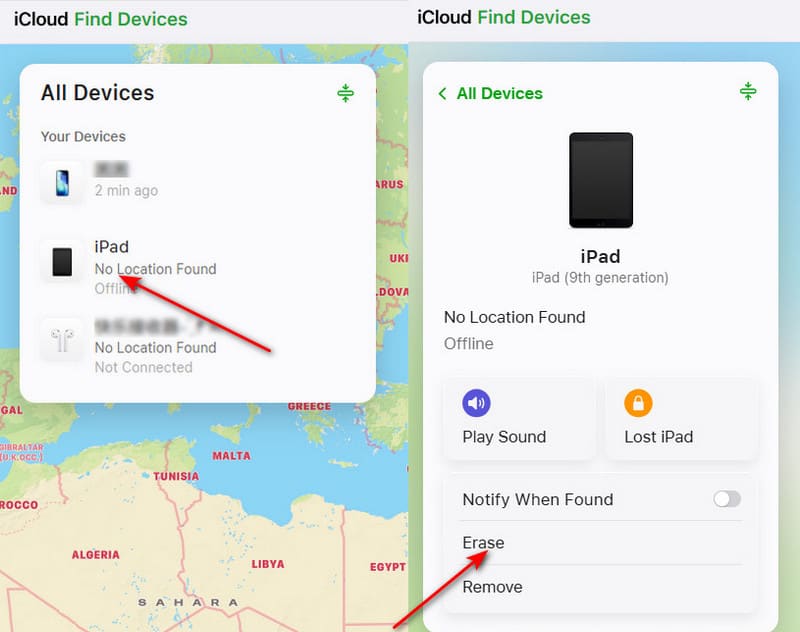
Step 1. Go to the official website of iCloud Find and log in to your iCloud account, which is your Apple ID.
Step 2. You will see your iOS devices in the All Devices tab. You should find your disabled iPad and click on it. Click the Erase button to reset a disabled iPad easily.
If you have other Apple devices, i.e., your iPhone, you can directly erase the disabled iPad in the Find My app on your iPhone.
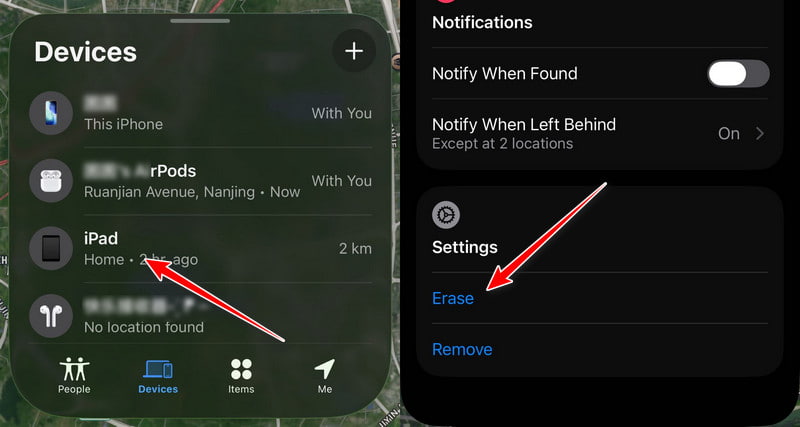
Step 1. Open Find My and locate the Devices tab.
Step 2. Click your disabled iPad. Scroll down and click Erase.
Step 3. Verify your Apple account. Your iPad will be erased when it connects to the internet.
Tips: If you fix a disabled iPad with iCloud Find, although you can remove the screen passcode, your iPad will be locked by iCloud. You should enter your iCloud account and passcode, which is also your Apple ID and passcode, to remove iCloud Lock.
Method 3: Unlock a Disabled iPad Without Passcode or Apple ID [Recommended]
If you want to fix an iPad when it is disabled without a passcode or Apple account, the easiest way is to use tools like Apeaksoft iFoneKit iOS Unlocker. This program can easily unlock screen on iPad when you forget the passcode. Even though your iPad is disabled, it can still remove the screen lock. Even if you are a beginner, you can unlock a disabled iPad with only a few clicks.

Downloaded by over 1,000,000 users
- Connect your disabled iPad to your computer to unlock it easily.
- Fix a disabled iPad without passcode or Apple account.
- Support all iPadOS versions, including the latest iPadOS 26/27.
- Also supports Apple ID removal and Screen Time bypass.
Secure Download
Secure Download

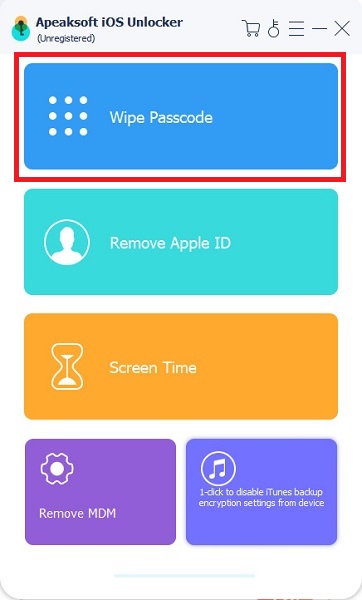
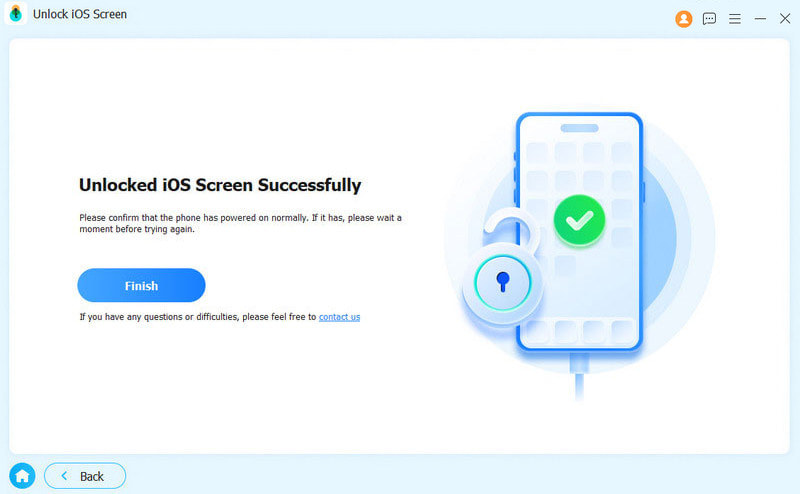
Step 1. Download and install Apeaksoft iFoneKit iOS UnlockerM and launch it. Connect your disabled iPad to your computer. Choose the Unlock iOS Screen mode.
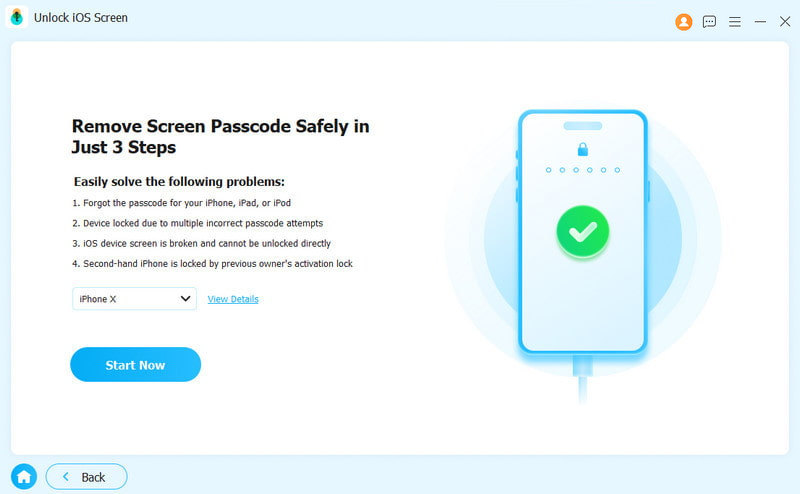
Step 2. This program will connect to your disabled iPad. The information of your iOS device will be loaded. Confirm the information on your own, and click the Start Now button to proceed.
Step 3. This program will download the iOS firmware package. There will be a Confirmation window popping up after the firmware is downloaded successfully. You need to confirm twice to allow the program to verify the firmware.
Method 4: Restore a Disabled iPad Using iTunes or Finder
When your iPad is disabled, you can use iTunes or Finder to reset it. You should put your iPad into Recovery Mode, and then iTunes or Finder will unlock it.
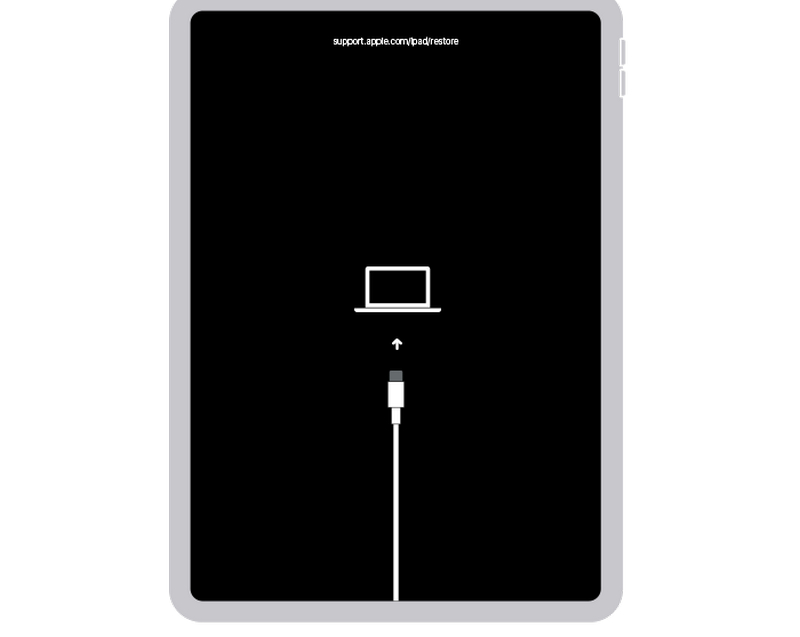
Step 1. Put Your iPad Into Recovery Mode
Connect your disabled iPad to your computer. Then, launch iTunes on Windows or Finder on Mac. Keep your iPad connected. Now, you should start entering the Recovery Mode.
For iPad models without a Home button: Press and quickly release the Volume Up button, and then do it again to the Volume Down button. Then, press and hold the Top button until you see the Connect to computer screen.
For iPad models with a Home button: Press and hold the Top and the Home buttons at the same time until you see the Connect to computer screen appears.
Step 2. Reset the Disabled iPad
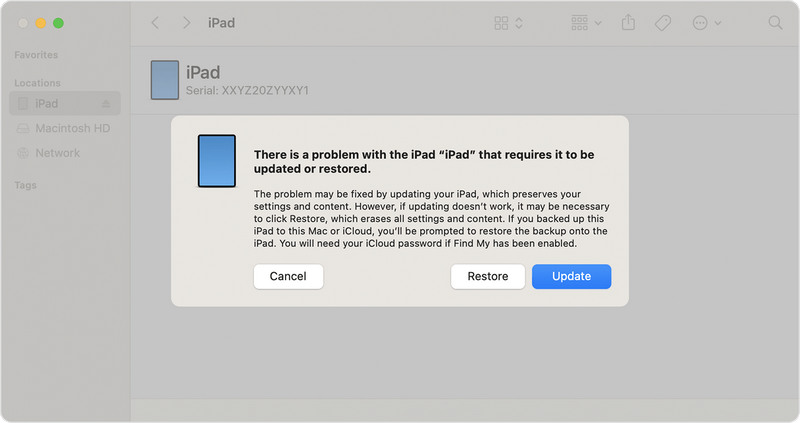
Now, iTunes or Finder will detect that your iPad has a problem. You can click whether the Update or Restore button to unlock the disabled iPad.
FAQs About iPad Is Disabled
Can you unlock a disabled iPad without losing data?
Unfortunately, you cannot unlock a disabled iPad without erasing it unless you enter the correct passcode before your iPad becomes permanently disabled. The iOS security system is designed this way to prevent unauthorized access. However, you can recover your data if you made a backup with iTunes, Finder, or iCloud before the iPad was disabled, or your data is synced to iCloud (Photos, Notes, Contacts, etc.).
What to do when you forget your Apple ID passcode?
When you want to reset a disabled iPad with iCloud Find, you need to use your Apple ID password. If you forget your Apple ID passcode, you can go to the official website of iForgot and retrieve your Apple ID passcode with your combined email address or phone number.
What is the difference between iPad is Disabled and iPad Unavailable?
iPad is Disabled is the older message shown on previous iOS/iPadOS versions, while iPad Unavailable is the newer wording used on iPadOS 15.2 and later. Both mean your iPad has been locked after too many failed passcode attempts.
Conclusion
This article tells you how to unlock iPad when it is disabled. iTunes and iCloud can quickly reset a disabled iPad and give you access to your iPad. However, note that these methods will lock your iPad, and you need to remove iCloud Activation lock manually.
What's the easiest way to unlock a disabled iPad? You should use Apeaksoft iFoneKit iOS Unlocker. It offers an intuitive interface and simple steps to unlock iOS devices when you forget the passcode or the device is disabled.
 Apeaksoft iFoneKit
 Unlock all types of iOS passwords from iPhone, iPad and iPod.
Secure Download
Secure Download
Related Articles