


How to Unlock Your Frozen iPhone or iPad Touchscreen

"My iPhone 16 is suddenly frozen and won't respond to anything. I cannot unlock it in any way. How to unlock a frozen iPhone?" When the touchscreen is frozen, nothing seems to work. It is frustrating, but don't worry, you are not alone. This guide will help you understand the main causes. More importantly, our solutions let you walk through the steps to regain access to your iOS device quickly.
PAGE CONTENT:
Part 1: Why Is My iPhone Frozen
There are a few causes why your iPhone or iPad might freeze. Understanding these main reasons can help you prevent future issues and address current errors more effectively. Here are the main causes:
- 1. Your battery is low.
- 2. Your iPhone or iPad gets stuck.
- 3. Your iPhone or iPad is too hot.
- 4. Your device is running out of storage space.
- 5. App malfunctions.
- 6. Software glitches.
Part 2: How to Unlock a Frozen iPhone/iPad
Solution 1: Charge Your Device
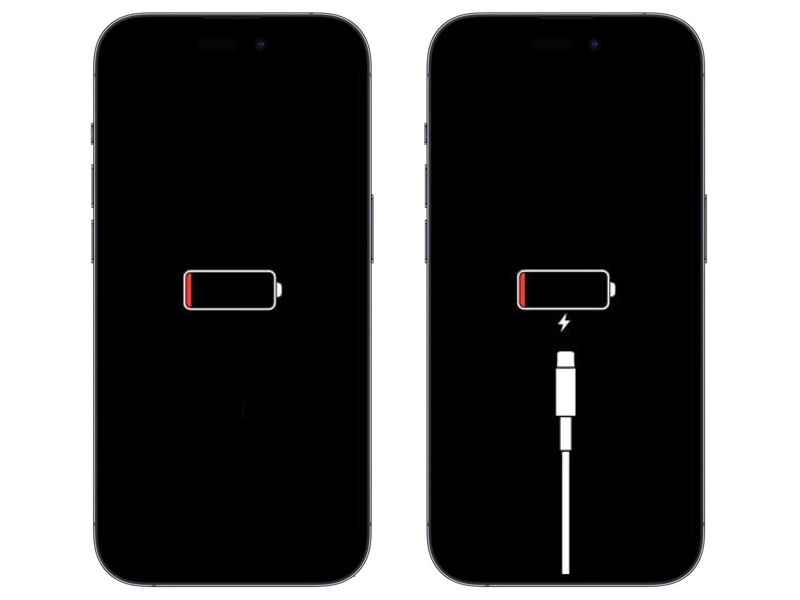
The easy solution to unlock a frozen iPhone screen is to charge your device. As mentioned previously, your iOS device might get stuck if the iPhone battery is draining. Insert one end of the Lightning cable into your iPhone and connect the other end to a power source. Wait for a few minutes if your battery is too low. Then, you should see the charging icon on your screen.
Solution 2: Force Restart
Since your touchscreen is frozen, you cannot turn it on as usual. Alternatively, you have to force-restart your device to unlock a frozen iPhone screen. This way works through the physical buttons.
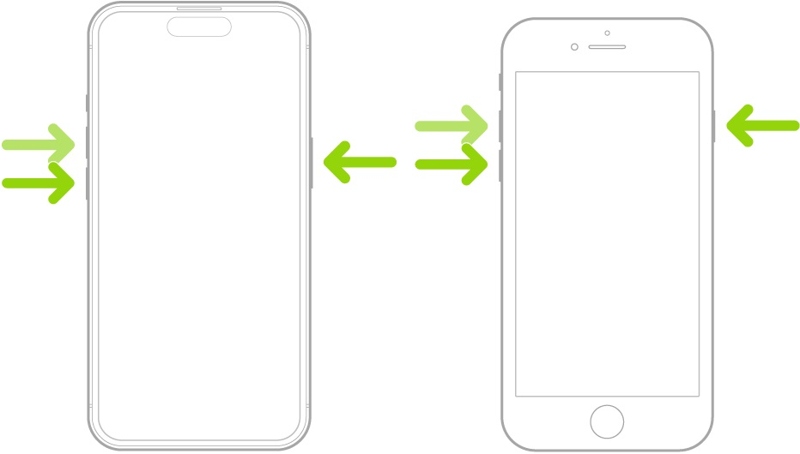
For iPhone 8 and later, iPad without the Home button
Quickly press and release the Volume Up button.
Quickly press and release the Volume Down button.
Press and hold the Side or Top button until the Apple logo appears.
For iPhone 7/7 Plus
Hold down the Volume Down + Side buttons together.
Release the buttons when you see the Apple logo.
For iPhone 6s and earlier, iPad with the Home button

Hold down the Home + Sleep/Wake buttons simultaneously.
When the Apple logo pops up, let the buttons go.
Tips: After unlocking your iPhone or iPad, you'd better uninstall the malfunctioning apps and free up space to prevent the issue from occurring in the future.
Solution 3: Update or Restore iPhone in Recovery Mode
Another way to unlock a frozen iPad or iPhone is to update or restore your device in Recovery Mode. Obviously, you cannot update software or restore your device once your touchscreen is frozen. Recovery Mode enables you to bypass the OS and perform troubleshooting.
Step 1. Connect your frozen iPhone or iPad to a computer with a compatible cable.
Step 2. Run the latest version of iTunes on Windows and macOS Mojave or earlier. Run Finder on macOS Catalina or later.
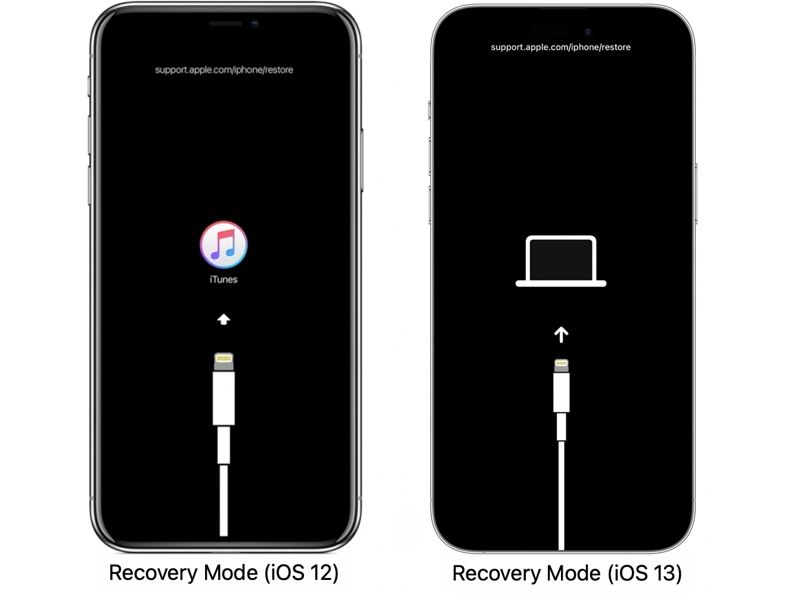
Step 3. Put your device in Recovery Mode. The button combination is the same as force-restart.
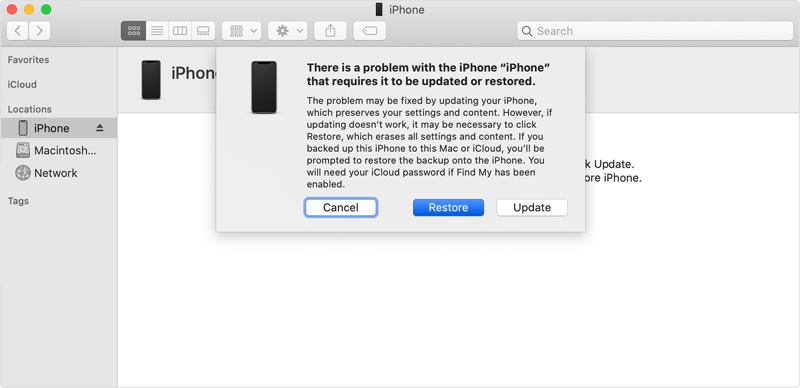
Step 4. When the Recovery Mode screen appears, release the button combination.
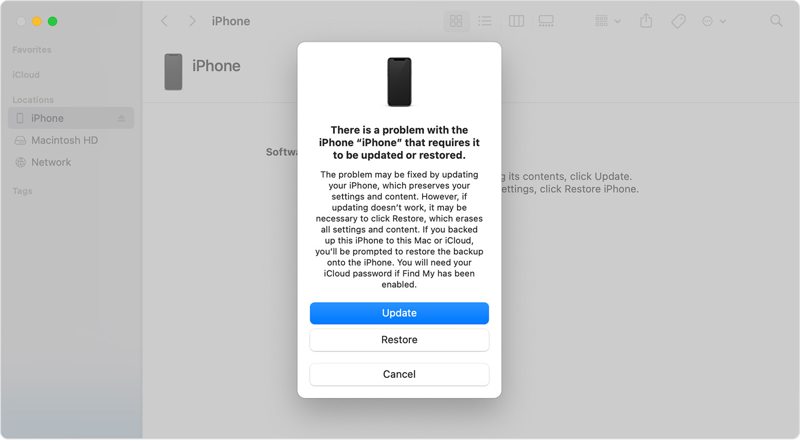
Step 5. Once iTunes or Finder detects your device in Recovery Mode, choose Update or Restore, depending on your needs.
Tips: Restoring your iPhone or iPad will erase all data.
Part 3: A Quick Way to Unlock a Frozen iPhone
If the solutions above are unavailable, try Apeaksoft iFoneKit iOS Unlocker to unlock your frozen iPhone or iPad. It enables you to remove the screen lock from your iOS devices without any restrictions. Furthermore, it won't ask for the password during the process.

Downloaded by over 1,000,000 users
- Unlock a frozen iPhone or iPad in 3 steps.
- Don't require your passcode or Apple ID password.
- Work for digit passwords, Face IDs, and Touch IDs.
- Support the latest editions of iOS and iPadOS.
Secure Download
Secure Download

How to Unlock a Frozen iPhone Quickly
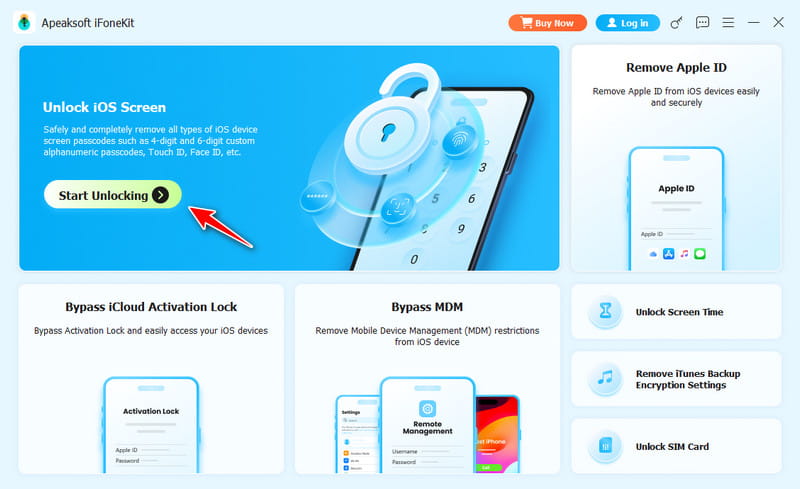
Step 1. Connect to your iPhone
Launch the iOS unlocking software after you install it on your PC. There is another version for Mac users. Choose the Unlock iOS Screen mode. Link your iPhone to your PC with a Lightning cable. Make sure to trust this PC.
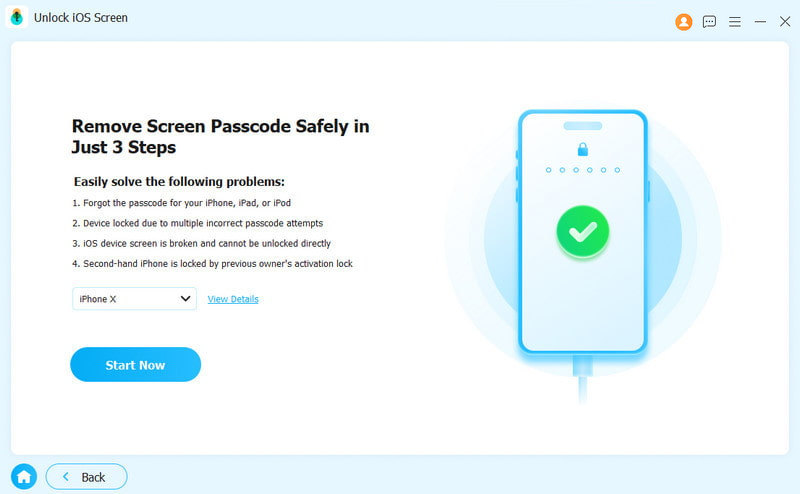
Step 2. Download the firmware
Once your device is recognized, the software will load device information. Check it and click the Start Now button to begin downloading the firmware.
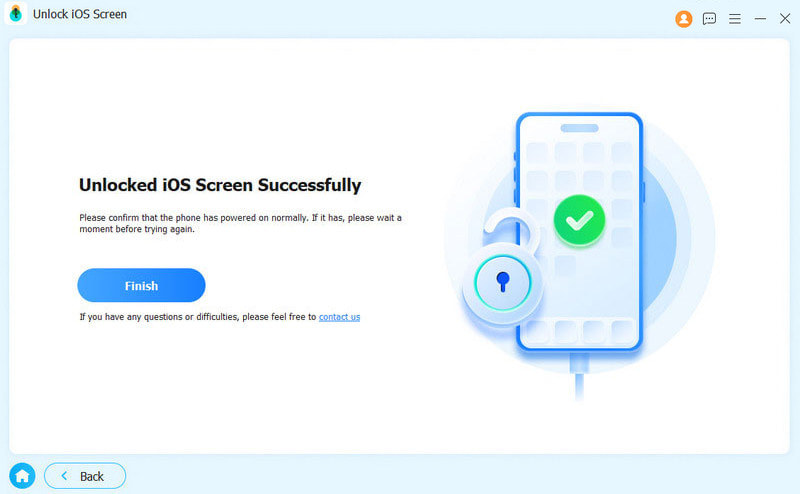
Step 3. Unlock your device
When the download finishes, click OK on the confirmation dialog, and hit Confirm Again. After verifying the firmware, the software will initiate unlocking the frozen iPhone automatically.
Tips: Since the process will erase all your data, you'd better back up your device to avoid data loss.
Conclusion
This guide explained the proven methods to unlock a frozen iPhone or iPad. First of all, you can learn the main causes of the errors that happen on your iOS device. Moreover, you can follow our solutions to regain access to your device. Apeaksoft iFoneKit iOS Unlocker is the ultimate solution to unlock any iOS device.
Related Articles




