Why and What to Do When Your iPad Keeps Restarting

Does your iPad keep restarting by itself? You may have already encountered this troublesome problem when you are reading this article. Don't worry - this guide will help you find out all possible reasons behind it for troubleshooting and provide step-by-step solutions to fix the iPad that keeps restarting. Read more!
PAGE CONTENT:
Part 1: Why Does My iPad Keep Restarting
Software Glitches (Most Common)
The software glitch is the most common reason for the iPad restarting issue. It often happens when you've installed apps with bugs or that are not compatible with your current iPadOS version. In this case, the system will crash and restart automatically. Background apps, damaged cache files, or conflicting settings may also cause an unexpected restart.
System Bug
System bugs can also make the iPad keep restarting, especially after a system update or when you have disabled certain features. Sometimes your iPad can freeze.
Poor Storage
Your iPad may keep restarting when its storage is full or almost full. In this case, it is very difficult to schedule temporary resources in the system. Therefore, the system may become unstable.
Battery Issue
An aging or damaged battery can also contribute to a randomly restarting iPad because it will cause an unstable battery supply, which will result in a shutdown or restart. That is why your iPad keeps restarting when charging.
Hardware Issues
In rare cases, an iPad that keeps restarting may also be caused by some physical hardware problems, such as motherboard failure or internal component damage. Such situations usually occur when your iPad has been dropped, exposed to water, or otherwise physically damaged.
Part 2: The Most Effective Way to Fix an iPad That Keeps Restarting
If your iPad keeps restarting due to a software or system issue, not a problem at the hardware level, you can try a professional iOS repairing tool such as Apeaksoft iOS System Recovery. It is mainly designed to fix problems such as continuous restarts, black/white screens, system crashes, and more.
One-Stop Solution to Fix Restarting iPad
- Designed to fix iPads stuck in restart loops effectively.
- Provide a "Free Quick Fix" feature to resolve minor restart issues in seconds.
- Fixes iPad restart loops without deleting personal data using the Standard Mode.
- Works with all iPad models and the latest iPadOS versions.
- Beginner-friendly with guided repair on the interface.
Secure Download
Secure Download

Step 1. Download this iOS system recovery tool for free by pressing the corresponding download button above.
Step 2. Choose iOS System Recovery on the main interface.
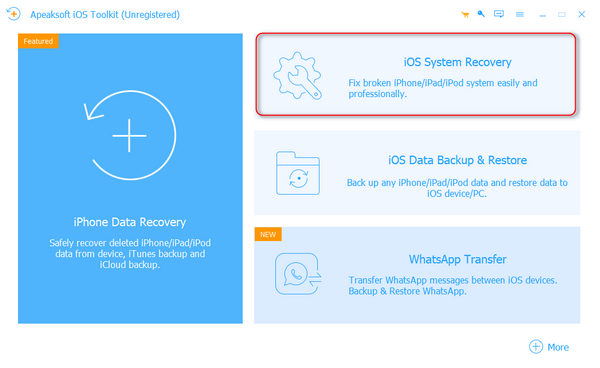
Step 3. Click the Start Now button under the System Repair tab.
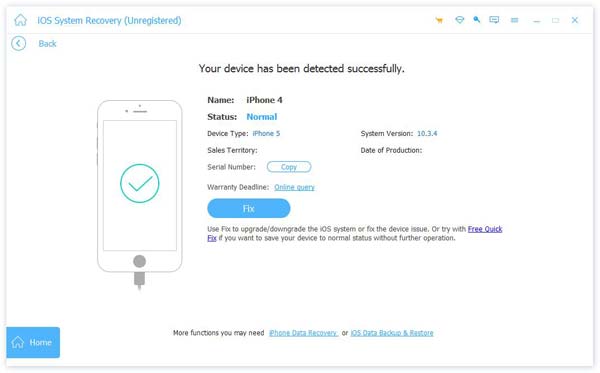
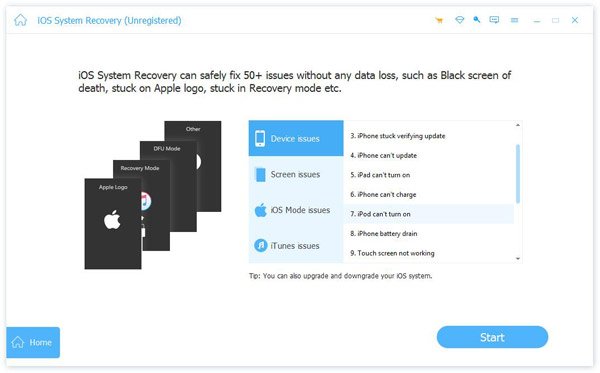
Step 4. Connect your iPad to the computer with a USB cable. Then, click the Start button in the bottom right corner.
Step 5. To begin with, you can try to click Free Quick Fix in blue, as shown in the image below, to run a quick preliminary diagnosis.
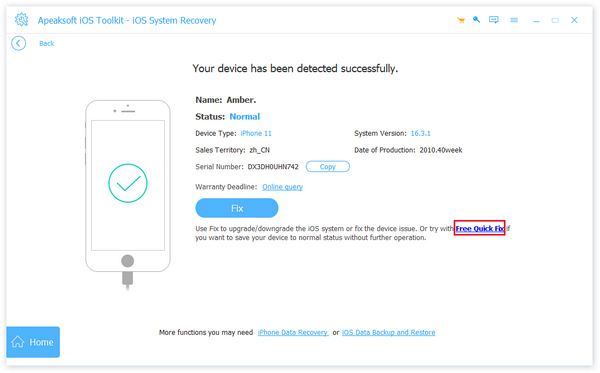
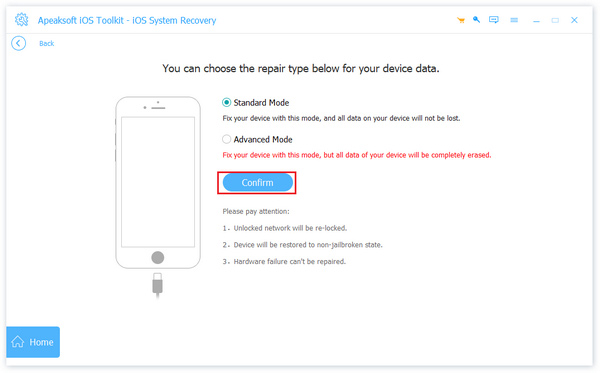
Step 6. If your iPad keeps restarting, you need to press the Fix button to perform a deep fix. Then, choose a repair mode based on your needs, and press the Confirm button.
Tips:
Standard Mode: Fixes common iPhone system issues without deleting your data.
Advanced Mode: Fixes more serious iPhone system problems, but it will erase all data on your device. This mode offers a higher success rate and can resolve deeper system errors.
Step 7. Set the basic information of your iPad on the following page to download the corresponding firmware.
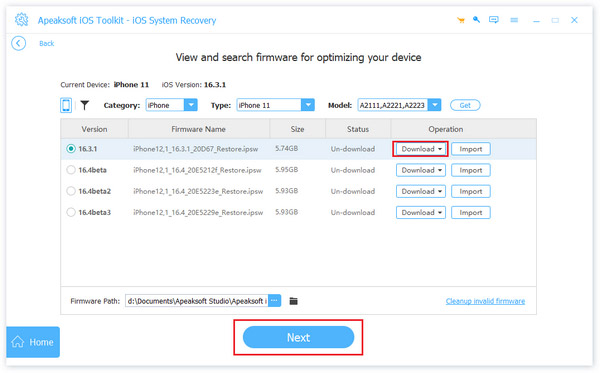
Step 8. Click Next, and the repair process will be initiated automatically.
Tips:
This software can also help you fix an iPad not charging.
Part 3: Common Ways to Fix an iPad Stuck in a Restart Loop
Instead of professional software, you can also use some common ways. This section will introduce 4 common and practical solutions: force restart your iPad, update iPadOS, free up storage space, and uninstall problematic apps. These methods can solve restart issues caused by temporary system errors, software conflicts, low storage, or incompatible apps to a certain extent.
Force Restart Your iPad
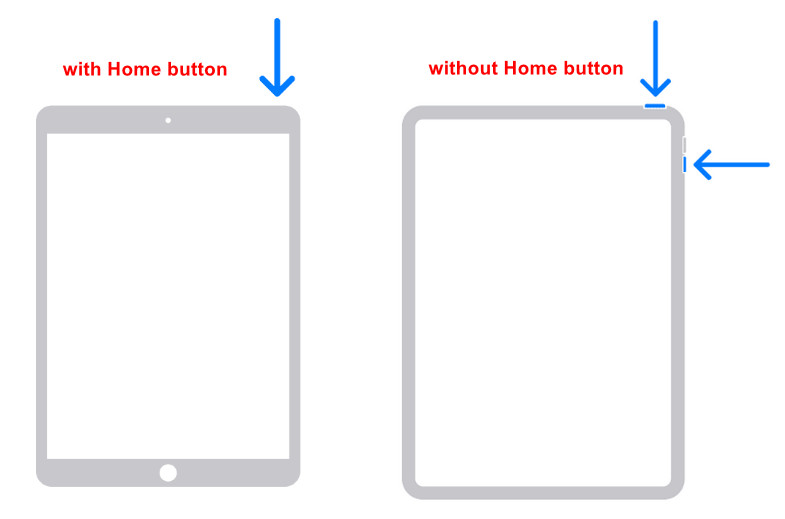
For iPads with a Home Button:
Step 1. Press and hold the Home and the Power button together.
Step 2. Release until the Apple logo appears.
For iPads without a Home Button:
Step 1. Press and release the Volume Up button quickly.
Step 2. Then, quickly press and release the Volume Down button.
Step 3. Press and hold the Power button until the Apple logo appears.
Update iPadOS
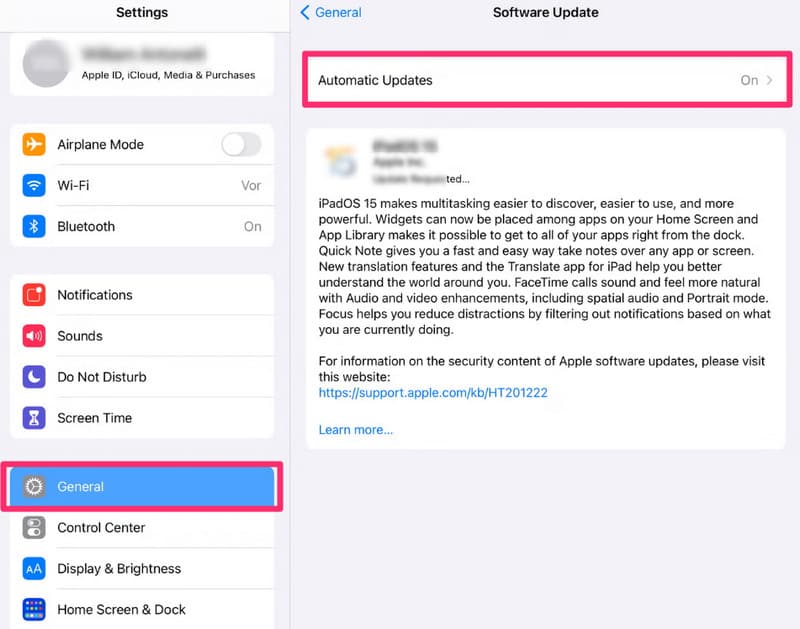
Step 1. Open Settings.
Step 2. Click General.
Step 3. Choose Software Update.
Step 4. Click Download and Install.
Tips:
1. Connect to Wi-Fi instead of cellular data.
2. Make sure your iPad's battery is enough.
3. Reserved storage space (recommended 5-10GB)
Free up Storage Space
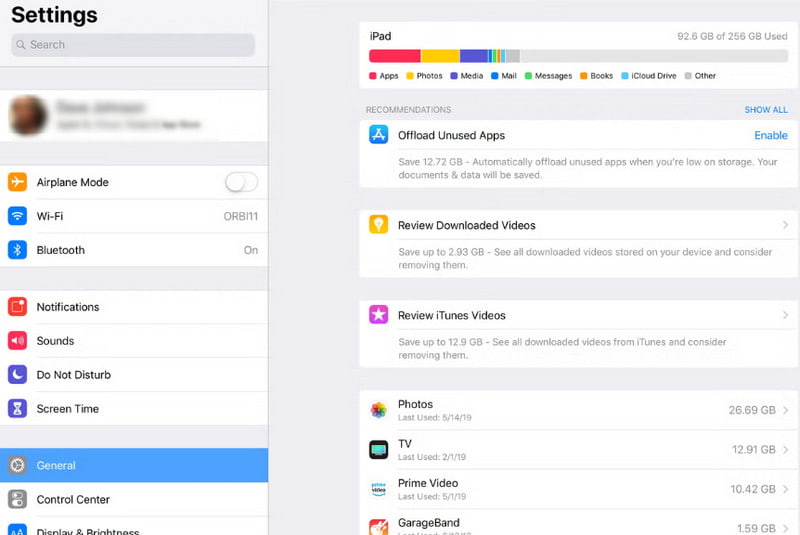
Step 1. Open Settings and click General.
Step 2. Click iPad Storage.
Step 3. Uninstall or Offload apps or large files.
Uninstall Problematic Apps
Step 1. Observe whether the iPad restarts right after you open a certain app.
Step 2. Long-press the app and choose Remove App.
Conclusion
Why does my iPad keep restarting? After reading our guide, you now understand that most restart issues are caused by software problems, and we hope our fixes can be helpful to you.
Related Articles