


How to Fix iPad Unavailable Screen With No Erase Option

Since Apple introduced the Security Lockout feature, users will be presented with the iPad Unavailable or iPad Security Lockout screen when they are locked out of their devices. By default, the screen comes with two options: Emergency and Erase iPad or Forgot Passcode. The latter allows users to erase their iOS devices with Apple ID credentials. This guide tells you how to fix the iPad Unavailable with No Erase option.
PAGE CONTENT:
Part 1: How to Fix iPad Unavailable No Erase Option with a Computer
Preconditions:
- 1.A computer.
- 2.A compatible USB cable.
- 3.The latest version of iTunes or Finder.
- 4.Your Apple ID password.
How to Fix iPad Unavailable No Erase Option on Mac/PC
Step 1. Connect your iPad to your Mac with a USB cable.
Step 2. Open iTunes on macOS Mojave or earlier and Windows. For macOS Catalina or later, open Finder.
Step 3. Put your iPad in Recovery Mode:

iPad without a Home button
Quickly press and release the Volume Up button.
Quickly press and release the Volume Down button.
Hold down the Side button until it enters Recovery Mode.
iPad with a Home button
Hold the Home + Side/Power buttons together.
When your iPad enters Recovery Mode, release the buttons.
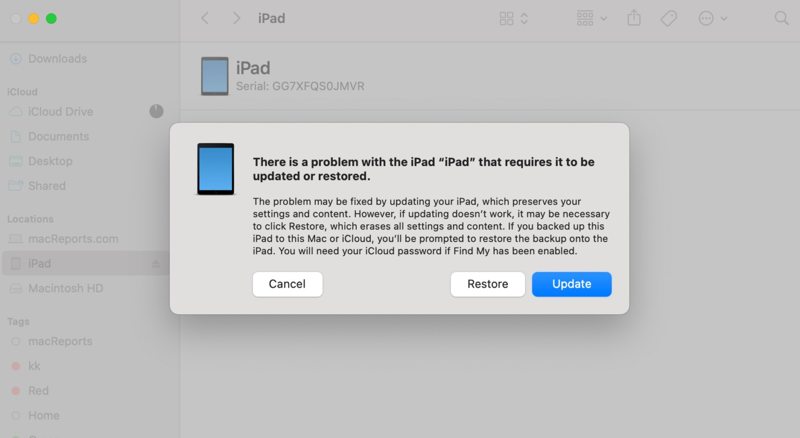
Step 4. Next, click the Restore button in iTunes or Finder.
Step 5. When the process finishes, your iPad will restart in the Hello screen.
Step 6. Set it up as a new device and restore a backup.
Note: If Find My iPad is enabled, you need to enter your Apple ID password to disable Activation Lock during setup.
Part 2: How to Fix iPad Unavailable with No Erase Option by Find My
Preconditions:
- 1.A stable internet connection.
- 2.The Apple ID and password associated with your iPad.
- 3.Find My iPad has been enabled on your device.
- 4.A web browser or another Apple device.
- 5.The trusted phone number.
How to Fix iPad Unavailable No Erase Option on Another Apple Device
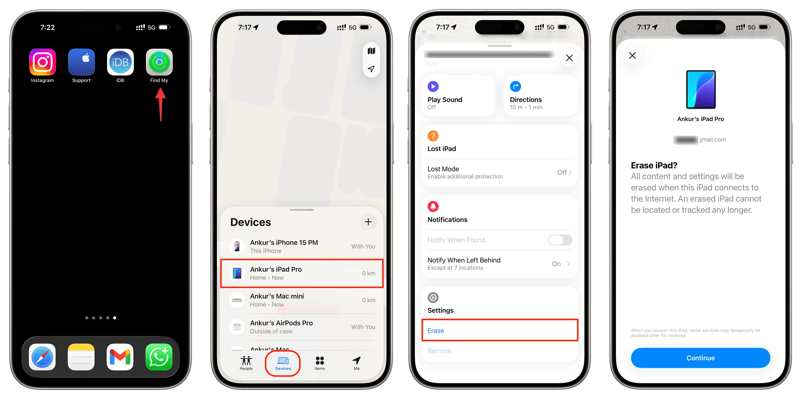
Step 1. Open the Find My app on a borrowed Apple device.
Step 2. Log in with your Apple ID credentials.
Step 3. Go to the Devices tab and choose your iPad.
Step 4. Press and expand the toolbar.
Step 5. Hit the Erase or Erase This Device button
Step 6. Read the notification and hit Continue.
Step 7. Enter your phone number and hit Erase.
Step 8. Input your Apple ID password and hit Erase to unlock the iPad Unavailable message with no erase option.
How to Fix iPad Security Lockout No Erase Option Online
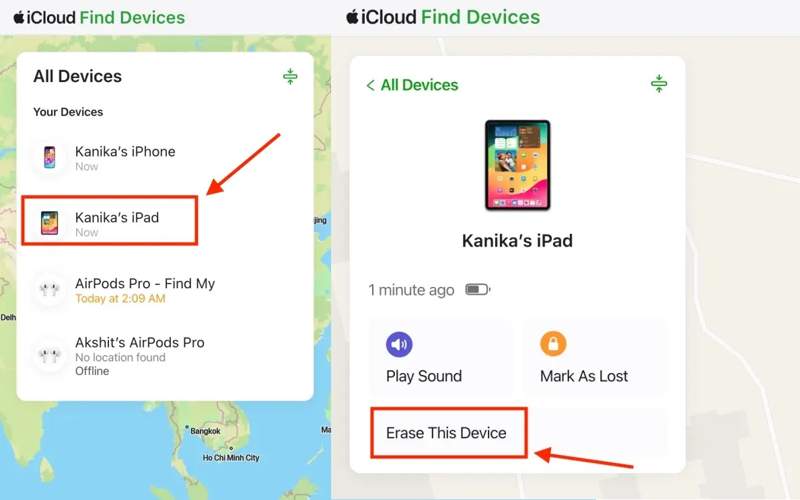
Step 1. Go to www.icloud.com/find in a browser.
Step 2. Log in with your Apple ID and password.
Step 3. Click and expand the All Devices list, and choose your iPad.
Step 4. Next, click the Erase or Erase This Device button.
Step 5. Follow the onscreen instructions to fix iPad Security Lockout with no erase option.
Part 3: One-stop Solution to Fix iPad Unavailable with No Erase Option
As you can see, the common solutions require you to follow the preconditions to fix the iPad Unavailable message no erase option. If they are unavailable on your device, Apeaksoft iFoneKit iOS Unlocker is a good option. It is able to unlock your iPad without any restrictions.

Downloaded by over 1,000,000 users
- Unlock an iPad without the passcode.
- Remove Face IDs, Touch IDs, and digit passcodes.
- Work for locked, disabled, and unavailable iPad devices.
- Compatible with a wide range of iPad models.
Secure Download
Secure Download

How to Fix iPad Unavailable Message No Erase Option
Step 1. Install iPad Unlocker
Start the iPad unlocking software once you install it on your PC. There is another version for Mac. Choose the Unlock iOS Screen mode to proceed.
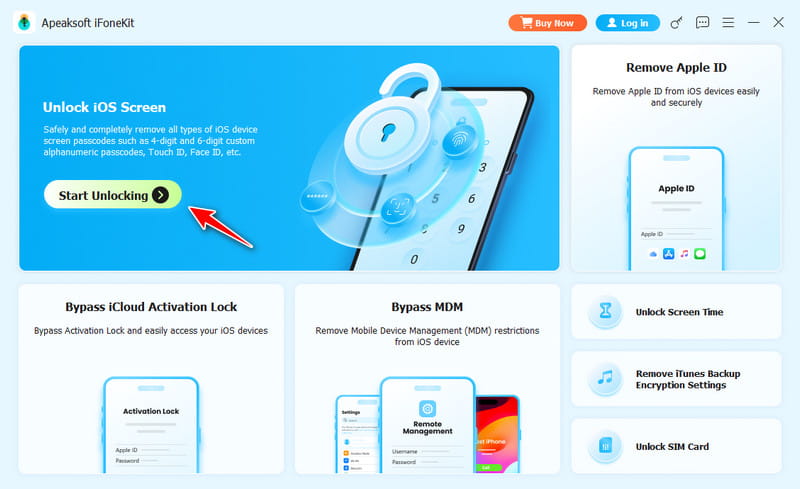
Step 2. Connect to your iPad
Plug your iPad into your computer with a Lightning cable. Make sure to trust this computer. Next, click the Start Now button to begin downloading the firmware.
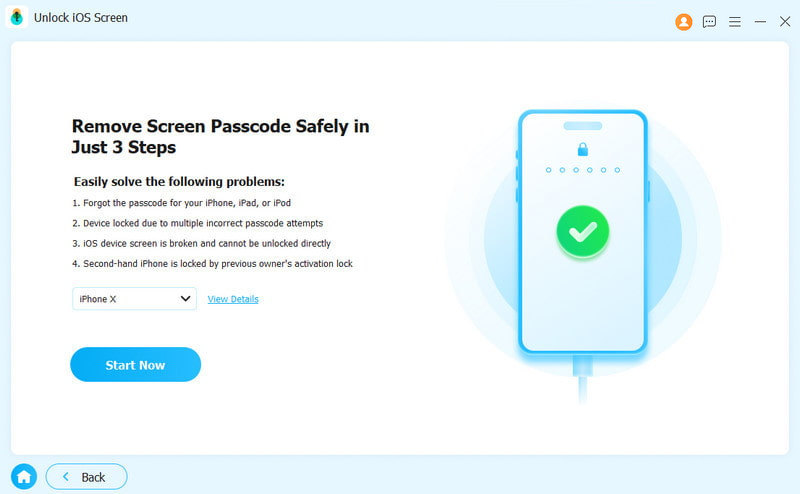
Step 3. Unlock your iPad
After downloading, click the OK button on the confirmation dialog. Then, hit the Confirm Again button to verify the firmware. After verification, the software will begin unlocking your unavailable iPad with no erase option.
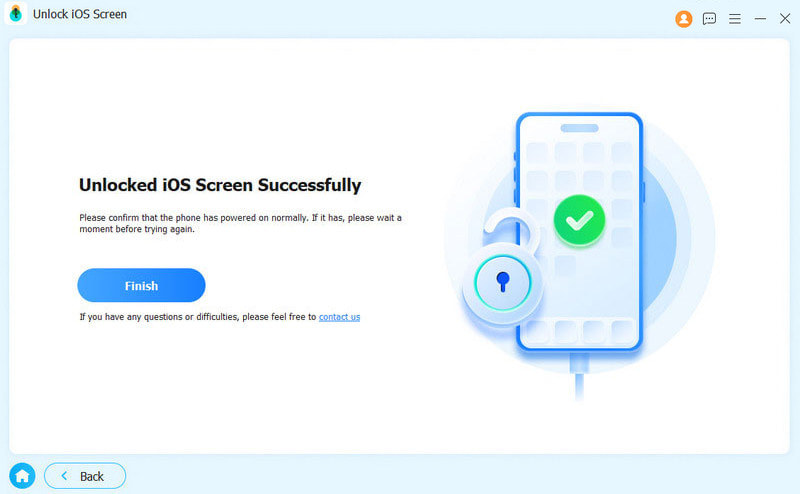
Note: The process will erase all data on your iPad. You’d better back up your device before the process to avoid data loss. When it is done, you can restore your iPad from a backup.
Conclusion
This article explained how to fix the iPad Unavailable with no erase option. With a computer, you can regain access to your device with iTunes or Finder. If you have set up Find My iPad before it is unavailable, you can erase it on a borrowed Apple device or iCloud.com with the associated Apple ID account. Apeaksoft iFoneKit iOS Unlocker can quickly unlock any iPad device without a passcode or technical skills.
 Apeaksoft iFoneKit
 Unlock all types of iOS passwords from iPhone, iPad and iPod.
Secure Download
Secure Download
Related Articles




