


Quick Ways to Fix iPhone "Attempting Data Recovery" Without Data Loss

Key Takeaways
If you iPhone says "Attempting Data Recovery", it means the system failed during an iOS update or startup and is trying to repair itself. In most cases, your data is still safe and will not be erased.
- Quick act first: Keep the iPhone charged, and wait patiently. Perform a force restart if the screen is stuck for too long. This method does not erase your data.
- Use iTunes update: Connect the device to iTunes (or Finder on Mac) and choose Update instead of Restore to repair the system if needed.
- One-click repair tool: a dedicated iOS repair tool can fix the "Attempting Data Recovery" issue without data loss and get your iPhone back to normal quickly.
"My iPhone got stuck at Attempting Data Recovery loop screen when updating iOS. How to fix this problem?"
It is common to see "Attempting Data Recovery" during an iOS update. Don't worry, because it means the system is trying to repair itself. In most cases, your data is still safe and will not be erased.
This issue usually happens when an update is interrupted, storage is full, or the system becomes unstable after jailbreaking. In this guide, we will walk you through the iPhone Attempting Data Recovery meaning and discuss how to get rid of the iPhone Attempting Data Recovery loop effortlessly.
PAGE CONTENT:
- Part 1: Why iPhone Says Attempting Data Recovery
- Part 2: [Immediate Fix] Wait & Force Restart
- Part 3: Fix iPhone Attempting Data Recovery Loop Using iTunes Update
- Part 4: One-Click Tool to Fix iPhone Attempting Data Recovery Safely
- Part 5: Last Resort: Restore iPhone via iCloud (Data Loss)
- Part 6: What Happens After Attempting Data Recovery Is Completed
- Part 7: What to Do If Attempting Data Recovery Fails
Part 1: Why iPhone Says Attempting Data Recovery
What does Attempting Data Recovery mean on iPhone? It means that your iPhone gets stuck in the loop, fail to start or complete an iOS update, and is now trying to repair the system automatically while preserving your data. The possible reasons why the error happens on your iPhone include:
- Wrong actions when updating software with a PC or Mac computer, such as disconnecting your handset during the process, power failure, software glitches, etc.
- Update an iPhone or iPad to the latest iOS versions via OTA or iTunes.
- Insufficient storage when updating iOS.
- Update iOS after jailbreaking.
- Downgrade from iOS 26/27 Beta to 18 or below.
- Repeatedly enter the wrong password. It's rare, but some users reported that they encountered "iPhone Attempting Data Recovery" after entering the wrong password too many times.
Part 2: [Immediate Fix] Wait & Force Restart
Solution 1: Wait Patiently
First, keep your iPhone charged and wait patiently for about 10-30 minutes, as the system may still be repairing in the background.
If the screen is still stuck for more than 30-60 minutes, it is abnormal. You should try a force restart. This will not erase your data in most cases and can help break the recovery loop.
Solution 2: Via the Home Button
If you are using the iPhone with the Home button, you may see words saying "Press Home to Recover". At this time, you can simply press the Home button and wait for the update to automatically finish once your iPhone gets stuck in attempting data recovery fails. When it is done, your iPhone may return to its normal status. If not, you can perform the solutions below to get rid of the problem.

Solution 3: Force Restart Your iPhone
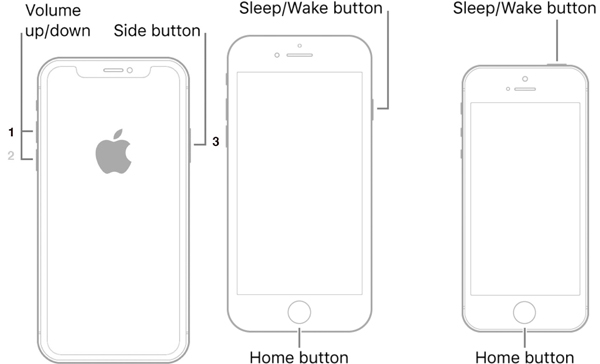
Sometimes, your iPhone keeps saying Attempting Data Recovery after the update. It means that your device is stuck in the loop. A force restart may help you get away from the iPhone Attempting Data Recovery loop and bring the normal screen back. The procedure is varied depending on the model.
| Device Models | Force Restart Methods |
| iPhone X/XS/XR/8 and later | Press and quickly release the Volume Up button, do the same to the Volume Down button, and hold down the Side button until you see the Apple logo. |
| iPhone 7/7 Plus | Long press the Volume Down + Side buttons at the same time until the Apple logo appears on your screen. |
| iPhone 6s/6 and earlier | Hold down the Top + Home buttons simultaneously, and then let them go when you see the Apple logo. |
| iPad without a Home button | Press and release the Volume Up button, do the same to the Volume Down button, and deep press the Power button until the iPad restarts. |
| iPad with a Home button | Hold down the Power + Home buttons together for 10 to 15 seconds and let them go when you see the Apple logo. |
Next, your iPhone will restart, enter the lock screen passcode, and check if the attempting data recovery alert disappears.
Part 3: Fix iPhone Attempting Data Recovery Loop Using iTunes Update
If a force restart cannot fix the issue, you may need to perform a deeper system repair. You can put your iPhone in Recovery Mode and use iTunes (or Finder on Mac) to reinstall or update iOS if it gets stuck on attempting data recovery during the update.
Step 1. Update your Mac. If you are using iTunes, install the latest version on your PC.
Step 2. Connect your iPhone to the computer with a Lightning cable. You'd better use the label that came with your device to avoid data loss or hardware damage.
Step 3. Perform a force restart on your iPhone and keep holding the button combination until it enters the Recovery Mode screen.
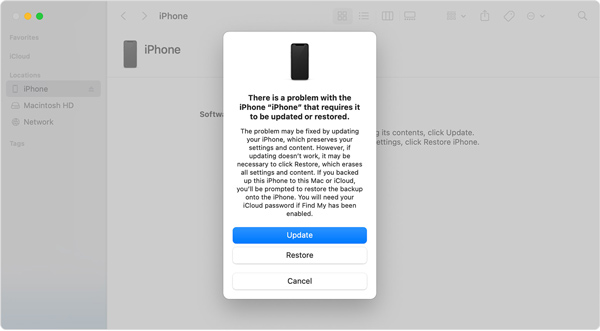
Step 4. Then, the Finder app or iTunes will pop up automatically. Click the Update button and wait for the process to complete. If the download takes more than 15 minutes and your iPhone quits the Recovery Mode screen, let the download complete, and then open Finder or iTunes again.
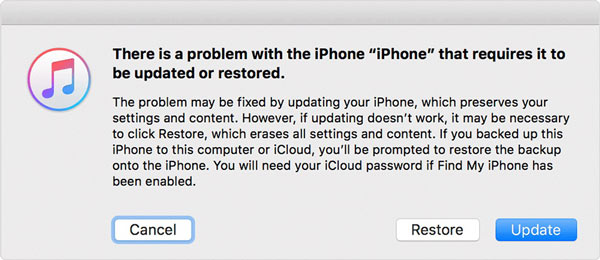
Step 5. After the update, your iPhone should reboot. Disconnect it, and the iPhone Attempting Data Recovery screen may not occur anymore.
Part 4: One-Click Tool to Fix iPhone Attempting Data Recovery Safely
Is it possible to fix the iPhone Attempting Data Recovery without data loss if all the basic fixes above fail? At this time, you may need a more advanced solution. A dedicated system repair tool like Apeaksoft iOS System Recovery is designed to fix iOS system problems, such as iPhone stuck on Attempting Data Recovery/update/Apple Logo, etc.

Downloaded by over 1,000,000 users
- Get rid of the iPhone Attempting Data Recovery loop.
- Designed to repair system issues safely without data loss in most cases.
- Equipped with a free Quick Fix feature.
- Fully compatible with most iPhone and iPad models.
- Supports the latest iOS 26/27 Beta for maximum compatibility.
- Repair 150+ iOS system issues, including stuck, boot loop, and update errors.
Secure Download
Secure Download

Here are the steps to get rid of the iPhone Attempting Data Recovery loop:
Step 1. Connect your iPhone
Run the best iOS System Recovery software after installing it on your PC. Hook up your iPhone to the same PC with a USB cable, and click the Start button to begin detecting software issues.
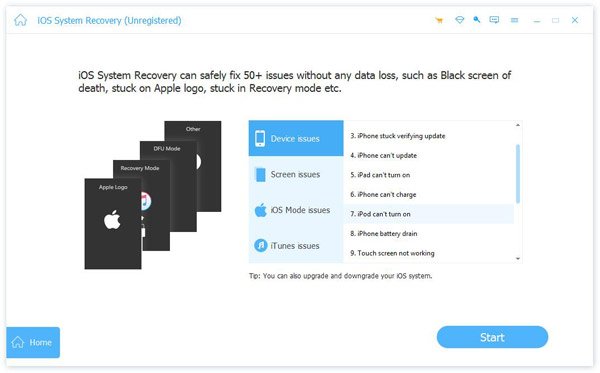
Step 2. Put iPhone in DFU mode
Click the Question button and follow the instructions to enter Recovery Mode or DFU Mode. Then, hit the Fix button, select a mode, and press the Confirm button.
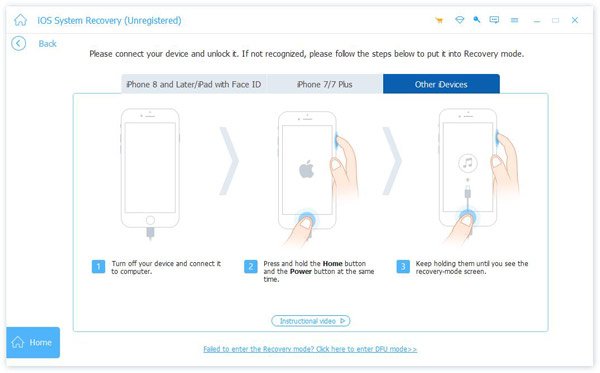
Step 3. Fix iPhone attempting data recovery
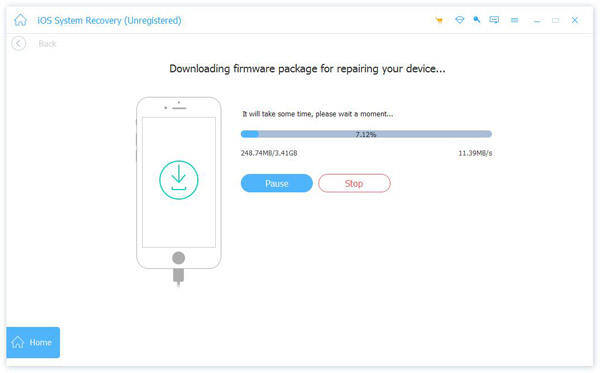
Select your iPhone information, including category, type, model, and iOS version. At last, click on the Repair button to begin downloading the corresponding firmware. Then, the software will perform troubleshooting automatically, and you will get rid of Attempting Data Recovery on iPhone.
Part 5: Last Resort: Restore iPhone via iCloud (Data Loss)
Another solution to fix the attempting data recovery loop error on an iPhone or iPad is using iCloud (Find My iPhone/iPad) to remotely erase and restore your device. However, this method will completely erase all data and settings on your iPhone, so it should only be used as a last resort. It also requires that Find My is enabled and your device is currently online.
Step 1. Access the iCloud website in a browser, sign into your account, and choose Find iPhone or Find iPad.
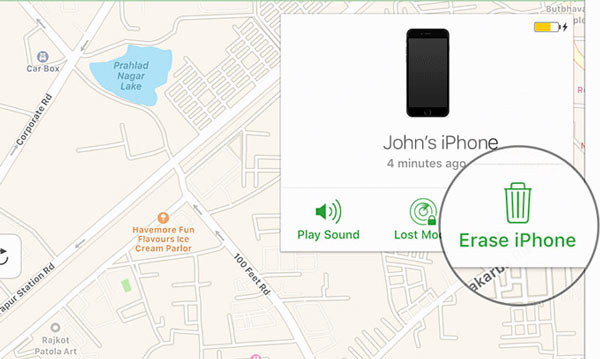
Step 2. Pull down the All Devices menu above the map, and choose your iPhone name on the list. Then, it should appear on the map. Click the Erase iPhone button on the pop-up dialog, enter your Apple ID password or passcode to verify ownership, and hit Erase iPhone again to confirm the action.
Tips: This way, will erase all your data and settings on your iPhone. Therefore, you'd better make a backup to avoid data loss.
Step 3. After erasing, your iPhone will display the welcome screen. Now, you can restore an iCloud backup. Set up your handset following the on-screen instructions until you reach the Apps & Data screen.
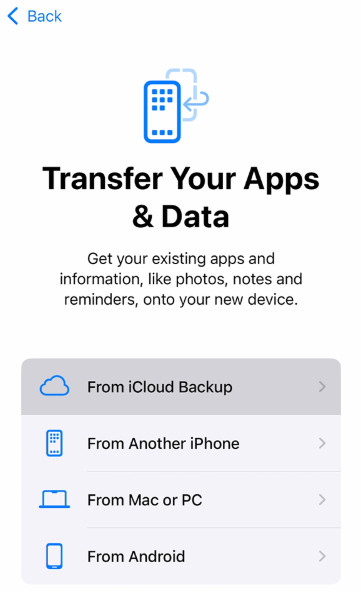
Step 4. Choose Restore from iCloud Backup, enter your Apple ID and password, and select an appropriate backup.
Step 5. Next, complete the setup with the instructions. Now, your iPhone should get rid of the attempting data recovery alert.
Part 6: What Happens After Attempting Data Recovery Is Completed
Does Attempting Data Recovery delete everything? Let's have a look at what will happen after Attempting Data Recovery on iPhone.
Complete data recovery
If you have backed up your iPhone (iCloud or iTunes), your data will be gradually restored to your iPhone completely.
Some data cannot be recovered
Some data (such as iCloud music library, Apple Pay information, etc.) may not be recovered from backups.
iPhone Attempting Data Recovery failed
If the backup file is corrupted or the internet connection is poor, the recovery process will fail.
Part 7: What to Do If Attempting Data Recovery Fails
If iPhone Attempting Data Recovery fails, you have to look for a third-party data recovery program like Apeaksoft iPhone Data Recovery to help you recover data safely.
Downloaded by over 1,000,000 users
- Recover iPhone data even without a backup.
- Preview before recovering iPhone data.
- Selective data recovery prevents recovering unwanted data.
Secure Download
Secure Download
Conclusion
Now, you should understand why there is Attempting Data Recovery on iPhone, and how to fix this problem step by step. The common solutions are worth trying especially the quick fixes that do not cause data loss. However, if the issue persists, a professional iOS system repair tool like Apeaksoft iOS System Recovery can be a more reliable option for average users.
 Apeaksoft iOS System Recovery
 Fix virious iOS system issues on iPhone, iPad, and iPod.
Secure Download
Secure Download
Related Articles




