


Why My iPhone Call Goes Straight to Voicemail and How to Fix It

"There are phone calls that go directly to my iPhone voicemail without ringing, and none of these contacts are blocked; what can I do to fix this?" If you encounter the same problem, you need an immediate resolution since all your phone calls won’t ring, and you will miss important information.
This article explains why your iPhone goes straight to voicemail, and demonstrate how to stop the iPhone goes straight to voicemail with practical solutions.
PAGE CONTENT:
Part 1: Why My iPhone Goes Straight to Voicemail
If your iPhone suddenly goes straight to voicemail without ringing, you are not alone. This frustrating problem can stem from a variety of causes. Some of the common factors include:
- Not Disturb Mode is enabled.
- Your iPhone enters the Airplane mode.
- Carrier settings are outdated.
- Network provider issues.
- Call Forwarding is turned on.
- Software glitches
Quick Diagnosis - Why Calls Go Straight to Voicemail on iPhone
| Situations | Possible Reasons |
| All calls go straight to voicemail | Airplane Mode is on |
| Only unknown numbers go to voicemail | Silence Unknown Callers is enabled |
| Only a specific person cannot reach you | He/she may be blocked |
| Calls randomly go to voicemail | Carrier service issues |
| iPhone doesn’t ring but goes straight to voicemail | Focus mode or Do Not Disturb is enabled |
| Calls fail in certain locations only | Weak cellular signal |
| Calls suddenly stop coming through after an iOS update | Software glitches |
Part 2: How to Fix Phone Goes Straight to Voicemail on iPhone
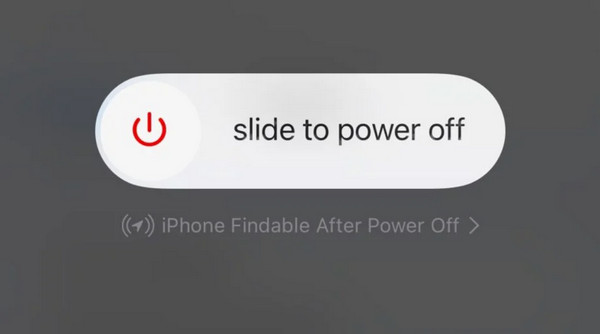
Solution 1: Restart Your iPhone (Basic Troubleshooting)
Sometimes, a simple restart can fix temporary software glitches and network connection issues. If your iPhone suddenly stops ringing and incoming calls go straight to voicemail, restarting the device may refresh the cellular connection and restore normal call functions.
Solution 2: Turn off the Airplane
If you enable Airplane mode accidentally, all wireless network services on your device will be disconnected. As a result, the phone goes straight to voicemail by your carrier service. You can turn off Airplane mode to fix it quickly.
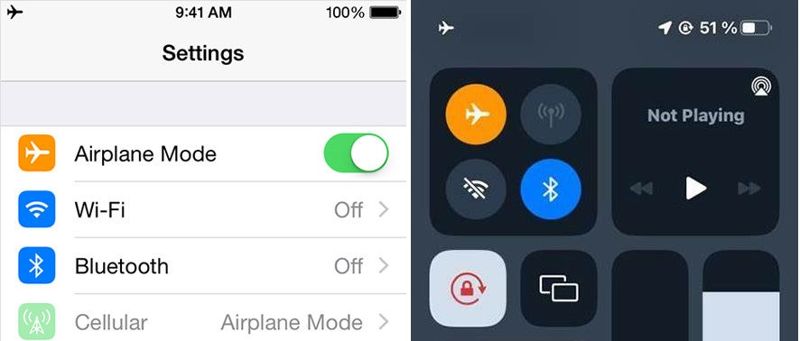
You can go to the Settings app and toggle off the Airplane Mode. Or enter the Control Center and tap the Airplane Mode button to turn it off.
Solution 3: Disable Do Not Disturb
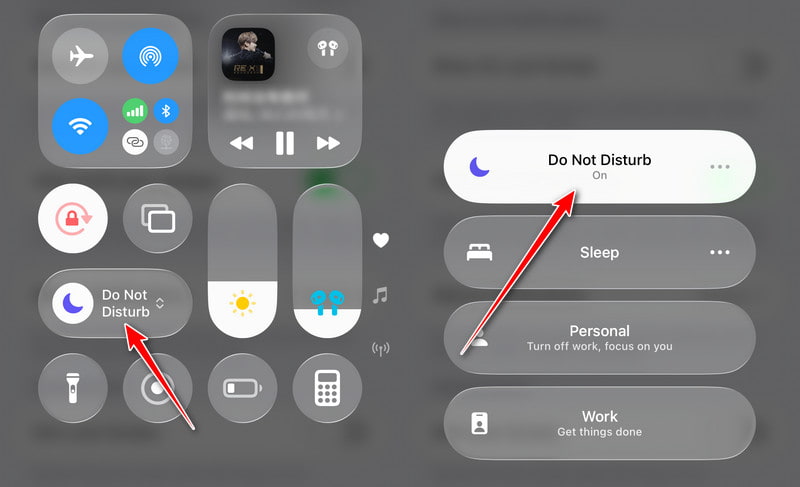
Apple’s Focus or Do Not Disturb feature can mute your phone calls. If you turn on this feature by mistake, it can block your calls from coming through. Your carrier will send phone calls straight to voicemail.

Step 1. Run your Settings app from your home screen.
Step 2. Go to the Focus tab and tap Do Not Disturb.
Step 3. Toggle off the Do Not Disturb option or toggle off Intelligent Breakthrough & Silence on iOS 18.1 or later.
Tips: If you are running iOS 16 and above, you need to slide down from the top right corner to find the Do Not Disturb option and then close it.
Solution 4: Turn off Silence Unknown Calls
Apple allows you to mute phone calls from numbers that are not in your contacts. These phone calls may go straight to voicemail on your iPhone. It can block spam, but some crucial calls may be prevented.
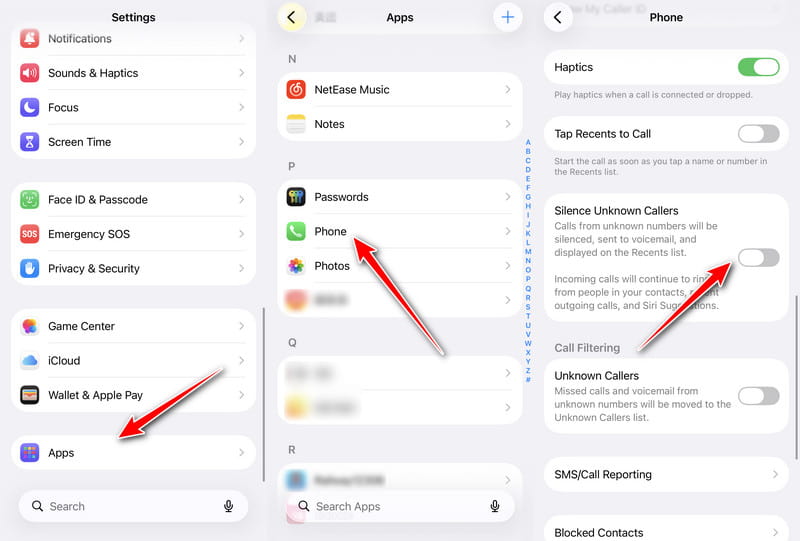
Step 1. Open Settings. Scroll to the bottom and choose Apps.
Step 2. Find the Phone option.
Step 3. Scroll down to find the Silence Unknown Callers option.
Step 4. Make sure to toggle off the option to receive all phone calls, including from unknown callers.
Solution 5: Turn off Call Forwarding
Call Forwarding is a feature that allows you to send your phone calls to another phone. That is another reason why your iPhone is going straight to voicemail. You can fix this problem by disabling Call Forwarding.
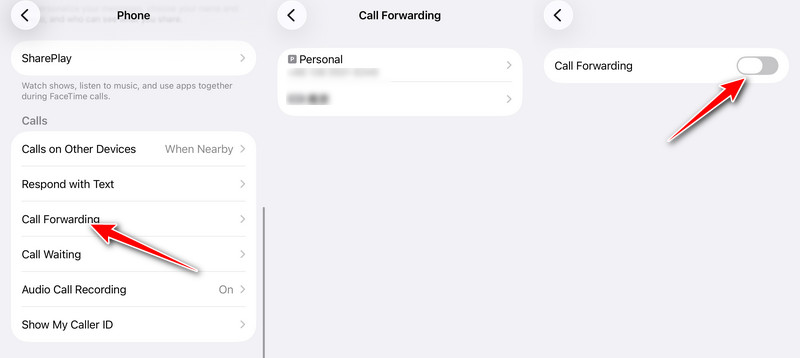
Step 1. Run your Settings app on your iPhone.
Step 2. Go to the Phone tab and tap Call Forwarding.
Step 3. Choose the desired phone account and toggle off Call Forwarding.
Solution 6: Turn off Live Voicemail
Live Voicemail is a new feature on iOS that enables you to see voicemail transcriptions in real-time. However, some users reported that this feature caused the phone to go straight to voicemail on iPhone.
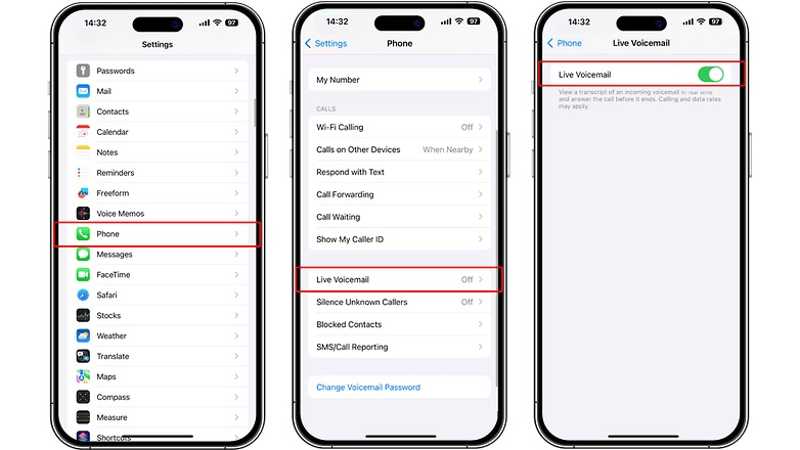
Step 1. Choose the Phone tab in your Settings app.
Step 2. Scroll down and tap Live Voicemail.
Step 3. Toggle off Live Voicemail.
Solution 7: Check Announce Calls
Announce Calls is an iPhone auxiliary function that enables Siri to announce the caller name when you receive an incoming call. This feature is particularly useful when you are using headphones or in a car. It may affect your perception of the incoming call notifications. Therefore, when troubleshooting iPhone calls go directly to voicemail, it is necessary to check whether this function is set correctly.
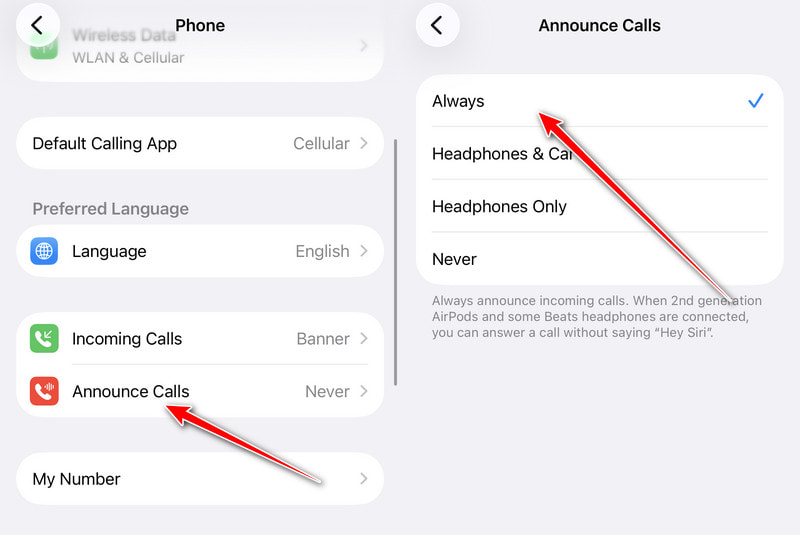
Step 1. Open your Settings app and go to Phone.
Step 2. Tap Announce Calls.
Step 3. Choose Always on the list.
Solution 8: Remove Contacts from Blocked List
Once you put someone on your block list on your iPhone, the phone calls may go straight to voicemail. The solution is simple: remove the desired contacts from the blocked list, and the phone calls will ring.
Step 1. Go to Settings. Click Apps and choose Phone.
Step 2. Scroll down and tap Blocked Contacts.
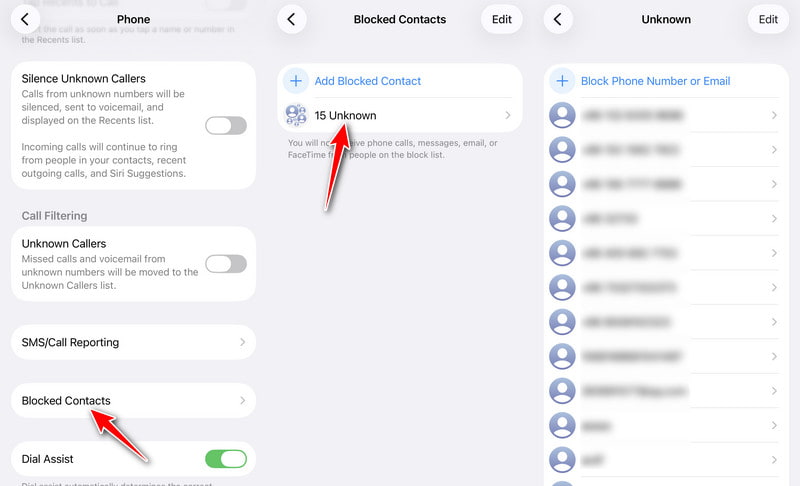
Step 3. Tap the Edit button and press the Delete (-) button on each desired contact.
Step 4. Tap Done (√) when you finish.
Solution 9: Update Carrier Settings
Carrier setting updates are separate from iOS updates. That can affect how your iPhone handles calls and messages. If your phone calls go straight to voicemail, you should update carrier settings.

Step 1. Go to General in your Settings app.
Step 2. Tap About and choose Carrier.
Step 3. If an update is available, tap the Update button to install it.
Solution 10: Check Third-Party Call Blocking Apps
If you have recently installed third-party automatic call blocking apps, it may accidentally block incoming calls and make them go directly to the voicemail. Try temporarily disabling them to check whether your iPhone calls return to normal.
Step 1. Open Settings, click Apps, and choose Phone.
Step 2. Tap Call Blocking & Identification.
Step 3. Disable any call-blocking apps.
Step 4. Restart your iPhone and test.
Solution 11: Check Cellular Signal and Wi-Fi Calling
Poor cellular signal or unstable Wi-Fi Calling settings may cause incoming calls to go directly to voicemail without ringing. If you are in an area with weak network coverage or Wi-Fi Calling is interfering with normal call routing, checking these settings can help restore incoming calls.
Step 1. Check the signal strength on the upper right corner of the iPhone screen.
Step 2. If the signal is weak or No Service appears, please move to a location with better network coverage.
Step 3. Open Settings and tap Cellular to ensure cellular data and voice service are enabled.
Step 4. Go to Phone > Wi-Fi Calling and turn off Wi-Fi Calling temporarily.
Step 5. Test incoming calls again.
Part 3: One-Click Solution to Fix iPhone Goes Straight to Voicemail
If the common solutions are unavailable to your iPhone voicemail, you can try Apeaksoft iOS System Recovery. It can help you effectively fix software issues that lead to your phone going straight to voicemail on your iPhone. The intuitive interface makes it simple to navigate.

Downloaded by over 1,000,000 users
- Fix iPhone call goes straight to voicemail effectively.
- Discover software glitches on your device automatically.
- Available to a wide range of software issues.
- Update or downgrade the iOS and iPadOS.
- Support the latest models of iPhone and iPad.
Secure Download
Secure Download
How to Fix Phone Goes Straight to Voicemail on Your iPhone
Step 1. Detect software issues
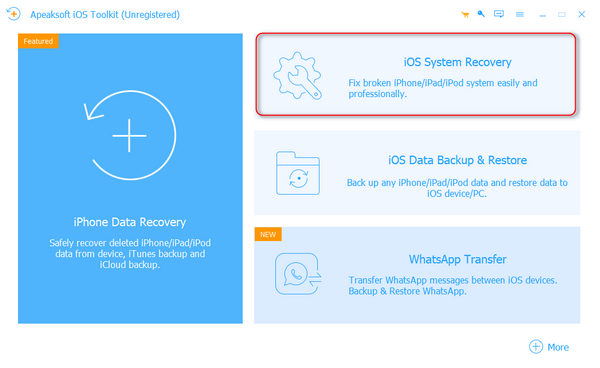
Start the best iOS System Recovery software once you install it on your computer. It is compatible with Windows 11/10/8/7/XP/Vista and Mac OS X 10.7 or above. Hook up your iPhone to your computer with a Lightning cable. Choose iOS System Recovery and click the Start button to look for software glitches on your device.
Step 2. Select a mode
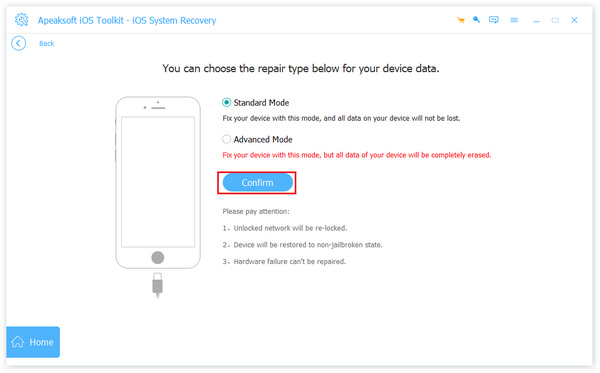
Then select the Standard Mode or Advanced Mode depending on your situation. Click the Confirm button to proceed. Note that the Advanced Mode will factory reset your device.
Step 3. Fix phone goes straight to voicemail
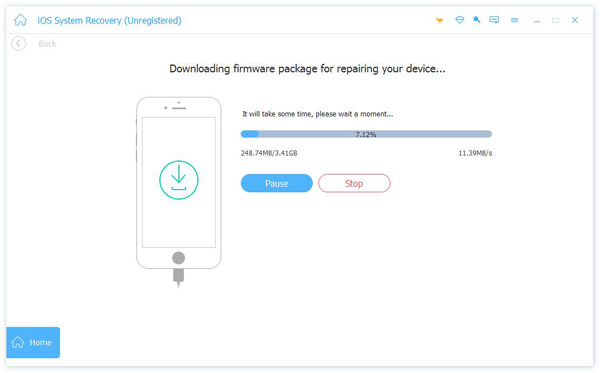
Once your device information is loaded, check each entry. Next, select an appropriate version of the operating system and download the firmware. If you already have the firmware file, import it from your hard drive. Finally, click on the Next button to begin fixing your phone going straight to voicemail on your iPhone.
Part 4: FAQs About iPhone Goes Straight to Voicemail
Why does iPhone not ring and go straight to voicemail?
This usually happens due to Focus mode, poor cellular signal, Airplane mode, or carrier-related issues.
Can blocked contacts leave voicemails on iPhone?
Yes. Blocked callers can still leave voicemails, but they are stored in a separate Blocked Messages section.
Why do only unknown calls go straight to voicemail?
You may have enabled the Silence Unknown Callers feature on your iPhone.
Does Do Not Disturb send calls directly to voicemail?
Yes. When Focus or Do Not Disturb is enabled, incoming calls may be silenced and sent to voicemail.
Conclusion
Now, you should understand why your phone is going straight to voicemail on your iPhone and how to solve this problem effectively. The common solutions are free for troubleshooting, but they may deliver a low success rate. Apeaksoft iOS System Recovery, on the other hand, is able to scan your memory to detect software issues so that you can fix them quickly. If you have other questions about this topic, please feel free to write them down below this post.
 Apeaksoft iOS System Recovery
 Fix virious iOS system issues on iPhone, iPad, and iPod.
Secure Download
Secure Download
Related Articles




