

How to Fix iPhone GPS Not Working (iOS 27 Beta Supported)

When iPhone GPS is not working, you may find that many functions are restricted, including navigation, weather updates, fitness tracking, photo location tagging, etc. If you're experiencing GPS issues on iOS 26/27 Beta or earlier versions, this guide will walk you through the possible causes and proven solutions to restore accurate location services on your iPhone.
PAGE CONTENT:
Part 1: Possible Reasons for GPS Issues on iPhone
Before applying fixes to the GPS not working issue on your iPhone, it's essential to understand what may be causing the problem. Identifying the root cause helps you apply the most effective solution quickly. This section has concluded the most common reasons that can help you get to know the problems rapidly.
Location Services Disabled
If Location Services is turned off globally or restricted for specific apps, GPS-based applications like Maps or weather apps will not function correctly.
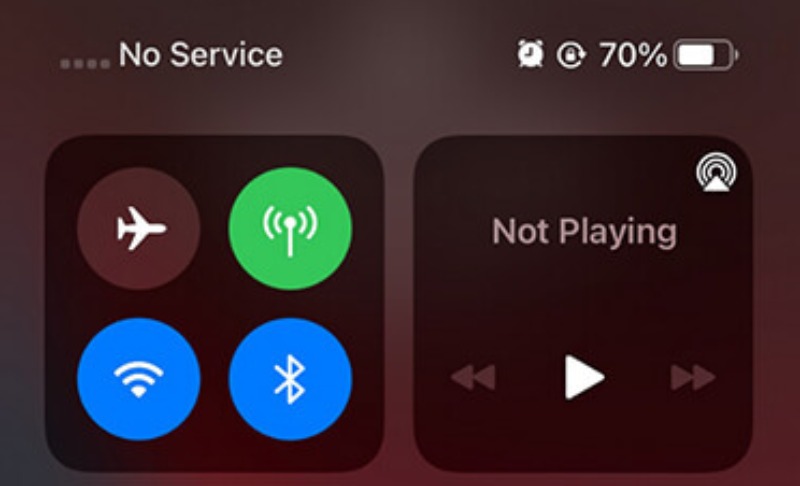
Weak Network or Poor Signal
Although GPS uses satellites, Assisted GPS (A-GPS) relies on cellular data or Wi-Fi for faster positioning. Poor signal strength can lead to GPS not being accurate on the iPhone or to delayed location results.
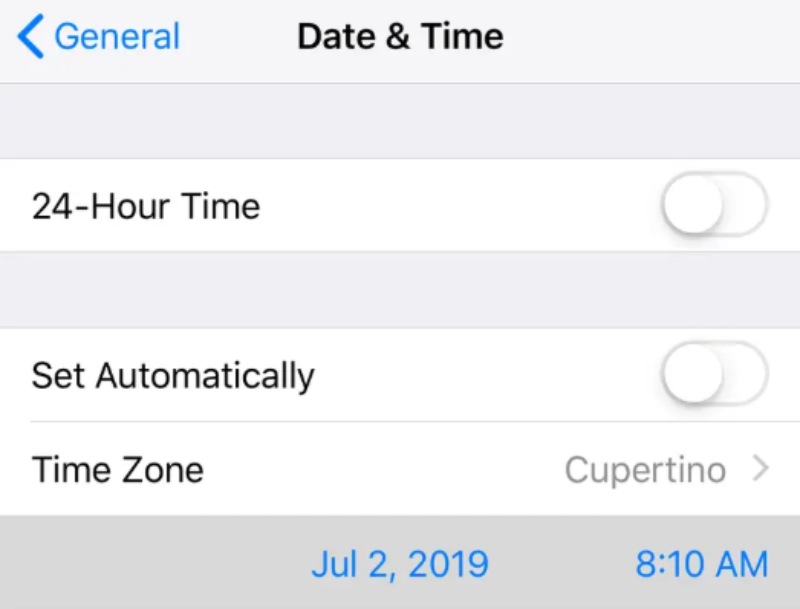
Incorrect Date and Time Settings
If the time and date settings on your iPhone are inconsistent with the actual situation, especially when they are not automatically adjusted, the operation of the GPS may also be affected.
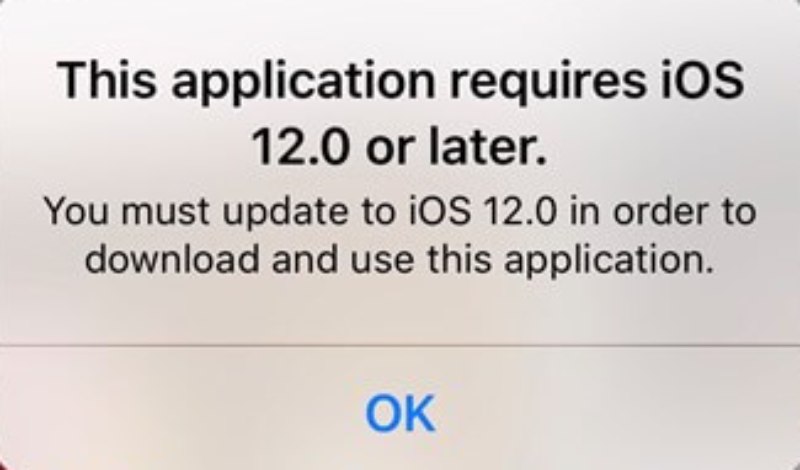
Outdated iOS Version
In fact, not only is the GPS not working on iPhones, but many other issues may stem from outdated iOS versions. Keeping your iOS version up-to-date frequently can solve many problems and ensure your iPhone operates smoothly.
System Glitches or Corrupted Settings
Sometimes, when your iPhone has a low battery or limited RAM, it may not have enough capacity to support the operation of GPS. At this point, restarting the iPhone is usually quite effective.
Part 2: Quick Fixes to GPS Services on Your iPhone
Many issues with GPS not working on an iPhone can be resolved with simple troubleshooting steps. And this section has what you need. These quick fixes require no technical expertise and can solve most minor system conflicts. You can follow the steps below to get the GPS location services back on track on your iPhone.
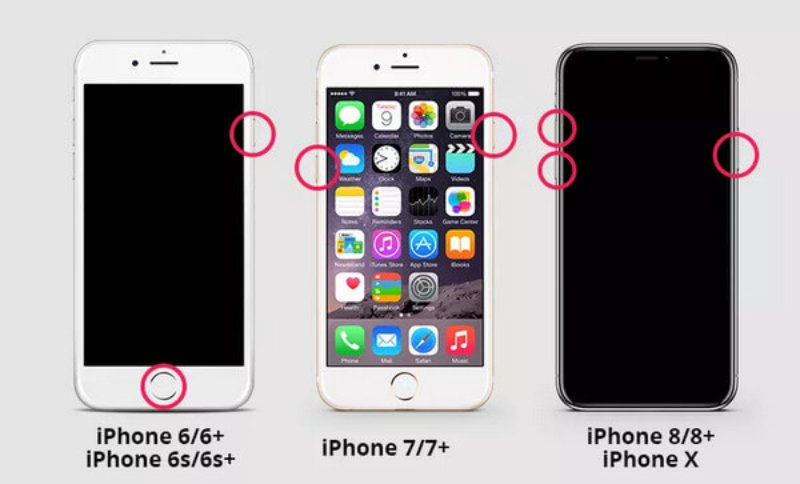
Fix 1. Restart Your iPhone
A simple restart can eliminate temporary system glitches affecting GPS services. Power off your iPhone, wait about one minute, and restart your iPhone. This refreshes background processes and often restores standard functionality.
Fix 2. Move to an Open Area
If you are not in an open area, such as inside metal structures, tunnels, dense forests, or tall buildings, then the GPS signal is likely to become weak due to obstruction. At this point, you need to try to move to an open area to ensure the normal reception of the GPS signal.
Fix 3. Toggle Location Services
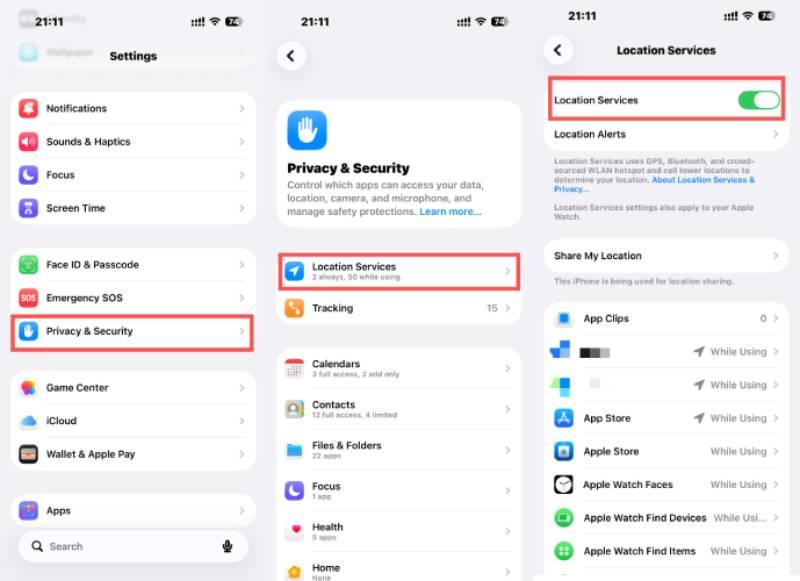
Go to Settings > Privacy & Security > Location Services, turn it off for a few seconds, then enable it again. This quick reset can fix minor configuration conflicts to fix the GPS on iPhone.
Fix 4. Update iOS
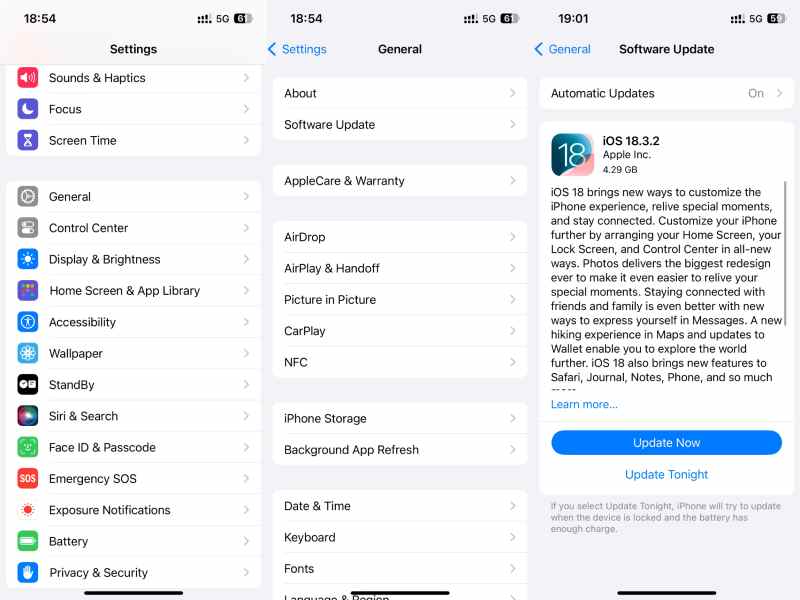
Outdated software may contain bugs affecting GPS performance. Navigate to Settings > General > Software Update and install the latest iOS version if available.
Fix 5. Toggle Airplane Mode
Turn on Airplane Mode for about 30 seconds, then turn it off. This refreshes wireless connections, including cellular and GPS-related services.
Fix 6. Turn On Cellular Data and Wi-Fi
Cellular data and Wi-Fi can also boost your GPS services. Assisted GPS relies on network data for improved accuracy. Since they both won't consume too much data during the process of helping and fixing your GPS services on iPhone, you can enable them for better positioning results.
Fix 7. Reset Network Settings
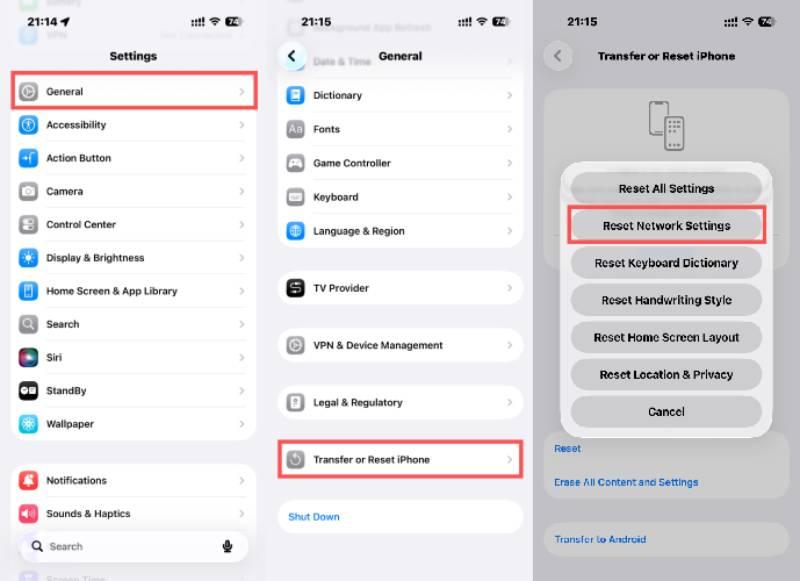
If GPS still fails, go to Settings > General > Transfer or Reset iPhone > Reset > Reset Network Settings. By resetting your location and network settings, you can resolve deeper connectivity issues of your iPhone, but it will erase saved Wi-Fi passwords.
Part 3: A Professional Tool to Fix GPS on iPhone
If standard troubleshooting methods fail to resolve the iPhone GPS issues, the problem may be related to deeper iOS system errors. In such cases, using a professional repair tool like Apeaksoft iOS System Recovery can help. It is designed to fix various system-related issues, including GPS malfunction, without data loss. This section introduces how to use the tool to restore stable and accurate location services safely and effectively.
Step 1. Download and install Apeaksoft iOS System Recovery on your computer. The package is small and will not occupy too much storage space.
Secure Download
Secure Download
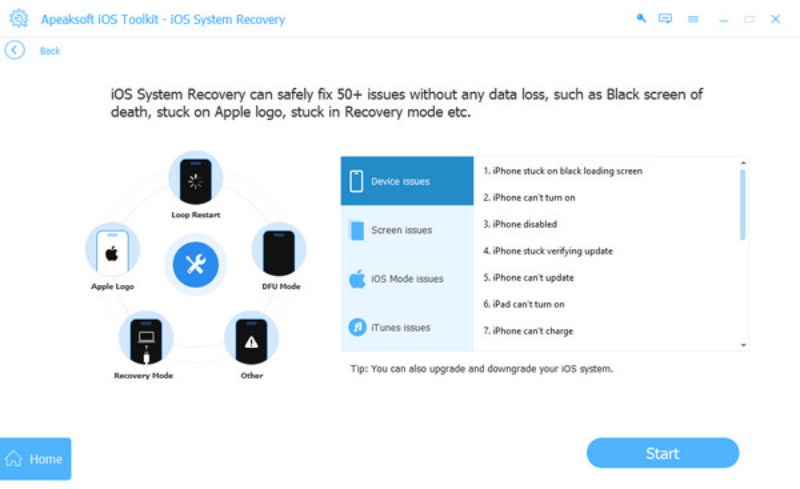
Step 2. Once you launch the software, click iOS System Recovery in the main interface. In the pop-up window, click Start Now under the System Repair tab.
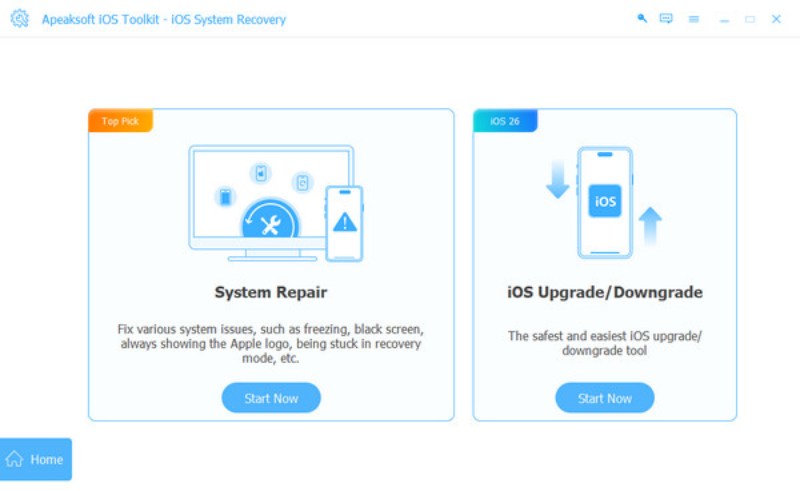
Step 3. Click to select the specific issues, like GPS not working on the iPhone. Then, connect your iPhone to the computer via a USB cable. Make sure the connection is stable to protect your data.
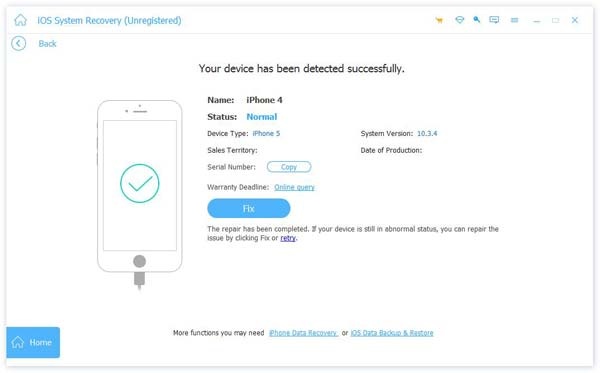
Step 4. Click Fix when your iPhone is detected. All related information will be displayed on this page.
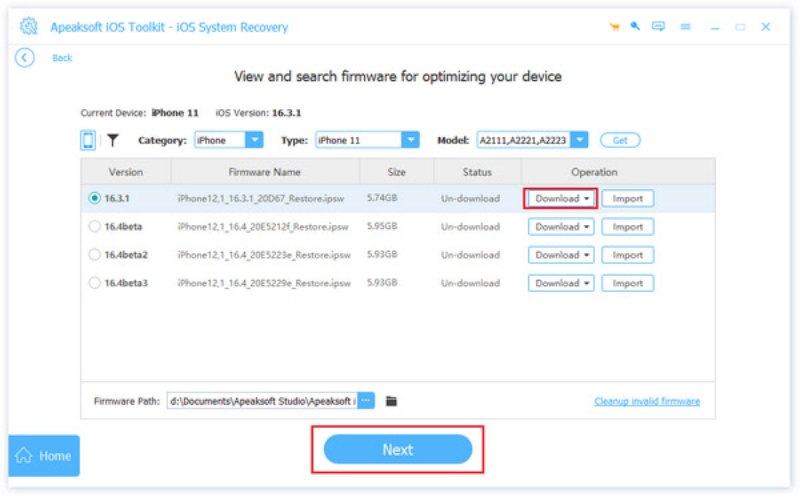
Step 5. Click Standard Mode and Confirm to proceed. In the pop-up window, select the category, the type, and the proper iOS model of your iPhone. Click Download and Next to fix the issue.
Conclusion
When your iPhone GPS stops working, the issue is usually tied to signal interference, incorrect settings, or minor system glitches rather than hardware failure. By applying the quick fixes above, most GPS location problems can be resolved within minutes. If the issue persists after basic troubleshooting, you can use Apeaksoft iOS System Recovery to restore accurate GPS functionality and ensure your location-based apps run smoothly again.
Secure Download
Secure Download
Related Articles




