


How to Fix iPhone Keeps Asking Apple ID Password Quickly

"I have an old iPhone on my Apple account, but my iPhone keeps asking for the Apple ID password. How do I fix this problem?" It is well known that you need an Apple ID account to activate an iPhone or iPad. The account works as a passport for all Apple services, including iCloud backups. If something is wrong with your account credentials, you will lose access to these services. This tutorial shares the proven solutions to fix the problem.
PAGE CONTENT:
Part 1: Why iPhone Keeps Asking for Apple ID Password
If your device keeps showing you a pop-up or alert asking you to enter your Apple ID and password repeatedly, it means something is wrong with your account. The main reasons why iPhone keeps asking for Apple ID password include:
- 1.You recently changed your Apple ID password on other devices and forgot to update it on your iPhone.
- 2.An ongoing app gets stuck during the purchase download, such as Apple Music, App Store, or Apple Books.
- 3.Your Apple Account details are outdated, including your email, phone number, payment methods, and more.
- 4.There is a problem with your Apple Account settings.
- 5.Software glitches.
Part 2: What to Do If iPhone Keeps Asking for Apple ID Password
Solution 1: Restart Your iPhone
When your iPhone keeps asking for your Apple ID password, the first thing you need to do is restart your device. While this solution is simple, it can fix basic issues, such as your iPhone getting stuck while downloading apps.
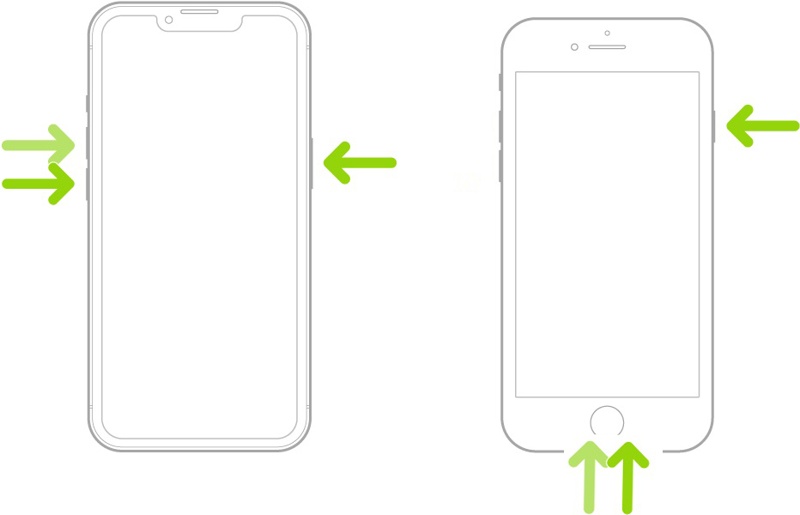
Step 1. Press and hold one of the Volume buttons + the Side button on an iPhone with Face ID. On an old iPhone, hold down the Side or Power button.
Step 2. Once the power-off screen appears, release the buttons or button.
Step 3. Move the slider to shut down your device.
Step 4. A few minutes later, hold down the Side or Power button until the Apple logo appears.
Solution 2: Sign out and Sign in to your Apple ID Again
If you have changed your Apple ID, password, or account information on other devices, you need to update them on your iPhone. Otherwise, your iPhone will keep asking for your Apple ID and password.
Step 1. Tap on your profile in your Settings app.
Step 2. Scroll down and tap the Sign Out button at the bottom.
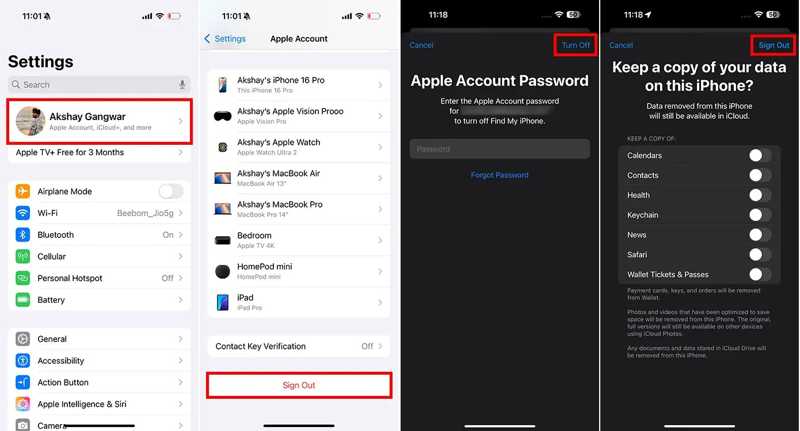
Step 3. Input your Apple ID password, and tap Turn Off.
Step 4. Select the data types you want to keep and tap Sign Out.
Step 5. Restart your iPhone.
Step 6. Open the Settings app.
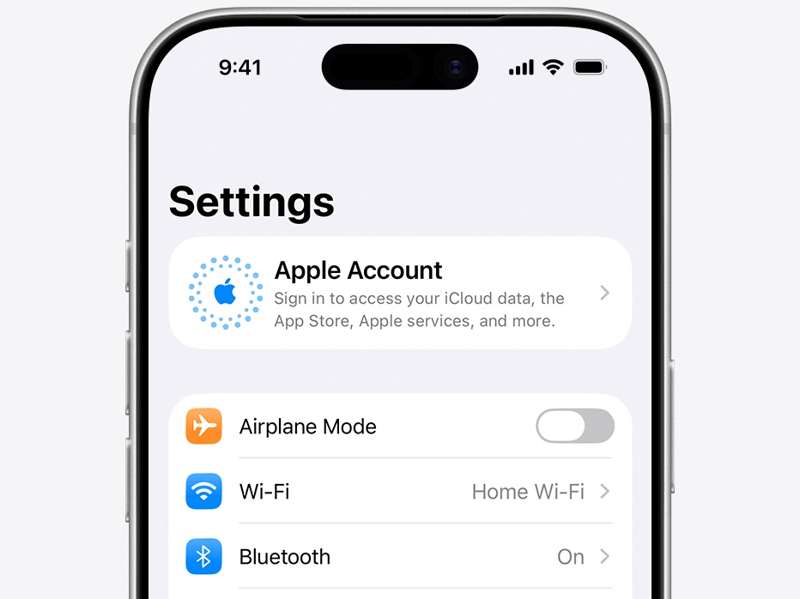
Step 7. Tap Apple Account, choose Sign in Manually, and log in to your Apple ID and password.
Solution 3: Check Apple Server Status
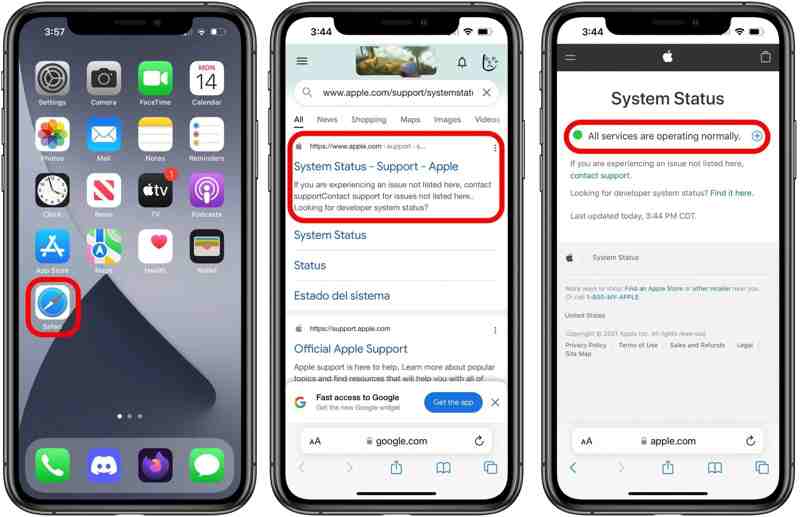
When you are using an Apple Account, your iPhone needs to communicate with Apple servers. If the relative Apple servers are down, the iPhone will keep asking for the Apple ID and password. Go to https://www.apple.com/support/systemstatus/ in a web browser. Check the relative servers. If any item is marked with a yellow or red icon, wait for it to work again.
Solution 4: Reset Apple ID Password
If your Apple account is locked or disabled and your iPhone keeps asking for your Apple ID password, you can fix this problem by resetting your account credentials. You can complete the process on your iPhone if Two-factor Authentication is enabled.
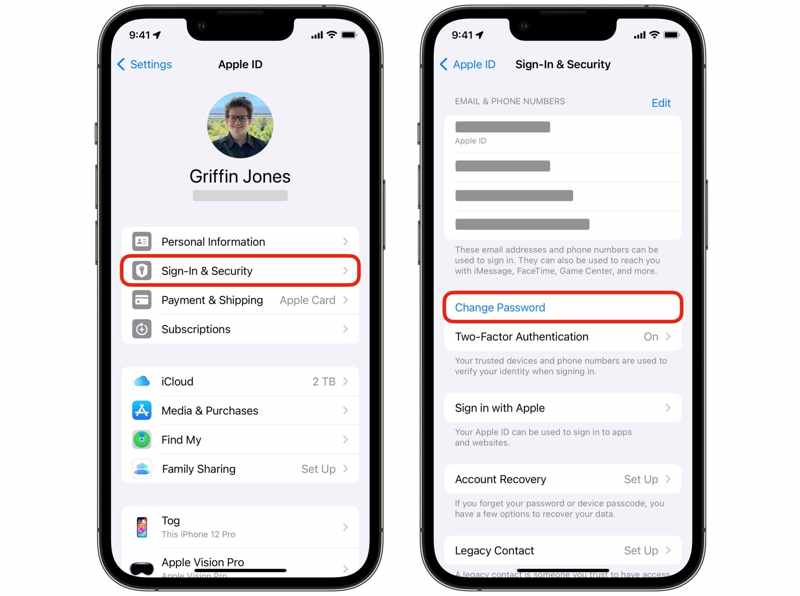
Step 1. Run your Settings app and tap on your profile.
Step 2. Go to Sign-In & Security.
Step 3. Tap the Change Password button.
Step 4. Enter your iPhone passcode.
Step 5. Input a new password, verify it, and confirm the change.
Solution 5: Reset All Settings
Another solution to fix your iPhone that keeps asking for an Apple ID and password is to reset all settings on your device. This solution won’t erase data on your device, but it will bring settings to factory defaults.
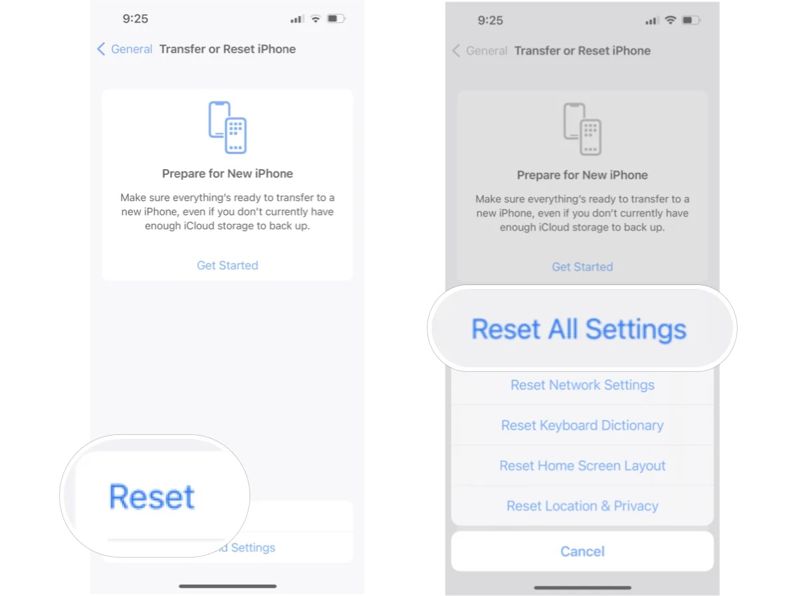
Step 1. Go to Settings.
Step 2. Navigate to General, Transfer or Reset iPhone, and Reset.
Step 3. Tap Reset All Settings.
Step 4. Follow the onscreen instructions to confirm it.
Part 3: A Quick Solution to Fix iPhone Keeps Asking for Apple ID Password
If the common solutions are unavailable and your iPhone still keeps asking for the Apple ID password, try Apeaksoft iFoneKit iOS Unlocker. It is able to remove the malfunctioning account from your iPhone or iPad without a password.

Downloaded by over 1,000,000 users
- Remove Apple ID from your iPhone in one click.
- Don’t require your Apple ID password or iPhone passcode.
- Offer bonus features, like Screen Time removal.
- Compatible with the latest editions of iOS and iPadOS.
Secure Download
Secure Download

How to Fix iPhone Keeps Asking for Apple ID Password
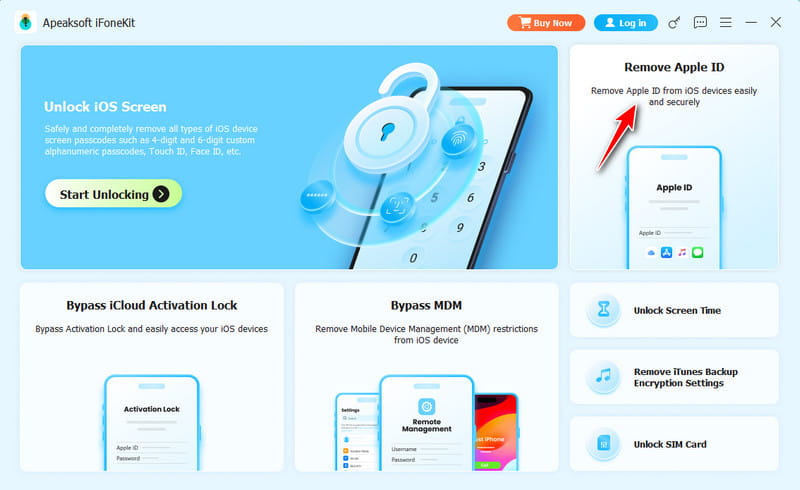
Step 1. Install the Apple ID removal tool
Run iFoneKit after you install it on your computer. It is available on Windows 11/10/8/7/XP/Vista and macOS 10.7 or above. Choose the Remove Apple ID mode to proceed.
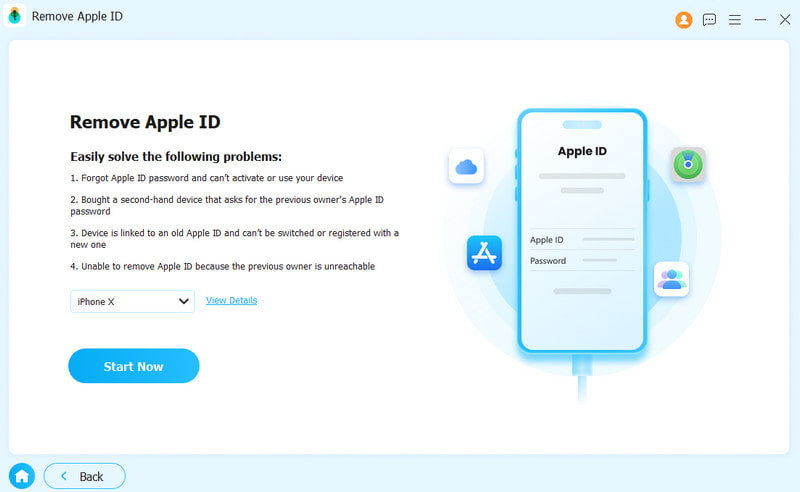
Step 2. Connect to your device
Link your iPhone to your computer with a Lightning cable. Once the software recognizes your device, click the Start Now button.
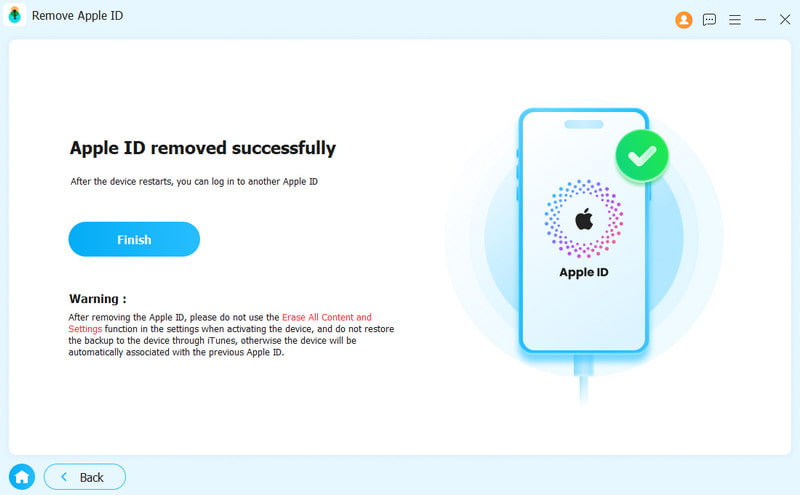
Step 3. Remove Apple ID
If Find My is disabled, the software will automatically begin removing the malfunctioning Apple ID. If Find My is enabled, reset all settings on your device. Then, click the OK button and hit Confirm Again to initiate the process.
Further Reading
Conclusion
This guide explained what you can do if your iPhone keeps asking for Apple ID and password. You should understand the main causes. More importantly, you can follow the solutions to get rid of the error quickly. Apeaksoft iFoneKit iOS Unlocker enables you to remove the malfunction Apple Account without any restrictions.
 Apeaksoft iFoneKit
 Unlock all types of iOS passwords from iPhone, iPad and iPod.
Secure Download
Secure Download
Related Articles




