How to Fix Your iPhone Keeps Asking for Apple ID Password

"I have been having an issue on my iPhone for the last month. It frequently asks me to sign in with my Apple ID and password. How can I fix this problem?" The Apple ID and password play a key role on iOS devices. It allows users to access any Apple services, from iCloud to Find My iPhone, from iMessage to Face ID, and more. If your iPhone keeps asking for your Apple ID password, you may be locked out of these services. Our article shows how to fix this error.
PAGE CONTENT:
Part 1: Why iPhone Keeps Asking for Password
If your iPhone keeps asking for your Apple ID and password, it is annoying, and you may be interrupted when using your handset. Before walking through solutions, let’s discuss the common causes first:
- 1.You have changed your Apple ID password on another device.
- 2.Your iPhone gets stuck when downloading an app or purchasing an item.
- 3.You have changed your Apple ID details and didn’t update them to your iPhone.
- 4.You recently added a new Touch ID or Face ID.
- 5.iMessage or FaceTime has activation issues.
- 6.Software glitches or bugs.
Part 2: What to Do If iPhone Keeps Asking for a Password
What can you do if your iPhone randomly asks for your Apple ID password? You can fix this problem on your own. We demonstrate the proven solutions below, and you can perform them one by one.
Solution 1: Reboot iPhone
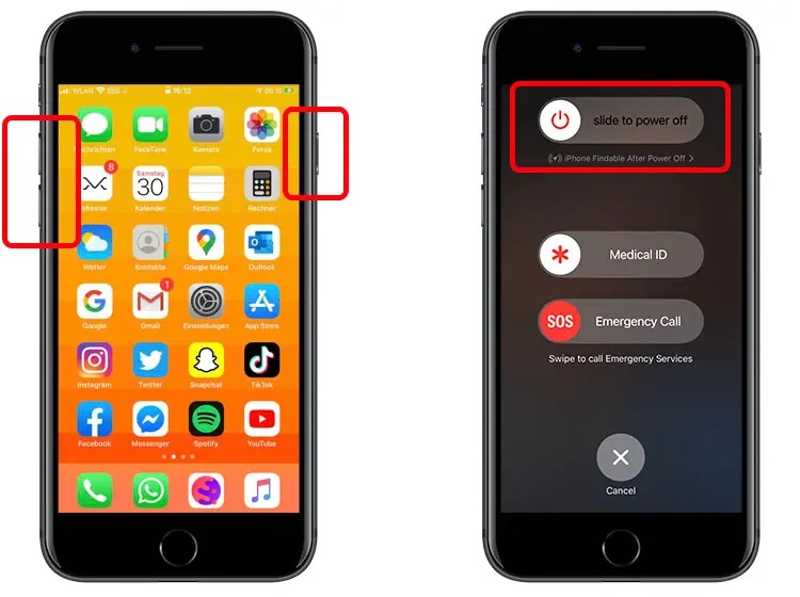
Step 1. For iPhone X and later, press and hold either Volume button and the Side button together.
For iPhone 8 and earlier, press and hold the Side or Sleep/Wake button.
Step 2. When the power-off screen appears, release the button or buttons.
Step 3. Move the slider and shut down your device.
Step 4. A few minutes later, long-press the Side or Sleep/Wake button until you see the Apple logo.
Solution 2: Re-sign in to Apple ID
Step 1. If your iPhone is asking for a passcode instead of Face ID, run your Settings app.
Step 2. Tap on your profile, scroll down, and tap Sign Out.
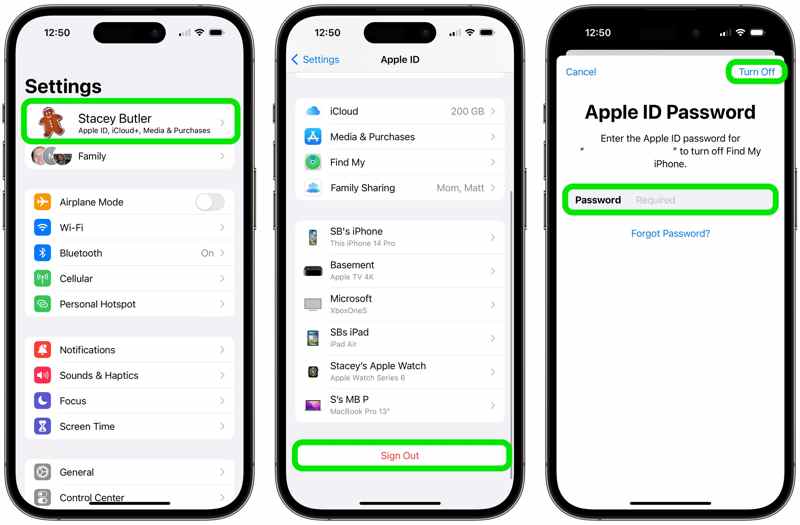
Step 3. Enter your Apple ID password, and tap Turn Off if Find My iPhone is enabled.
Step 4. Select the data types you want to keep and tap Sign Out again.
Step 5. Restart your iPhone and run the Settings app.
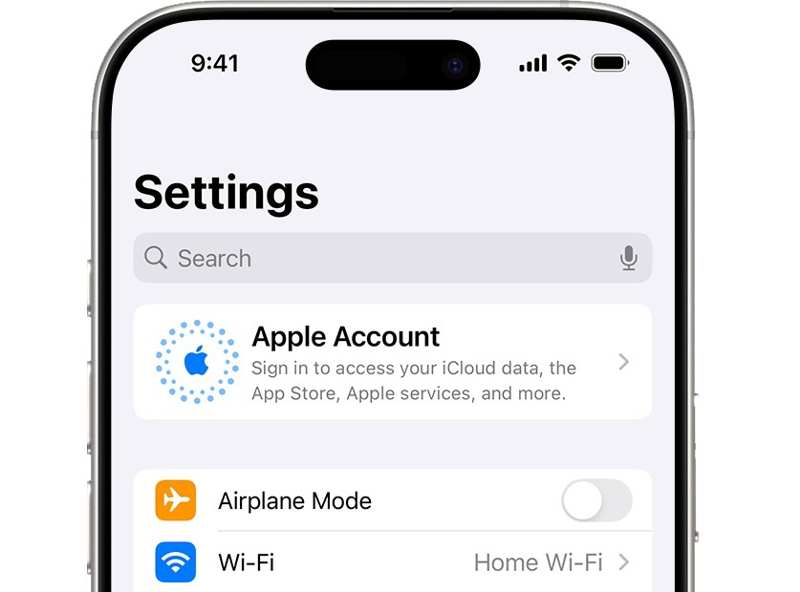
Step 6. Tap Apple Account, choose Sign in Manually, and enter your Apple ID and password.
Solution 3: Update Apple ID Settings
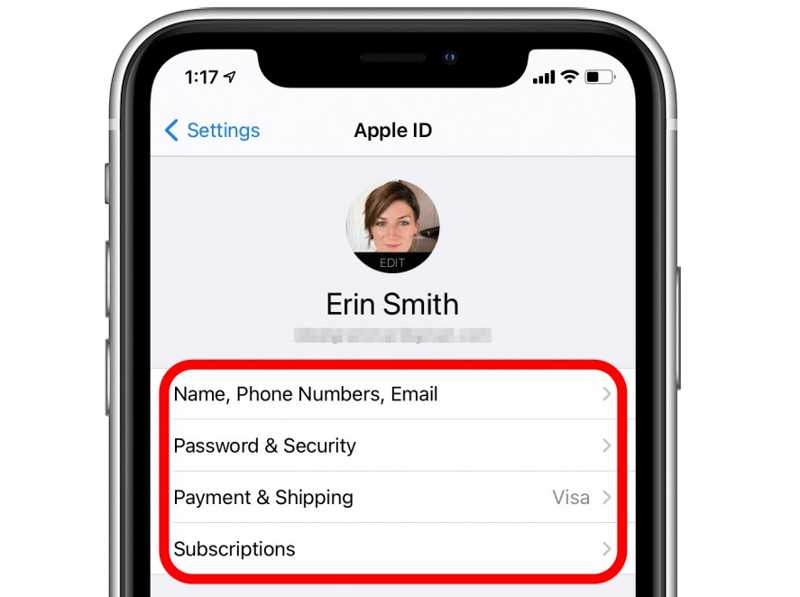
Step 1. If your iPhone asks for Apple ID and passcode after changing details on another device, go to your Settings app.
Step 2. Tap on your profile.
Step 3. Tap Name, Phone Numbers, Email, check and update the information.
Step 4. Next, choose Payment & Shopping, and update your payment information.
Further Reading
Solution 4: Turn off iMessage and FaceTime
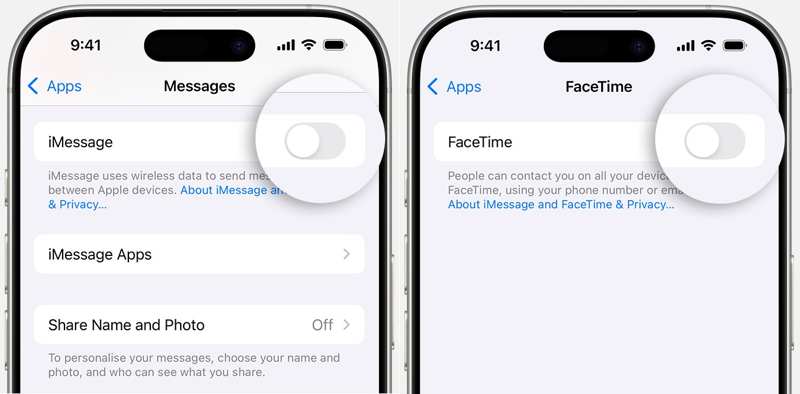
Step 1. When your iPhone asks for a password due to iMessage or FaceTime, open your Settings app.
Step 2. Go to Apps, and choose Messages or FaceTime.
Step 3. Toggle off iMessage or FaceTime.
Step 4. Restart your iPhone.
Step 5. Then, reactivate your iMessage or FaceTime.
Solution 5: Reset Apple ID Password Online
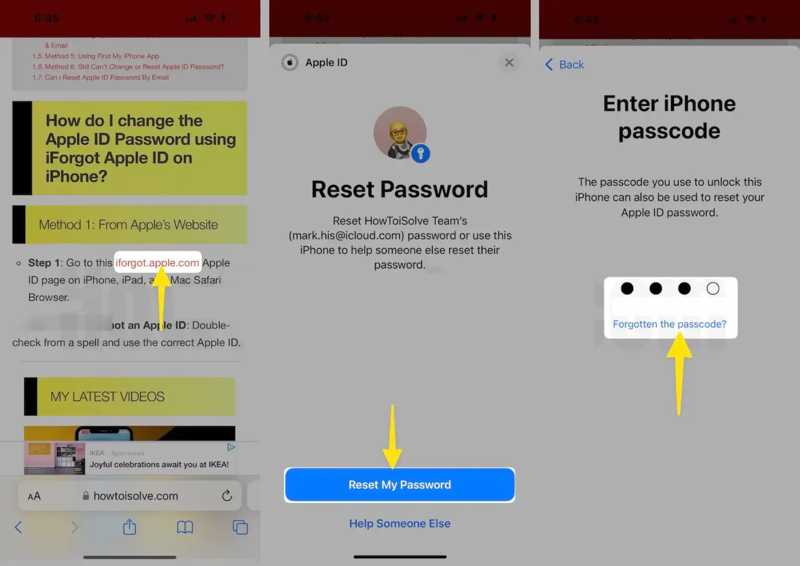
Step 1. Visit ifogot.apple.com in a browser.
Step 2. Tap Reset My Password, and enter your iPhone passcode.
Step 3. Type in a new Apple ID password, tap Continue, and hit Done.
Step 4. Then, update the new password on your iPhone.
Part 3: One-stop Solution to Fix iPhone Asking for Password
An alternative solution is to use a new Apple ID account if your iPhone keeps asking for your Apple ID password. Apeaksoft iOS Unlocker is able to remove the old Apple ID from your iPhone without technical skills.
One-stop Solution to Fix iPhone Keeps Asking for Password
- Remove Apple ID from an iPhone without a password.
- Available in various situations, including a disabled device.
- Provide bonus features, like passcode unlocking.
- Support the latest models of iPhone and iPad.
Secure Download
Secure Download

How to Fix iPhone Asking for Password
Step 1. Connect to your iPhone
Start iOS Unlocker after you install it on your PC. There is another version for Mac. Plug your iPhone into your PC with a Lightning cable. Choose the Remove Apple ID mode and click the Start Now button.
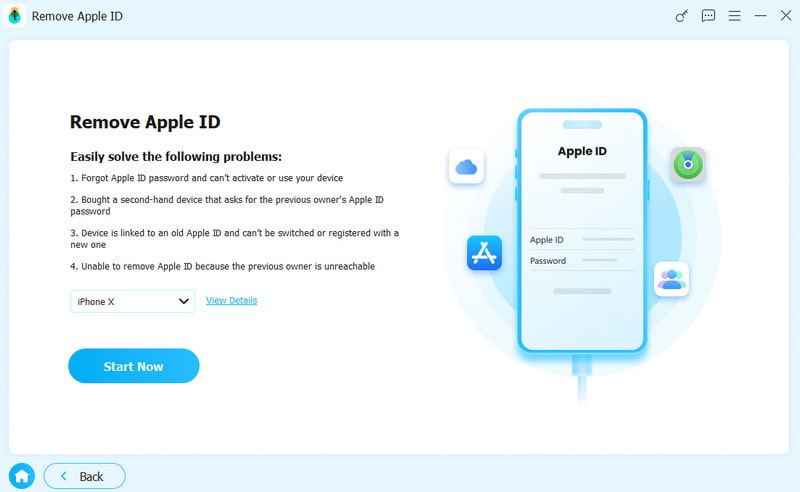
Step 2. Remove Apple ID
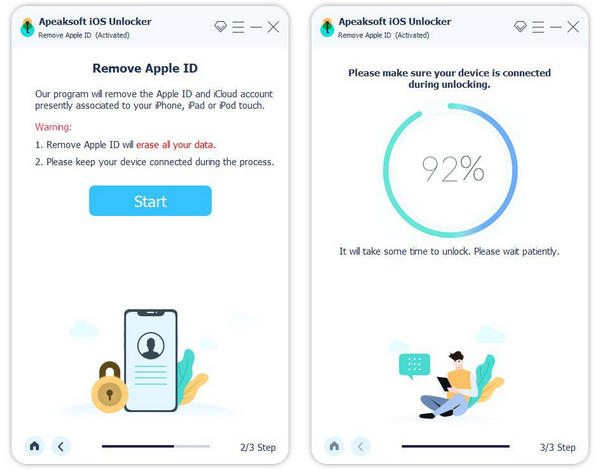
If Find My iPhone is disabled, the software will automatically remove your Apple ID credentials.
If Find My iPhone is enabled, and you run iOS 11.3 or earlier, reset all settings on your device. Then, the software will do the rest of the work.
If Find My iPhone is enabled, and you run iOS 11.4 or later, turn on two-factor authentication. Back to the software and confirm Apple ID removal. When it is done, create a new Apple ID and password on your iPhone.
Conclusion
Following our solutions, you should fix the problem that your iPhone keeps asking for the email password associated with your Apple ID. The common solutions can help get rid of trouble quickly. If they are unavailable, you can try the one-stop solution, Apeaksoft iOS Unlocker.
Related Articles