


iPhone Passcode Not Working: 5 Fixes to Unlock Your iPhone

You enter the passcode you've used a thousand times, yet your iPhone fails to unlock, or becomes disabled after multiple failed attempts. At that time, you're probably wondering, "Why is my iPhone passcode not working?" This guide will explain the common causes behind this issue and share 5 useful solutions to resolve it quickly and safely.
PAGE CONTENT:
Part 1: Why is My iPhone Passcode Not Working
If your iPhone Passcode isn't working, it doesn't always mean you've forgotten it. Several factors can cause this issue. Understanding the possible reasons can help you address the problem faster. Here are the most common causes:
- iCloud sync delays: If your iPhone is linked via iCloud, a passcode recently changed on another device might not have synced yet.
- Software glitches or iOS updates: A new update or system errors can prevent your iPhone from recognizing the passcode.
- Touch screen or hardware issues: A cracked touchscreen or unresponsive sensors may cause your taps to be misregistered.
- Incorrect keyboard layout or region: If the keyboard switches to a different language or region, your passcode entry may be misinterpreted.
Part 2: Common Fixes for iPhone Passcode Not Working
If your iPhone passcode is not working suddenly, but you're sure you entered it correctly, try these fixes to solve this problem.
Note: All reset methods, including iCloud, recovery mode or third-party tools, will erase your data. It’s essential to back up your iPhone to avoid losing important information.
Force Restart your iPhone
Performing a force restart is often the fastest and most effective way to fix system glitches. If there was an error verifying the passcode of your iPhone, a force restart should be your first step.
How to force restart your iPhone:
- iPhone 8 and later: Quickly press and release the Volume Up button, then the Volume Down button. Press and hold the Side button until the Apple logo appears.
- iPhone 7/7 Plus: Press and hold the Volume Down and Side buttons together until the Apple logo appears.
- iPhone 6 and older: Press and hold the Home button and the Sleep/Wake button together until the Apple logo appears.
Unlock your iPhone with Apeaksoft iFoneKit
The quickest and easiest way to fix an iPhone passcode not working issue is by using a professional third-party tool. Apeaksoft iFoneKit is designed to resolve iPhone passcode problems in a variety of situations. Whether you've forgotten your passcode, your iPhone is disabled, or you're restricted by the Activation Lock, iFoneKit can get rid of these restrictions easily to help you regain access to your device.

Downloaded by over 1,000,000 users
- Remove all types of screen locks without a passcode.
- Erase Face ID/Touch ID/4-digit/6-digit password in 3 easy steps.
- Bypass MDM, Apple ID, iTunes backup encryption, and Screen Time restrictions.
- Support all iOS models and versions, including iOS 26/27 Beta, iPadOS 26/27 Beta.
Secure Download
Secure Download

How to unlock your iPhone without a passcode:
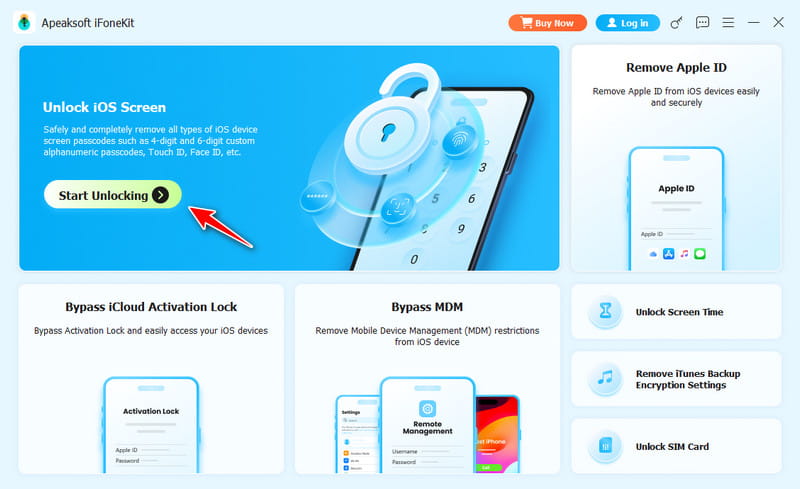
Step 1. Launch the software on a computer and select Unlock iOS Screen from the main interface.
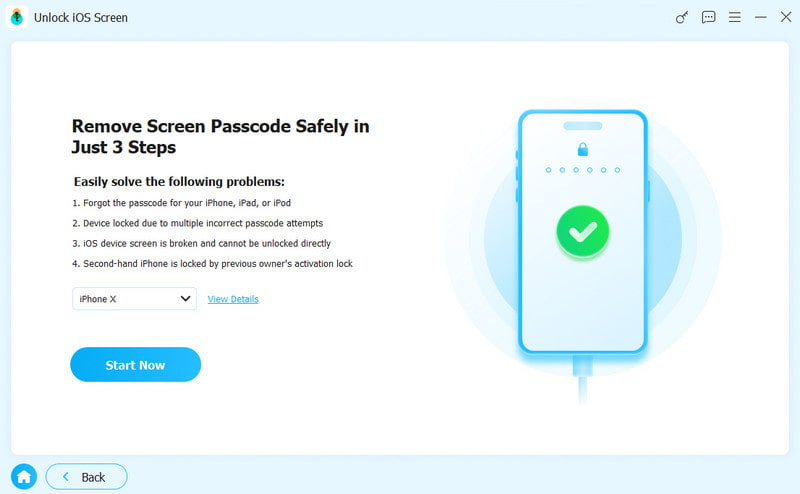
Step 2. Connect your iPhone to the computer using a USB cable. Confirm your device information, and click Start Now if everything is correct.
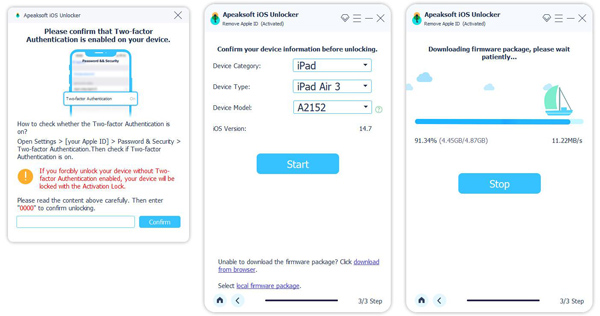
Step 3. Download the firmware package. Please wait patiently while it downloads.
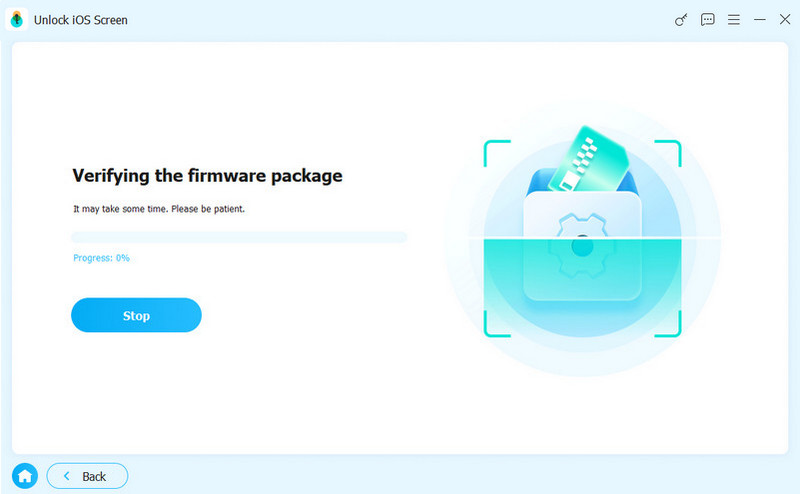
Step 4. Follow the on-screen instructions to confirm this action. You may need to verify the firmware twice. Wait until the verification is complete.
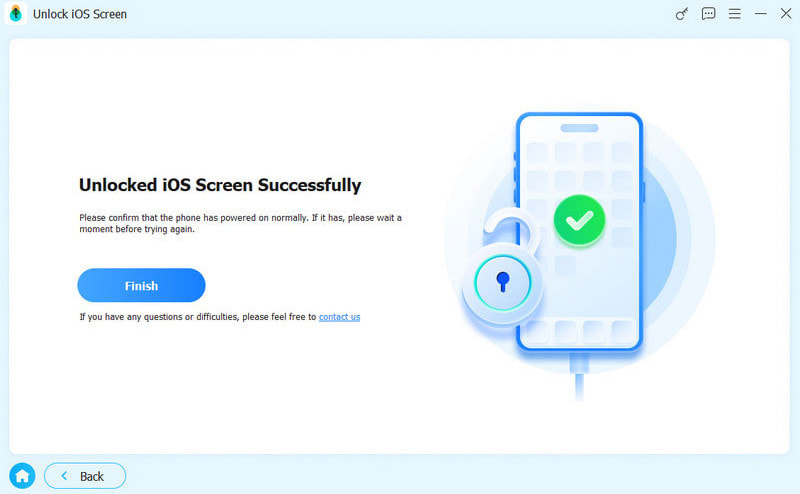
Step 5. After verification, the unlocking process will start automatically. Wait for a few minutes, and your iPhone will restart. Now you can set up a new screen passcode.
Reset Your iPhone via the Forgot Passcode Option
You can also reset your iPhone via the Forgot Passcode option to fix the iPhone passcode not working issue.
Requirements:
- Your iPhone must run iOS 15.2 or later.
- You know your Apple ID and password.
- Your iPhone must be connected to Wi-Fi or cellular data with Find My enabled.
How to reset your iPhone via Forgot Passcode:
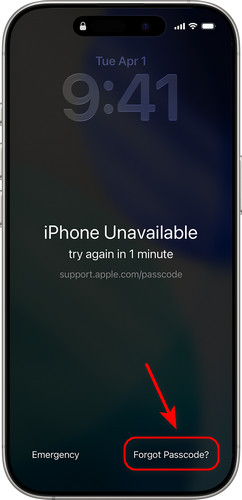
Step 1. Enter the wrong passcodes repeatedly until the iPhone Unavailable screen appears.
Step 2. Tap Forgot Passcode in the bottom-right corner. If your device is running iOS 15.2 or iOS 16, this option will appear as Erase iPhone.
Step 3. Tap Start iPhone Reset, then enter your Apple ID and password to verify your identity.
Step 4. Tap Erase iPhone to remove all data and settings. Once the reset is complete, your iPhone will restart automatically.
Restore Your iPhone with iTunes/Finder
To fix iPhone passcode not working, you can also restore your iPhone to factory settings by entering Recovery Mode.
Step 1. Download and install the latest version of iTunes on your computer.
Step 2. Next, you need to put your iPhone into Recovery Mode.
- iPhone 8 and later: Press and release the Volume Up button quickly, followed by the Volume Down button. Press and hold the Power button until Recovery Mode appears.
- iPhone 7/iPhone 7 Plus: Press and hold the Volume Down button and Side button at the same time until the Recovery Mode screen appears.
- iPhone 6S and earlier: Press and hold the Home and Side buttons together until the Recovery Mode screen shows up.
Step 3. Connect your iPhone to the computer using a USB cable. Once connected, open iTunes and select your iPhone from the device list.
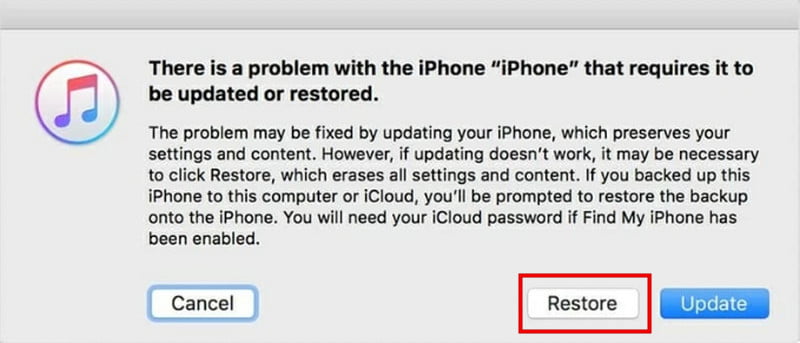
Step 4. When prompted with the option to Update or Restore your device, select Restore. iTunes will then proceed to restore your iPhone, which will erase all the data on it.
Erase Your iPhone Using iCloud
If you know your Apple ID and password, another effective method to fix iPhone password not working is to erase your iPhone through iCloud. Make sure Find My is enabled before you're locked out of your iPhone.
Step 1. Visit iCloud.com on another device, and sign in with your Apple ID and password.
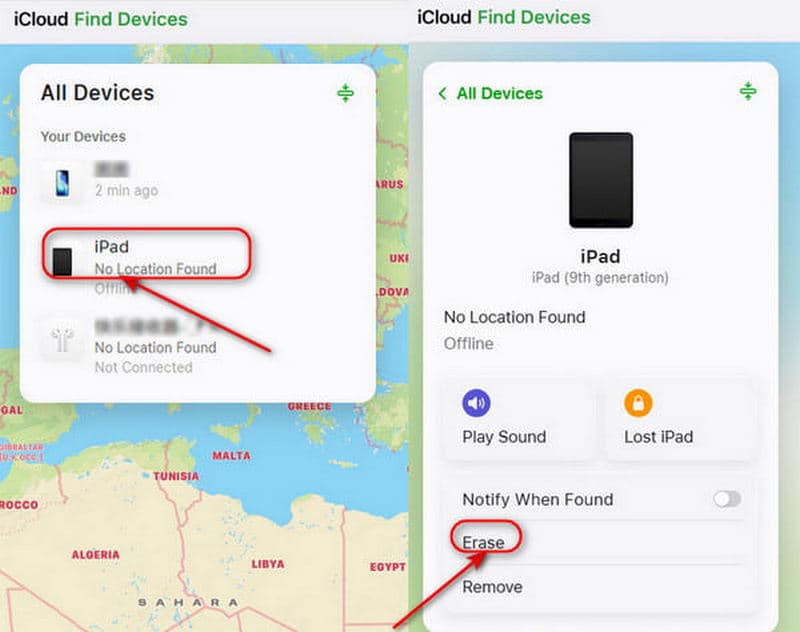
Step 2. Click All Devices at the top of the screen. From the device list, find and select the locked iPhone.
Step 3. Choose Erase iPhone, then iCloud will remotely erase the device. The screen passcode and all existing data will be deleted as well.
Part 3: FAQs on iPhone Passcode Not Working
Why is my iPhone passcode not working after an update?
A software glitch or reset settings during the update could cause the issue. Try restarting your iPhone or updating iOS to the latest version. If you're using Touch ID or Face ID, check those settings too.
How many failed attempts to unlock my iPhone?
After 6 failed attempts to unlock your iPhone, the screen will show "iPhone is disabled." After 10 attempts, it will be completely locked, and you'll need to restore your iPhone or use a professional unlock tool like Apeaksoft iFoneKit.
Can I unlock my iPhone passcode not working without erasing data?
Unfortunately, unlocking an iPhone without a passcode usually requires a factory reset, which will erase all data. If you've backed up your iPhone, you can restore your data after the reset.
Conclusion
We've covered five effective methods to resolve the iPhone passcode not working issue. Whether your passcode stopped working suddenly or has been failing consistently, you can find a tailored solution from the options above. Remember to back up your data regularly to avoid unnecessary loss. Follow these steps, and you'll regain full access to your iPhone in no time.
 Apeaksoft iFoneKit
 Unlock all types of iOS passwords from iPhone, iPad and iPod.
Secure Download
Secure Download
Related Articles




