


How to Fix the iPhone Passcode Expired Error (Easy Guide)

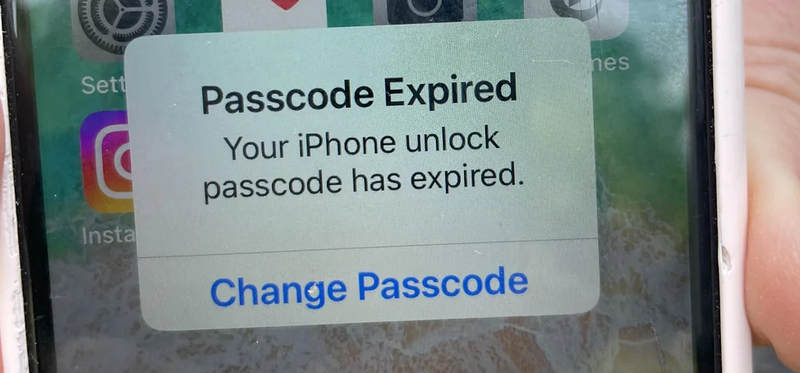
Have you ever picked up your phone, only to see a strange message saying your iPhone unlock passcode has expired? It can be incredibly frustrating. You didn't change any settings, you didn't forget your password, yet your phone is suddenly demanding a new one.
If you are staring at an iPhone passcode expired alert, don't panic. Your phone does not have a virus, and you haven't been hacked. This is actually a standard security feature built into Apple's system. In this easy, step-by-step guide, we will explain "why did my iPhone passcode expired" and show you how to fix this error immediately.
PAGE CONTENT:
Part 1: Do iPhone Passcodes Expire?
Do iPhone passcodes really expire? No, not by default. For a regular personal phone, Apple never forces you to change your lock screen code. You could keep it for years, and Apple wouldn't mind.
However, if you see the iPhone passcode expired message, it means a specific security rule has been turned on somewhere in your settings. This usually happens without you realizing it, often when you connect your phone to an outside network, like a school or workplace.
Part 2: Why Does My iPhone Passcode Say It Expired?
If you are wondering why does iPhone passcode expired happen out of nowhere, it almost always comes down to one of three common reasons:
- Work or School Email Accounts (Microsoft Exchange): This is the biggest culprit. If you logged into a work or university email account using the built-in Apple Mail app, your organization’s IT department can secretly push security rules to your device.
- MDM (Mobile Device Management) Profiles: Did your company give you this iPhone? Or did you have to download a special setup profile to connect to your school's Wi-Fi? These are called management profiles, and they can force an iPhone unlock passcode expired prompt to keep the device safe.
- Simple Software Glitches: Sometimes, a minor bug inside a recent iOS update gets confused and throws up the passcode expired on iPhone message by mistake.
Part 3: How to Fix and Stop the iPhone Passcode Expired Message
Depending on your situation, choose one of the simple methods below to fix your device and keep the error from coming back.
Method 1: Change the Passcode (The Fastest Fix)
If you know your current code and don't mind changing it, the quickest way to make the pop-up disappear is to simply follow the instructions.
- 1.When you see the prompt Your iPhone unlock passcode has expired, tap Change Passcode.
- 2.Type in your current lock screen code.
- 3. Enter a new code, then enter it one more time to confirm.
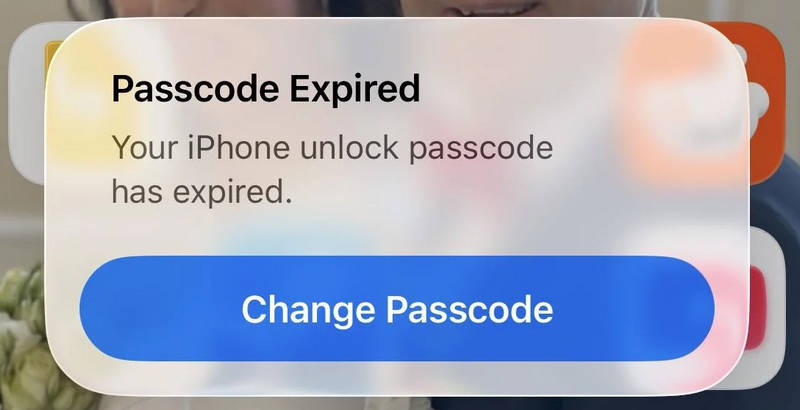
Tips: If your phone is connected to a work account, it might reject simple codes like 123456 or 000000. Try to create a brand new, strong code that you can easily remember.
Method 2: Delete Work or School Email Accounts
If you are using a personal phone and want to know how to stop iPhone passcode expired messages from coming back every few months, removing the account that is forcing the rule will solve it.
Step 1. Open the Settings app on your iPhone.
Step 2. Scroll down and tap on Mail, then tap Mail Accounts.
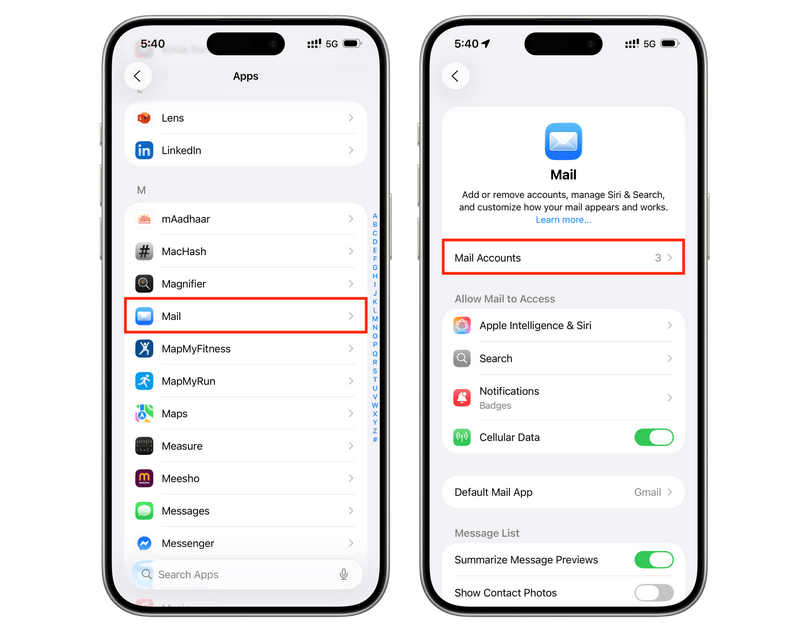
Step 3. Look for your work, company, or university email (this is often listed as a Microsoft Exchange account).
Step 4. Tap on that email account, toggle off the Mail option, and then tap the red Delete Account button at the bottom.
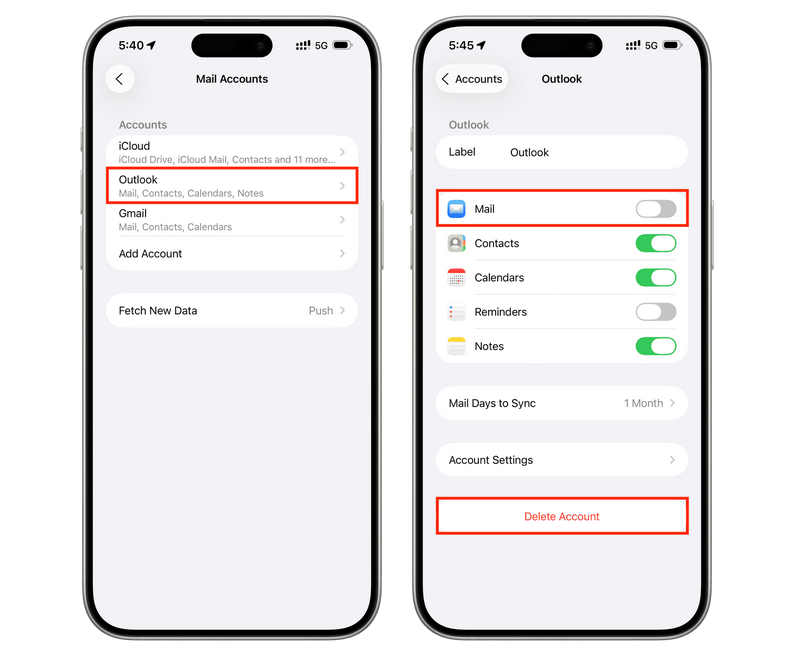
Note: Removing the account will delete your work emails and work calendars from the phone, but it will instantly fix the phone expired issue on your iPhone.
Method 3: Remove Corporate Management Profiles
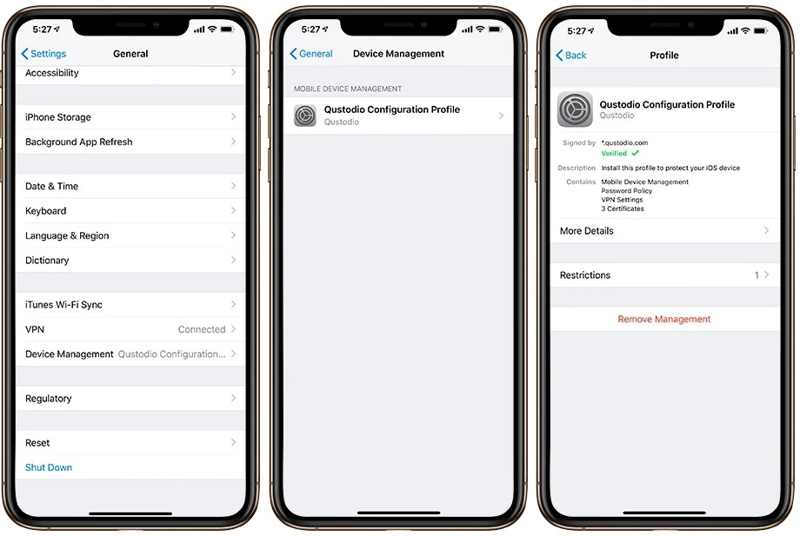
If deleting the email didn't work, a hidden MDM software configuration profile might be causing the passcode expired on iPhone loop.
Step 1. Open Settings and go to General.
Step 2. Scroll down near the bottom and look for VPN & Device Management.
Step 3. If you see a profile listed under Mobile Device Management, tap on it.
Step 4. Tap Remove Management. You may need to enter your phone's lock screen code to confirm.
Bonus: What If You Cannot Remove the MDM?
Some MDM profiles cannot be removed in Settings. What can you do to deal with that? Don't worry; Apeaksoft iFoneKit iOS Unlocker can help you. This powerful iOS toolkit can one-click remove all typs of MDM profiles or restrictions on your iPhone or iPad. With a USB cable, you can get your iPhone free from control or restrictions.
Step 1. Download, install, and launch Apeaksoft iFoneKit iOS Unlocker on your computer.
Secure Download
Secure Download
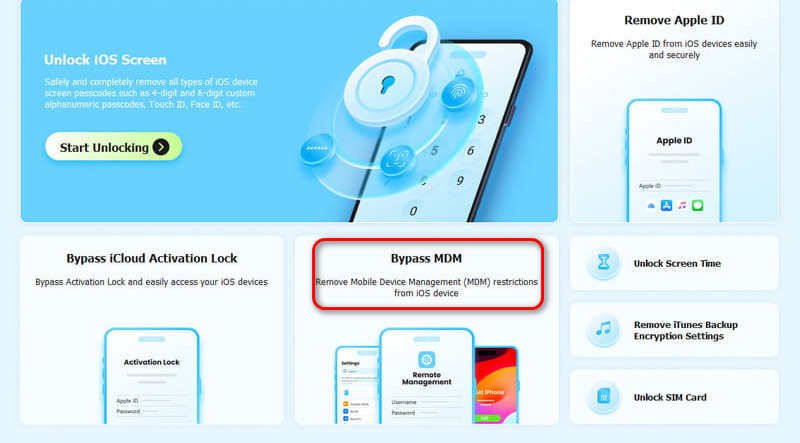
Step 2. Connect your iPhone to your computer, Then, click the Bypass MDM button.
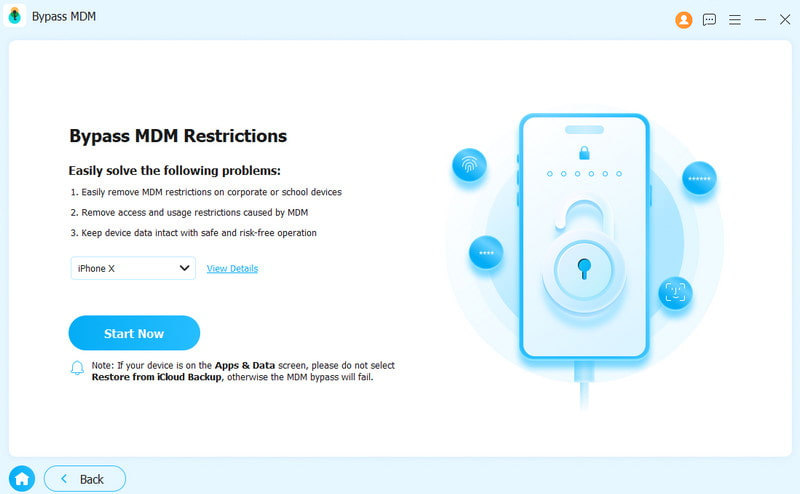
Step 3. Then, click the Start Now button to start removing MDM on your iPhone. It will immediately remove all MDM profiles. Then, you can eternally fix the iPhone passcode expired issue.
Further Reading
Conclusion
This article explains why the passcode expired on iPhone and some simple and fast steps to deal with this issue. Usually, it is due to the work email account and MDM profiles. It is very easy to remove the work email account, but some MDM profiles cannot be directly removed through regular methods. You should use Apeaksoft iFoneKit iOS Unlocker to easily delete all types MDM configurations. You can say goodbye to the Phone Passcode Expired error and use your iPhone without worries.
 Apeaksoft iFoneKit
 Unlock all types of iOS passwords from iPhone, iPad and iPod.
Secure Download
Secure Download
Related Articles




