

5 Easy Solutions to Fixing iPhone Zoom Mode Problems

If you find your iPhone is stuck in Zoom Mode, you're in the right place. This post will help you solve the problem through various workable solutions. From what Zoom Mode is to why the problem happens, this post can help you fix the iPhone stuck in Zoom Mode issue, regaining complete control of your iPhone efficiently.
PAGE CONTENT:
Basic Information About Zoom Mode on iPhone
Zoom Mode on iPhone is an accessibility feature designed to help users see on-screen content more clearly. When enabled, it magnifies the entire display or specific areas of the screen, making text, icons, and interface elements easier to read.
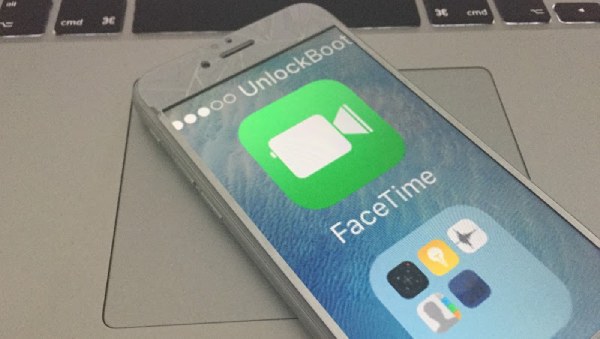
However, when the zoom level is set too high or gestures are misunderstood, the iPhone may get stuck in Zoom Mode, as you won't find a way to exit. This can make navigation difficult, giving the impression that the device is malfunctioning. But don't worry, the next section will provide you with several quick fixes to solve your problem.
5 Quick Fixes to an iPhone Stuck in Zoom Mode
When an iPhone gets stuck in Zoom Mode, the screen may look frozen or overly magnified, making normal operations frustrating. Actually, your iPhone is still running. It's the way you perform, don't follow the gesture of Zoom Mode. Therefore, it appears that your iPhone cannot be operated. Fortunately, this issue can usually be resolved without professional repair. Depending on whether the screen still responds to gestures, some fixes are quicker than others. The following solutions are listed from more straightforward, gesture-based methods to more advanced system-level approaches, allowing you to choose the most suitable option for your situation.
1. Exit Zoom Mode with Shortcut
The quickest way to fix the issue is to double-tap the screen with three fingers simultaneously. This gesture toggles Zoom Mode on and off. If successful, the screen will immediately return to its standard size, resolving the problem that your iPhone gets stuck in Zoom Mode. Make sure all three fingers tap at the same time to ensure the gesture is recognized.

2. Disable Zoom Mode via Settings
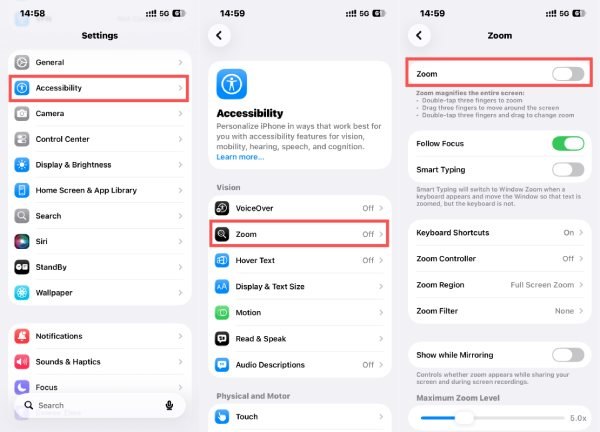
If the gesture does not work correctly, go to Settings > Accessibility > Zoom and tap Zoom to turn it off. You may need to use three fingers to scroll within the settings screen if the display is still enlarged.
3. Restart Your iPhone
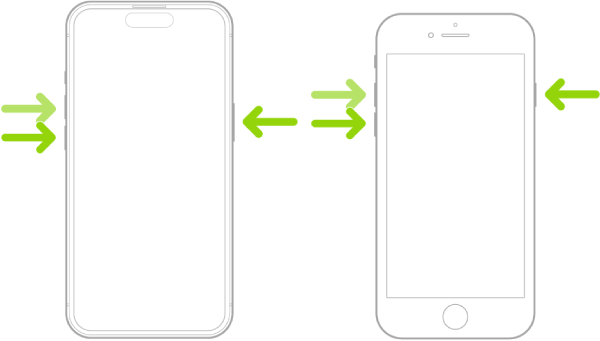
If your iPhone gets stuck in Zoom Mode, the cause can be minor glitches or temporary system issues. In this situation, you cannot perform any gesture to exit Zoom Mode. Restarting the device can clear these errors that cause Zoom Mode to behave abnormally. Force restarting iPhone is especially effective if the issue appeared suddenly without any settings changes.
4. Exit Zoom Mode Using iTunes or Finder
Connecting your iPhone to a computer and managing it through iTunes (Windows/macOS Mojave) or Finder (macOS Catalina and later) can help force accessibility settings to reset, including iPhone getting stuck in Zoom Mode. After you click Configure Accessibility and open a pop-up window, simply click Zoom to toggle it off.
5. Reset iPhone Settings
As a last resort, resetting all settings can fix deeper configuration conflicts. This option does not erase data but restores system settings, including an iPhone stuck in Zoom Mode occasionally. To set your iPhone to its default state. You can perform it by opening Settings, tapping Transfer or Reset iPhone under the General tab, and then tapping Reset.

The Most Powerful Tool to Resolve an iPhone Stuck in Zoom Mode
If standard fixes fail to restore normal screen behavior, the issue may be related to deeper iOS system errors. In such cases, a professional repair tool is required. Apeaksoft iOS System Recovery offers a more reliable solution. Designed to fix various iOS problems without data loss, this tool can safely repair system-level glitches that cause an iPhone to remain stuck in Zoom Mode, even when the device becomes difficult to operate through standard touch controls.
Step 1. Download the installation package of Apeaksoft iOS System Recovery from its official website. Install it when you finish downloading.
Secure Download
Secure Download
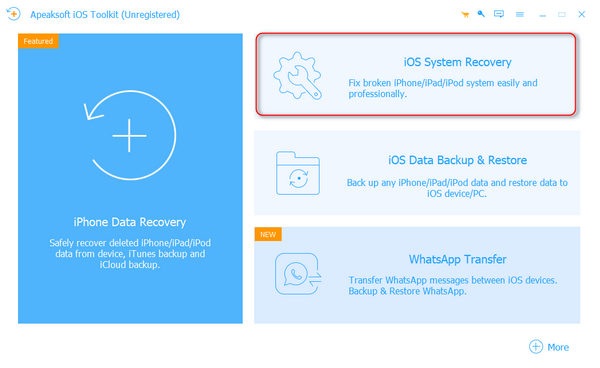
Step 2. After you launch Apeaksoft iOS System, connect your iPhone to the computer via the USB cable. And your iPhone will be detected automatically, click iOS System Recovery.
Step 3. To solve the issue that your iPhone is stuck in Zoom mode, click Others in the pop-up window.
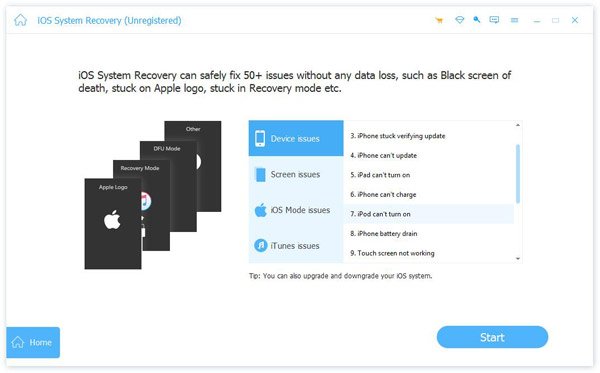
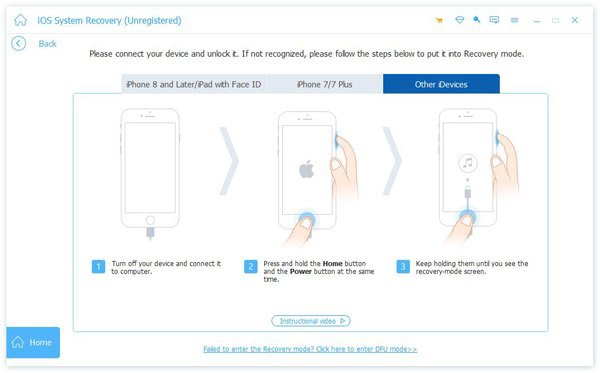
Step 4. Follow the instructions carefully; it will help you get your iPhone into Recovery mode or DFU mode, as it is the final preparation to start the process of resolving your problem.
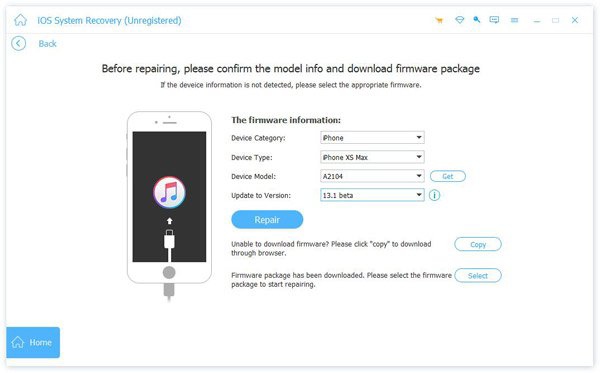
Step 5. Click to select the detailed information and parameters of your iPhone. Once finished, click Repair, and the process of repairing will start automatically. Just wait a few minutes, and your iPhone will be free from being stuck in Zoom Mode.
Conclusion
Not knowing how to get out of Zoom Mode on an iPhone can be frustrating, but it is usually fixable with the right approach. This post has provided you with several practical solutions to fixing the issue efficiently. However, if the problem still exists, you can use Apeaksoft iOS System Recovery to repair your iPhone thoroughly, with all potential errors, and avoid recurring iPhone stuck in Zoom Mode problems in the future.
Related Articles




