

Quick Fixes for iPhone Stuck on Loading Screen Issues

It can be highly frustrating when your iPhone gets stuck on the loading screen, Apple logo, spinning wheel, or even a black screen during startup. This issue may prevent you from accessing your data, making calls, or using apps typically. Whether the problem occurs after an update, a failed restore, or unexpectedly during regular use, this guide will walk you through the possible causes and proven solutions to get your iPhone working again.
PAGE CONTENT:
Part 1: Possible Reasons Why iPhone Gets Stuck on Loading Screen
An iPhone stuck on the loading screen is usually related to software problems rather than hardware damage. This section has concluded the most common reasons discussed by the community. Before you reach out to technical support, understanding the root cause may help you apply the correct fix efficiently.
1. Failed or Interrupted iOS Update
Technically, updating the iOS version requires certain conditions concerning the battery, storage space, etc. When the needed condition does not match, the iOS update may be interrupted and finally lead to your iPhone getting stuck on the loading screen. This often causes the iPhone to freeze on the Apple logo or loading screen during startup.
2. Corrupted System Files or Software Glitches
Sometimes, if your iPhone encounters unexpected system crashes or firmware errors, the iOS can be interrupted or damaged. When critical startup files fail to load correctly, the device may enter a boot loop or remain stuck on a spinning wheel.
3. Insufficient Storage Space
When your iPhone storage is nearly full, the system may struggle to complete background processes or load required startup resources. This can lead to slow boot times or the iPhone becoming stuck on the loading screen.

4. Problems During Restore or Data Transfer
If the restore process from iTunes/Finder or data migration from another device is interrupted, system instability may occur. An incomplete restoration can prevent the iPhone from finishing its boot sequence.
Part 2: Quick Fixes for iPhone Stuck on Loading Screen
Before using advanced repair tools to restore your iPhone from being stuck on the loading screen, there are actually several simple troubleshooting steps you can try. These quick fixes address temporary system glitches and minor software conflicts without requiring professional tools.
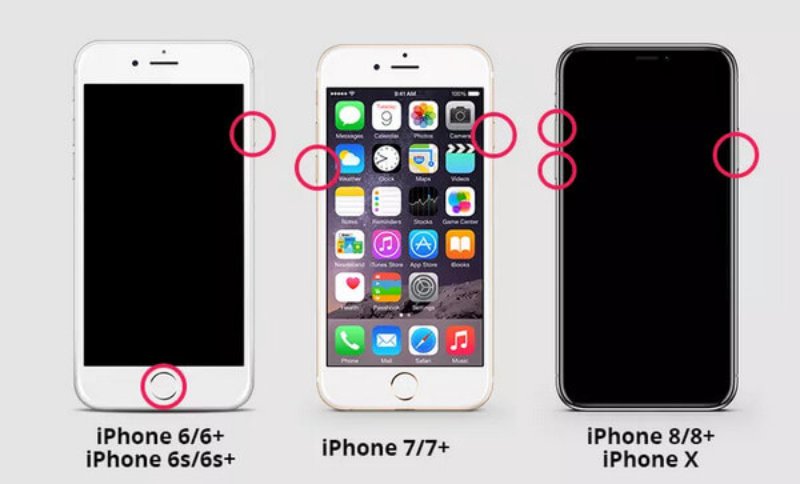
1. Quick Restart
A quick restart is often the simplest and most effective way to resolve temporary system glitches. If your iPhone is stuck on the loading screen due to a minor software crash, force restarting the device can refresh the system and restore normal startup without affecting your data.
2. Charge iPhone
Low battery power can sometimes prevent your iPhone from completing the boot process properly. You can connect your iPhone to the charger and wait for the charging. When the battery is sufficient to continue its process of updating iOS version or such software procedure, your iPhone will get out of being stuck on the loading screen and get back on track.
3. Recovery Mode
If basic troubleshooting does not work, Recovery Mode can help repair deeper system errors. By connecting your iPhone to a computer and entering Recovery Mode, you can update or restore iOS through iTunes or Finder to resolve startup problems.
Step 1. Launch iTunes and connect your iPhone to the computer using a USB/Lightning cable.
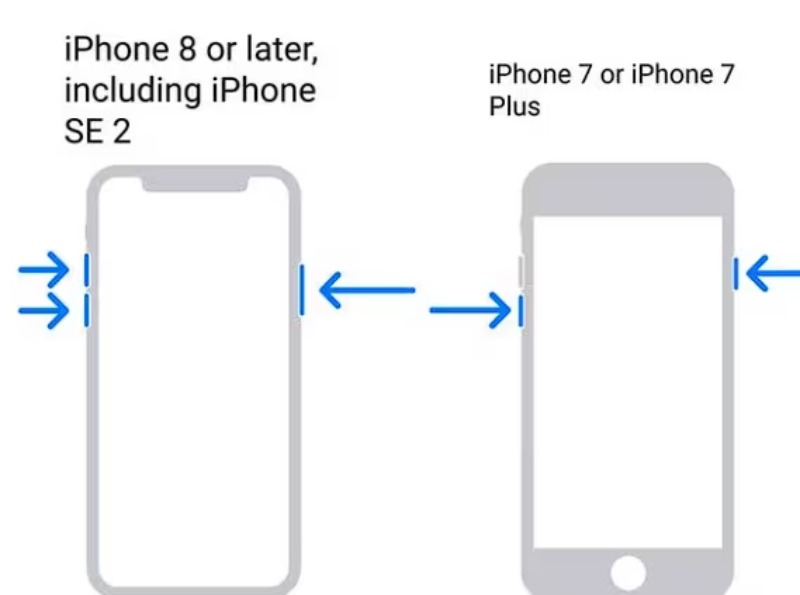
Step 2. To activate the recovery mode on your iPhone, long-press Volume Up, Volume Down, and Side together if you are holding an iPhone 8 or later. For iPhone 7 or 7 Plus, long-press Volume Down and Side together.
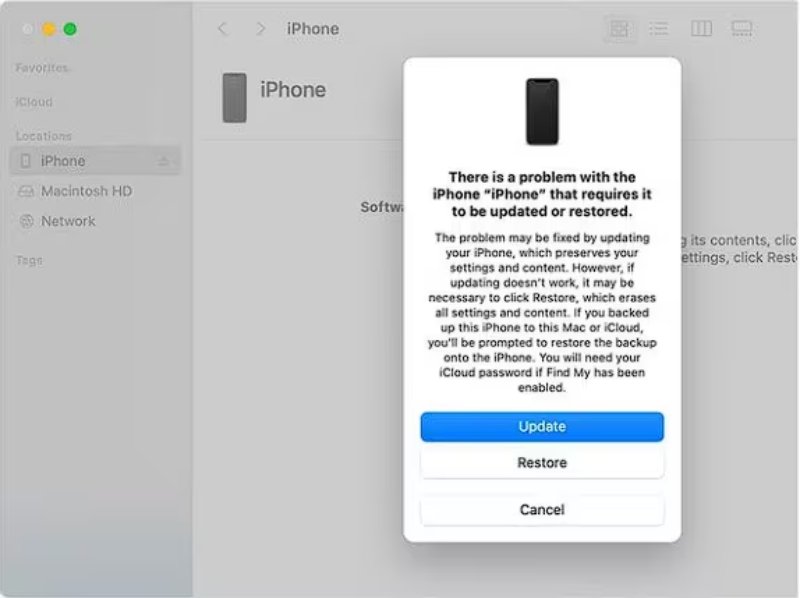
Step 3. Now, a window will pop up on the main interface of iTunes. Click Update or Restore to fix the iPhone stuck on the loading screen and get it back on track.
Part 3: The Most Effective Way to Fix an iPhone That Gets Stuck on the Loading Screen
If basic troubleshooting fails, the problem may involve deeper iOS system errors. In such cases, using a professional repair solution like Apeaksoft iOS System Recovery provides a safer and more reliable fix. No matter what issues lead to getting stuck on the loading screen on your iPhone, you can always follow the steps below to repair your iPhone efficiently and securely.
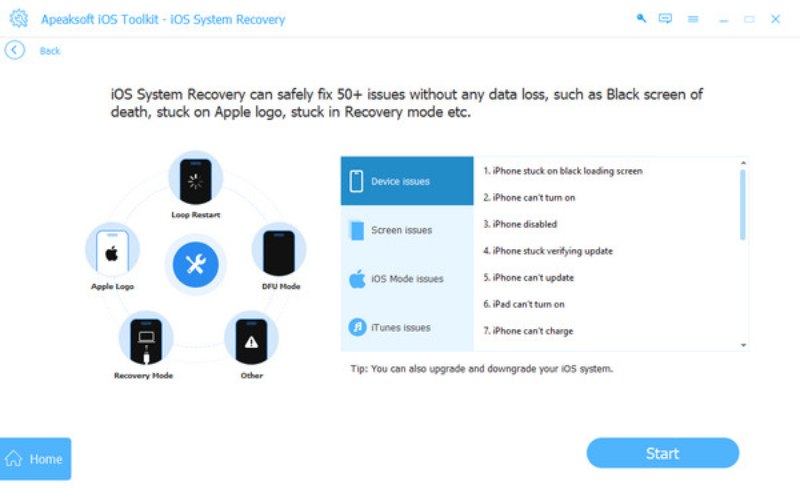
Step 1. Free download and install Apeaksoft iOS System Recovery on your device. Connect your iPhone to a computer with a USB cable. Then, click iOS System Recovery to proceed.
Secure Download
Secure Download
Step 2. After clicking Start, your iPhone will be detected automatically. The detailed information will be displayed.
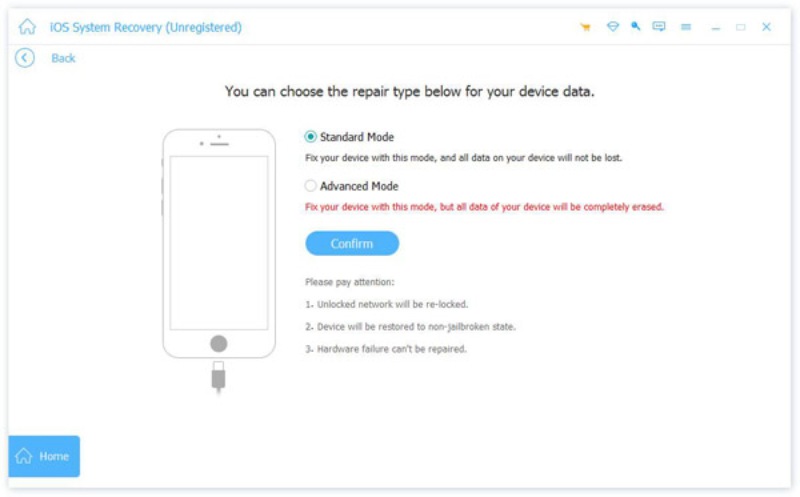
Step 3. To fix the iPhone stuck on the loading screen completely, click Fix, and you will see two repair types. Click Standard Mode and then Confirm to make sure your data will not be removed during the process.
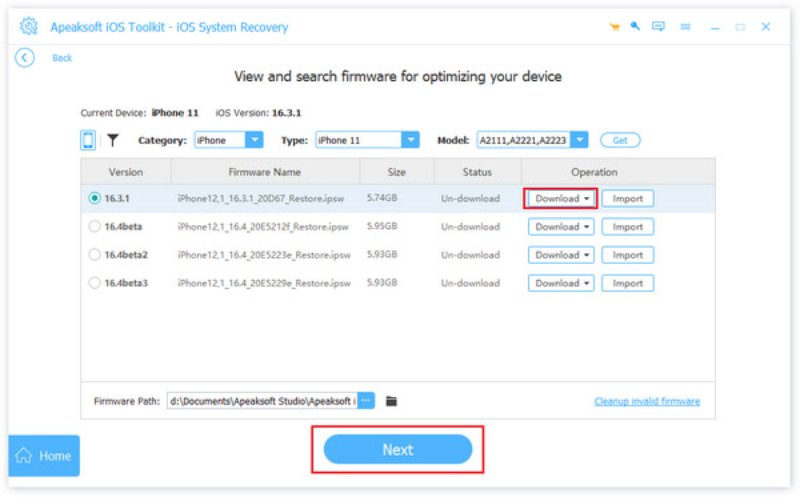
Step 4. Now, click to select the category, the type, and the proper iOS model of your iPhone. Click Next to start the process.
Tips: Apeaksoft iOS System Recovery can also help fix iPhone stuck in recovery mode.
Conclusion
You don't have to worry now, even if you encounter problems like an iPhone stuck on the Apple logo with the loading bar. This post has provided you with both quick fixes and professional tools to help your iPhone restore standard functionality. If you need Apeaksoft iOS System Recovery, download it now and repair your iPhone for a free trial.
Secure Download
Secure Download
Related Articles




