Wheel Spinning on iPhone? 4 Proven Ways to Restore Access

One minute your iPhone works fine, and the next it is stuck on a black screen with a spinning wheel. It may look like your phone is dead, but the problem is often related to software glitches or a failed update. If you are facing the iPhone black screen spinning wheel issue, try these fixes before taking your device for repair.
PAGE CONTENT:
Part 1: Why Is My iPhone Stuck on Spinning Wheel
When your iPhone keeps showing a spinning wheel and refuses to move forward, it usually means the system is stuck during a process. But it doesn't always mean your device is seriously damaged.
Here are some common reasons behind this problem:
Failed iOS Update
It is one of the most common causes. If the update process stops due to low battery, unstable internet, or insufficient storage, your iPhone may get stuck on the loading screen.
Software Bugs or App Crashes
A faulty app or an unexpected iOS glitch can affect normal system operations. When the software fails to respond properly, your iPhone may freeze with the spinning wheel.
Lack of Storage Space
Your iPhone needs enough free space to run smoothly. When storage is nearly full, the system may slow down and fail to complete startup tasks.
Hardware Problems
Hardware issues are less common, but they can still cause the spinning wheel to keep coming back. A worn-out battery or damaged internal component may prevent your iPhone from starting properly and leave it stuck in a loop.
Knowing the possible cause can help you choose a better way to fix the issue instead of trying random solutions. Next, we'll go through several methods that can help when you encounter the wheel spinning on iPhone problem.
Part 2: What to Do When Wheel Spinning on iPhone
If your iPhone is stuck on the loading circle, don't jump straight into complicated repairs. Try the simpler fixes first, and work your way up if the problem still isn't resolved.
We tested these methods on different iPhone models and iOS versions to see which ones worked best for a spinning wheel. We also looked at how easy they were to use, whether they kept your data safe, how many steps each method took, and how well they worked with different types of iOS freezes.
- Test Devices: iPhone 15 Pro, iPhone 14, iPhone 13, iPhone SE (3rd generation)
- iOS Versions: iOS 17.6, iOS 18.5, iOS 26.0
Test Devices: iPhone 15 Pro, iPhone 14, iPhone 13, iPhone SE (3rd generation)
iOS Versions: iOS 17.6, iOS 18.5, iOS 26.0
| Method | Best For | Data Safety | Difficulty | Success Rate |
| Apeaksoft iOS System Recovery | iPhone system repair without data loss | ★★★★★ 5/5 | Easy | ★★★★★ 5/5 |
| Force Restart | Quick fixes for temporary freezes | ★★★★★ 5/5 | Easy | ★★★☆☆ 3/5 |
| Recovery Mode Restore | Deep system recovery | ★★☆☆☆ 2/5 | Medium | ★★★★☆ 4/5 |
| Update iOS | Fixing software bugs | ★★★★☆ 4/5 | Easy | ★★★★☆ 4/5 |
Method 1. Use Apeaksoft iOS System Recovery
If your iPhone's black screen spinning wheel issue is due to a system error, a dedicated iOS repair tool is the most convenient option. Apeaksoft iOS System Recovery is designed to fix common iPhone system problems while keeping the process simple.

Downloaded by over 1,000,000 users
- Fix various iOS system problems, including stuck loading loops, frozen screens, and startup issues.
- Repair iPhone software errors without requiring technical knowledge.
- Support most iPhone models and iOS versions.
- Provide Standard and Advanced modes for flexible repairs.
Secure Download
Secure Download

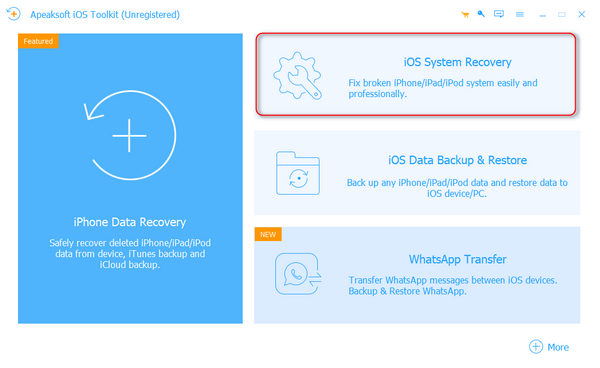
Step 1. Download and install Apeaksoft iOS System Recovery on your computer, then connect your stuck iPhone using a USB cable. Open the program and select the iOS System Recovery feature.
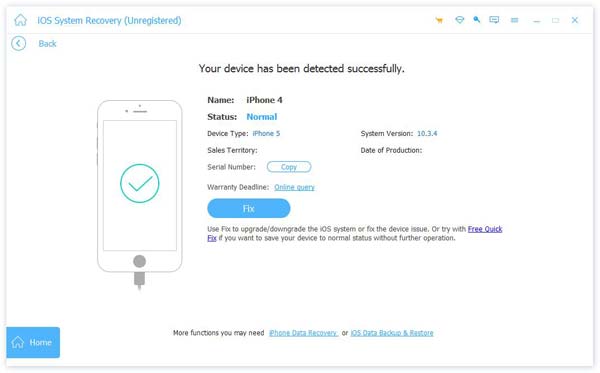
Step 2. Choose the System Repair section, and click the Start Now button.
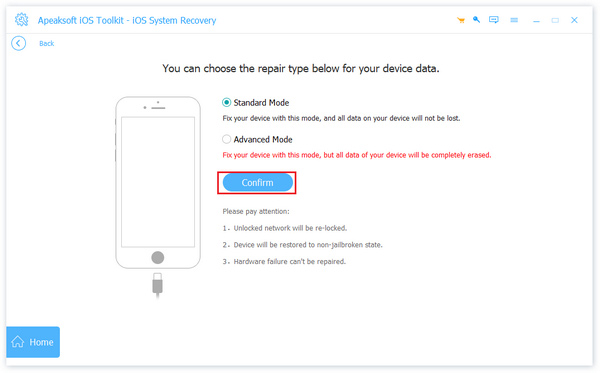
Step 3. Start with Standard Mode if you want to repair the issue while keeping your data. Click Confirm to continue. If that doesn't fix the problem, try Advanced Mode for a more thorough repair. Just keep in mind that this option will erase the data on your iPhone.
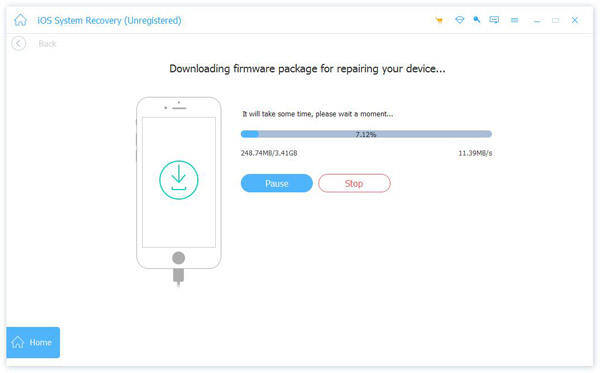
Step 4. Check that the iPhone model shown is correct, then download the matching firmware. Keep your iPhone connected while the software verifies the firmware and gets it ready for the repair.
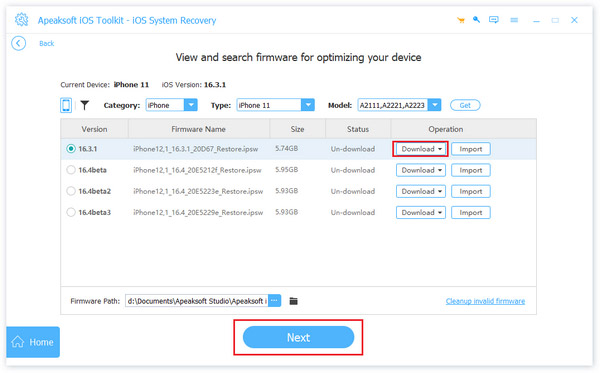
Step 5. Click Next and wait for the process to finish. Once completed, your iPhone should restart normally.
Method 2. Force Restart Your iPhone
A force restart is the quickest solution to try when your iPhone freezes unexpectedly. It does not delete any data.
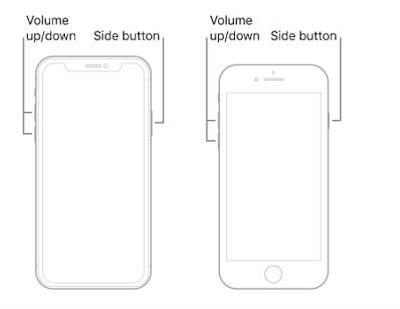
For iPhone 8 and Later
Step 1. Press the Volume Up button and release it, followed by the Volume Down button.
Step 2. Right after that, press and hold the Side button. Keep holding it even if the screen stays black for a moment.
Step 3. Let go when the Apple logo shows up and wait for your iPhone to start normally.
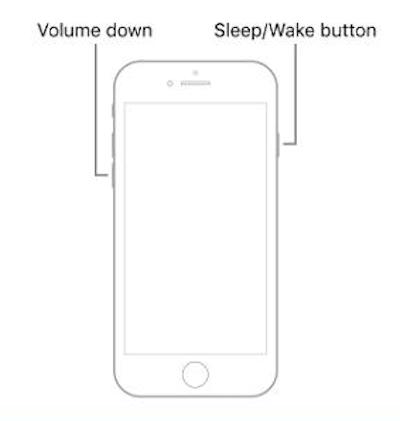
For iPhone 7 and iPhone 7 Plus
Step 1. Press the Volume Down and Side buttons at the same time.
Step 2. Hold both buttons until you see the Apple logo. This may take around 10 seconds.
For iPhone 6s and Earlier
Step 1. Press and hold the Home button together with the Side or Top button.
Step 2. Keep both buttons down until the Apple logo appears on the screen.
Method 3. Restore iPhone in Recovery Mode
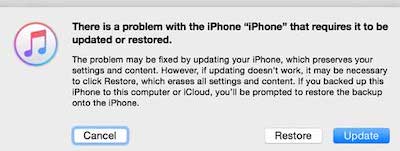
If a force restart does not help, Recovery Mode can repair more serious system problems. However, restoring your iPhone through this method may erase all content, so make sure you have a backup before continuing.
Step 1. Connect your iPhone to a computer, which should be with iTunes or Finder available.
Step 2. Press and quickly release Volume Up, then do the same to Volume Down, and hold the Side button until the Recovery Mode screen appears. Sometimes your iPhone may be stuck in Recovery Mode.
Step 3. Open Finder or iTunes and select Restore when your iPhone is detected. Follow the instructions on the screen to reinstall iOS.
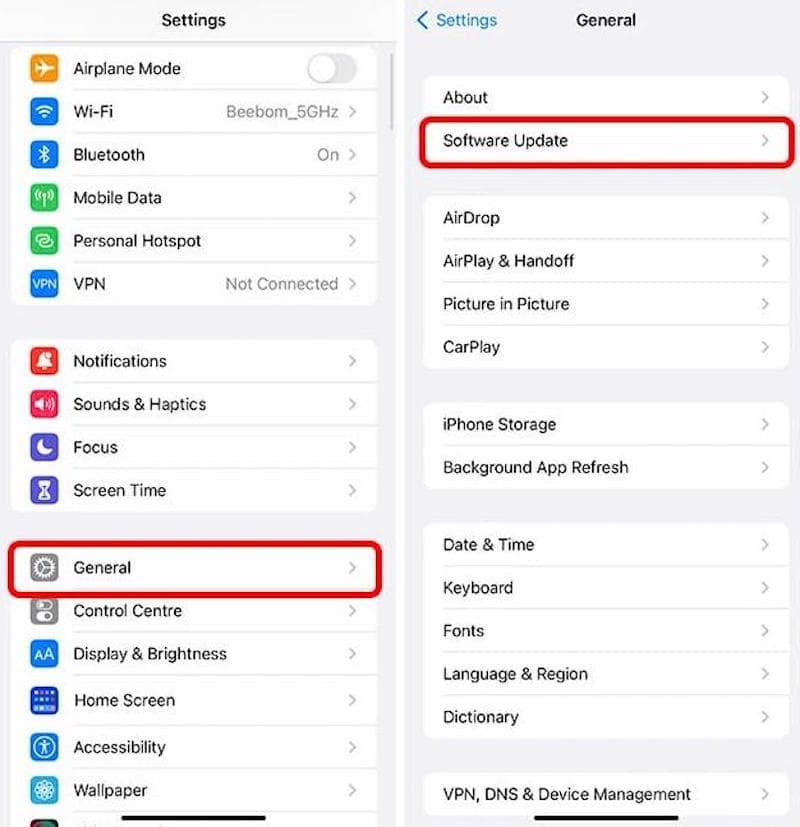
Method 4. Update iOS
Sometimes, an iOS bug or compatibility issue can leave your iPhone stuck on the spinning wheel. Updating iOS may fix the problem by replacing faulty or outdated system files.
Step 1. Open Settings on your iPhone. Then go to General > Software Update.
Step 2. Tap Download and Install if an update is available. Make sure your iPhone has enough battery and storage before starting.
Step 3. Wait for your iPhone to restart. After the update finishes, check whether the spinning wheel issue has disappeared.
Part 3: FAQs About iPhone Stuck on Snipping Wheel
How long should an iPhone stay on the spinning wheel?
A few seconds is normal while your iPhone loads something. If the wheel spinning on your iPhone continues for several minutes without any response, the system may be stuck.
Why does my iPhone keep spinning when I open one particular app?
If the problem only happens with one app, that app may be causing the trouble. Try updating it first. If nothing changes, you can try deleting or reinstalling it.
Can low storage make an iPhone get stuck?
It can. If your iPhone says not enough storage, it may not have enough free space to complete certain system processes, leaving it stuck on a spinning wheel.
Conclusion
Hopefully, you can now get past the iPhone black-screen spinning-wheel issue and get back to using your phone normally. If the problem keeps recurring, Apeaksoft iOS System Recovery can help address underlying iOS system issues and get things back on track.
 Apeaksoft iOS System Recovery
 Fix virious iOS system issues on iPhone, iPad, and iPod.
Secure Download
Secure Download
Related Articles