

How to Quickly Fix iPhone Touch Screen Not Working

"After the iOS 18 update, my touchscreen is not working on my iPhone. Please help me resolve this issue?" iPhones are advanced and equip a wide range of features; however, all features need to interact with the touch screen. Whether it is a frozen display or delayed swipes, touch screen issues on iPhones are real. If you have ruled out hardware issues, you can fix this problem on your own.
PAGE CONTENT:
Part 1: Why Does the iPhone Touch Screen Not Work
iPhone touchscreen not working is a common problem, such as your screen is unresponsive, it stops working, or a part of the screen is not working. Before walking through the solutions, let’s learn the main reasons why my iPhone touch screen is not working:
- Your iPhone is hanging and runs out of space.
- Outdated software and apps.
- Poor screen protector.
- Unsupported accessories.
- Your iPhone is too hot.
- Software glitches.
Part 2: How to Fix iPhone Touch Screen Not Working
Solution 1: Force Restart iPhone
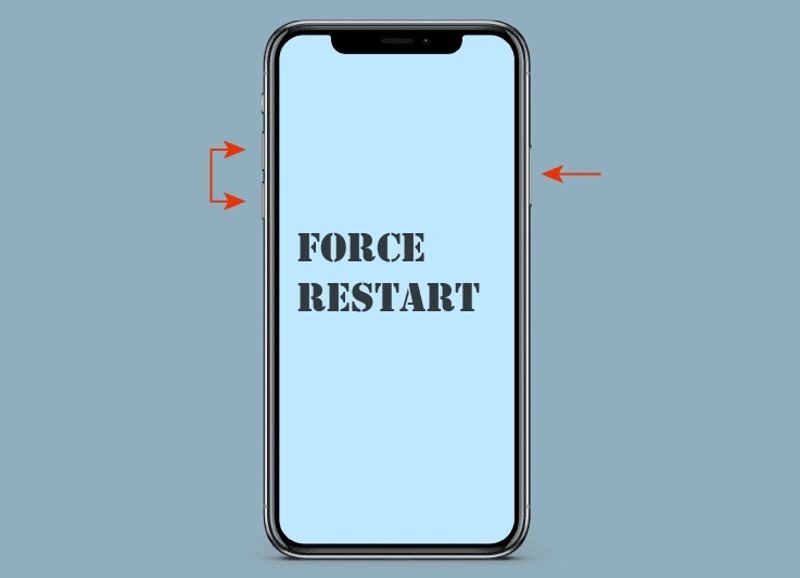
Can you restart your iPhone if the touch screen is not working? Yes, you still can access your device after force restarting it with the right button combination. We demonstrate the processes below:
On iPhone 8 or later
- Quickly press the Volume Up button and release it.
- Quickly press the Volume Down button and release it.
- Press and hold the Side button.
- Release it when you see the Apple logo.
On iPhone 7/7 Plus
- Press and hold the Volume Down + Side buttons.
- Once the Apple logo appears, let the buttons go.
On iPhone 6s or earlier
- Long-press the Home + Sleep/Wake buttons.
- Release them when the Apple logo pops up.
- Then, you should uninstall the useless apps and old photos to free up space on your iPhone.
Solution 2: Update iOS and Apps
Outdated software and apps can lead to many problems, including iPhone screen touch not working. Therefore, you should keep your software and apps up to date after you temporarily access your device.
Update iOS
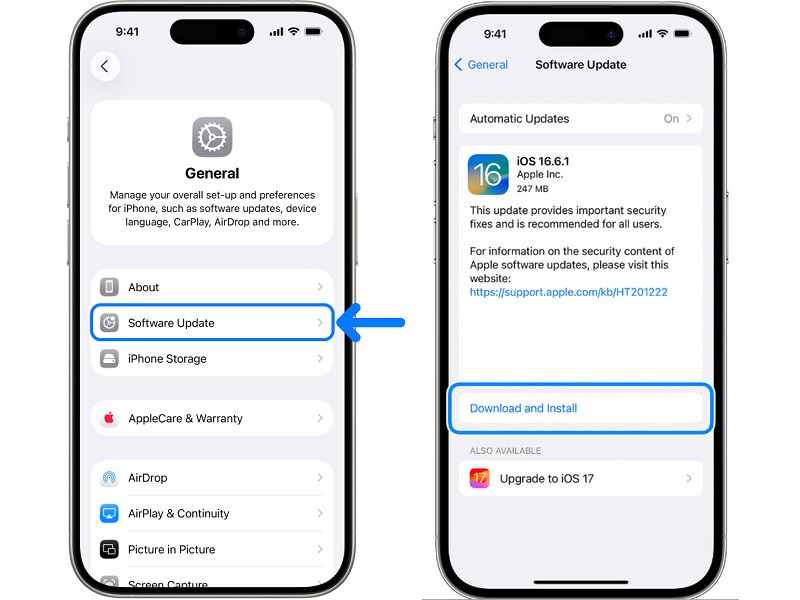
Step 1. Open the Settings app on your iPhone.
Step 2. Connect to a Wi-Fi network.
Step 3. Go to the General tab and tap Software Update.
Step 4. If an update is available, tap the Download and Install button.
Step 5. Follow the onscreen instructions to update the software.
Update Apps
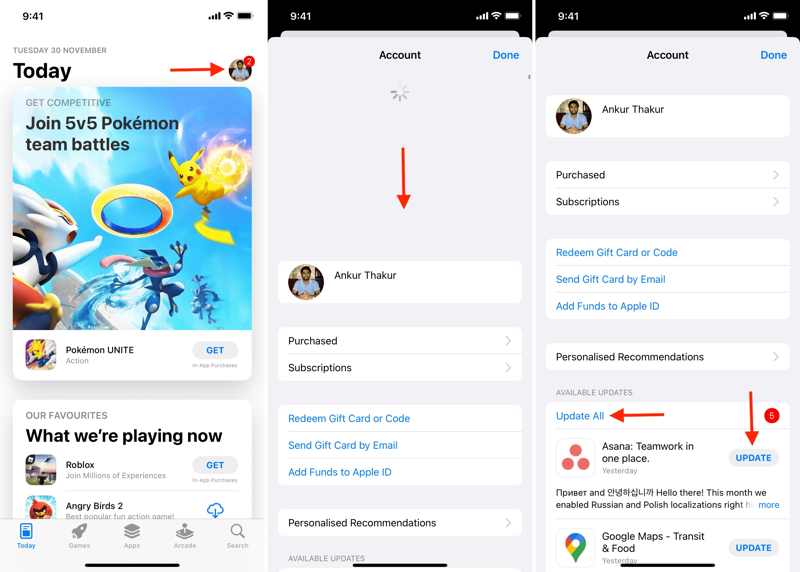
Step 1. Run the App Store app on your home screen.
Step 2. Tap on your profile.
Step 3. Pull down the screen to refresh it.
Step 4. Locate the Available Updates section.
Step 5. You can tap the Update All button to update all apps or hit Update to update specific apps.
Solution 3: Remove Case and Screen Protector
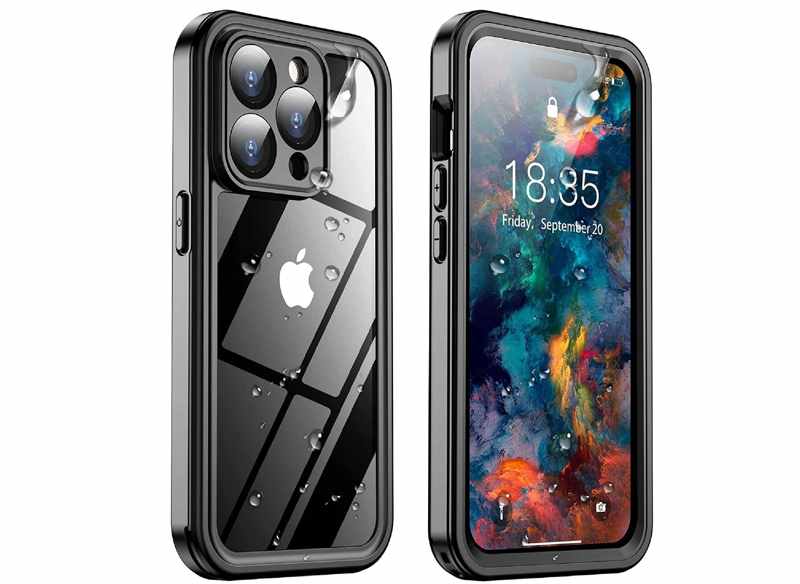
Some users wish to protect their iPhones with cases and screen protectors. However, improper cases and screen protectors may lead to the touch screen not working on the iPhone. The solution is simple: remove the improper component.
Solution 4: Disconnect Any Accessory
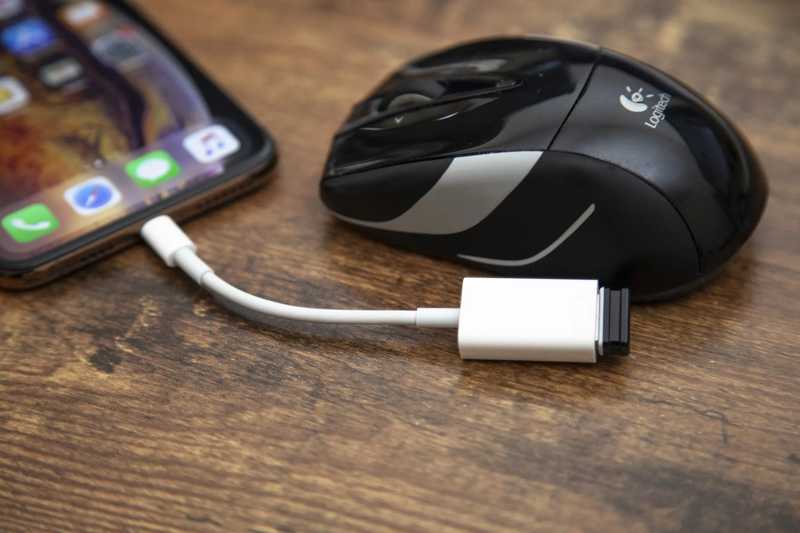
Users can connect accessories to their iPhones, like a mouse, headphones, and more. To protect iOS devices, you must use the authorized accessories for iPhones. Unauthorized accessories will make the iPhone touchscreen not work.
Solution 5: Restore iPhone with iTunes
A more drastic solution to fix the iPhone touch screen not working is restoring your iPhone with iTunes. The process will bring your iPhone to the factory status and erase all data on your device.
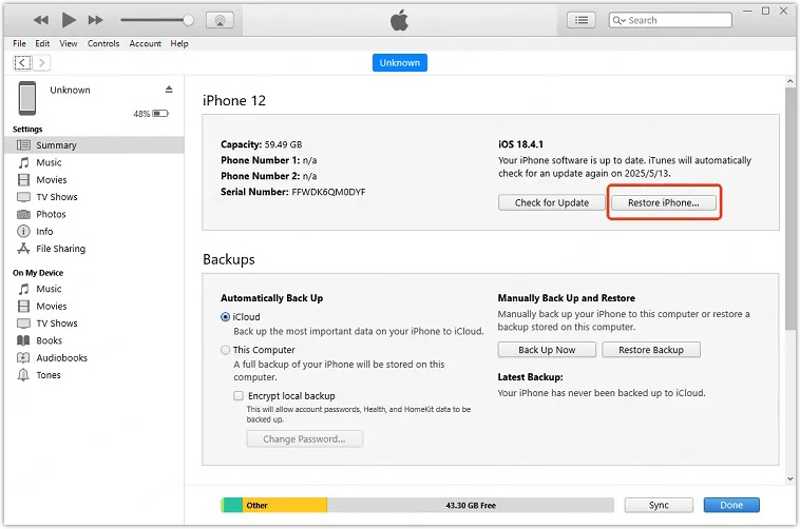
Step 1. Open iTunes on Windows and macOS Mojave or earlier. Open Finder on macOS Catalina or later.
Step 2. Connect your iPhone to your computer with a USB cable.
Step 3. Click the Phone button at the top left side in iTunes or your phone name on the sidebar of Finder.
Step 4. Go to the Summary or General tab.
Step 5. Click the Restore iPhone button.
Step 6. Follow the onscreen instructions to restore your device.
Step 7. When the process is complete, disconnect your iPhone and set it up as a new device or restore a backup.
Note: iTunes will automatically install the latest available update on your iPhone during restoration.
Part 3: How to Restart iPhone When Touch Screen Is Not Working
The ultimate solution to fix iPhone touch screen not working is Apeaksoft iFoneKit. It is able to remove screen locks on your iOS device and let you regain access to your iPhone easily.
One-stop Solution to Fix iPhone Touch Screen Not Working
- Remove screen locks from a frozen iPhone quickly.
- Work for digit passcodes, Face IDs, and Touch IDs.
- Available to a wide array of situations.
- Offer bonus features, like bypassing MDM.
- Support the latest models of iPhone and iPad.
Secure Download
Secure Download

How to Restart iPhone If Touch Screen Is Not Working
Step 1. Connect to your iPhone
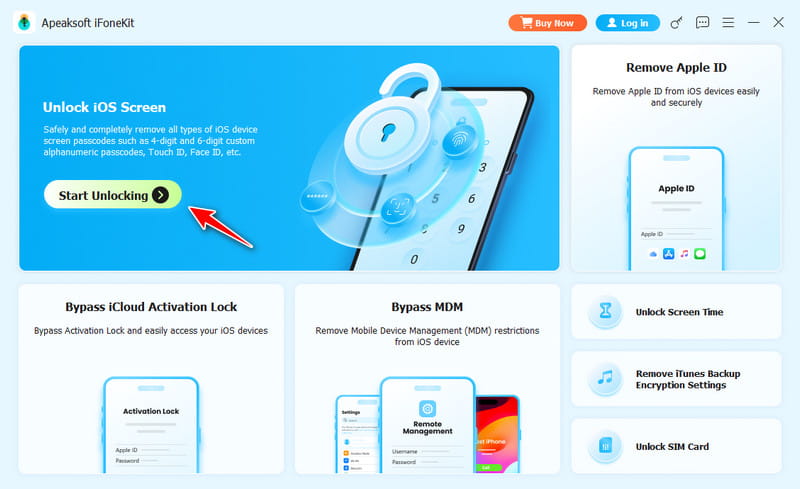
Launch the iOS unlocking software once you install it on your PC. There is another version for Mac users. Plug your iPhone into your PC with a Lightning cable. If prompted, tap Trust on your screen to trust this PC. Choose the Unlock iOS Screen mode to continue.
Step 2. Download the firmware
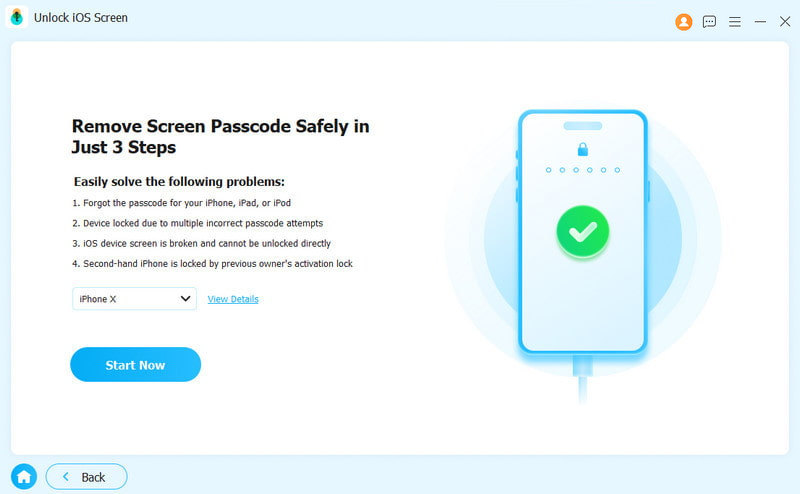
After your iPhone is detected, click the Start Now button to begin downloading the firmware. It takes a while, and you must be patient. Read the messages and click the OK button on the confirmation dialog to move on.
Step 3. Fix iPhone touch screen
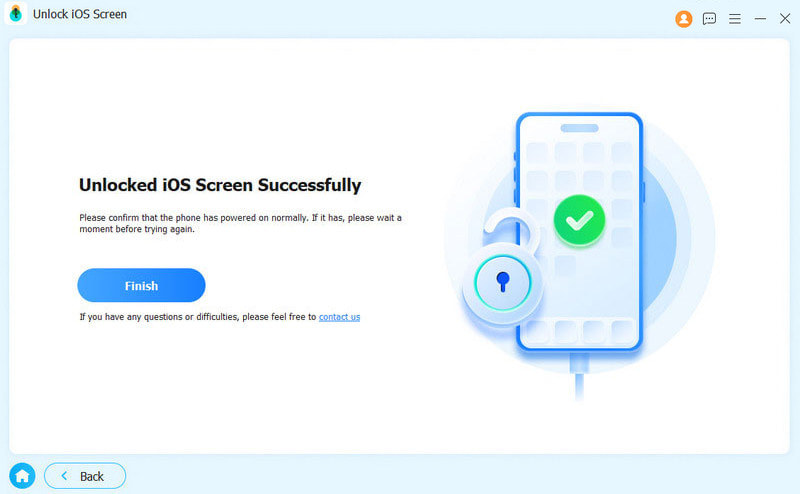
Next, click the Confirm Again button to verify the firmware. After verifying, the software will automatically force restart your iPhone. When it is done, disconnect your device and unlock it without any restrictions.
Conclusion
This guide explained why the touch screen is not working on your iPhone. If your screen is broken, you have to replace it with an authorized store. For software glitches, you can follow our solutions one by one to get rid of the unresponsive screen quickly. We recommended an ultimate solution, Apeaksoft iFoneKit. It can remove screen locks, malfunctioning apps, and other data on your device, so your screen will work again. The user-friendly interface makes it easy to use for beginners.
Related Articles




