


How to Unlock support.apple.com/iPhone/passcode Quickly

Key Takeaways
support.apple.com/iPhone/passcode occurs when you enter wrong passcode too many times.
- Directly unlock the support.apple.com/iPhone/passcode screen without a computer using the Erase iPhone/Forgot Passcode option on iOS 15.2 or later.
- Unlock with the previous passcode (iOS 17 and above) if you changed the passcode within the last 72 hours.
- Reset iPhone with Recovery Mode (Finder/iTunes) on a computer.
- Erase iPhone remotely via iCloud Find My.
- Use a third-party iOS unlocking tool if you forgot both the iPhone passcode and Apple ID password.
- Nearly all the methods will erase your iPhone data. Back up your iPhone first.
If you see the message that says support.apple.com/iPhone/passcode on the iPhone Unavailable screen, chances are that you are in a dilemma. Once the message appears, it means that your iPhone is locked, unavailable, or disabled. Anyway, you cannot unlock your device or access any features and data on your iPhone. If you are unsure what to do, this guide is for you. This guide demonstrates multiple methods to unlock your iPhone in such a case.
PAGE CONTENT:
Part 1: Why support.apple.com/iPhone/passcode Occurs
When you or someone else enters too many failed passcode attempts, you will get the message that says support.apple.com/iPhone/passcode on your iPhone. In newer iOS versions, Apple may now display a simplified URL such as support.apple.com/passcode, but it refers to the same official recovery page. At the same time, your device screen displays iPhone Unavailable. That means that your device is in the Security Lockout status.

In fact, support.apple.com/iPhone/passcode is a web page. You can copy and paste the URL into a browser and redirect to the official webpage. Apple provides the solution to unlock an unavailable or disabled iPhone or iPad.
Part 2: [Official] How to Unlock support.apple.com/iPhone/passcode
How to Unlock support.apple.com/iphone/passcode by Erase iPhone
Since iOS 15.2 and iPadOS 15.2, Apple has added the erase option on the Unavailable screen. It enables you to unlock Security Lockout and support.apple.com/iphone/passcode. Of course, this method will erase all data on your device, so you’d better make a backup before the process.
On iOS 15.2 to iOS 16
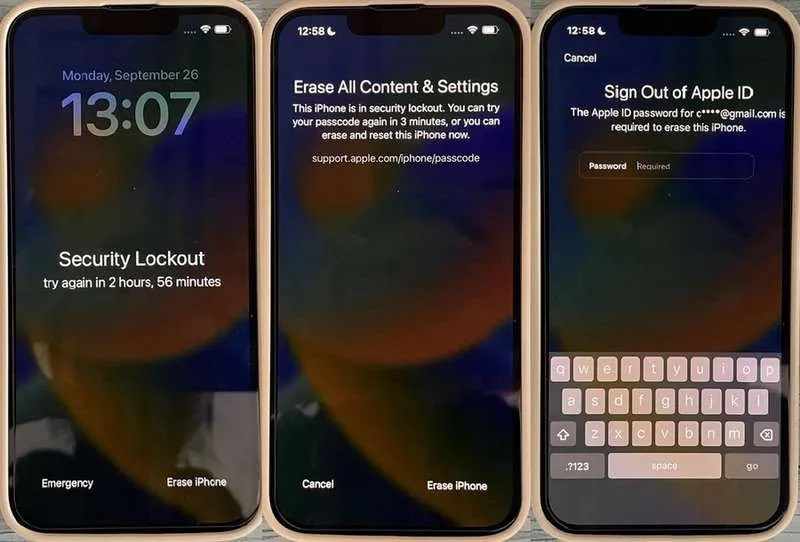
Step 1. When you see support.apple.com/passcode on your iPhone Unavailable screen, tap the Erase iPhone button.
Step 2. Read the alert and tap Erase iPhone again.
Step 3. Enter your Apple ID password to sign out of your account.
On iOS 17 and Above
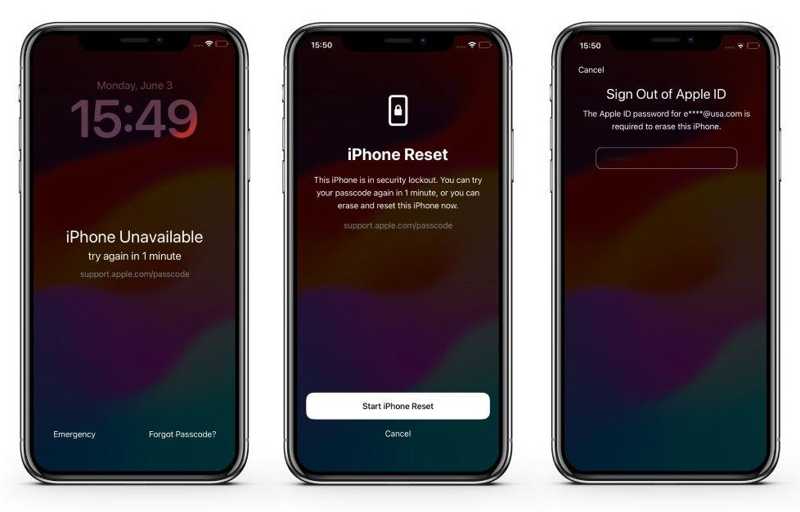
Step 1. Tap the Forgot Passcode button under the support.apple.com/passcode message.
Step 2. Read the alert and tap the Start iPhone Reset button.
Step 3. Enter your Apple ID password to initiate unlocking your iPhone.
How to Unlock support.apple.com/passcode with Previous Passcode
If you changed your iPhone passcode within 72 hours and forgot the new password, you would be locked out on the support.apple.com/passcode screen. Apple allows you to unlock your device with the previous passcode if you run iOS 17 and above.
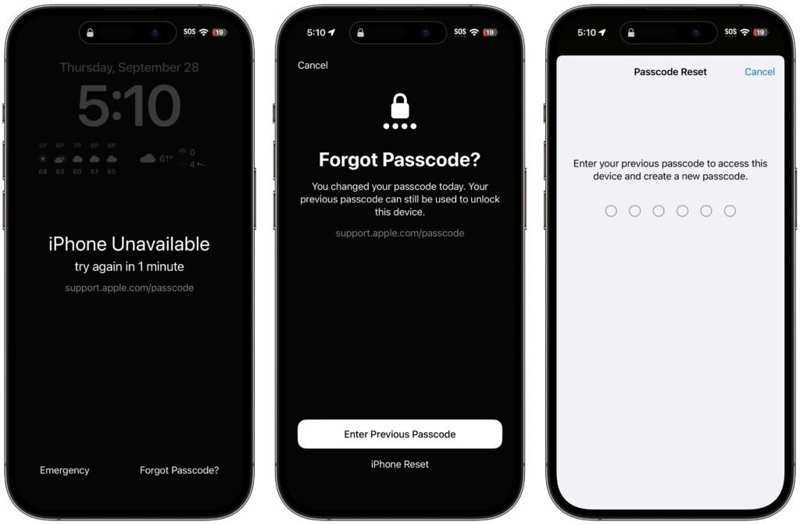
Step 1. Tap the Forgot Passcode on the iPhone Unavailable screen.
Step 2. Choose Enter Previous Passcode at the bottom.
Step 3. Enter your previous passcode. Then, create a new passcode.
How to Unlock support.apple.com/iphone/passcode Using iTunes
If you cannot find the Erase iPhone or Forgot Passcode option or forgot your Apple ID password, you must unlock support.apple.com/iPhone/passcode with a computer. This method requires the latest version of iTunes or Finder. Bear in mind that this method will remove all data on your device. To avoid data loss, you’d better back up your data to iCloud or a computer.
Step 1. Connect your iPhone to a computer with a compatible cable.
Step 2. Open iTunes on Windows or macOS Mojave and earlier. On macOS Catalina or later, open Finder.
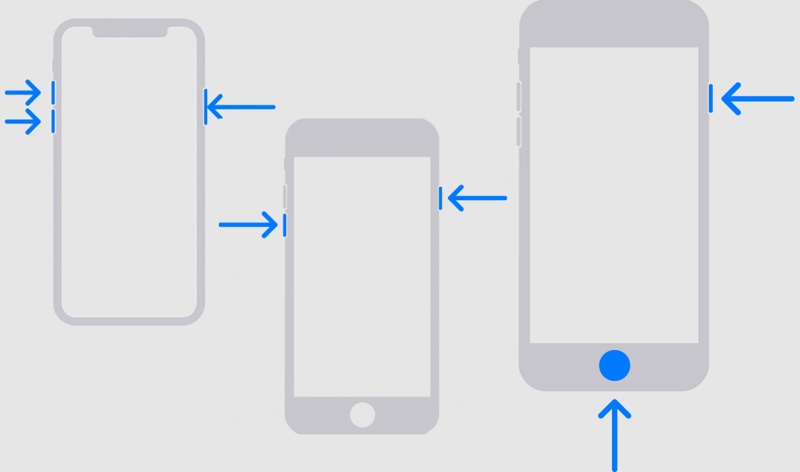
Step 3. Put your iPhone in Recovery Mode:
On an iPhone 8 or Later and iPad Without a Home Button
Quickly press and release the Volume Up button.
Quickly press and release the Volume Down button.
Hold the Side button until the connect-to-pc screen appears.
On an iPhone 7/7 Plus
Long-press the Volume Down + Side buttons together.
When you see the connect-to-pc screen, release the buttons.
On an iPhone 6s or Earlier and iPad with a Home Button
Hold the Home + Sleep/wake buttons at the same time.Let the buttons go until the connect-to-pc screen pops up.
Step 4. Once iTunes or Finder detects your device in Recovery Mode, a dialog with three buttons will appear.
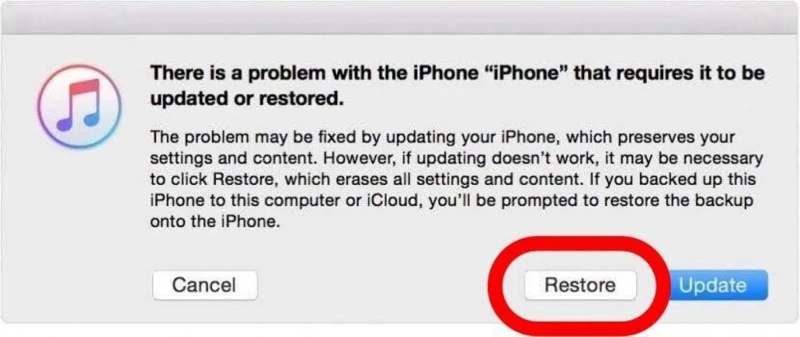
Step 5. Click the Restore button and follow the onscreen instructions to unlock your device.
Note: Even if you can unlock your device after restoring it, you need to offer your Apple ID password when setting up your iPhone or iPad to turn off Find My.
How to Unlock support.apple.com/iphone/passcode Using iCloud
iCloud Find My is another official way to unlock the support.apple.com/iphone/passcode screen remotely. If your iPhone is linked to an Apple ID and Find My iPhone is enabled, you can remotely erase your iPhone from iCloud, thereby unlocking the locked screen.
Step 1. Go to iCloud .com on any browser.
Step 2. Sign in with your Apple ID and password.
Step 3. Click Find My, and find your iPhone.
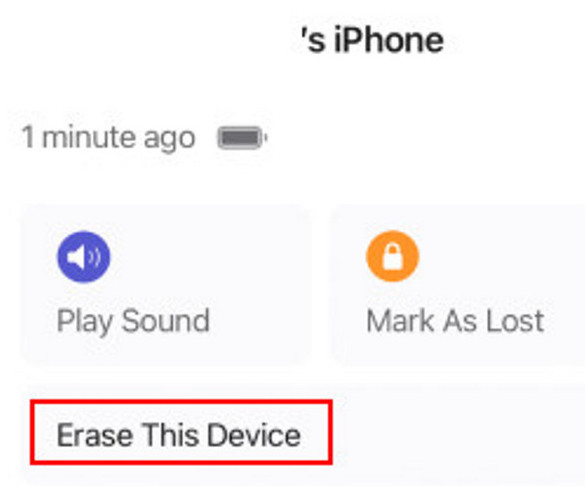
Step 4. Click it and choose Erase This Device.
Part 3: How to Bypass support.apple.com/iPhone/passcode Without a Password
As mentioned previously, forgetting your iPhone passcode is the main reason why support.apple.com/iPhone/passcode appears on your screen. Most methods to unlock your device require your Apple ID password. If you forgot your Apple ID password, Apeaksoft iFoneKit iOS Unlocker can help solve the problem. It can bypass support.apple.com/iphone/passcode without requiring your iPhone passcode, Apple ID password, and more.

Downloaded by over 1,000,000 users
- Bypass support.apple.com/iphone/passcode easily.
- Don’t require your iPhone passcode or Apple ID password.
- Available for unlocking a disabled iPhone, iPad, or iPod.
- Offer bonus features, such as Apple ID password removal.
- Support the latest iPhone 18 series and iOS 26/27.
Secure Download
Secure Download

How to Bypass support.apple.com/iphone/passcode on Any Device
Step 1. Install the iPhone unlocking tool
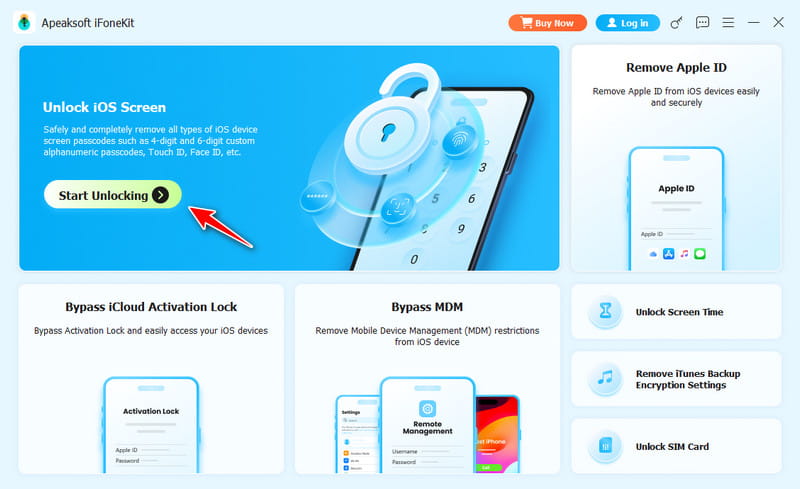
Launch the best iPhone unlocking software after you install it on your computer (Windows 11/10/8/7/XP/Vista and Mac OS X 10.7 or above). Connect your iPhone to your computer with a Lightning cable.
Step 2. Check device information
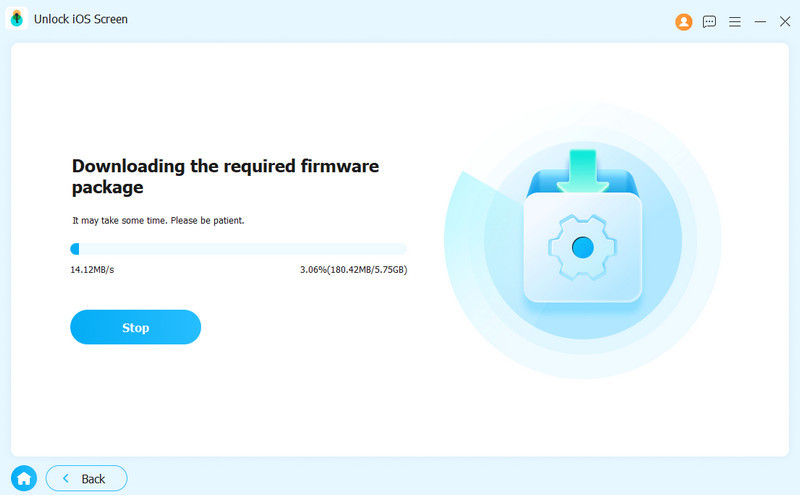
Choose the Unlock iOS Screen mode in the home interface and click the Start Now button after detecting your device to download the firmware. It may take a while and you must be patient.
Step 3. Bypass support.apple.com/iphone/passcode
As long as the firmware downloading is done, click the OK button to bypass support.apple.com/iphone/passcode and wipe your screen lock. When prompted, click Confirm Again to confirm the unlocking.
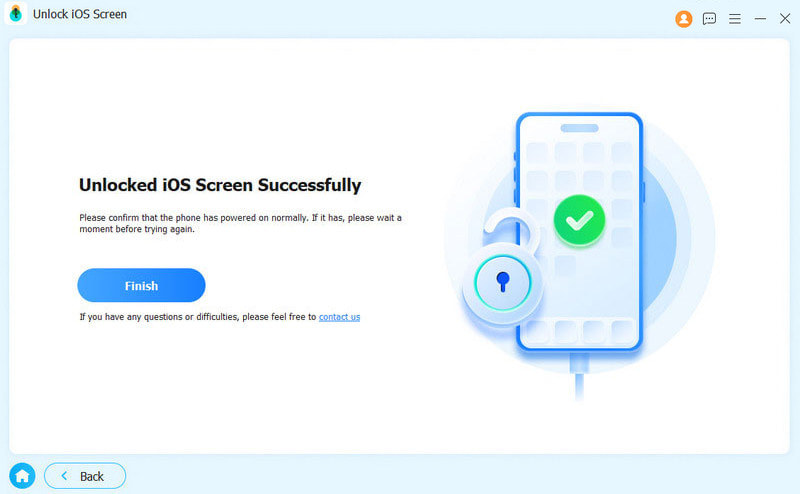
Note: The process will factory reset your iPhone during the process, so you should make a backup before starting.
Part 4: FAQs about support.apple.com/iPhone/passcode
Can I unlock iPhone if I forget the password?
Yes. You can unlock your iPhone via iTunes recovery mode, iCloud Find My, or a third-party iPhone unlocker like Apeaksoft iFoneKit iOS Unlocker.
How can I get my iPhone out of security lockout?
The easiest way is pressing the Erase iPhone button on the screen and enter your Apple ID password to make it.
How do I unlock my iPhone if I forgot my Apple ID password?
You can go to iforgot.apple.com to recover your account. Otherwise, you will still be stuck at the iCloud activation lock after unlocking by resetting via iTunes.
Conclusion
This article has explained how to unlock support.apple.com/iphone/passcode without or with a computer. Since iOS 15.2, you will get an Erase iPhone or Forgot Passcode on the iPhone Unavailable screen. That allows you to unlock your device. Moreover, you can regain access to your device by restoring it. Apeaksoft iFoneKit iOS Unlocker is the ultimate method to unlock your iPhone without a passcode.
 Apeaksoft iFoneKit
 Unlock all types of iOS passwords from iPhone, iPad and iPod.
Secure Download
Secure Download
Related Articles




