

What You Should Do If Your iPhone Volume Is Not Working

“My iPhone 15 suddenly mutes. I press the volume buttons, but they are not working. How to fix iPhone volume not working?” iPhone's excellent audio quality is attributed to Apple's specialized digital-to-analog converters. However, some users reported no sound coming from their devices. The causes are complicated. Having ruled out hardware damage, you can resolve this problem by following our verified solutions and get sound back on your iPhone.
PAGE CONTENT:
Part 1: Why iPhone Volume Not Working
If your iPhone suffered a hard fall, the speaker system may be damaged. Besides, the software glitches and conflict settings may lead to the problem, too. The main causes why my volume is not working on my iPhone include:
1. You enable the Silent Mode.
2. The sound goes to a Bluetooth device.
3. Your screen is frozen and unresponsive.
4. Your iPhone is stuck in headphone mode.
5. Your iPhone speakers are clogged.
6. Your iPhone is in Do Not Disturb Mode.
7. Software glitches.
Part 2: How to Fix iPhone Volume Not Working
If your iPhone speakers are undamaged, chances are that software glitches or conflict settings are responsible for the problem. You can fix the iPhone volume button not working by following the solutions below:
Solution 1: Check the Silent Switch
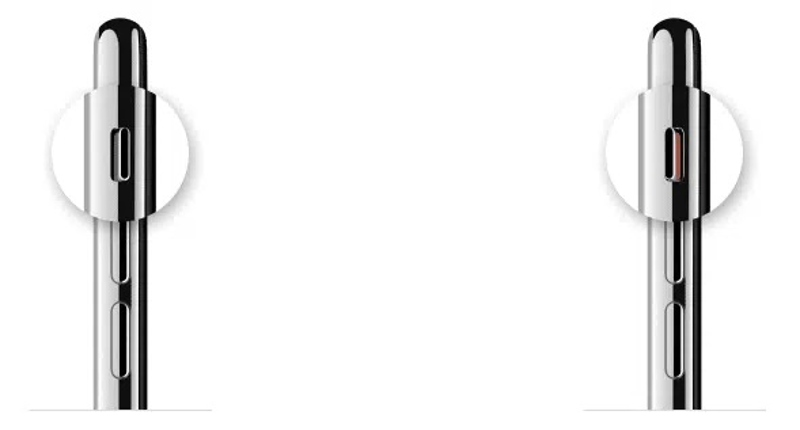
When your iPhone volume keys are not working, the first thing you need to do is check the Ring/Silent switch. Look at the side of your iPhone and make sure the switch is up and in the Ring Mode.
Solution 2: Increase Volume
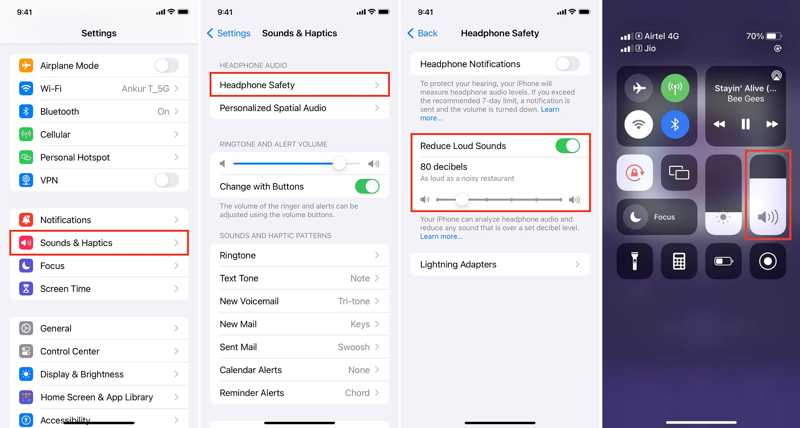
Step 1. Open the Settings app on your iPhone.
Step 2. Go to Sounds & Haptics, and adjust volume under RINGTONE AND ALERT VOLUME.
Step 3. Tap Headphone Safety and adjust Reduce Loud Sounds.
Note: You can also adjust iPhone volume in your Control Center if iPhone volume keys are not working.
Solution 3: Test iPhone Speaker
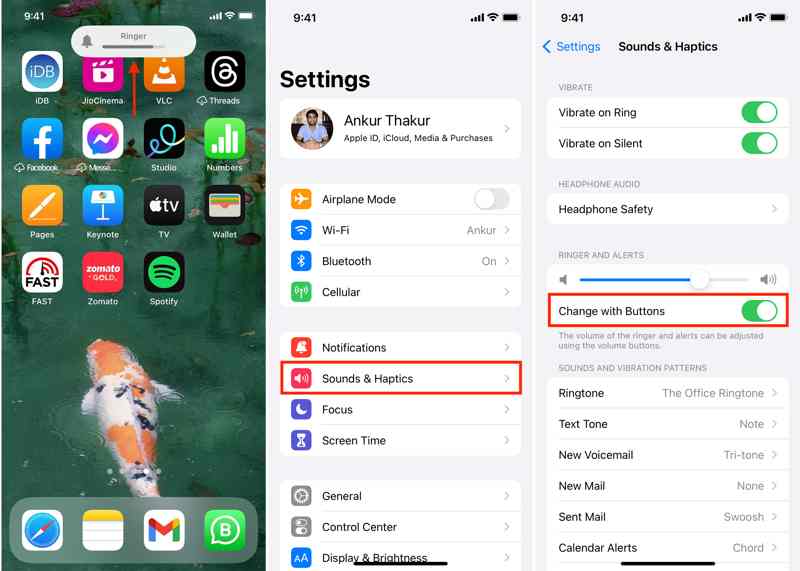
Step 1. Run your Settings app.
Step 2. Go to Sounds & Haptics.
Step 3. Toggle on Change with Buttons under the RINGTONE AND ALERT VOLUME section to fix volume control on iPhone not working.
Note: If Change with Buttons is enabled, toggle it off, and then turn it back on.
Solution 4: Force Restart iPhone
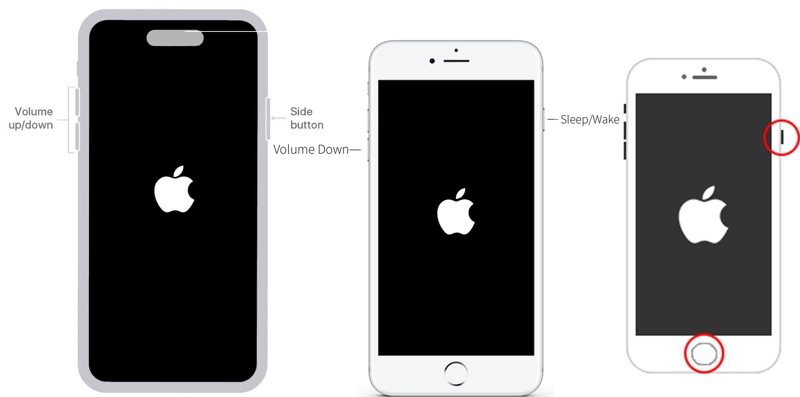
For iPhone 8 or later
Quickly press and release the Volume Up button.
Do the same thing to the Volume Down button.
Hold the Side button until you see the Apple logo.
For iPhone 7/7 Plus
Long-press the Volume Down + Side buttons.
Let the buttons go when the Apple logo appears.
For iPhone 6s or earlier
Hold the Home + Sleep/Wake buttons.
Release the buttons once you see the Apple logo.
Then, adjust the volume to check if the iPhone volume buttons are working.
Solution 5: Clean Speaker Grills
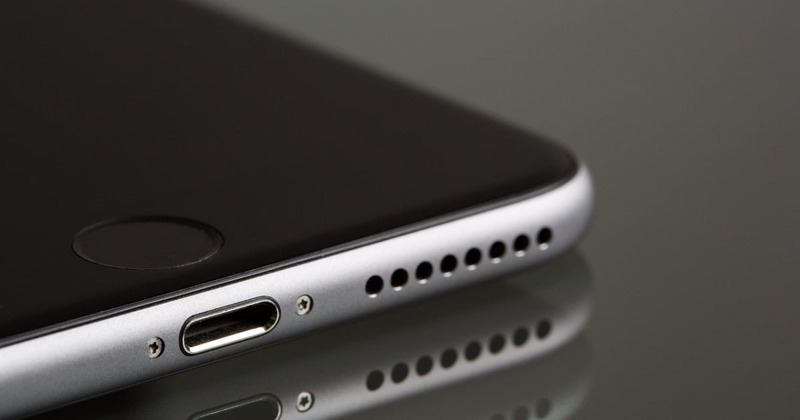
If your iPhone 16 volume buttons are not working, you also need to clean the speaker grills and remove the debris. The speakers are located on the bottom side of your iPhone. Use a soft brush or toothbrush to remove dirt and debris.
Solution 6: Disable Do Not Disturb
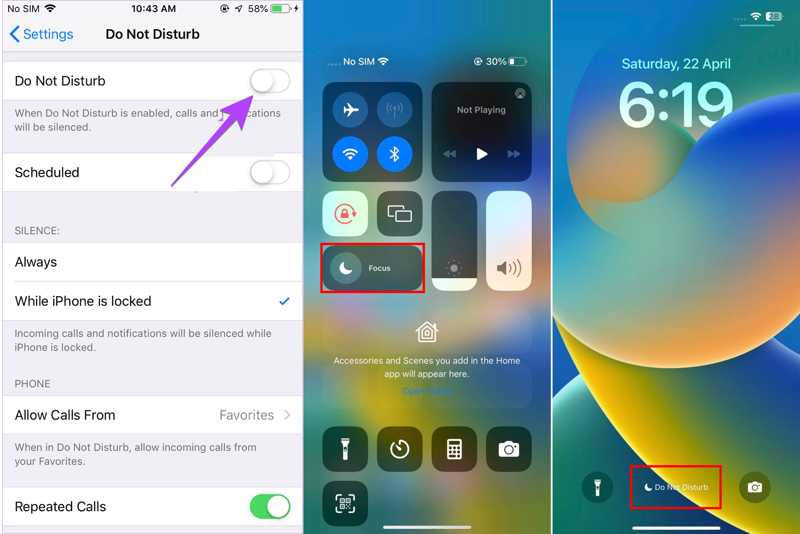
Option 1: Run the Settings app, go to Do Not Disturb, and toggle off Do Not Disturb.
Option 2: Enter your Control Center, and tap Do Not Disturb to turn it off.
Option 3: Tap the Do Not Disturb alert on your lock screen, long-press Do Not Disturb to open the Focus menu, and touch Do Not Disturb to deactivate it.
Solution 7: Reset All Settings
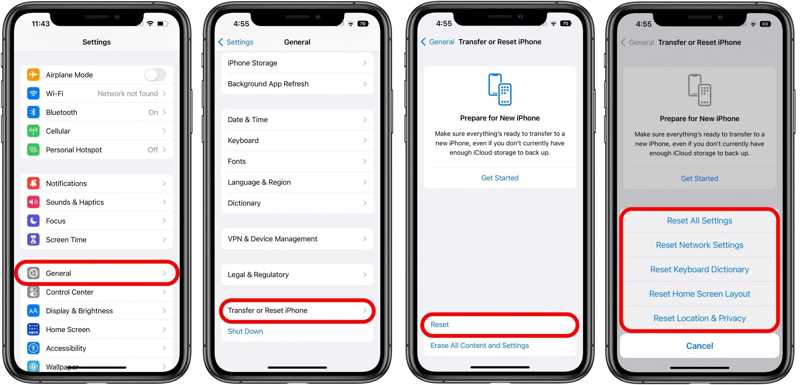
Step 1. If volume control on your iPhone is not working, run your Settings app.
Step 2. Go to General, and choose Transfer or Reset iPhone.
Step 3. Tap Reset, and pick Reset All Settings.
Step 4. If prompted, enter your iPhone passcode. If you forget your Apple ID password, you can reset it with the associated phone number or email address.
Step 5. When it is done, your iPhone will restart, and you can adjust volume as usual.
Part 3: One-stop Solution to Fix iPhone Volume Not Working
The common solutions are available to a wide range of software glitches. However, if your iPhone is experiencing severe problems and the iPhone ringer volume is not working, you will need a powerful troubleshooting tool, such as Apeaksoft iOS System Recovery. It is able to detect software issues automatically and fix them quickly.
The Best Way to Fix iPhone Volume Not Working
- Fix iPhone volume not working with a single click.
- Offer multiple modes for different situations.
- Available to a wide range of software problems.
- Update or downgrade the version of iOS.
- Support the latest versions of iOS and iPadOS.
Secure Download
Secure Download

How to Fix iPhone Volume Buttons Not Working
Step 1. Connect to your iPhone
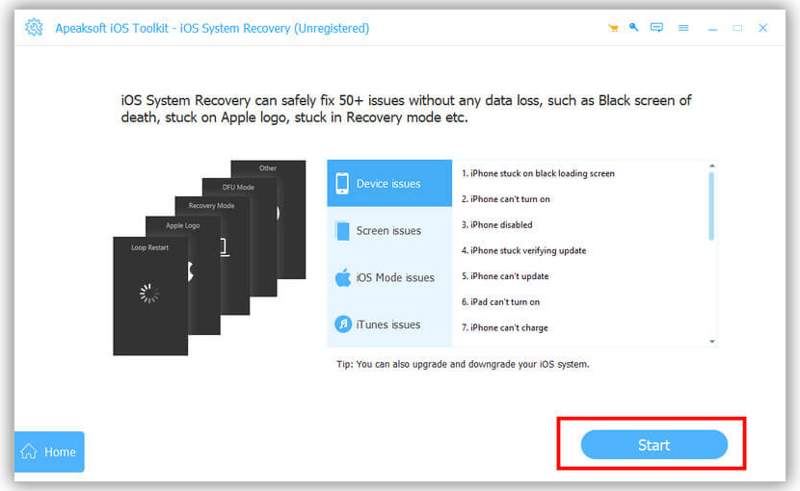
Launch the best iOS recovery software once you install it on your computer. It is compatible with Windows 1/10/8/7/XP/Vista and macOS 10.7 or above. Connect your iPhone to your computer with a Lightning cable. If you link the two devices for the first time, tap Trust on your screen to trust your computer. Click the Start button to begin scanning software issues on your device.
Step 2. Choose a mode
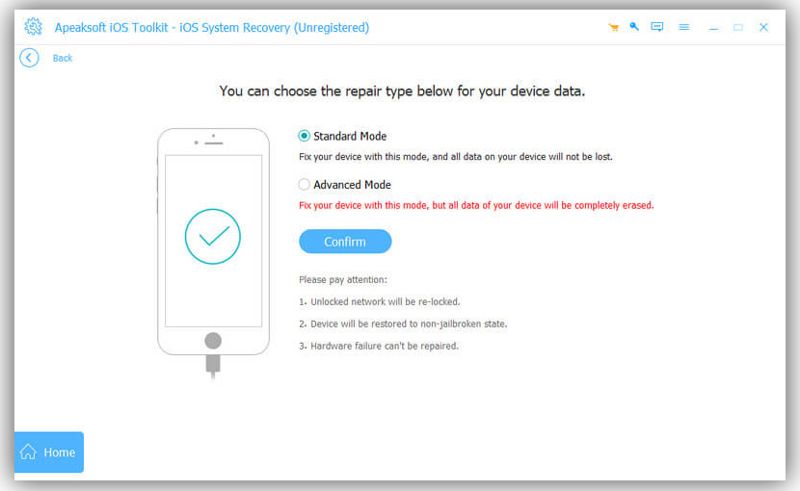
Click the Free Quick Fix link to try to fix it quickly. If it is unavailable, click the Fix button. Then, select the Standard Mode or Advanced Mode according to your needs. Click the Confirm button to move on.
Step 3. Fix iPhone volume not working
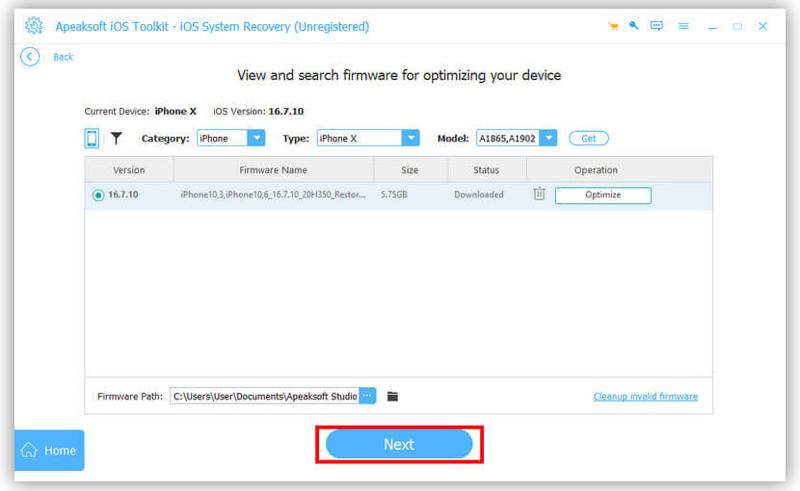
Check your iPhone information. Then, pick the right version of iOS, depending on your needs, and click the Download button. If you already have a firmware, import it. Finally, click on the Next button to initiate fixing the iPhone volume not working immediately. When it is done, disconnect your iPhone and check if your volume buttons work normally.
Conclusion
Now, you should understand why volume is not working on your iPhone. If the volume buttons are undamaged, you can fix this problem with the solutions one by one. They won't interrupt the current data on your device. Of course, common solutions cannot fix severe problems. Therefore, we recommended a one-stop solution: Apeaksoft iOS System Recovery. It can scan your iPhone, discover software issues, and resolve them quickly. The clean interface makes it easy to navigate.
Related Articles




