How to Solve SIM Card Not Working on iPhone in Simple Steps

Why is my SIM card not working even though it's inserted properly? Why does my iPhone keep saying "No SIM" or "Invalid SIM" when I try to make a call or send a text? If that's happening to you, this guide will explain the common causes and offer simple fixes to get your SIM card running again.
PAGE CONTENT:
Part 1: Why is My SIM Card Not Working on iPhone
Before exploring the troubleshooting fixes, it's important to understand why your SIM card is not working on your iPhone. Here are some common causes:
- SIM Card Issues: Your SIM card could be broken, dirty, not properly inserted, or even damaged by moisture.
- Carrier Problems: Outdated carrier settings or a temporary service outage from the carrier may interfere with the connection.
- Network Settings: Misconfigured mobile network settings can block SIM access.
- Software Glitches: System bugs or errors might prevent your device from recognizing your SIM card.
Part 2: How to Fix SIM Card Not Working on iPhone
Here are 8 useful methods to fix the SIM card not working issue:
Fix 1: Activate Your SIM Card
If you've just inserted a new SIM card, it might not be activated yet. Most carriers will activate your SIM card automatically, but sometimes, you may need to contact your carrier to confirm if it's activated. If the SIM card is activated but still not working, it could be because your iPhone is locked to a specific carrier.
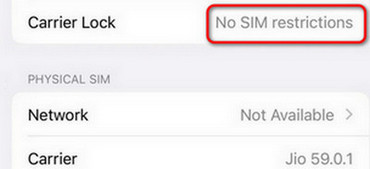
To check if your iPhone is unlocked, go to Settings > General > About. If your iPhone is unlocked, you'll see "No SIM restrictions" next to Carrier Lock.
Fix 2: Restart Your iPhone
Sometimes, a simple restart can resolve many issues, including SIM card problems. Restarting your iPhone helps refresh the system and clears out temporary iPhone glitches. Power off your iPhone, wait about 30 seconds, and turn it back on. Once your iPhone restarts, check to see if the SIM card is now working.
Fix 3: Reinsert the SIM Card
Sometimes, the SIM card may not be properly seated. Power off your iPhone, eject the SIM card with the pin tool, and reinsert it carefully. If the SIM card or tray has dirt or debris, gently clean it with a soft, dry cloth before reinserting it.
Fix 4: Update iOS to the Latest Version
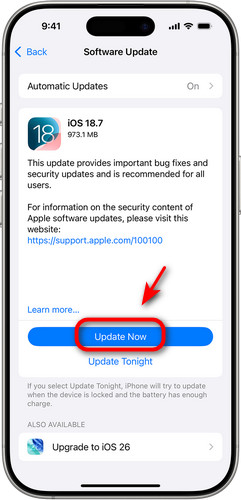
Outdated iOS versions can cause compatibility issues to make your iPhone SIM card not working. To ensure your system is up to date: Go to Settings > General > Software Update. If an update is available, tap Download and Install to update your iPhone to the latest iOS version.
Fix 5: Check for a Carrier Settings Update
Apple sometimes releases updates to optimize system performance and improve features. If your carrier settings are outdated, it might prevent your SIM card from connecting to your network. To check for a carrier settings update, go to Settings > General > About. If there is a new update, tap Update to install it.
Fix 6: Reset Network Settings
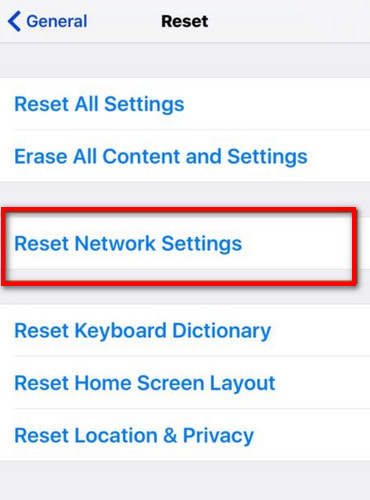
If your network settings are misconfigured, resetting them can fix SIM card not working issues. This will reset all Wi-Fi networks, passwords, and cellular settings to the default status. Go to Settings > General > Reset > Reset Network Settings, then enter your passcode to confirm.
Fix 7: Unlock Your SIM Card with Apeaksoft iFoneKit
If your SIM card is locked to a specific carrier, you may encounter issues with your iPhone recognizing it. In this case, using a third-party tool like Apeaksoft iFoneKit can help you unlock your SIM card and remove any carrier locks.
Step 1. Download and install Apeaksoft iFoneKit on your computer.
Secure Download
Secure Download
Step 2. Choose the Remove SIM Locks mode on the main interface.
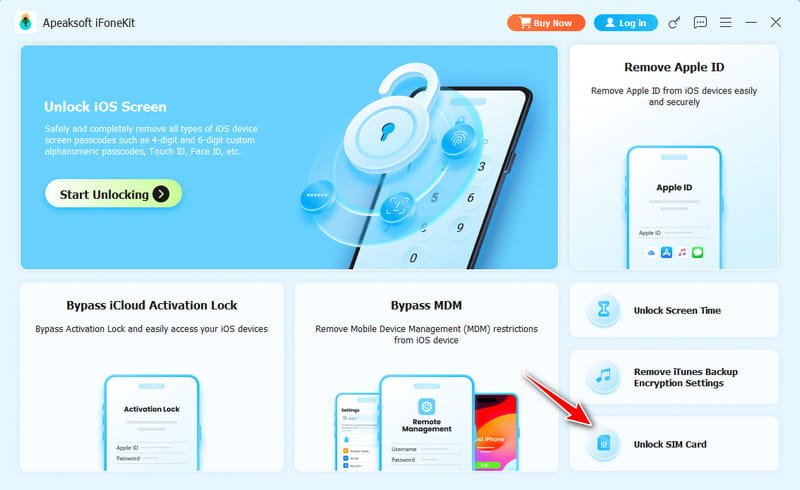
Step 3. Connect your iOS device to the computer and hit the Start Now button to continue. Before starting, please read our statement and warnings carefully.
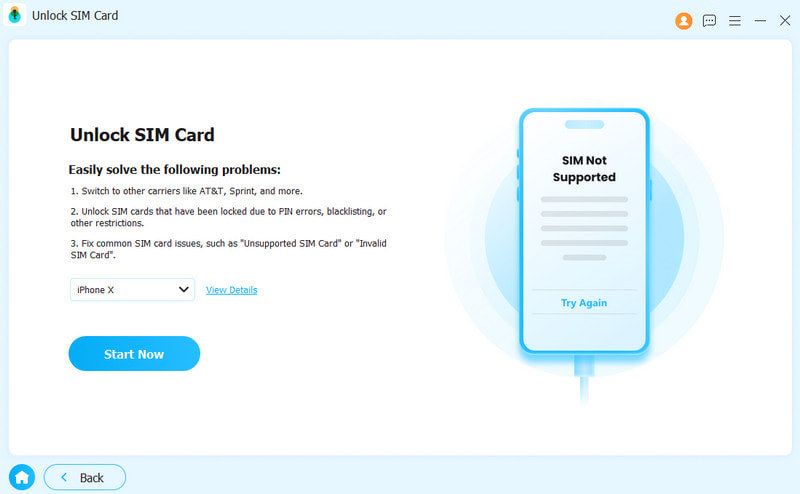
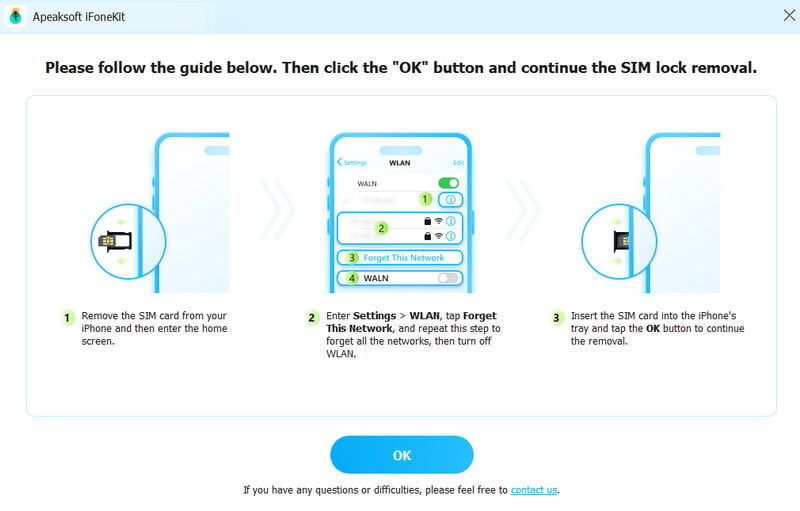
Step 4. Check the device information on the screen, then hit the Start Bypassing button to continue. Follow the instructions on the screen to unlock your SIM card.
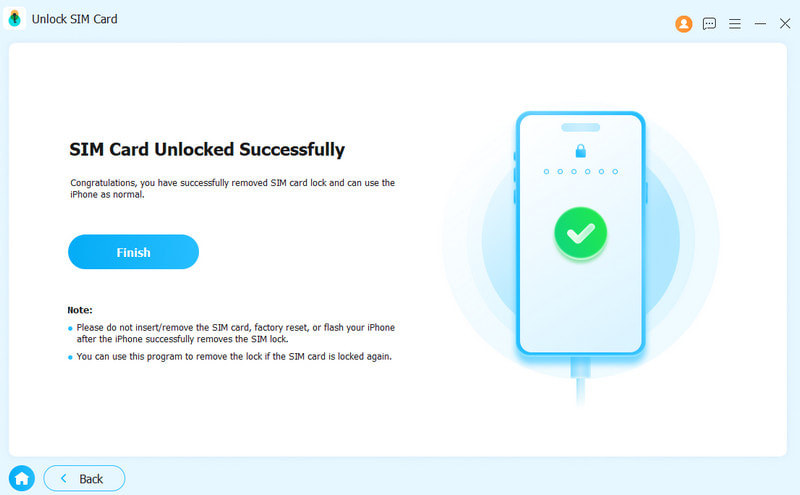
Step 5. Your SIM card will be removed from restrictions successfully.
Tips: This all-in-one tool also allows you to easily remove screen passcodes, Apple ID locks, MDM restrictions, Screen Time limits, and even iTunes backup encryption!
Fix 8: Restore Your iPhone to Factory Settings
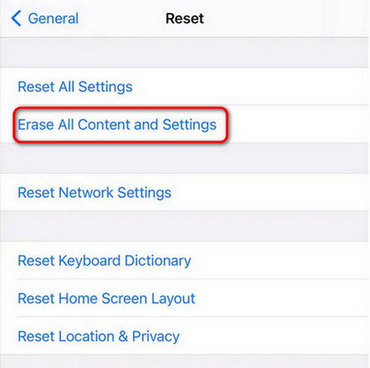
If none of the previous fixes resolve the iPhone SIM card not working issue, you can try the final solution - restoring your iPhone to its factory settings. This will erase all data on your device, so make sure to back up your iPhone in advance.
To restore your iPhone, go to Settings > General > Transfer or Reset iPhone, then select Erase All Content and Settings. Follow the prompts to complete the process. After the reset, check if the SIM card is working again.
Part 3: FAQs About SIM Card Not Working
Why does my phone show No SIM Card error, but the SIM card is inserted?
This issue could be caused by a damaged or dirty SIM card, outdated carrier settings, or software glitches. First, reinsert your SIM card carefully and check for any visible damage or dirt. If it's clean and properly inserted, try restarting your iPhone.
Why is my dropped iPhone SIM card not working?
A drop can damage the SIM card or the iPhone's internal components. Check the SIM card for visible damage, or try another card to see if the issue is with the card or the device.
How do I know if my iPhone is locked to a specific carrier?
Go to Settings > General > About. If you see No SIM restrictions next to Carrier Lock, your iPhone is unlocked. If it shows a carrier's name, it's locked to that carrier.
Conclusion
By following the fixes outlined in this guide, you should be able to resolve most SIM card not working issues on your iPhone. For a quick and effective solution, consider using a third-party tool like Apeaksoft iFoneKit to unlock your SIM card!
 Apeaksoft iFoneKit
 Unlock all types of iOS passwords from iPhone, iPad and iPod.
Secure Download
Secure Download
Related Articles