


How to Remove a SIM Card from Your iPhone and Use a New One

A SIM card is a small chip that you insert into your iPhone or phone. It allows you to connect to a carrier’s network. Then, you can make phone calls, send SMS, and access the internet with cellular data. If you want to switch to a new SIM card or carrier, or give your smartphone to someone else, you have to remove a SIM card from your iPhone. This guide shares the detailed steps.
PAGE CONTENT:
Part 1: Before Removing a SIM Card from an iPhone
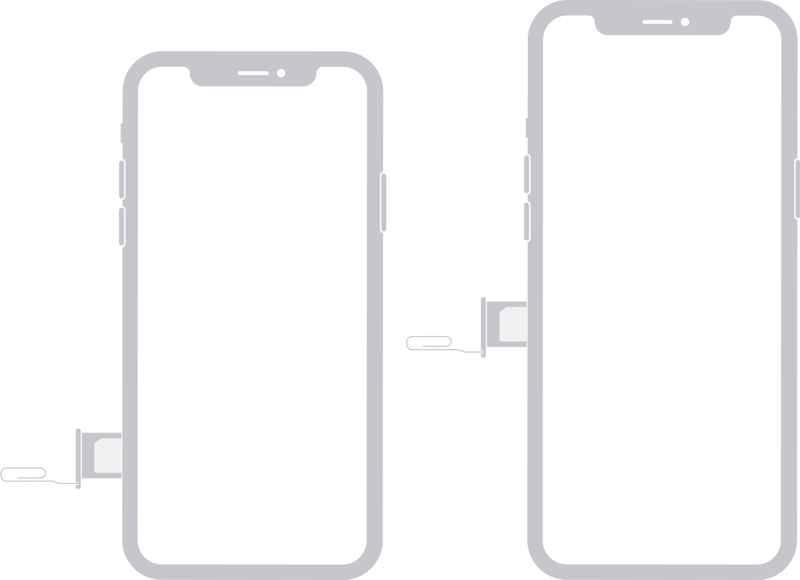
A SIM card is put in a SIM tray and then inserted into an iPhone. In other words, you have to find the SIM tray on your device before removing a SIM card from an iPhone. The position of the SIM card is determined by your iPhone model.
The SIM tray is on the left side of the iPhone 12 and above.
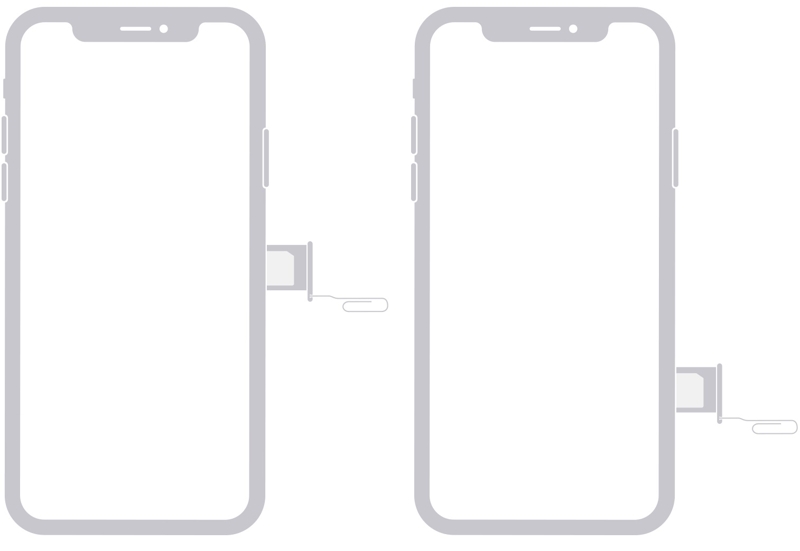
The SIM tray is on the right side on iPhone 4 to 11.
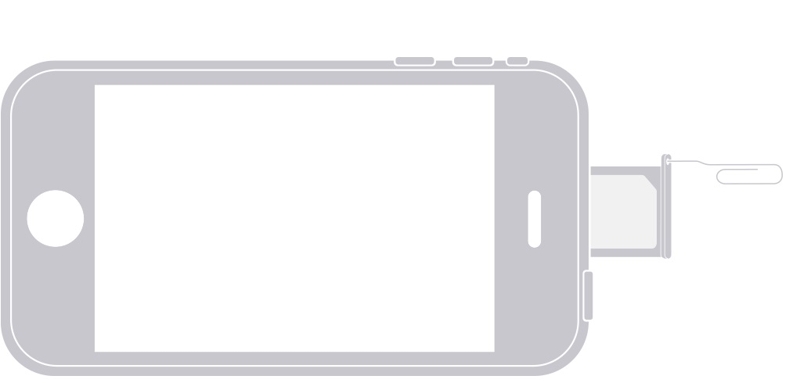
The SIM tray is on the top of the iPhone 3G/3GS.
Since the launch of the iPhone 14, US iPhone customers no longer have access to a SIM tray, but worldwide users do.
Back up iPhone Before Removing SIM Card
While an iPhone won’t save any data on the SIM card, you’d better back up your iPhone before removing the SIM card to avoid data loss. You can back up your data to either iCloud or a computer.
Back up iPhone to iCloud
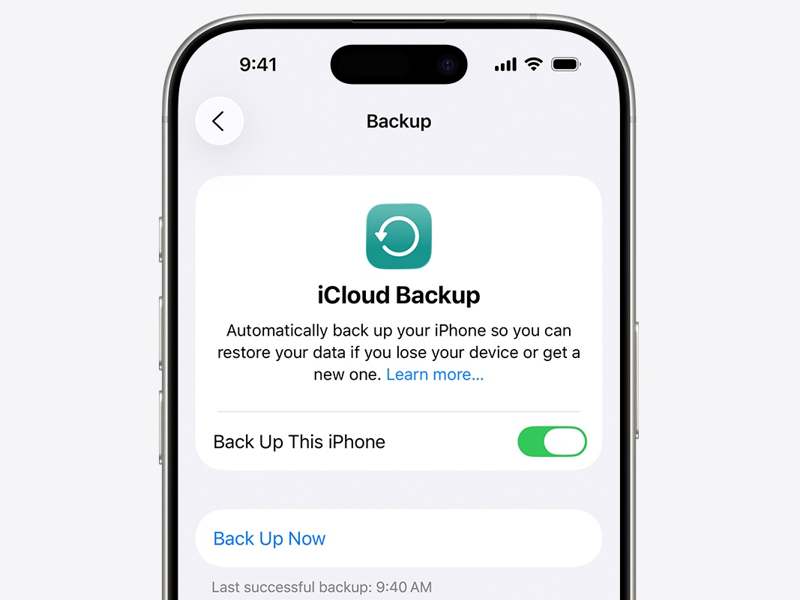
Step 1. Open the Settings app.
Step 2. Connect your iPhone to an internet connection.
Step 3. Tap on your profile.
Step 4. Choose iCloud and tap Back Up Now.
Step 5. When the backup finishes, you will see the success message.
Back up iPhone to Computer
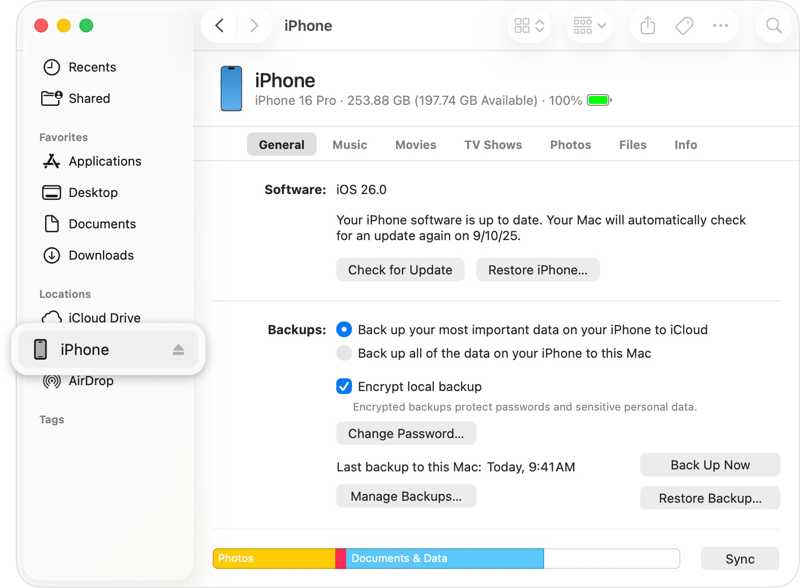
Step 1. Connect your iPhone to a computer with a USB cable.
Step 2. Open iTunes on Windows and macOS Mojave or earlier.
Open Finder on macOS Catalina or later.
Step 3. Click the Phone button in iTunes and go to Summary. Or click your iPhone number in Finder and go to General.
Step 4. Click the Back Up Now button under the Backups section. You can also set an iTunes backup password. It can highly encrypt your privacy in the backup.
Part 2: How to Remove SIM Card from iPhone
Removing a SIM card from an iPhone is simple. All you need is a SIM-eject tool. It is a thin metal tool that may come in the box with your iPhone. If you don’t have a SIM-eject tool, a small paper clip will also get the job done. Bear in mind that you need to straighten the long end until it projects out if you are using a paper clip.
How to Remove a SIM Card from an iPhone
Step 1. Remove the iPhone case if you use one.
Step 2. Press and hold either volume button + Side button on an iPhone with Face ID. Hold down the Side or Power button on an iPhone without Face ID.
Step 3. When the power-off screen appears, release the buttons or button.
Step 4. Move the slider to shut down your device.
Step 5. Wait for your iPhone screen to turn black.
Step 6. Insert a SIM-eject tool into the pinhole next to the SIM tray. Gently push it into the hole until the tray pops out.
Step 7. Take out the tray and remove the SIM card from your iPhone.
How to Insert Another SIM Card on iPhone
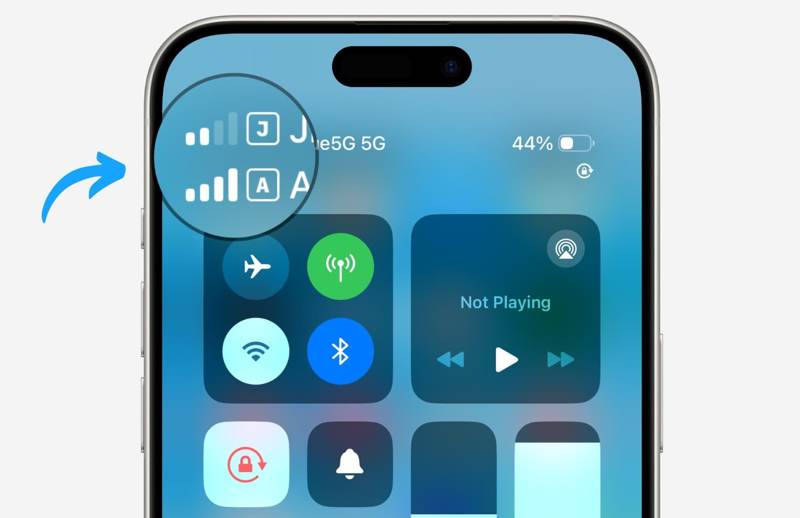
Step 1. If you wish to use another SIM card, put it in the empty slot inside the SIM tray.
Step 2. Insert the SIM tray into your iPhone and push it back.
Step 3. Hold down the Side or Power button until you see the Apple logo.
Step 4. When your iPhone detects the SIM card successfully, you will see the signal at the top of your screen.
How to Import Contacts from SIM to iPhone
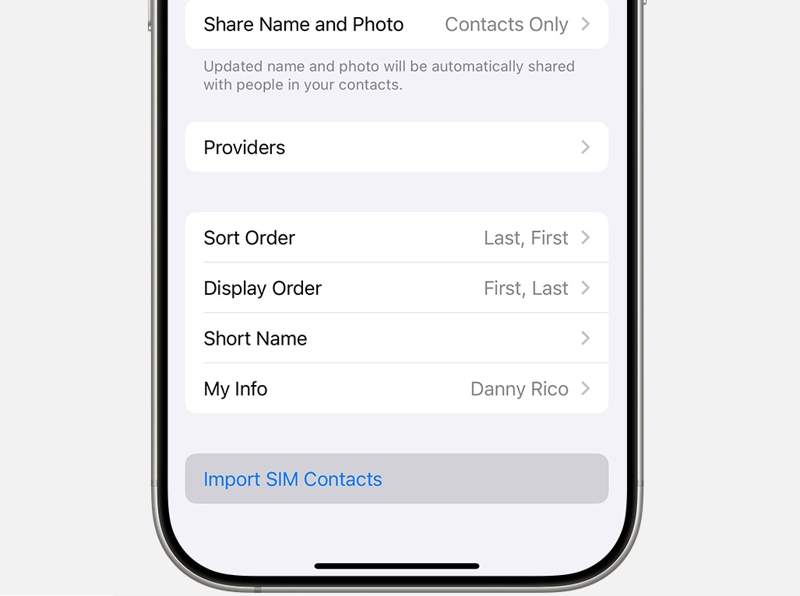
Step 1. Open the Settings app after removing the SIM card from your iPhone.
Step 2. Go to Apps and tap Contacts.
Step 3. Scroll down and tap the Import SIM Contacts button.
Step 4. If asked, choose where you wish to place the SIM card contacts.
Step 5. Once it finishes, go to the Contacts app and check your contacts.
Part 3: How to Removae SIM Card Lock from iPhone
If your device cannot detect it after you remove a SIM card from your iPhone and use another carrier, chances are that your device is locked by the carrier. Fortunately, Apeaksoft iFoneKit iOS Unlocker can help you remove the SIM card lock from your iPhone without any restrictions.

Downloaded by over 1,000,000 users
- Unlock SIM lock from iOS devices quickly.
- Don’t require your iPhone passcode or Apple ID password.
- Protect your data during the process.
- Offer bonus features, like MDM removal and Screen Time bypass.
- Support the latest versions of iOS and iPadOS.
Secure Download
Secure Download

How to Remove SIM Card Lock from Your iPhone
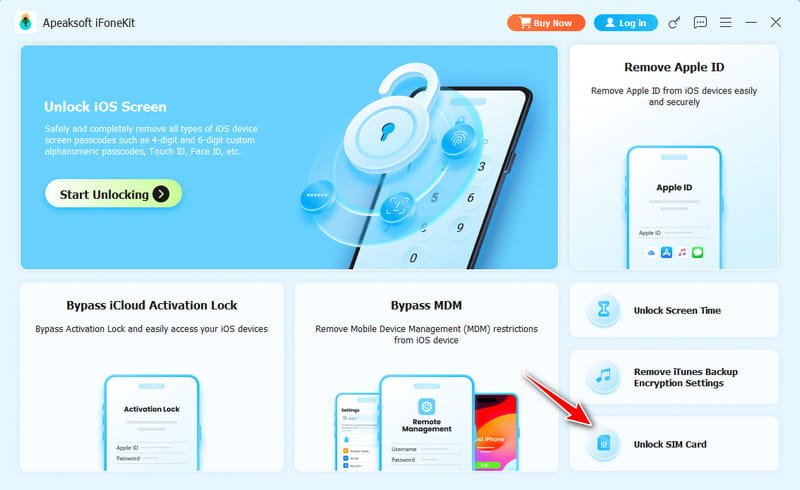
Step 1. Install the SIM card removal tool
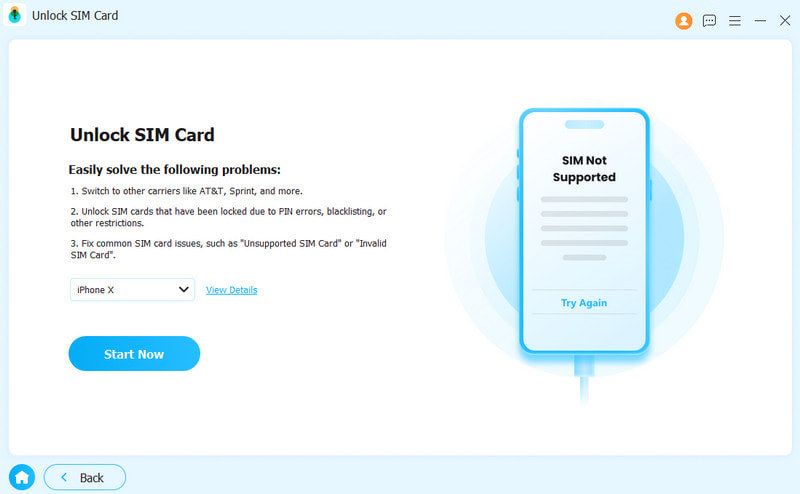
Start the SIM card removal software after installing it on your computer. It is available on Windows 11/10/8/7/XP/Vista and macOS 10.7 or above. Choose the Unlock SIM Card mode to continue.
Step 2. Connect to your iPhone
Link your iPhone to your computer with a Lightning cable. Next, click the Start Now button to load your device information. Click Start Bypassing and jailbreak your device.
Step 3. Remove SIM card lock
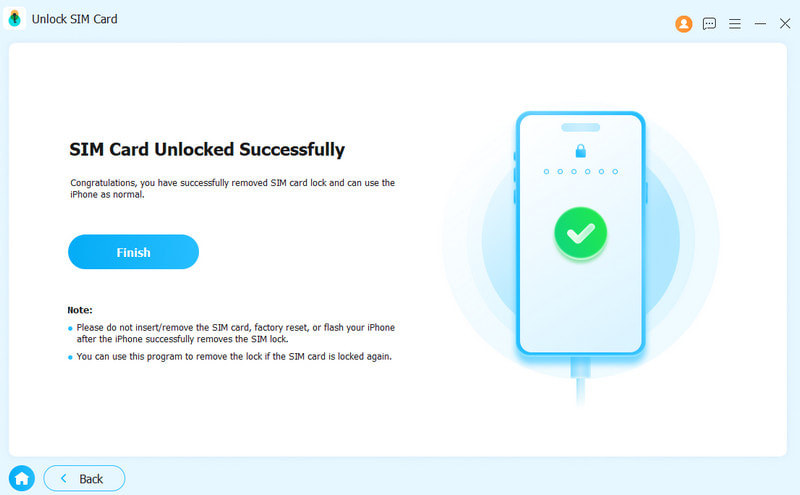
Then, follow the onscreen instructions to make relevant settings. Click OK and hit OK to confirm SIM card removal. When it is done, remove the SIM card from your iPhone and switch to another network carrier.
Conclusion
This guide shared how to remove the SIM card from your iPhone. First of all, you’d better find the SIM tray on your device. Make sure to back up all your data before the process. Then, you can follow our steps to remove the original SIM, insert another card, and import the contacts from the SIM to your iPhone. Apeaksoft iFoneKit iOS Unlocker is an effective way to get rid of SIM card lock from your iPhone without following device unlocking policies.
 Apeaksoft iFoneKit
 Unlock all types of iOS passwords from iPhone, iPad and iPod.
Secure Download
Secure Download
Related Articles




