


How to Get Rid of White Spot on Your iPhone Screen

"I bought an iPhone 11, and some months ago, I noticed a white dot on the screen. I think that it is getting bigger. What could be the cause, and can it be repaired?" The iOS devices are advanced smartphones. The touchscreen responds to tap, swipe, and touch-and-hold gestures. However, a variety of issues may occur, like other digital displays. A white spot on the iPhone screen, for example, can be removed following our troubleshooting.
PAGE CONTENT:
Part 1: Why Is There a White Spot on the iPhone Screen
Having a white spot on the iPhone screen can be confusing and worrying, especially if it doesn't move or disappear. The causes can range from a simple feature to a hardware problem. The main reasons why there is a white spot on my iPhone screen include:
- A bubble under the screen protector.
- The AssistiveTouch button.
- Stuck pixel and display issue.
- Update bug.
- Software glitches.
- Touch sensor or pressure damage.
- Hardware damage.
Part 2: How to Remove White Spot on iPhone Screen
Situation 1: White Spot under Screen Protector
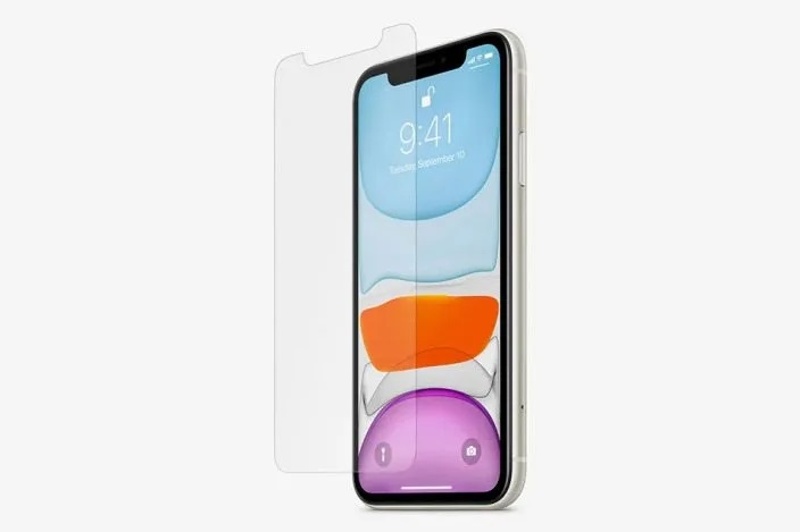
Some users protect their iPhone touchscreens with screen protectors. However, improper screen protectors or wrong actions may lead to a white dot on your screen, which blocks your content.
How to Tell:
- 1. The dot floats over your screen and under the protector.
- 2. It won't move when you tap your screen.
How to Remove a Little White Spot on an iPhone
The easiest way to remove the little white spot on your screen is to remove the screen protector. Then, clean your screen, and the spot should disappear. If you still want to use a screen protector, purchase a proper one and have it applied by professionals.
Situation 2: AssistiveTouch Button
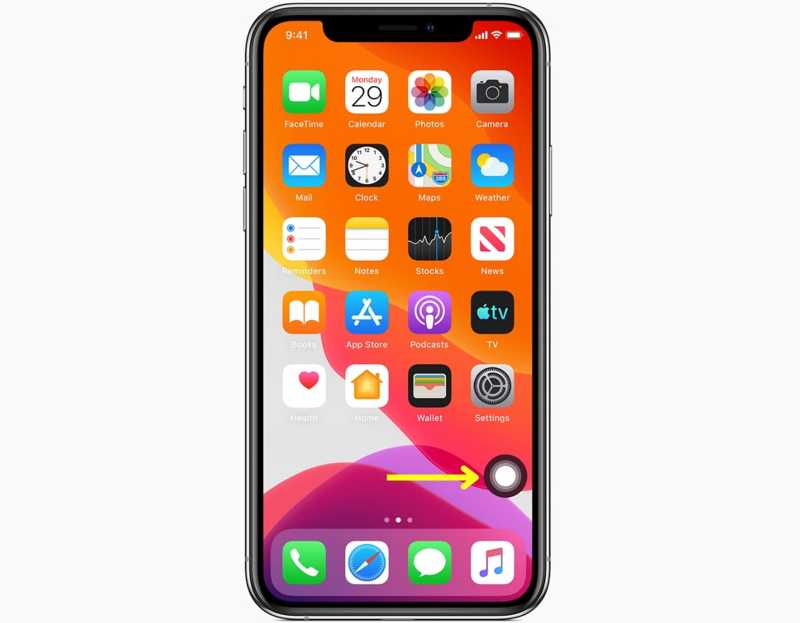
AssistiveTouch is a built-in feature on iPhone. It acts as a virtual and floating button. Once you activate this feature, it allows you to perform a variety of actions quickly without pressing the physical buttons.
How to Tell:
- 1. The white spot appears on your screen.
- 2. When you tap it, a menu box will open.
- 3. You can drag the spot and move it to any position on your screen.
How to Get Rid of White Spot on iPhone Screen
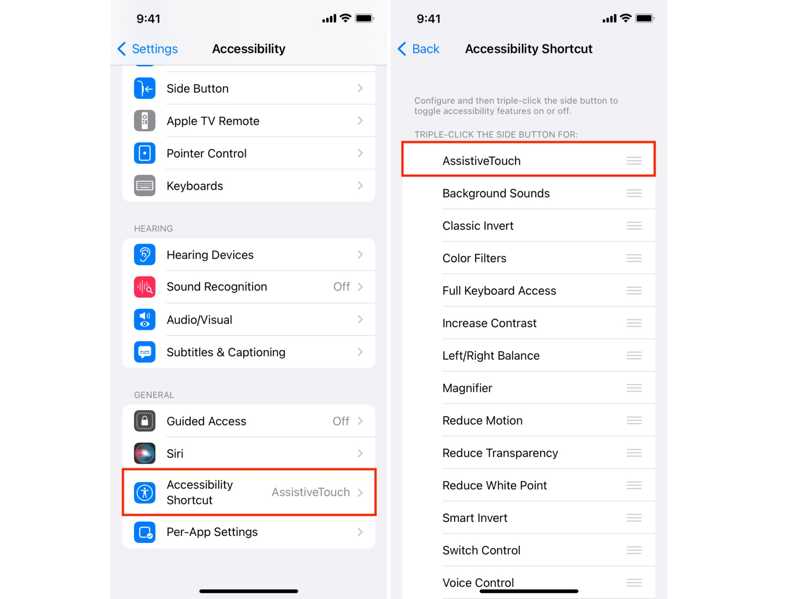
Step 1. Open the Settings app on your iPhone.
Step 2. Scroll down and tap Accessibility Shortcut.
Step 3. Uncheck AssistiveTouch, and get rid of the white spot on your iPhone screen.
Note: The AssistiveTouch button is not a bug or error, but a useful feature. If you don’t mind it, you can customize the options for it.
Situation 3: Stuck Pixel
A stuck or dead pixel is a common cause of a white spot on the iPhone screen. A touchscreen is made of millions of pixels. If a pixel is not working or responsive, you will see a white dot or spot.
How to Tell:
- 1. The white spot doesn't move.
- 2. It appears in the same area at all times.
- 3. It shows up even in screenshots.
How to Fix White Spot on an iPhone Screen
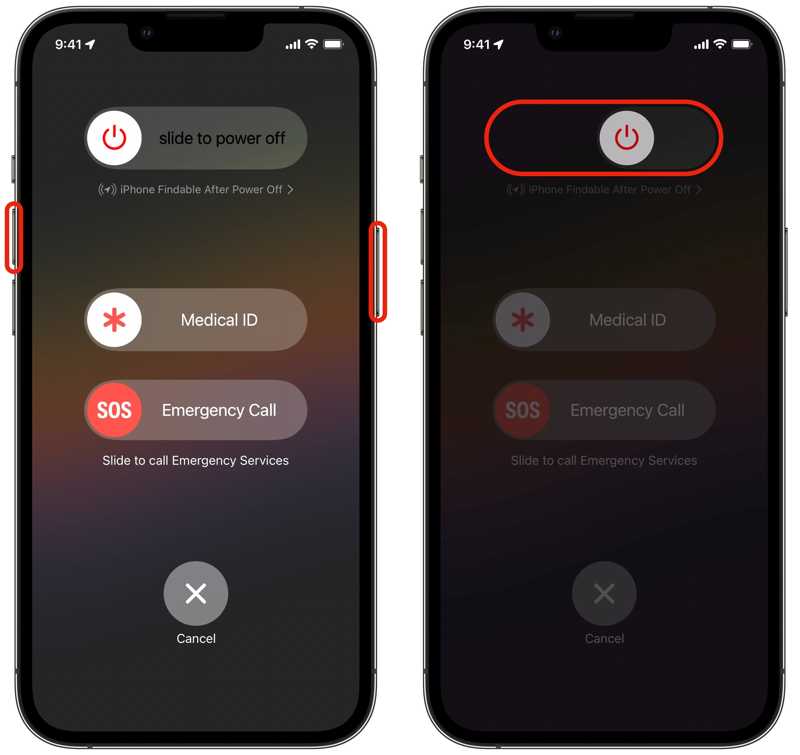
Step 1. Press and hold one of the volume buttons + the Side button together on an iPhone with Face ID. If your iPhone doesn't come with Face ID, hold down the Side or Power button.
Step 2. When the power-off screen appears, release the buttons.
Step 3. Move the slider to shut down your iPhone.
Step 4. A few minutes later, hold down the Side or Power button until you see the Apple logo.
Step 5. Then, turn on your device to check if the white spot is fixed on iPhone screen.
Situation 4: White Spot after Software Update
Some people reported that they saw a white spot on the iPhone screen after the software update. That may be due to an update bug, especially with beta versions. The solution is simple: install the latest or a regular version.
How to Tell:
- 1.The white spot appears after an update.
- 2.It appears on your screen all the time or on the home screen.
How to Fix White Spot on an iPhone Screen
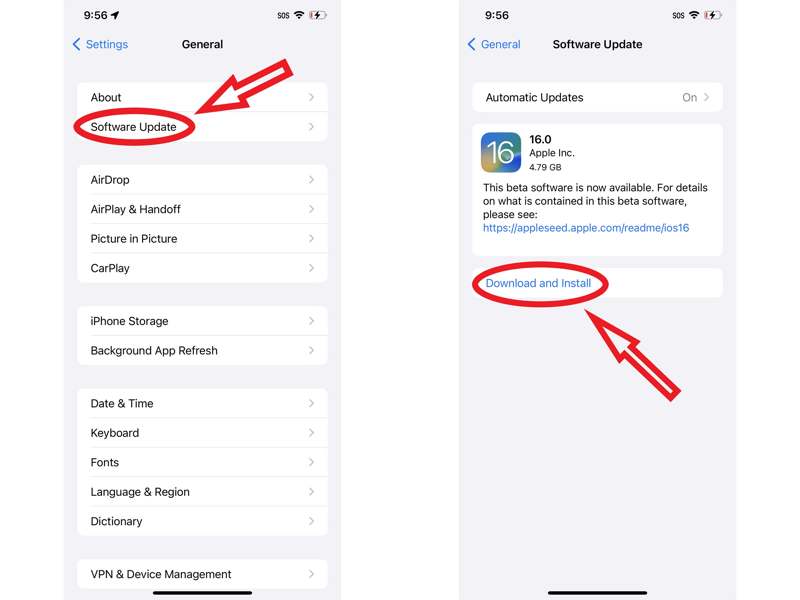
Step 1. Run the Settings app.
Step 2. Navigate to General and Software Update to search for updates.
Step 3. If an update is available, tap Download and Install.
Note: If the white spot appears after installing a beta version, upgrade to a regular iOS.
Situation 5: iOS Software Glitches
What causes a white spot on the iPhone screen? The answer may be software glitches, such as improper settings, wrong date and time, and more. Sometimes, it is difficult to figure out the exact cause.
How to Tell:
- 1.The white spot may be a visual glitch.
How to Remove White Spot on an iPhone Screen
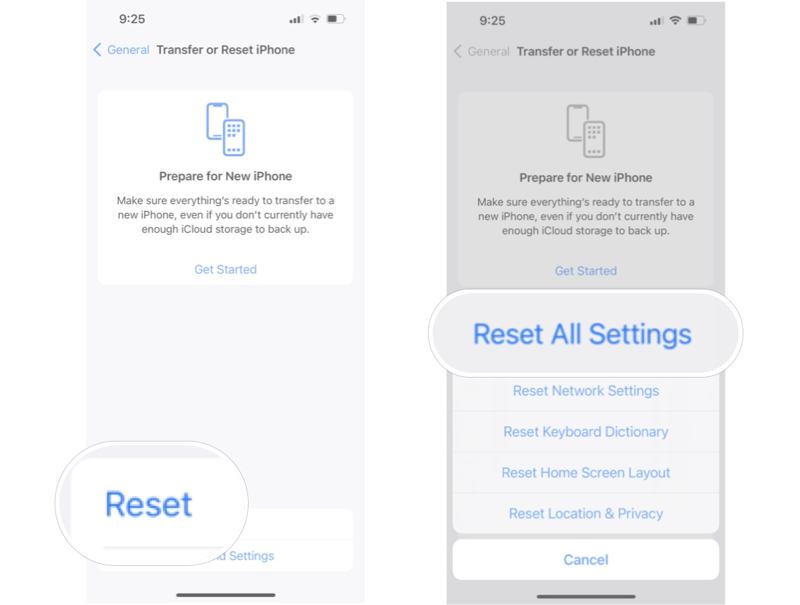
Step 1. Run your Settings app.
Step 2. Head to General, and then Transfer or Reset.
Step 3. Tap Reset and choose Reset All Settings.
Step 4. If prompted, enter your iPhone passcode or Apple ID password to remove white spot on iPhone screen.
Further Reading
Situation 6: Touchscreen Damage
Physical damage is another factor that leads to a white spot on an iPhone screen. If you recently dropped or damaged your device, your touchscreen may be damaged. Then, you have to repair or replace your screen at the Apple Store nearby. Don't attempt to disassemble the iPhone by yourself. Moreover, you'd better back up your iPhone before repairing it.
Part 3: Ultimate Solution to Remove White Spot on iPhone Screen
If the common solutions are unavailable to the white spot on your iPhone screen, you'd better look for a powerful tool, such as Apeaksoft iOS System Recovery. It is able to scan your iOS device, find the bug, and fix it using advanced technology. More importantly, the user-friendly design streamlines the workflow.

Downloaded by over 1,000,000 users
- Detect software glitches on iOS devices automatically.
- Handle a wide range of bugs, errors, and software glitches.
- Update or downgrade editions of iOS.
- Protect your data during the process.
- Support the latest versions of iOS and iPadOS.
Secure Download
Secure Download

How to Remove White Spot on Your iPhone Screen
Step 1. Install iOS System Recovery
Launch the iOS System Recovery software once you install it on your PC. There is another version for macOS 10.7 and above. Connect your iPhone to your PC with a Lightning cable. When prompted, make sure to trust this PC. Choose iOS System Recovery, click Start Now under the System Repair section, and hit the Start button.
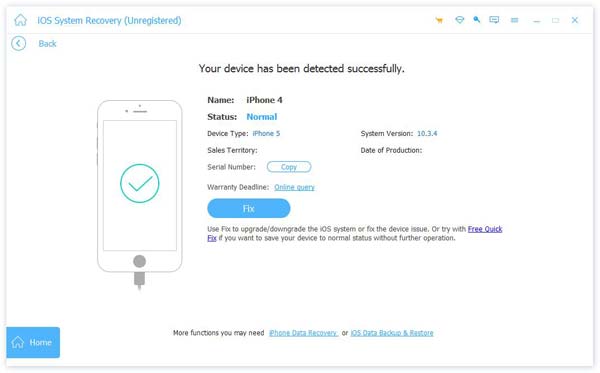
Tips: If you need to update or downgrade iOS, click Start Now under the iOS Upgrade/Downgrade section.
Step 2. Choose a mode
Press the Free Quick Fix link to try a quick fix. If it is not working, click Fix to proceed. Then, select the Standard Mode or Advanced Mode, depending on your situation. Click the Confirm button to continue. Note that the Advanced Mode will clear all issues while erasing your iPhone.
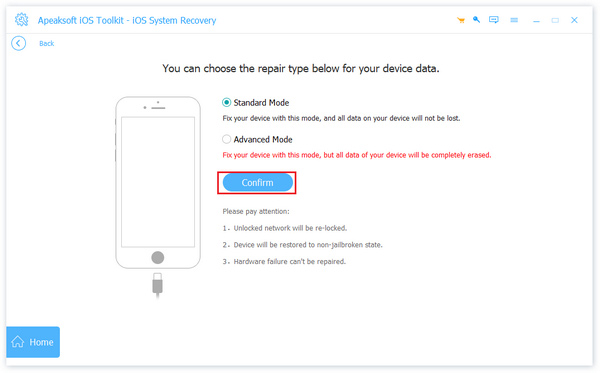
Step 3. Fix the white spot
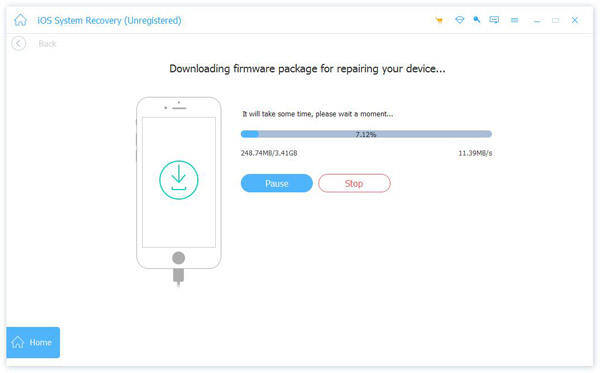
Next, check your device information and download the proper firmware. When the download finishes, click the Next button to begin fixing the white spot on your iPhone screen.
Conclusion
This guide explained why white spots appear on the iPhone screen. Furthermore, you can learn proven solutions to fix this problem in various situations. If you have performed common solutions but the white spot is still on your screen, try Apeaksoft iOS System Recovery. It is a good option for beginners and ordinary people.
 Apeaksoft iOS System Recovery
 Fix virious iOS system issues on iPhone, iPad, and iPod.
Secure Download
Secure Download
Related Articles




