


Honest Review of Apeaksoft iOS System Recovery for Beginners

While iPhones and iPad devices are advanced and solid, users can encounter broad software glitches and bugs, including screen freezing, system crashing, and more. Apple introduced common solutions to help you fix these errors; however, they are complex and may be useless. Fortunately, Apeaksoft iOS System Recovery offers a one-stop solution for troubleshooting. This article shares an honest review of the software for iPhone and iPad users.
PAGE CONTENT:
- Part 1: What is Apeaksoft iOS System Recovery
- Part 2: Apeaksoft iOS System Recovery at a Glance
- Part 3: Apeaksoft iOS System Recovery Test
- Part 4: Apeaksoft iOS System Recovery Review Based Test
- Part 5: Apeaksoft iOS System Recovery Pricing
- Part 6: Apeaksoft iOS System Recovery vs. 3uTools vs. Dr.Fone – System Repair
- Part 7: Final Verdict
- Part 8: FAQ about Apeaksoft iOS System Recovery
Part 1: What is Apeaksoft iOS System Recovery
Apeaksoft iOS System Recovery is a toolkit designed for iOS users to cut out various problems, including the inability to get into the iOS device, when the iPhone keeps going into Recovery Mode, or the iPhone gets stuck on the Apple logo.
Secure Download
Secure Download
Use Cases
- 1.An iPhone or iPad is stuck or frozen. For example, a device is stuck on the Apple logo, Recovery Mode, iOS update, black screen, boot loop, or endless restart.
- 2.Repair system errors while keeping photos, contacts, messages, and other data intact.
- 3.Update or downgrade iOS versions.
- 4.Factory reset an iPhone or iPad without accessing the device.
- 5.One-click troubleshooting on an iOS device.
Part 2: Apeaksoft iOS System Recovery at a Glance
Tech Spec of Apeaksoft iOS System Recovery
| Requirements | |
| Operating System | Windows 11/10/8.1/8/7/XP/Vista macOS 10.7 and above, including macOS 27 Golden Gate |
| Support iOS | iOS 5 and above, including iOS 27 and iPadOS 27 |
| CPU | 1GHz Intel/AMD CPU or above 1GHz Intel processor and Apple M1/M2/M3/M4/M5 chip |
| RAM | 1G RAM or more |
| Hard Disk | 200MB and more |
| Support Devices | iPhone 4 and above iPad 11/10/9 and earlier iPad mini 7/6/5 and earlier iPad Air 7/6/5 and earlier iPad Pro 8/7/6 and earlier iPod Touch 7/6/5 and earlier |
Main Features of Apeaksoft iOS System Recovery
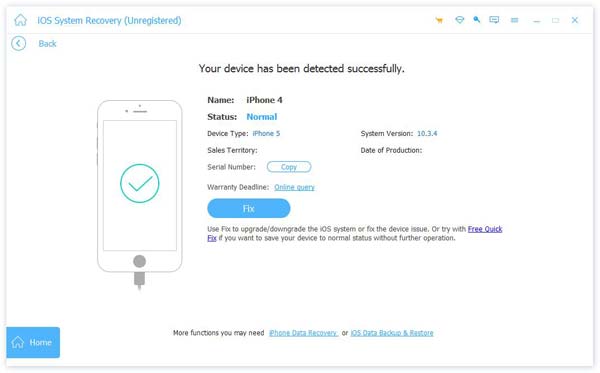
- 1.System repair. Apeaksoft offers two modes, Standard Mode and Advanced Mode, to repair various software glitches.
- 2.Fix Recovery Mode. It puts your iOS device in Recovery Mode without unlocking the device, or exits Recovery Mode when your iPhone gets stuck.
- 3.iOS upgrade and downgrade. If you update a beta version of iOS on your iPhone, the software can help you downgrade to a standard version in one click. Plus, it allows you to update your iPhone to the latest version of iOS, such as iOS 27.
- 4.Factory reset. It can factory reset an iOS device when it won’t reset.
- 5.Quick Fix mode. It offers a free quick-fix tool to repair basic errors without data loss.
Support System Issues
- 1.iPhone is disabled
- 2.Stuck on the Apple logo
- 3.Stuck in Recovery Mode/DFU Mode
- 4.Stuck on black, white, red, and blue screens
- 5.Frozen iPhone screen
- 6.Boot loop
- 7.iPhone crashing
- 8.Stuck in headphone mode
- 9.Other software glitches
Part 3: Apeaksoft iOS System Recovery Test
Test Environment
Operating System: Windows 11 64-bit
CPU: Intel Core i7-14700K
RAM: 32GB
Tested Devices: iPhone 16 Pro, iPhone X, and iPhone 11
Scenario 1: Fix Frozen iPhone
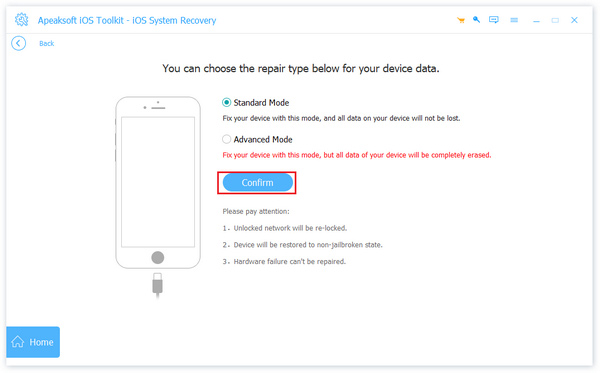
We installed Apeaksoft iOS System Recovery on our PC and launched it. Then, connect the frozen iPhone 16 Pro to the computer using a Lightning cable. Choose the System Repair mode. Try the Free Quick Fix feature, but it doesn’t work. Next, we entered the next window. We selected Standard Mode or Advanced Mode and clicked Confirm to proceed. Then, we followed the instructions to download the firmware and fix the frozen device. According to our test, the Standard Mode cannot fix the frozen iPhone, but the Advanced Mode works.
Scenario 2: Exit Recovery Mode
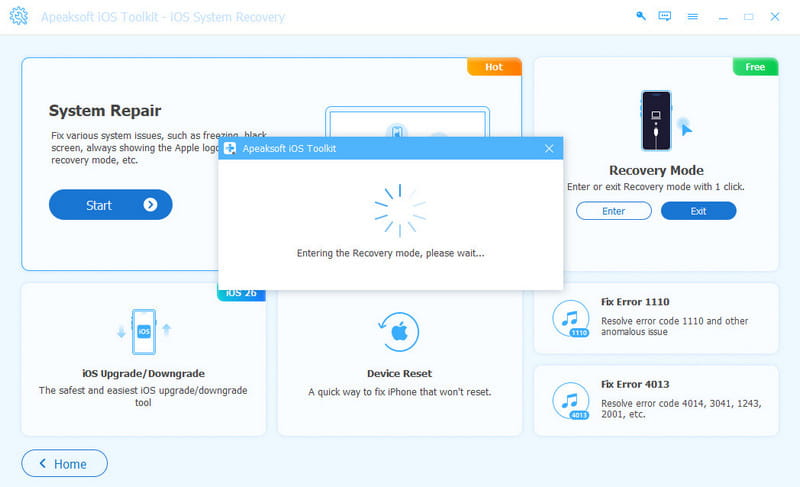
We located the Recovery Mode option in the home interface and linked the iPhone X stuck in the Recovery Mode screen. Click the Exit button to quit Recovery Mode. According to our test, Apeaksoft iOS System Recovery delivers a high success rate for this functionality.
Scenario 3: Downgrade iOS
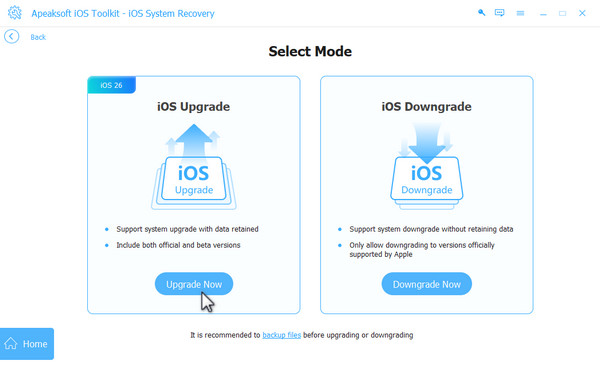
We also tested updating an iPhone 11 to iOS 26. After connecting the phone to our PC using a Lightning cable, we chose the iOS Upgrade/Downgrade mode. Then, choose the Upgrade Now button, select the available version, and click Download. When the download finishes, click Next. According to our test, it takes 7-9 minutes to install iOS 26 on an iPhone 11.
Part 4: Apeaksoft iOS System Recovery Review Based Test
What We Like
- Integrate a user-friendly interface with clear instructions.
- Safe and won’t collect personal data.
- Offer a free quick-fix feature to resolve simple issues.
- Support the latest iOS version and device models.
- Work on a wide range of software glitches.
- Protect your data in the Standard Mode.
What We Dislike
- Advanced Mode will erase all your data.
- Firmware download requires an internet connection.
Part 5: Apeaksoft iOS System Recovery Pricing
Users can download Apeaksoft iOS System Recovery for free from the official website and try the free demo. If you want to use it after the demo, purchase a license. The 1-Month License costs $19.95, and the Lifetime License costs $55.96.
Part 6: Apeaksoft iOS System Recovery vs. 3uTools vs. Dr.Fone – System Repair
| Apeaksoft iOS System Recovery | 3uTools | Dr.Fone – System Repair | |
| Best for | Beginners | Tech-savvy | Users who want an all-in-one toolkit |
| Repair Mode | Free Quick Fix Standard Mode Advanced Mode | Easy Flash Pro Flash | General Reset Standard Advanced |
| Data Safety | Advanced Mode erase your data | User must manually choose Retain User Data during flash | Advanced Mode erase your data |
| Support Platform | Windows macOS | Windows | Windows macOS |
| Free Tier | Free quick fix for simple issues | Completely free | No |
| Ease of Use | Every easy | Require technical skills | Easy |
Part 7: Final Verdict
Apeaksoft iOS System Recovery is a dedicated tool that focuses on repairing iOS system issues. It is designed for ease of use when troubleshooting on iOS devices. According to our research, it can handle over 150 iOS glitches. Moreover, the Free Quick Fix and Standard Mode protect your data.
Part 8: FAQ about Apeaksoft iOS System Recovery
Does iOS System Recovery work?
Yes, Apeaksoft iOS System Recovery can fix a variety of system errors according to our test.
Is iOS System Recovery safe?
Yes, Apeaksoft iOS System Recovery works locally and doesn’t collect personal data.
Is it worth paying for iOS System Recovery?
If you can perform Apple’s solutions to fix your system, they are all free. If they are unavailable, it is worth trying iOS System Recovery.
Conclusion
This article reviewed Apeaksoft iOS System Recovery based on our lab testing. You can learn the main features, the pricing, strengths, and weaknesses. The information can help you make the best decision when fixing software errors.
 Apeaksoft iOS System Recovery
 Fix virious iOS system issues on iPhone, iPad, and iPod.
Secure Download
Secure Download
Related Articles




