


How to Change Apple ID Email Address Without Data Loss

There is a common question among iPhone users: Is it possible to change the Apple ID email associated with your iPhone, iPad, or Mac? After you stop using your email address associated with your Apple ID, you’d better update your account in time. Otherwise, you may lose access to your account, data, or devices. This guide answers the question and provides the proven methods to update your email address associated with your account.
PAGE CONTENT:
Part 1: What to Do Before Changing Apple ID Email
There are a few scenarios when you need to change your Apple ID email address. For example, you lose access to the primary email address, you want to use a new email, or you move from a work to a personal email.
There are a few things you need to do before changing your Apple ID email address:
Sign out of Apple ID on iPhone Before Changing Apple ID on Mac
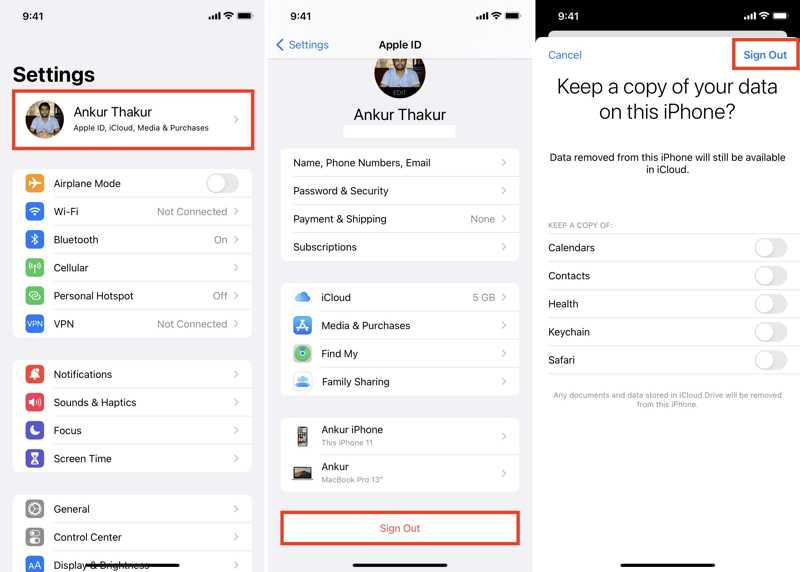
Step 1. Open the Settings app.
Step 2. Tap on your profile and tap Sign Out at the bottom.
Step 3. Enter your Apple ID password when prompted.
Step 4. Tap the Turn Off button.
Step 5. Select the data types you want to keep and tap Sign Out.
Sign out of Apple ID on Mac Before Changing Apple ID on iPhone
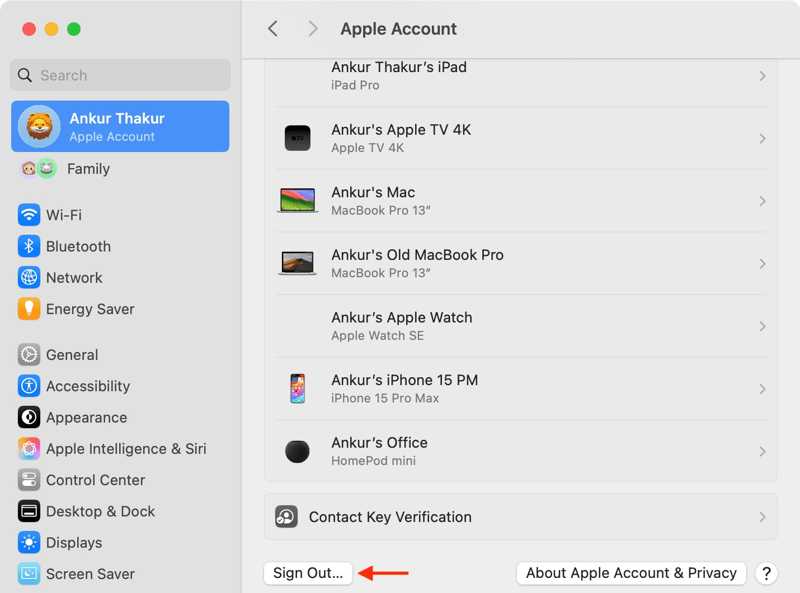
Step 1. Click the Apple menu and choose System Settings or System Preferences.
Step 2. Click Apple Account or Apple ID.
Step 3. Hit the Sign Out button.
Step 4. Input your login password.
Step 5. Follow the onscreen instructions to sign out of your account.
Back up Your iPhone to a Computer
Step 1. Connect your iPhone to your computer with a USB cable.
Step 2. Run iTunes on PC and macOS Mojave or earlier. Run Finder on macOS Catalina or later.
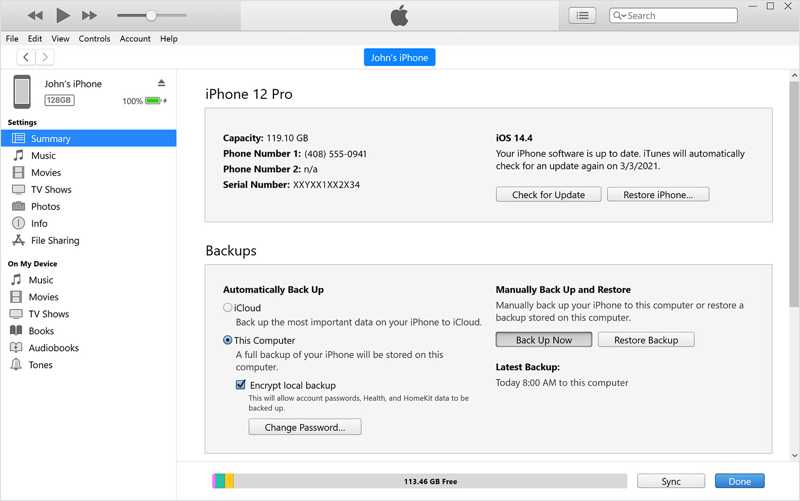
Step 3. Click the Phone button in iTunes and go to the Summary tab. In Finder, click your name and head to General.
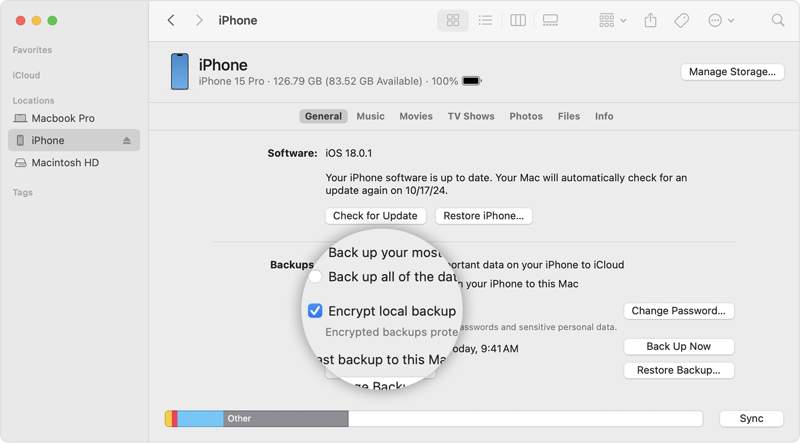
Step 4. Click the Back Up Now button under the Backups section. You can also set an iTunes backup password to protect the passwords and call history in the backup.
Back up Your Mac with Time Machine
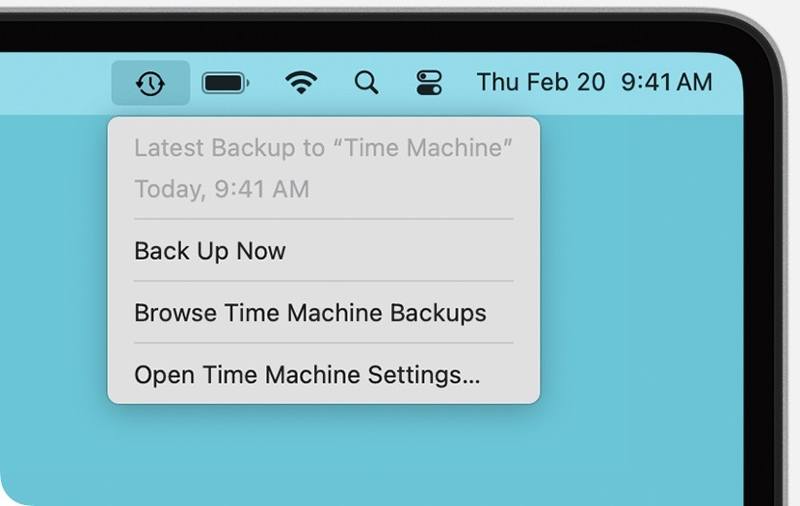
Step 1. Insert an external hard drive into your MacBook.
Step 2. Click the Time Machine menu at the top right corner.
Step 3. Choose Back Up Now to back up your Mac before changing your Apple ID email address.
Part 2: How to Change Apple ID Email on iPhone/iPad
One easy way to change the Apple ID email address in the Settings on the iPhone or iPad associated with the account. This method requires an accessible iOS device and your iPhone lock screen passcode.
Step 1. Open the Settings app on your iPhone or iPad.
Step 2. Tap on your profile at the top of the screen.
Step 3. Go to Sign-In & Security.
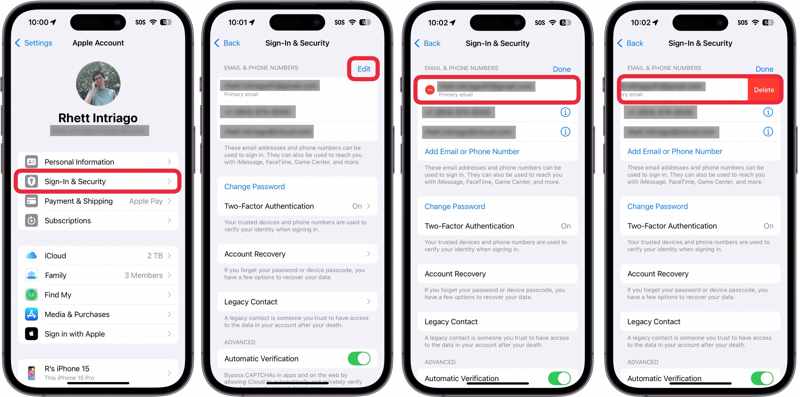
Step 4. Tap the Edit button in the Email & Phone Numbers section.
Step 5. Hit the Delete button with a minus icon next to the primary email.
Step 6. Tap the Delete button.
Step 7. Choose another email in the warning box.
Step 8. Type your iPhone passcode.
Step 9. Enter a new email address and tap the Continue button.
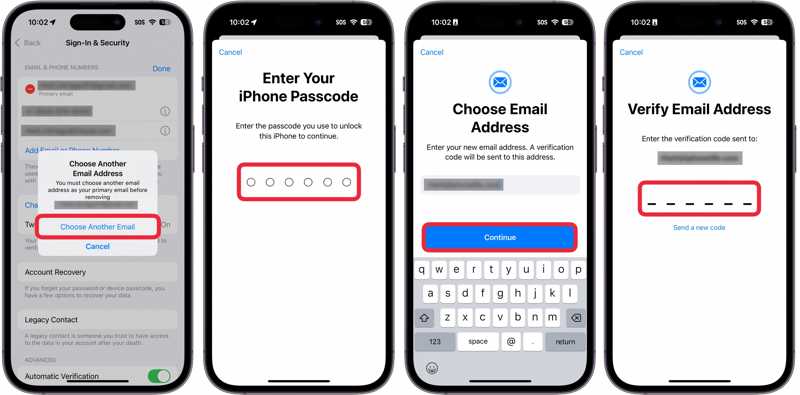
Step 10. Next, access the new email and check the verification code in your inbox.
Step 11. Enter the verification code to change your Apple ID email address.
Note: If you are using an Apple email, like @icloud.com, you cannot change it to a third-party email provider. If you use a phone number as your Apple ID, you can change the primary phone number on your Apple device.
Part 3: How to Change Apple ID Email for App Store
Apple allows you to use a different Apple ID for your App Store. In other words, you can use one account for your iPhone and another for the App Store. Here are the steps to change your Apple ID email for App Store:
Step 1. Go to the Settings app and tap on your profile.
Step 2. Choose the Media & Purchases option.
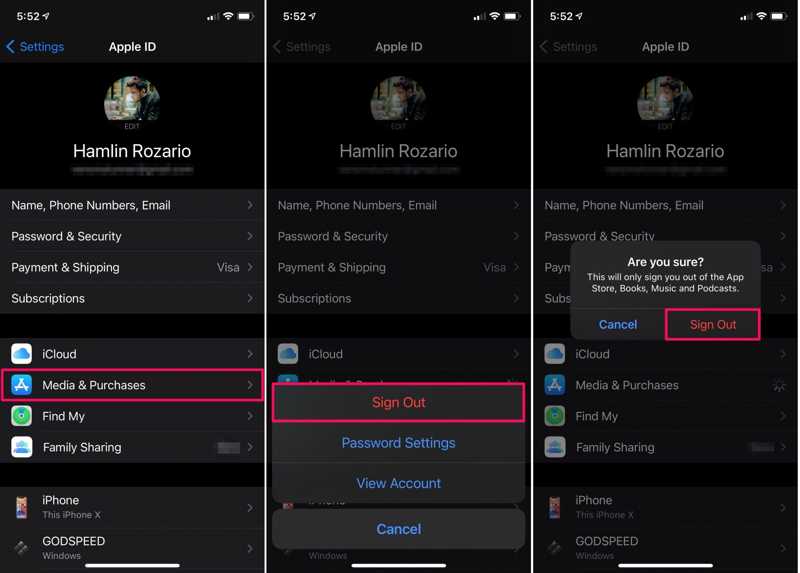
Step 3. Tap Sign Out on the context menu and choose Sign Out.
Step 4. Next, tap Media & Purchases in Settings again.
Step 5. Choose Not [your name] on the warning box.
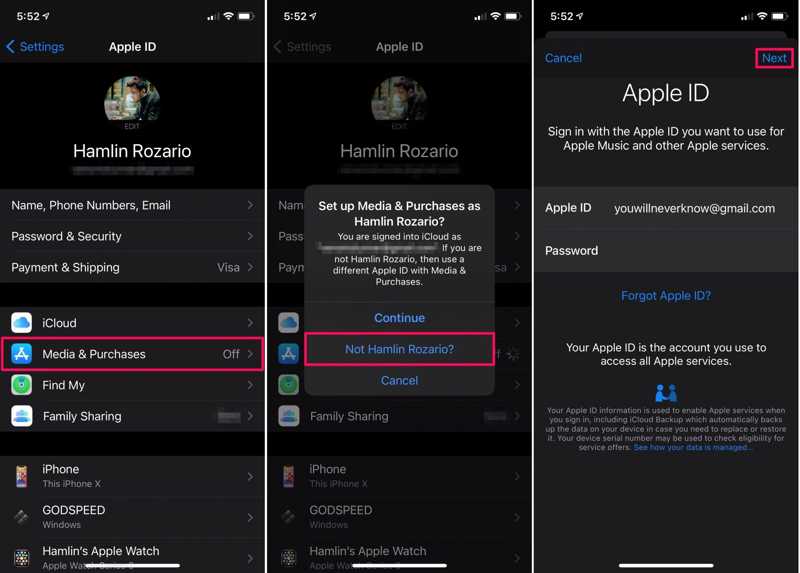
Step 6. Enter a new email address and password.
Step 7. Tap the Next button to confirm the change.
Part 4: How to Change Apple ID Email on Mac/PC
Besides, you can change your Apple ID email on a Mac or PC on Apple’s account page. This method requires a stable internet connection and your Apple ID password. We share the detailed steps below:
Step 1. Go to www.account.apple.com in a web browser.
Step 2. Log in with your current Apple ID and password.
Tips: If Two-factor Authentication is set up for your account, enter the verification code that appears on your screen into the webpage.
Step 3. Choose the Sign-In and Security option on the sidebar.
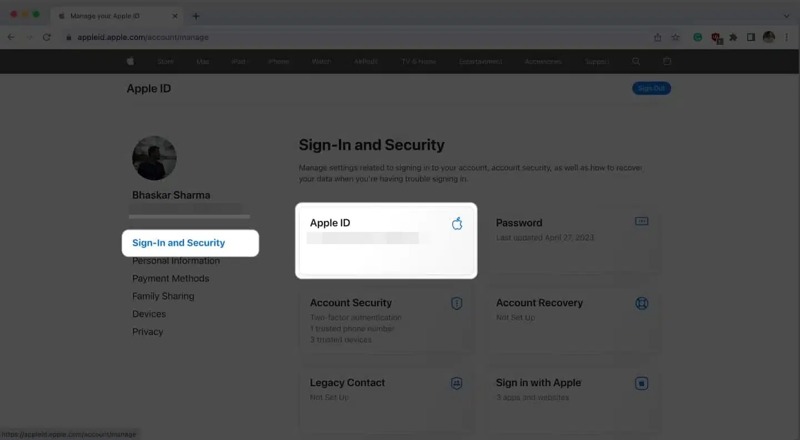
Step 4. Click Apple ID on the right pane.
Step 5. Enter a new email address in the field and click Change Apple ID.
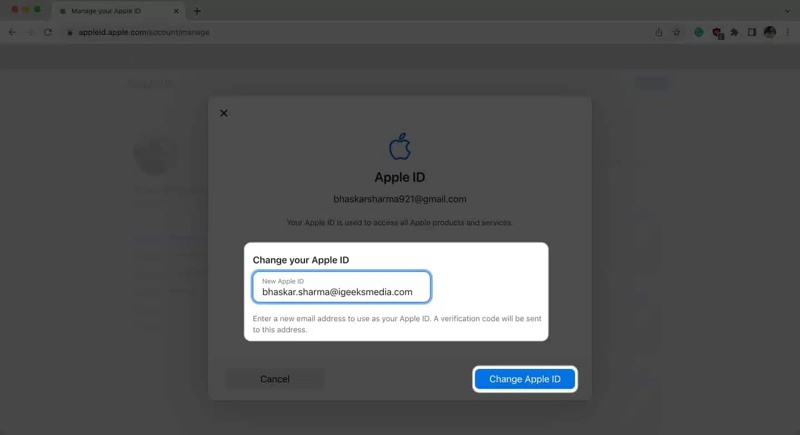
Step 6. When prompted, enter your Apple ID password and click Continue.
Step 7. Receive the verification code in the new email.
Step 8. Input the 6-digit code and click Continue.
Note: After changing your Apple ID email, you’d better update the new email on all your Apple devices and services, like iMessages, FaceTime, Apple Music, and more.
Part 5: How to Change Apple ID Email Without Password
If you want to change your Apple ID email address after forgetting your account password, Apeaksoft iFoneKit iOS Unlocker is a powerful option. It is able to remove the old Apple ID email from your iPhone or iPad without any restrictions. Plus, the intuitive interface makes it easy to use.

Downloaded by over 1,000,000 users
- Remove the old Apple ID email without a password.
- Work for locked and disabled Apple ID accounts.
- Offer bonus features, like iPhone passcode unlocking.
- Support the latest versions of iOS and iPadOS.
Secure Download
Secure Download

How to Change Apple ID Email on Your iPhone Without a Password
Step 1. Install the Apple ID removal tool
Launch the Apple ID removal software once you install it on your PC. It is compatible with Windows 11/10/8/7/XP/Vista. There is another version for Mac. Choose the Remove Apple ID mode to continue.
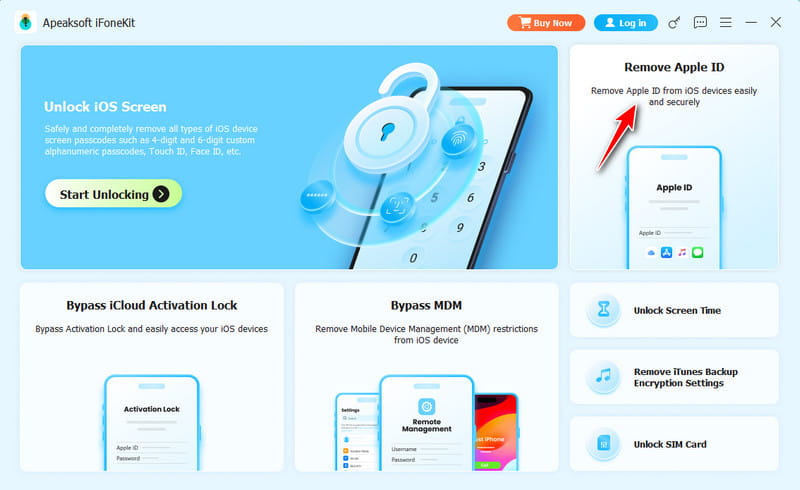
Step 2. Connect to your device
Plug your iPhone into your PC with a Lightning cable. If prompted, tap Trust on your screen to trust this PC. Then, the software will detect your iPhone and load the device information.
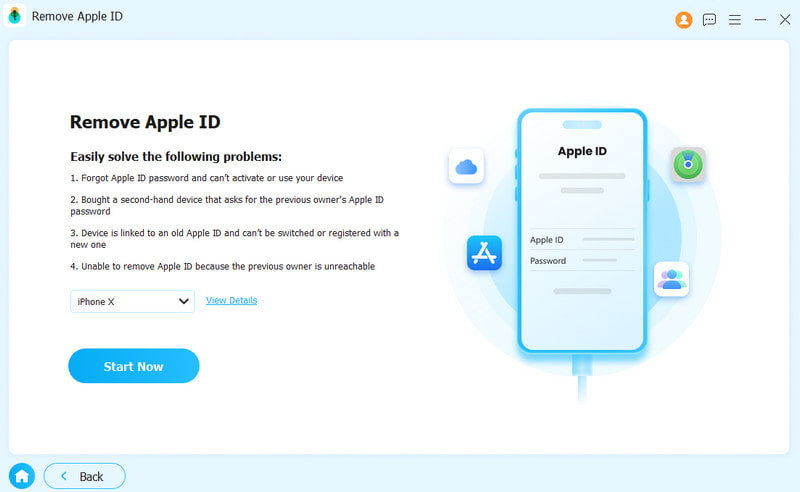
Step 3. Remove old Apple ID email
Click the Start Now button to begin removing the old Apple ID email and password on your device if Find My is disabled. If Find My is enabled, follow the onscreen instructions to reset all settings on your device. Turn to your PC, click the OK button, and hit Confirm Again to initiate the process.
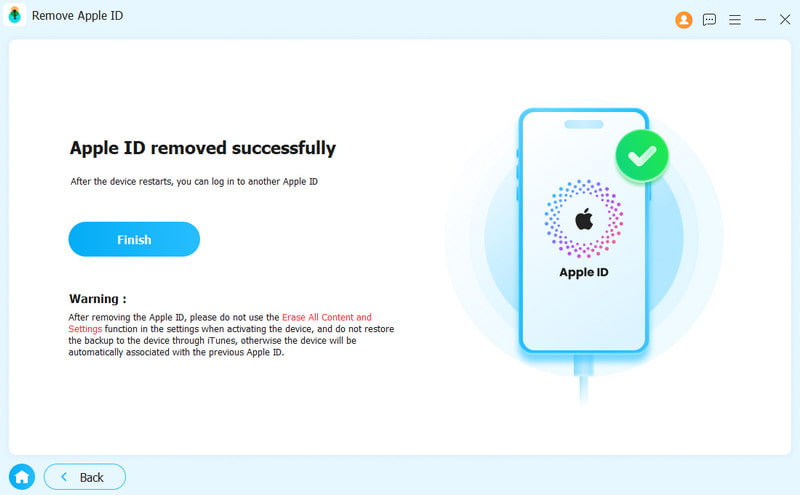
Step 4. Change Apple ID email
When your iPhone restarts, disconnect it. Set it up as a new device and enter a new Apple ID email and password.
Further Reading
Conclusion
This guide shared multiple ways to change your Apple ID email on your iPhone, iPad, and Mac. Firstly, you can read our article to learn what will happen after changing your account. Moreover, back up your device before the process. Then, follow our steps to replace the old account with a new email address. Apeaksoft iFoneKit iOS Unlocker is a simple way to change the email address for your account on an iOS device without the password or technical skills.
 Apeaksoft iFoneKit
 Unlock all types of iOS passwords from iPhone, iPad and iPod.
Secure Download
Secure Download
Related Articles




