


What Is Emergency Bypass iPhone and How to Use the Feature

In some scenarios, you have to turn on Do Not Disturb or Mute mode on your iPhone, such as during important meetings. Then, you won’t get notifications when you receive calls and messages. As a result, you may miss important information. That is why Apple introduced the Emergency Bypass feature on iPhone. It enables your device to vibrate or ring when receiving calls or SMS, even if your iPhone enters Do Not Disturb.
PAGE CONTENT:
Part 1: What Is Emergency Bypass on iPhone
What does Emergency Bypass do on iPhone? As mentioned previously, it is designed to allow specific contacts to reach you when you turn on the Focus, Do Not Disturb, or Mute mode. It means that your phone will still ring or vibrate when you receive a call or message from these contacts.
When to Use Emergency Bypass on iPhone:
- 1.Receive calls and texts from specific contacts whenever.
- 2.Avoid missing urgent calls and SMS during meetings, sleep, or downtime.
- 3.Customize which contacts can reach you during Focus modes.
- 4.Notify you with sounds even when your iPhone is in Do Not Disturb or Mute mode.
Part 2: How to Turn on Emergency Bypass on iPhone
The Emergency Bypass feature is available on all iPhones running iOS 10 and above. By default, it is disabled. If you need to use Focus modes, Do Not Disturb, or Mute mode, you can add someone to your Emergency Bypass on your iPhone.
How to Set up Emergency Bypass on iPhone for FaceTime
FaceTime is the native video call app on iOS devices. It enables you to send and receive video calls among iPhone users smoothly. If you don’t hope to miss specific contacts’ calls, you can set up Emergency Bypass on iPhone.
Step 1. Open the FaceTime app on your device.
Step 2. Search for the contact you want to add in the search bar.
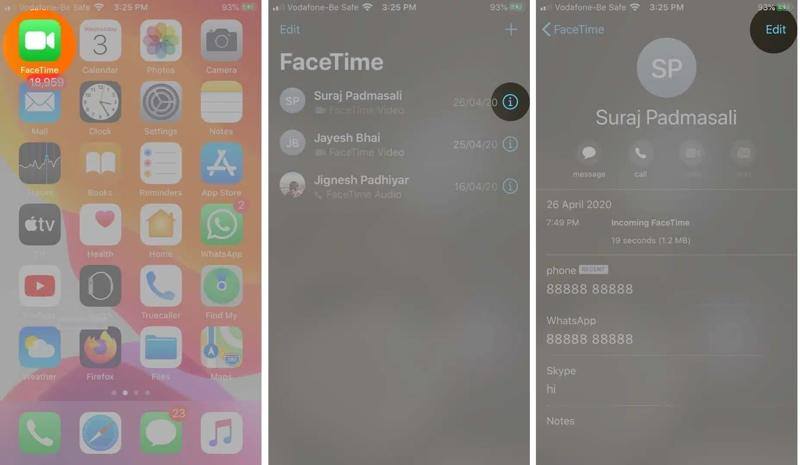
Step 3. Tap the Info button on the desired contact.
Step 4. Next, tap the Edit button.
Step 5. Choose the Ringtone and toggle on Emergency Bypass.
Step 6. If you want to receive FaceTime message alerts, choose Text Tone, and toggle on Emergency Bypass.
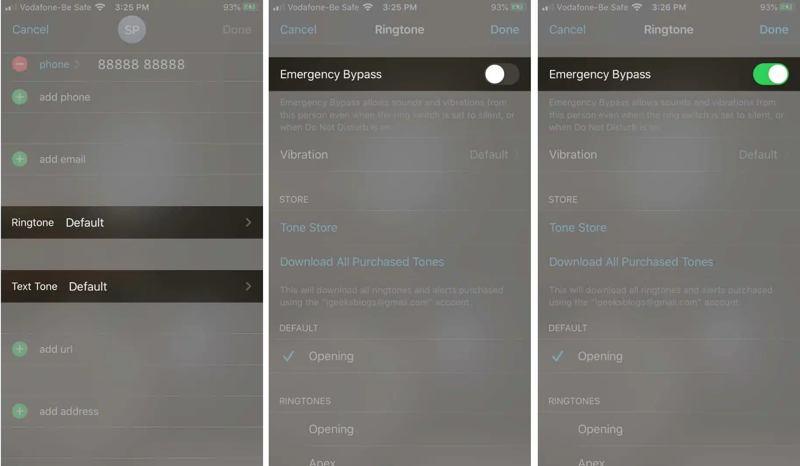
Step 7. Tap the Done button to save the changes.
Note: If you want to turn off Emergency Bypass on iPhone, toggle off Emergency Bypass on the Ringtone or Text Tone screen.
How to Turn on Emergency Bypass on iPhone for Contacts
For traditional calls and texts, you can turn on Emergency Bypass on iPhone in the Contacts app. After setup, you will be notified by ringtones or vibration when receiving calls and texts from specific contacts.
Step 1. Run the Contacts app from your home screen.
Step 2. Find the desired contact on the list and open it.
Step 3. Tap the Edit button.
Use iPhone Emergency Bypass for calls
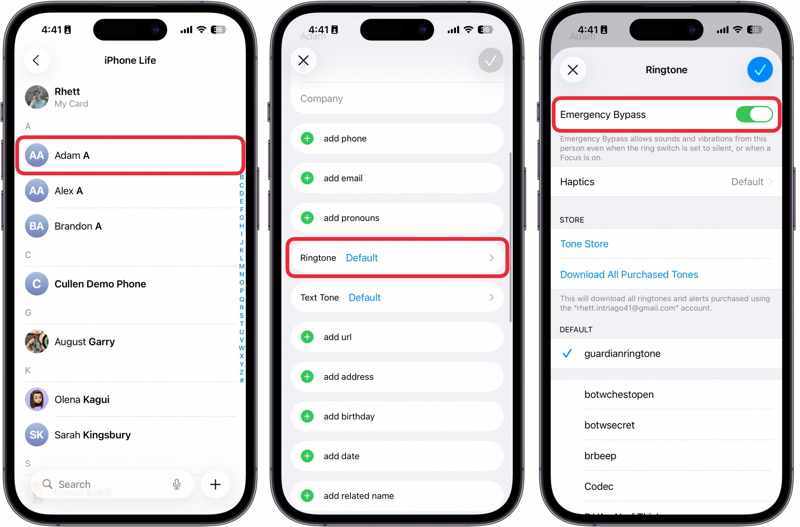
Step 4. Choose the Ringtone option.
Step 5. Toggle on Emergency Bypass.
Step 6. Tap the Done button.
Use iPhone Emergency Bypass for texts
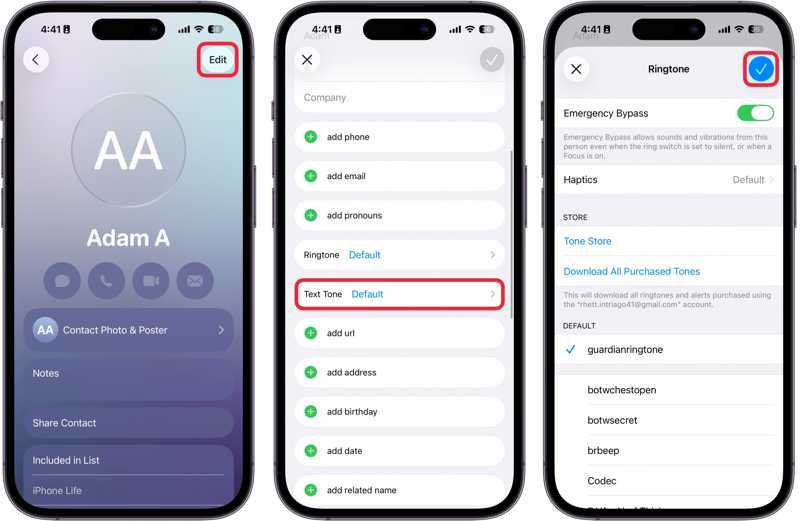
Step 4. Choose the Text Tone option.
Step 5. Toggle on Emergency Bypass.
Step 6. Tap the Done button to confirm the change.
Further Reading
Part 3: What to Do If the Emergency Bypass Is Not Working on the iPhone
Solution 1: Restart iPhone
If iPhone Emergency Bypass is not working, the first thing you can do is restart your device. Then, the iOS will reload, and the feature may be available. This way won’t interrupt anything on your device.
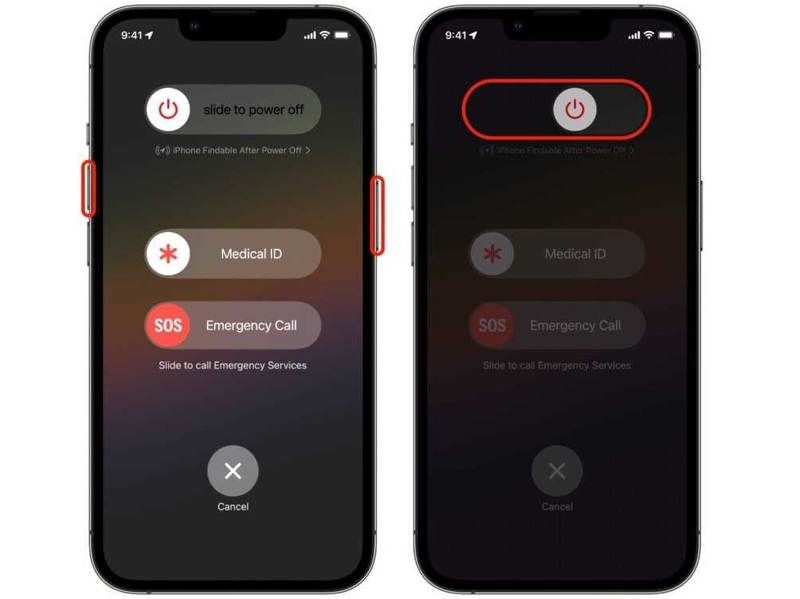
Step 1. On an iPhone with Face ID, hold one of the volume buttons + Side button together.
On an iPhone without Face ID, hold down the Sleep/Wake button.
Step 2. When the power-off screen appears, release the buttons.
Step 3. Move the slider to shut down your iPhone.
Step 4. A few minutes later, press and hold the Side or Sleep/Wake button until you see the Apple logo.
Solution 2: Update iOS
The iPhone Emergency Bypass feature is available on iOS 10 and above. If you are using an old version of iOS, bugs may appear on iPhones, such as Emergency Bypass not working. Therefore, you’d better keep your software up to date.
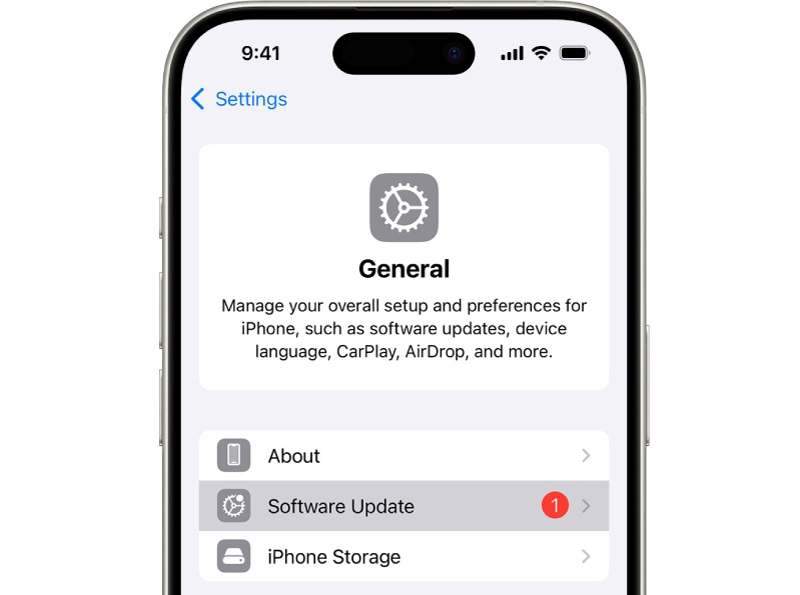
Step 1. Run the Settings app.
Step 2. Go to General and Software Update.
Step 3. If an update is available, tap the Download and Install button.
Step 4. Follow the onscreen instructions to update iOS.
Solution 3: Reset All Settings
Another solution to fix iPhone Emergency Bypassing not working is to reset all settings. That can bring all settings to the factory status. Then, you can set up Emergency Bypass again on your device.
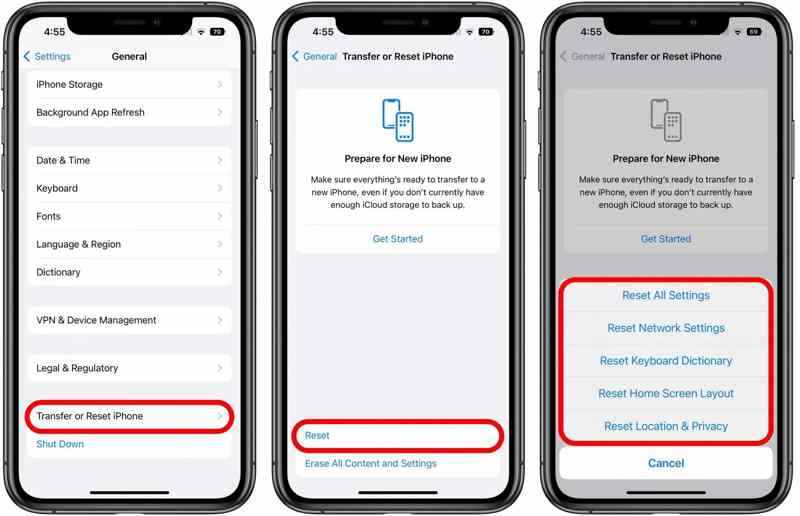
Step 1. Open the Settings app.
Step 2. Navigate to General, Transfer or Reset iPhone, and Reset.
Step 3. Tap Reset All Settings.
Step 4. Enter your iPhone passcode to initiate the process.
Solution 4: Use iOS System Recovery
The ultimate solution to fix iPhone Emergency Bypass not working is Apeaksoft iOS System Recovery. It is able to automatically scan your device and discover the software glitch. Thus, you can fix it with one click.

Downloaded by over 1,000,000 users
- Scan software glitches on iOS devices automatically.
- Fix a variety of software issues quickly.
- Rescue data from frozen iOS devices.
- Support the latest versions of iOS and iPadOS.
Secure Download
Secure Download
Here are the steps to fix Emergency Bypass on your iPhone:
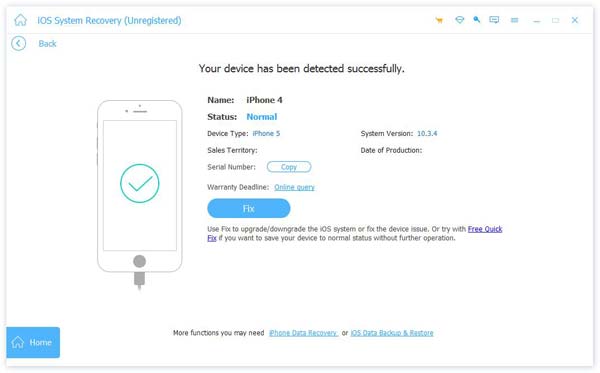
Step 1. Scan your iPhone
Run iOS System Recovery after installing it on your computer. Choose iOS System Recovery, and select System Repair. Connect your iPhone to your computer with a Lightning cable.
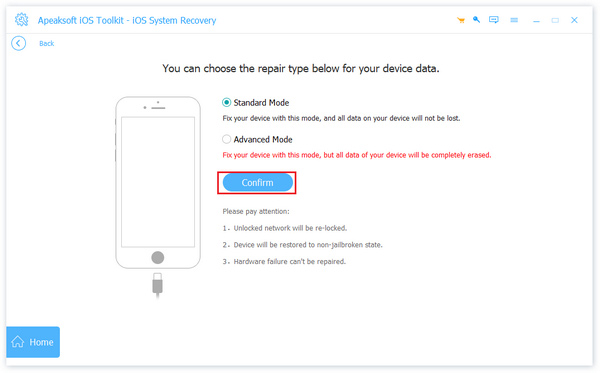
Step 2. Choose a mode
Next, select the Standard Mode or the Advanced Mode according to your needs.
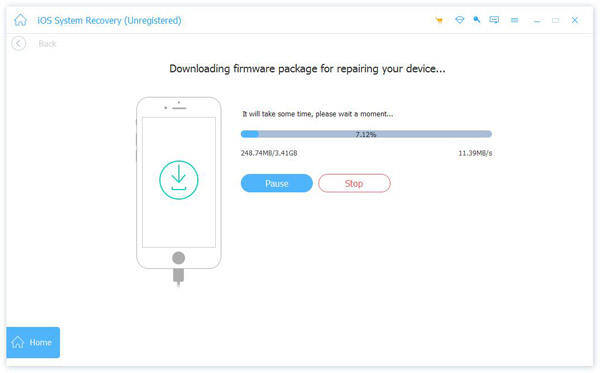
Step 3. Fix Emergency Bypass
Check your device information and download the firmware. When downloading is done, click the Next button to begin fixing the Emergency Bypass not working on iPhone.
Conclusion
This guide explained what Emergency Bypass on iPhone is and how to turn it on your device to help you receive important calls and texts in time. You can follow our detailed steps to use this feature for FaceTime or standard calls and texts. Plus, we shared what you can do if this feature is not working, such as Apeaksoft iOS System Recovery.
 Apeaksoft iOS System Recovery
 Fix virious iOS system issues on iPhone, iPad, and iPod.
Secure Download
Secure Download
Related Articles




