

Step-by-Step Guide to Adding Contacts on iPhone Quickly

Although it sounds like an easy task, many people still don't know how to add contacts to an iPhone in a proper way. Actually, there are several workable ways to achieve the goal; choosing an appropriate method can save time and prevent data loss, especially when dealing with multiple entries or switching devices. This post provides you with more than three ways to help you add contacts to your iPhone in no time. You can start to read this guide and walk through the most efficient ways to add contacts to your iPhone, from built-in options to more advanced one-click methods.
PAGE CONTENT:
Part 1: Things You Need to Know Before Adding Contacts to iPhone
Before adding new contacts to an iPhone, it is essential to understand how contact storage and synchronization work. In many cases, contacts saved on a SIM card can be transferred automatically when the SIM card is inserted into a new iPhone. So, when you launch your new iPhone, you will find all these contacts exist on your Contacts app. Despite the convenience, SIM-based contacts are limited in the details they can store and are not synced across devices.
To add contacts to iPhone directly from your SIM card:
Go to Settings, tap Apps, navigate and tap Contacts, scroll down and tap Import SIM Contacts.
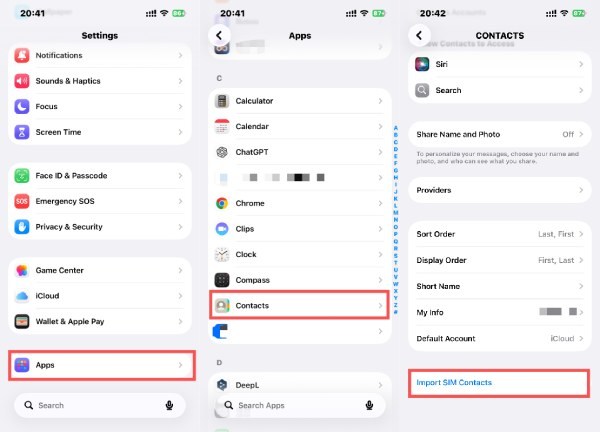
Of course, if you have been using your previous iPhone for a long time or have not stored any contacts on the SIM card, then your contacts may also be uploaded and saved to iCloud as long as you did not change the default settings before. Besides, if you have backed up contacts on your iPhone before, things would be much easier. You can export the backup and add contacts to your iPhone from the backup directly.
Part 2: 3 Quick and Default Ways to Add Contacts to Your iPhone
Apple provides several built-in methods to add contacts on an iPhone, allowing users to save phone numbers at the exact moment they appear. In simple terms, any communication method related to contacts, such as Contacts, Messages, and Recent Calls, can help you add new contacts to your iPhone. The operation methods on different applications may vary slightly. You can read the following section to learn how to use various applications to complete this task quickly.
Using the Contacts App
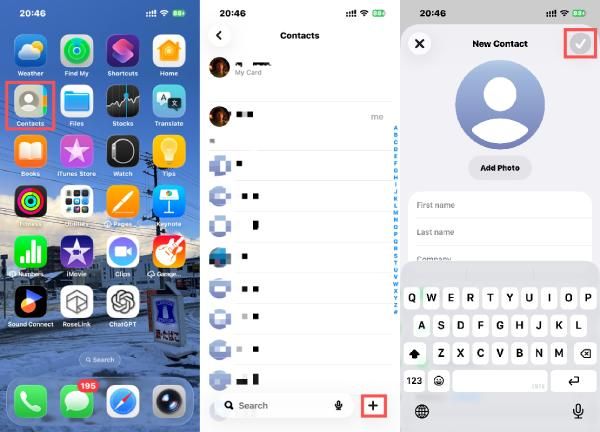
The Contacts app is the most direct and structured way to add new contact information on an iPhone. It allows you to manually enter names, phone numbers, emails, and additional details, ensuring each contact is well organized and easy to manage in the long term.
Step 1. Open Contacts on your iPhone.
Step 2. Tap Add to add contacts to your iPhone.
Step 3. Fill in the information and tap OK.
Adding a Contact from a Text Message
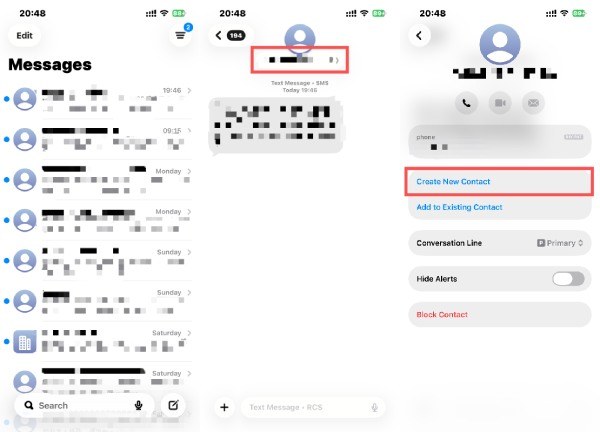
When someone sends you a text message via Messages, and you just want to add it as a contact on your iPhone, things become very simple because you can directly add it as a contact on the information interface without having to switch to another interface.
Step 1. Open Messages on your iPhone.
Step 2. Tap the specific text messages from the one you want to add contacts to your iPhone.
Step 3. In the message interface, tap the number and then tap Create New Contact.
Adding a Contact from Recent Calls
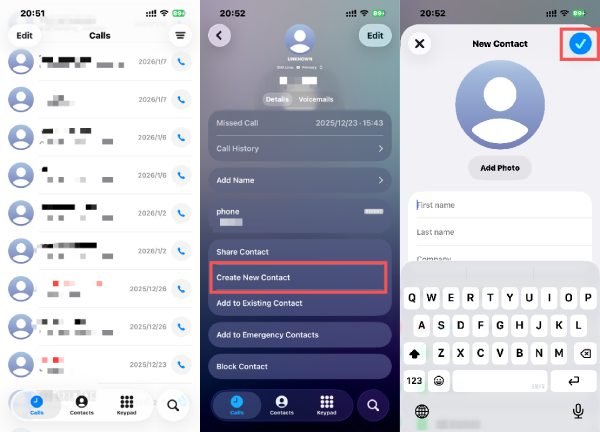
The Phone app lets you quickly add contacts on your iPhone from your recent call history. If you frequently receive calls from new numbers, this option helps you save essential contacts immediately after a call, preventing the number from getting lost later.
Step 1. Open Calls on your iPhone and select one from the recent calls.
Step 2. Scroll down and tap Create New Contact to add contacts to your iPhone.
Step 3. Fill in the information and tap OK.
Part 3: How to Manage and Add All Contacts to iPhone in One Click
Although it is very convenient to directly add contacts to the iPhone, all the above methods are for adding contacts one by one. Once it comes to backing up and transferring a large number of contacts, these methods can be extremely time-consuming and require a great deal of effort. In this situation, what you need is a professional software like Apeaksoft iPhone Transfer to assist you in quickly handling the task of adding contacts to your iPhone and at the same time backing them up securely.
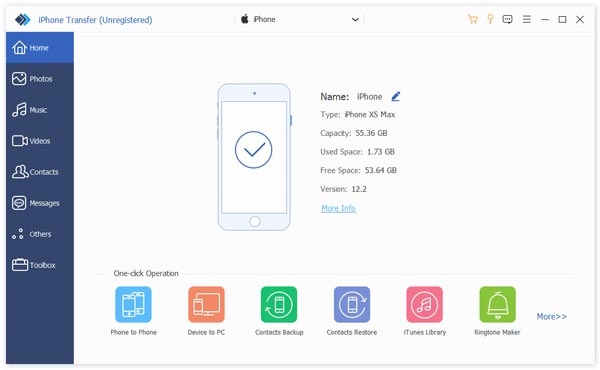
Step 1. Free download and install the package. Once finished, launch Apeaksfot iPhone Transfer. Use a USB cable to connect your iPhone to the computer.
Secure Download
Secure Download
Step 2. Your iPhone will be detected automatically. In the left panel, click Contacts.
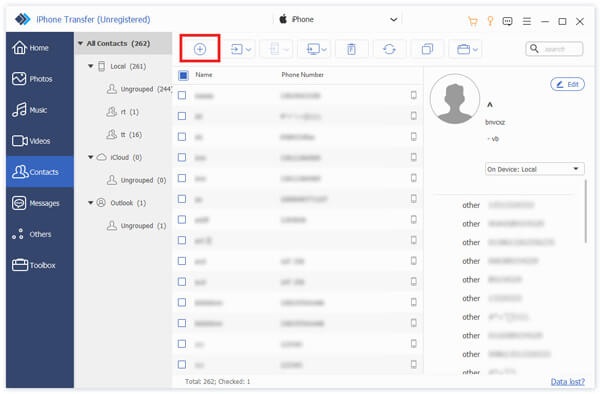
Step 3. Click Add at the top to start adding contacts to your iPhone via Apeaksoft iPhone Transfer.
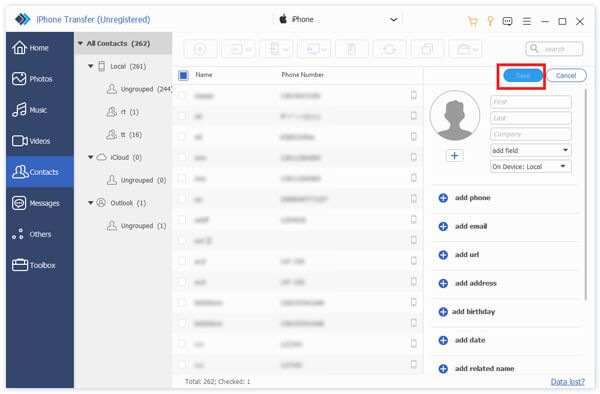
Step 4. Now, fill in all the necessary information about this new contact. Click Save to save the changes.
Tips: You can also use Apeaksoft iPhone Transfer to create a contacts backup to prevent the information of your contacts from accidental data loss.
Conclusion
Adding new contacts to an iPhone does not have to be a complicated task. You can add anyone from Contacts, Messages, or Recent Calls once they have some connections with you. However, these default methods can be time-consuming when dealing with a bulk of contacts. In such a situation, you may need a professional tool to help you organize and back up all that important information, including adding contacts to your iPhone. If you have the need, simply download Apeaksoft iPhone Transfer and finish the task right away.
Secure Download
Secure Download
Related Articles




