

How to Transfer Contacts from iPhone to iPhone Quickly

According to our research, most iPhone users save and store a large contact book on their devices. However, transferring contacts from iPhone to iPhone is a big challenge. Apple doesn’t allow users to save contacts to SIM cards. Thus, you cannot migrate contacts between iOS devices with a SIM card. On the other hand, you have multiple ways to complete the job with or without a computer. This guide shares the proven methods.
PAGE CONTENT:
- Part 1: Ultimate Way to Transfer Contacts from iPhone to iPhone
- Part 2: How to Upload Contacts from iPhone to iPhone by AirDrop
- Part 3: How to Copy Contacts from iPhone to iPhone via Email
- Part 4: How to Sync Contacts from iPhone to iPhone via iCloud
- Part 5: How to Shift Contacts from iPhone to iPhone Using Google Account
- Part 6: How to Transfer Contacts from iPhone to iPhone with iCloud.com
Part 1: Ultimate Way to Transfer Contacts from iPhone to iPhone
Apeaksoft iPhone Transfer is an easy way to transfer all contacts from one iPhone to another iPhone with a computer. It enables you to migrate contacts between iOS devices without data loss. The intuitive design helps simplify the workflow.

Downloaded by over 1,000,000 users
- Copy contacts from iPhone to iPhone in one click.
- Keep existing data on your iOS devices.
- Transfer almost all data types on iPhones.
- Move data between an iPhone and a computer.
- Support the latest editions of iOS.
Secure Download
Secure Download
How to Transfer All Contacts from iPhone to iPhone with a Computer
Step 1. Install the contact transfer tool
Launch the contact transferring software once you install it on your computer. It is available on Windows 11/10/8/7/XP/Vista and Mac OS X 10.7 or above.
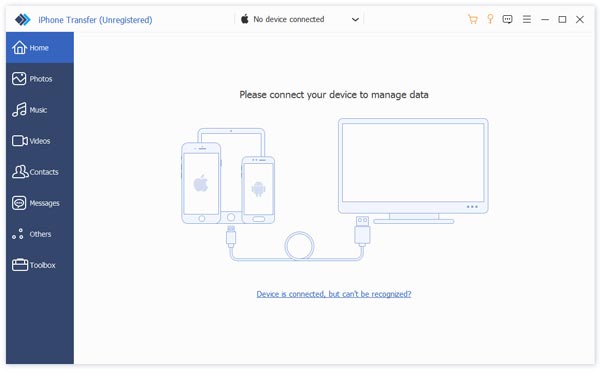
Step 2. Connect iPhones
Connect both iPhones to your computer with Lightning cables. If prompted, tap Trust on the screen to trust this computer. The software will recognize your devices.
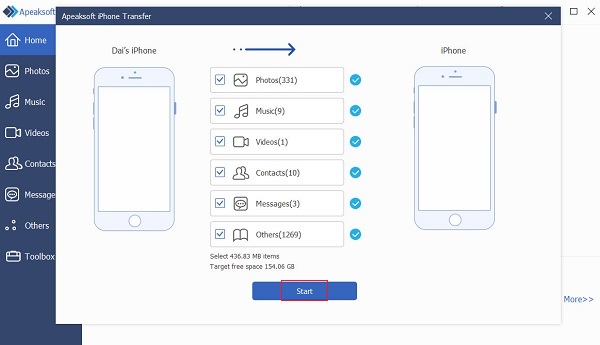
Step 3. Shift contacts from iPhone to iPhone
Go to the Toolbox tab on the sidebar and choose the Device to Device option. Make sure the source and target devices appear on the right side. Select Contacts and other desired data types. Click on the Start button to initiate uploading contacts from iPhone to iPhone. You can also send voice messages on your iPhone with this program.
Part 2: How to Upload Contacts from iPhone to iPhone by AirDrop
A wireless way to transfer contacts from iPhone to iPhone via AirDrop. The wireless connection is widely used to sync data immediately in Apple’s ecosystem. It doesn’t require a computer or extra software.
Step 1. Enter the Control Center on the target iPhone.
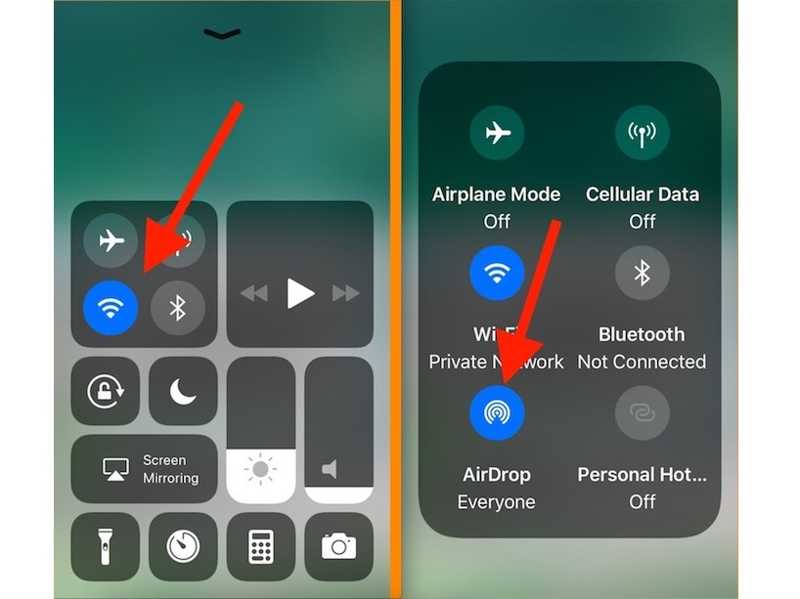
Step 2. Tap the connection pane, select AirDrop, and choose Everyone for 10 Minutes or Everyone.
Step 3. Turn on AirDrop on the source iPhone, too.
Step 4. Open the Contacts app on the source iPhone.
Step 5. Select one desired contact with two fingers and drag up or down to select multiple ones.
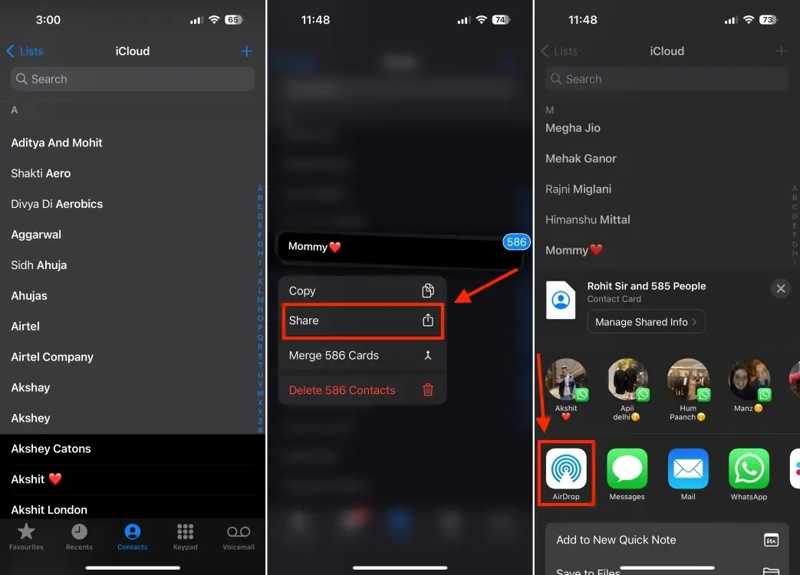
Step 6. Next, lift your fingers and long-press a selected item.
Step 7. Choose Share on the context menu.
Step 8. Tap AirDrop, then choose the target iPhone.
Step 9. Turn to the target device and tap Save on the notification.
Part 3: How to Copy Contacts from iPhone to iPhone via Email
Another way to move contacts from iPhone to iPhone wirelessly is via email. You can share the contacts on the source iPhone via email, and then open the email and create new contacts on the target device.
Step 1. Run the Contacts app on the source iPhone.
Step 2. Select the desired contacts or create a group and add these contacts.
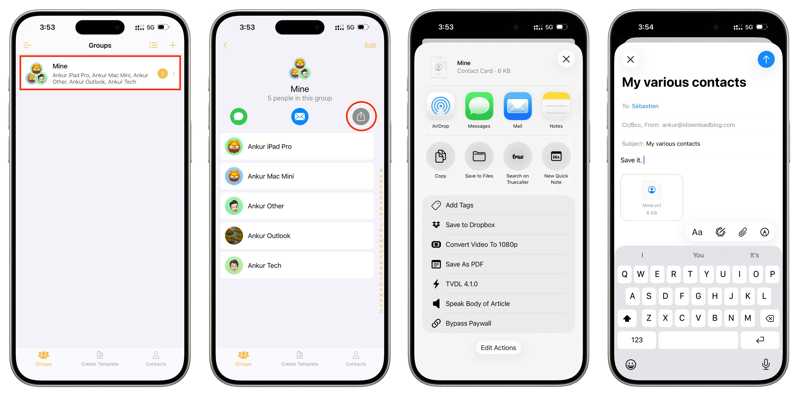
Step 3. Tap the Share button and choose Mail.
Step 4. Enter your email address in the To field and tap Send.
Step 5. Switch to the target iPhone, open the Mail app, and read the email.
Step 6. Tap the VCF file.
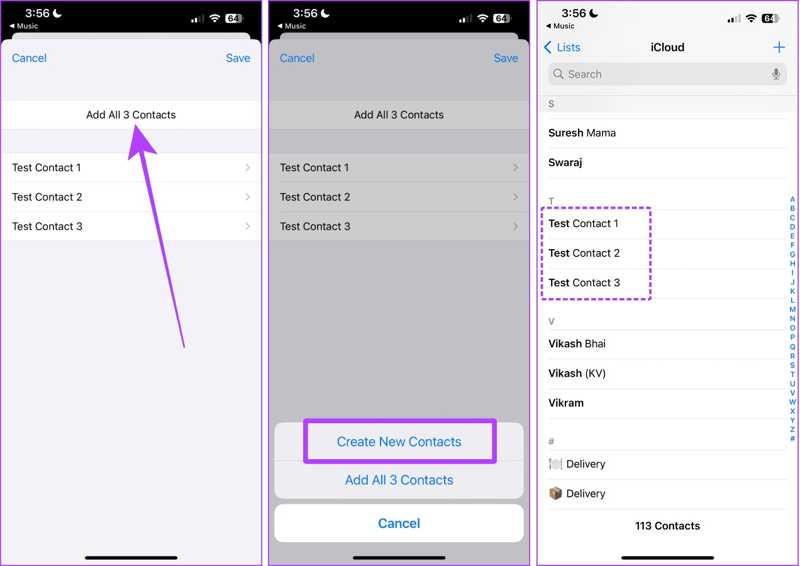
Step 7. Tap Add All [number] Contacts and choose Create New Contacts.
Step 8. Run the Contacts app to check the new contacts.
Part 4: How to Sync Contacts from iPhone to iPhone via iCloud
If you use the same Apple Account on the two iPhones, you can sync contacts from iPhone to iPhone using iCloud. This method will merge the contacts on the target iPhone without resetting your iOS device.
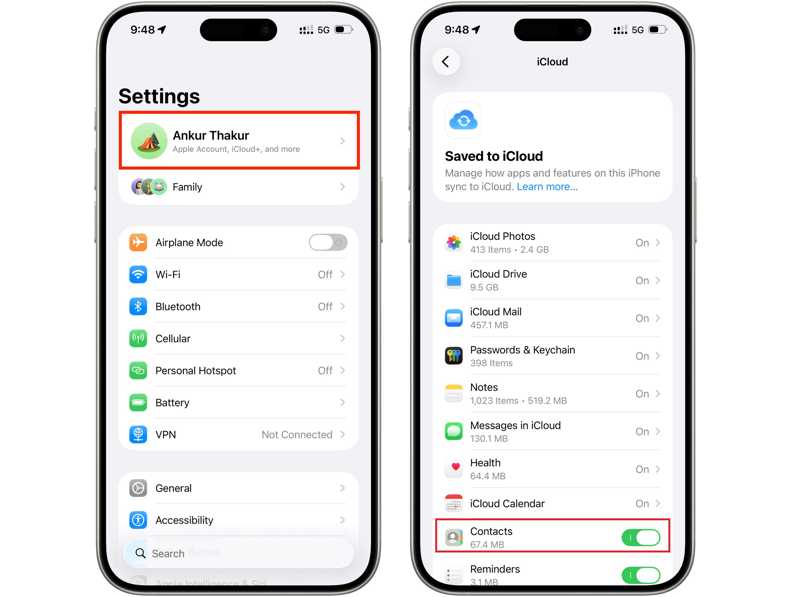
Step 1. Run the Settings app on the source iPhone.
Step 2. Connect to a Wi-Fi or cellular plan.
Step 3. Tap on your profile and choose iCloud.
Step 4. Tap Saved to iCloud and toggle on the Contacts option
Step 5. After your contacts are synced to iCloud, switch to the target device.
Step 6. Go to Settings, tap on your profile, and head to iCloud.
Tips: Make sure to sign in with the same Apple Account.
Step 7. Toggle on Contacts. If it is enabled, toggle it off and turn it back on.
Step 8. When prompted, tap Merge.
Further Reading
Part 5: How to Shift Contacts from iPhone to iPhone Using Google Account
With a Google account, you can transfer contacts from iPhone to iPhone without iCloud. This way moves all contacts between iOS devices. All you need is a Google account and a stable internet connection.
Step 1. Go to Settings on the source iPhone.
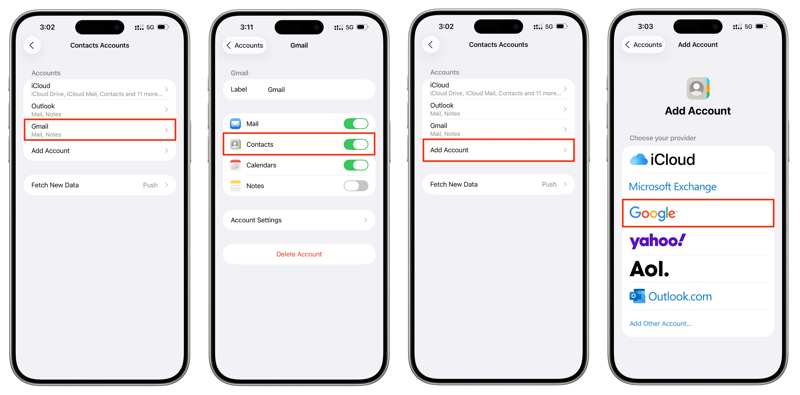
Step 2. Choose the Accounts option, tap Add Account, and select Google.
Step 3. Type in your Google account and password.
Step 4. Toggle on Contacts to sync iPhone contacts to your account.
Step 5. Turn to the target iPhone.
Step 6. Open the Settings app, go to Apps, and choose Contacts.
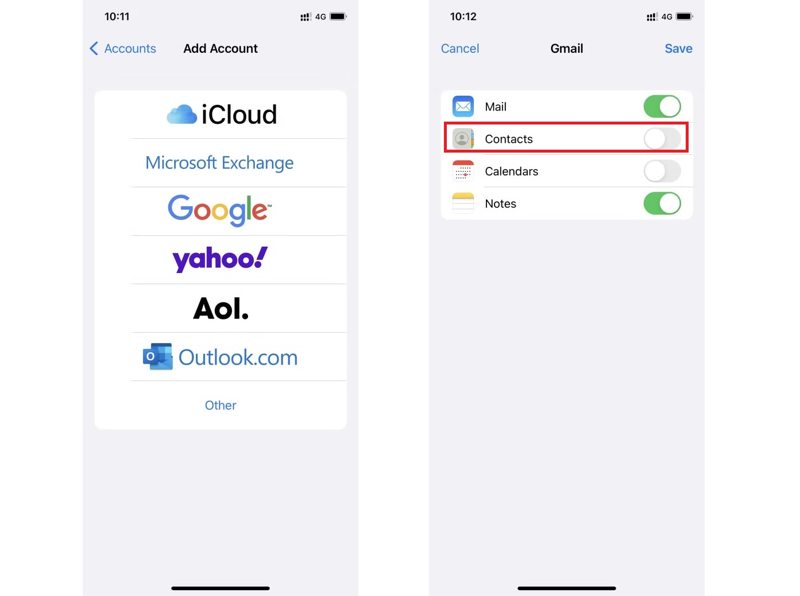
Step 7. Tap Contacts Accounts, hit Add Account, and log in with the same Google account.
Step 8. Toggle on Contacts.
Part 6: How to Transfer Contacts from iPhone to iPhone with iCloud.com
Another way to shift contacts from iPhone to iPhone is iCloud Data Recovery. You can back up your iPhone contacts to iCloud, and then restore them to another iPhone using iCloud Data Recovery.
Step 1. Back up contacts to iCloud on the source iPhone.
Step 2. Sign out of the Apple Account.
Step 3. Turn to the target device, and log in with your Apple Account.
Step 4. Access www.icloud.com in a browser.
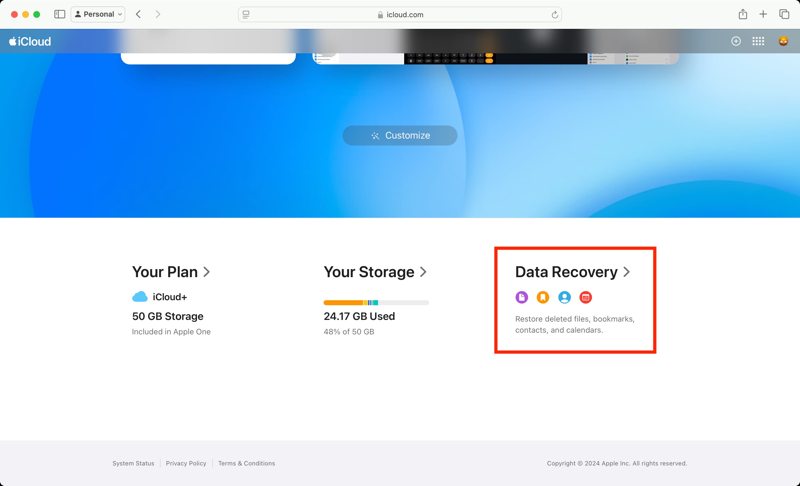
Step 5. Sign in with the same Apple Account.
Step 6. Click Data Recovery at the bottom.
Step 7. Choose Restore Contacts and select the last backup.
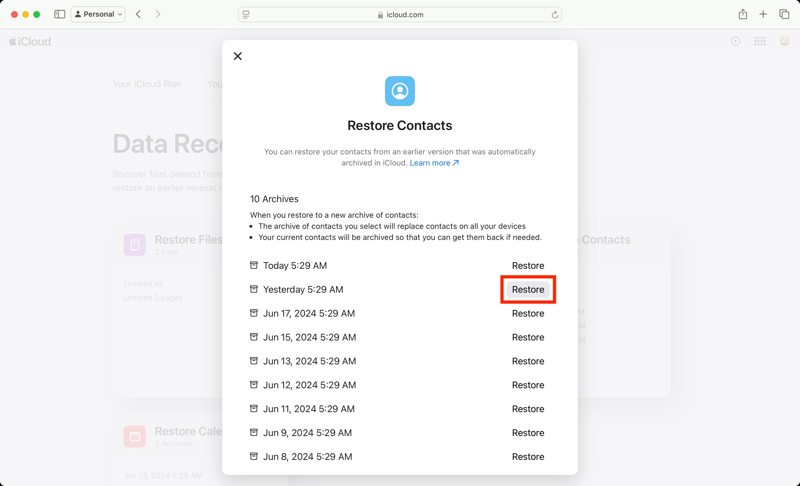
Step 8. Click the Restore button and choose Restore to confirm it.
Conclusion
This guide shared six ways to transfer contacts from iPhone to iPhone in different situations. The wireless connection, like AirDrop, iCloud, email, and Google account, enables you to access contacts on both source and target iOS devices. Apeaksoft iPhone Transfer is a fast way to complete the job with a computer and cables.
Related Articles




