


A Concrete Guide to Recover Screen Time Passcode Quickly

To control and manage device usage, more and more people use Screen Time on their own or their children's iPhone and iPad. However, it is a big challenge if you forgot your Screen Time passcode. Then, you may be locked out of your device, specific apps, Apple services, or setting adjustments. This article explains how to recover the Screen Time passcode on an iPhone or iPad with or without the associated Apple ID.
PAGE CONTENT:
Part 1: How to Recover Screen Time Passcode
Since iOS 13.4 and iPadOS 13.4, Apple has introduced the Screen Time Passcode Recovery feature into iPhones and iPad devices. It allows you to recover the Screen Time passcode on iPad and iPhone using the associated Apple credentials. The precondition is that your device is still accessible.
Step 1. Run the Settings app on the iPhone or iPad.
Step 2. Choose the Screen Time option.
Step 3. Scroll down and tap Change Screen Time Passcode.
Step 4. Next, choose Change Screen Time Passcode again.
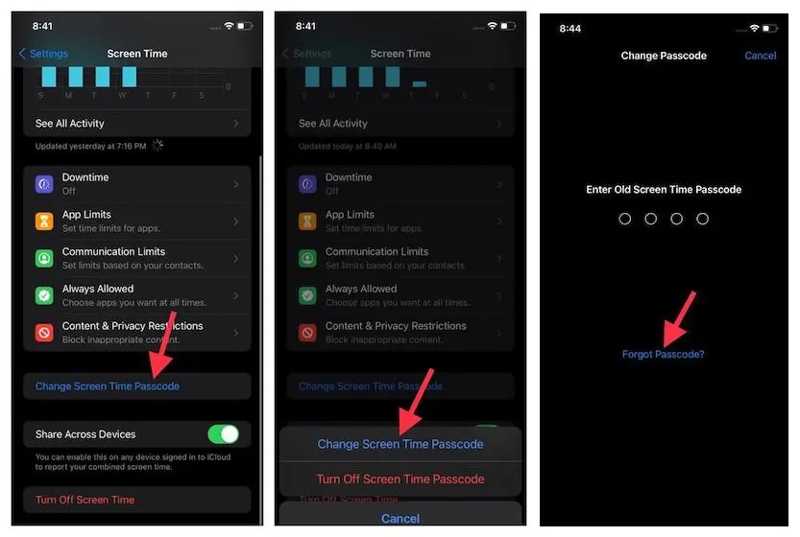
Step 5. Tap the Forgot Passcode button.
Step 6. Type in your Apple ID and tap OK.
Step 7. Then, enter your Apple ID password and tap OK again.
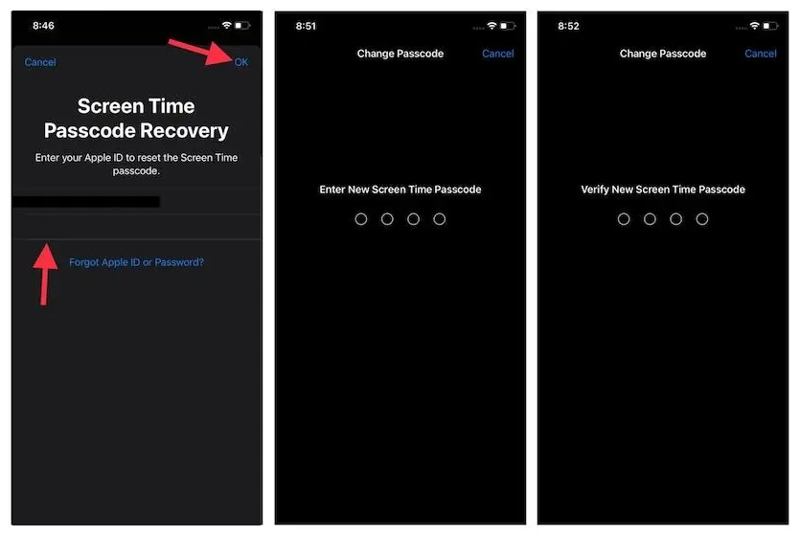
Step 8. Enter a new Screen Time passcode and verify it.
Step 9. Now, you can manage Screen Time with the recovered passcode.
Part 2: What to Do If the Forgot Passcode Option Is Not Showing
When recovering the Screen Time passcode, you might find the Forgot Passcode option not showing at all. As mentioned previously, this feature is only available on iOS 13.4 and iPadOS 13.4 or later. Plus, you won't get the option on your child's device if you set up Screen Time via Family Sharing.
Option 1: How to Recover Screen Time Passcode on a Child's iPhone
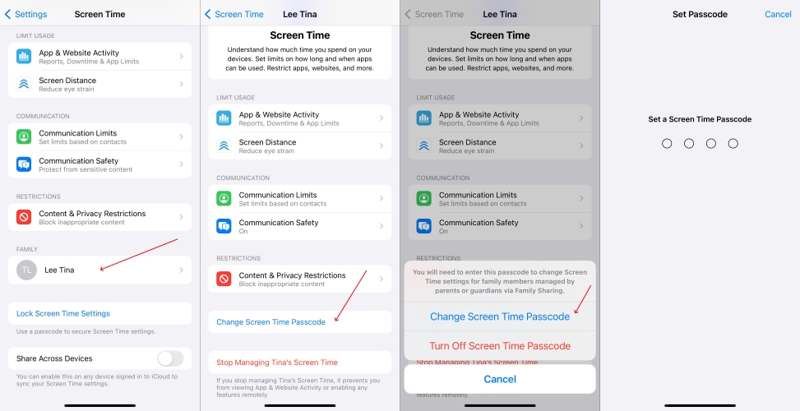
Step 1. Open the Settings app on the organizer's device.
Step 2. Choose Screen Time and tap your child's name under the Family section.
Step 3. Tap the Change Screen Time Passcode button.
Step 4. Choose Change Screen Time Passcode again.
Step 5. Authenticate with the Face ID, Touch ID, or device passcode.
Step 6. Set a new passcode for Screen Time and re-enter it.
Step 7. Now, turn on your child's iPhone and use the recovered Screen Time passcode to change your settings.
Option 2: How to Recover Screen Time Passcode via Restore
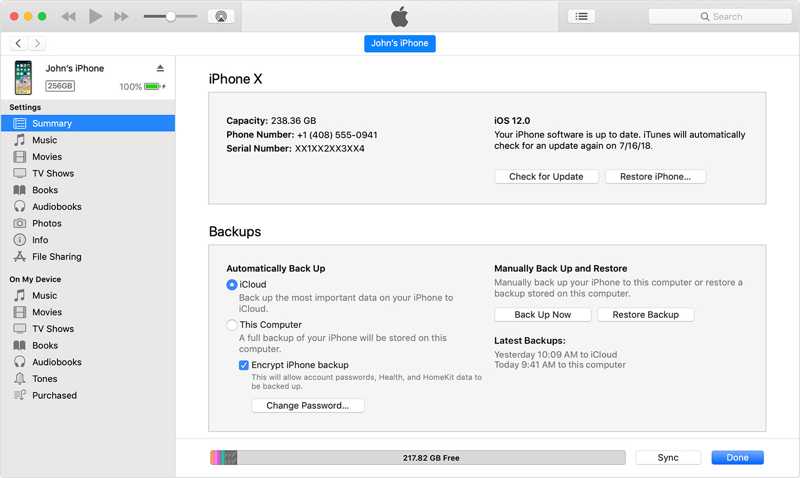
Step 1. Connect your iPhone or iPad to a computer with a USB cable.
Step 2. On Windows and macOS Mojave or earlier, open iTunes. On macOS Catalina or later, run Finder.
Step 3. Click the Phone button in iTunes after your device is detected, and go to Summary. In Finder, click your device name and go to General.
Step 4. Click the Restore iPhone or Restore iPad button.
Step 5. Choose Don't Back Up and begin removing the old Screen Time passcode.
Step 6. When the process finishes, set a new passcode.
Note: This way will erase your iPhone. You’d better have an iPhone backup. Otherwise, consider before doing.
Part 3: How to Recover Screen Time Passcode Without Apple ID
If the methods above are unavailable to recover your Screen Time passcode without your Apple ID, try Apeaksoft iFoneKit iOS Unlocker. It is able to remove the current Screen Time passcode on an iOS device without your Apple ID or password.

Downloaded by over 1,000,000 users
- Remove the old Screen Time passcode in three steps.
- Don't require your Apple ID password or iPhone passcode.
- Work for a locked or disabled iOS device.
- Support a wide range of iPhone and iPad models.
Secure Download
Secure Download

How to Recover Screen Time Passcode Without Apple ID
Step 1. Install iOS Unlocker
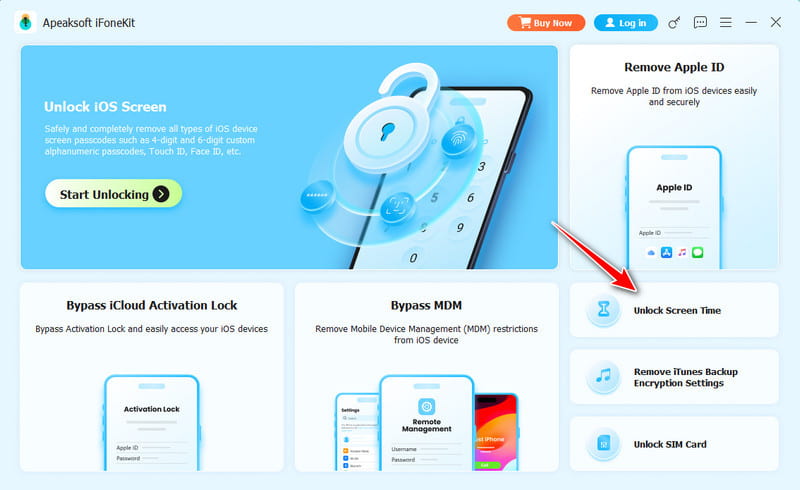
Start the Screen Time passcode recovery software after you install it on your computer. It is compatible with Windows 11/10/8/7/XP/Vista and macOS 10.7 or above. Choose the Unlock Screen Time mode to proceed.
Step 2. Connect to your device
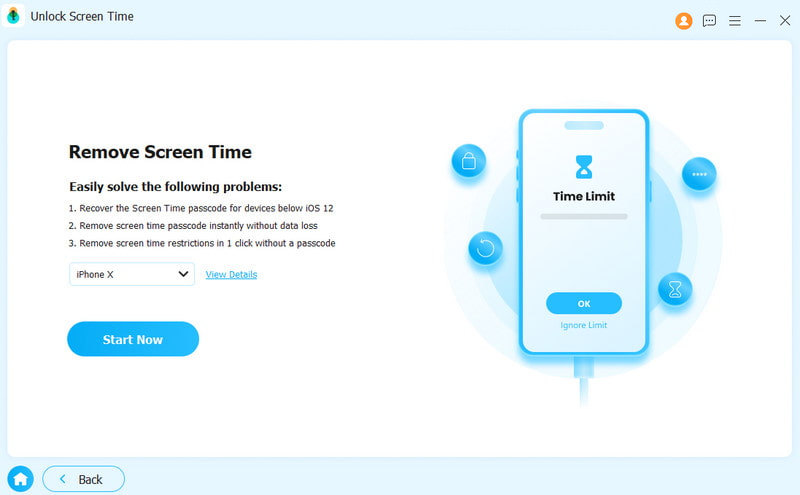
Hook up your iPhone or iPad to your computer with a Lightning cable. If prompted, tap Trust on your screen to trust this computer. Then, the software will automatically recognize your device and load the information.
Step 3. Recover Screen Time passcode
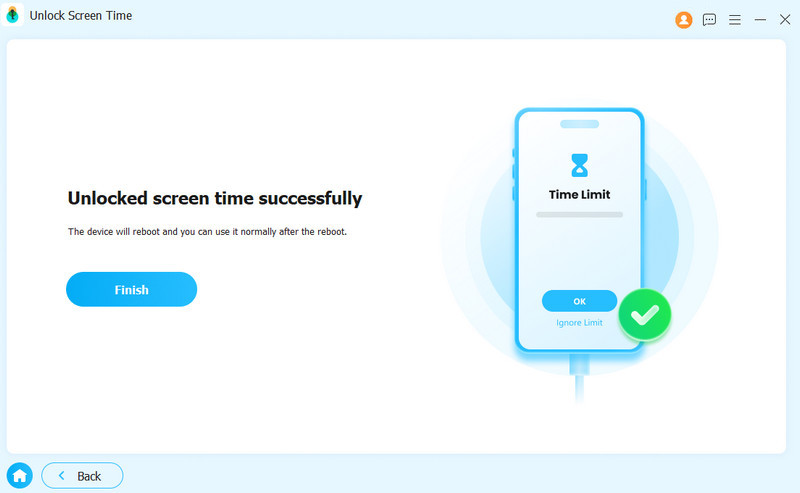
Choose the way you set the Screen Time passcode, and click the Start Now button. If Find My is disabled, the software will immediately remove Screen Time. If Find My is enabled, follow the onscreen instructions to turn it off. Then, wait for the process to finish. When your iPhone restarts, set a new passcode for Screen Time.
Further Reading
Conclusion
This article discussed how to recover the Screen Time passcode on an iPhone or iPad. You can follow our steps to reset your passcode for Screen Time using your Apple ID and password. For Screen Time on your child's device, you have to recover it on the organizer's device. Restoring your device is another option. Apeaksoft iFoneKit iOS Unlocker is a simple way to remove the old passcode on any iOS device.
 Apeaksoft iFoneKit
 Unlock all types of iOS passwords from iPhone, iPad and iPod.
Secure Download
Secure Download
Related Articles




