

How to Put an iPad Pro/Air/mini into Recovery Mode

iPad Recovery Mode is a built-in troubleshooting solution. It allows users to fix a few software glitches when your iPad fails to update, is disabled or crashed, and more. In short, it is an essential step when facing issues with your iPad. According to our survey, some users are confused about this feature, partly because different models of iPad have different workflows for this mode. Our article explains how to put an iPad in Recovery Mode and what you can do if your device gets stuck in Recovery Mode.
PAGE CONTENT:
Part 1: How to Put iPad in Recovery Mode
To put an iPad Pro/Air/mini in Recovery Mode, you need a computer, a USB cable, and the latest version of iTunes or Finder. Moreover, the button combination is different, depending on your device model.
Step 1. Connect your iPad to a computer with a compatible cable.
Step 2. Run the latest version of iTunes. On macOS Catalina and above, run Finder.
Step 3. Put your iPad in Recovery Mode:
For iPad Without a Home Button
Quickly press and release the Volume Up button.
Quickly press and release the Volume Down button.
Long-press the Power button until you see the connect-to-PC screen.

For iPad with a Home Button
Hold the Home and Sleep/Wake buttons together.
When the connect-to-PC screen appears, release these buttons.
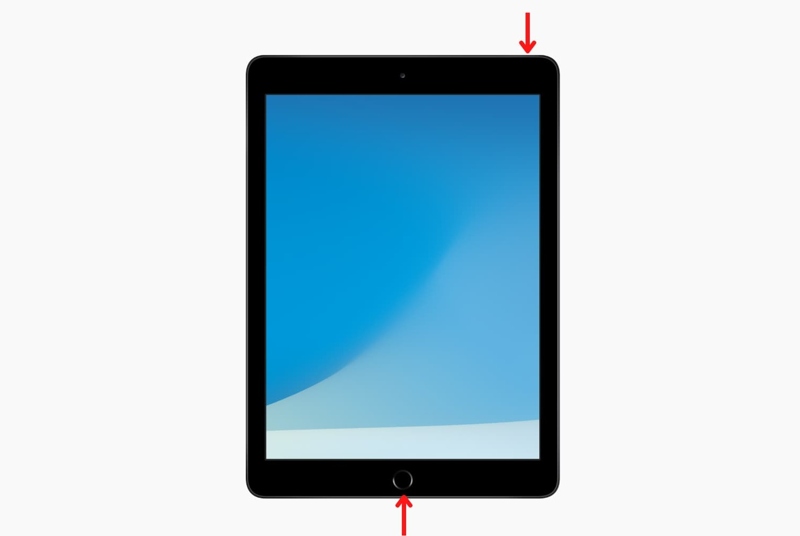
Step 4. Then, follow the onscreen instructions to update or restore your device.
Step 5. Once it is done, your iPad gets out of Recovery Mode.
Part 2: How to Fix an iPad Stuck in Recovery Mode
What can you do if your iPad gets stuck in Recovery Mode? If iTunes or Finder doesn't start update or restoring your device, you can force restart your device to take your iPad out of Recovery Mode.

For an iPad without a Home button
Disconnect your iPad from your computer.
Press the Volume Up button and release it.
Press the Volume Down button and release it.
Hold the Top or Power button until you see the Apple logo.
For an iPad with a Home button
Disconnect your iPad from the computer and any accessibility.
Hold the Home + Sleep/Wake buttons simultaneously.
When you see the Apple logo, release the button combination.
Part 3: How to Fix iPad Won't Go into Recovery Mode
Some users reported that their iPad won't go into Recovery Mode when their devices are disabled, freezing, or crashed. Don't panic. You can try the solutions below to resolve this problem quickly.
Solution 1: Update iTunes/Finder
iTunes and Finder are an important part when putting your iPad in Recovery Mode. If something is wrong in iTunes or Finder, like outdated versions, iPad Recovery Mode doesn't work. Fortunately, it is easy to update iTunes and Finder.
Update iTunes
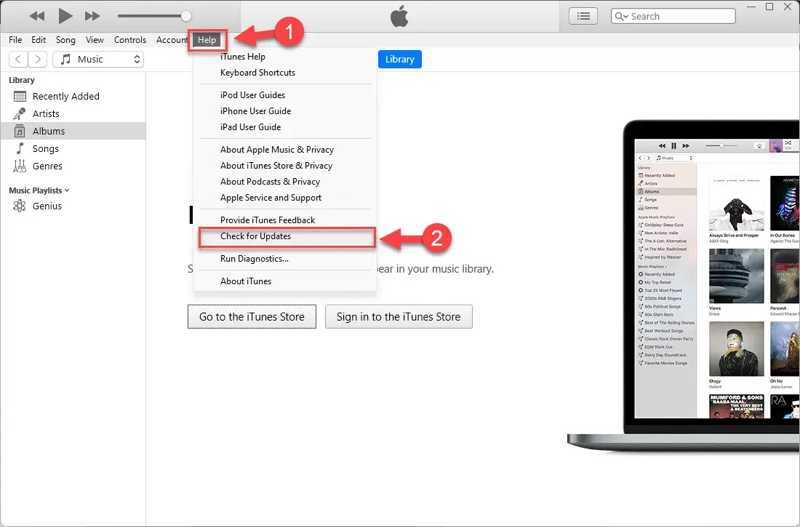
Step 1. Open iTunes from your desktop.
Step 2. Go to the Help menu in iTunes for PC or iTunes menu in iTunes for macOS.
Step 3. Choose Check for Updates to find available updates.
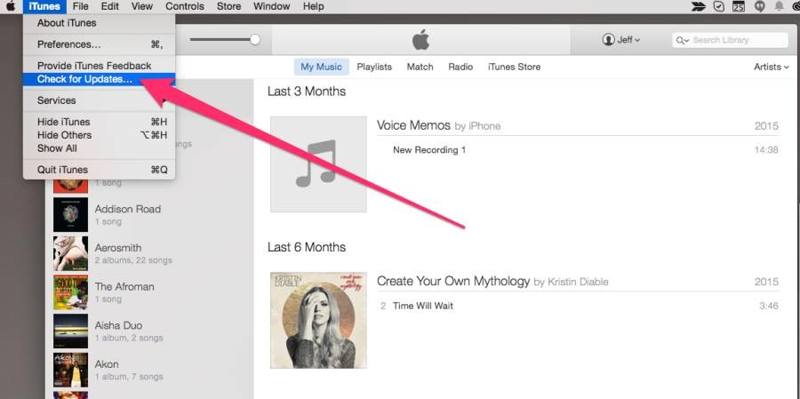
Step 4. Follow the onscreen instructions to update your iTunes.
Step 5. Then, connect your iPad to iTunes or Finder and put it in Recovery Mode.
Update Finder
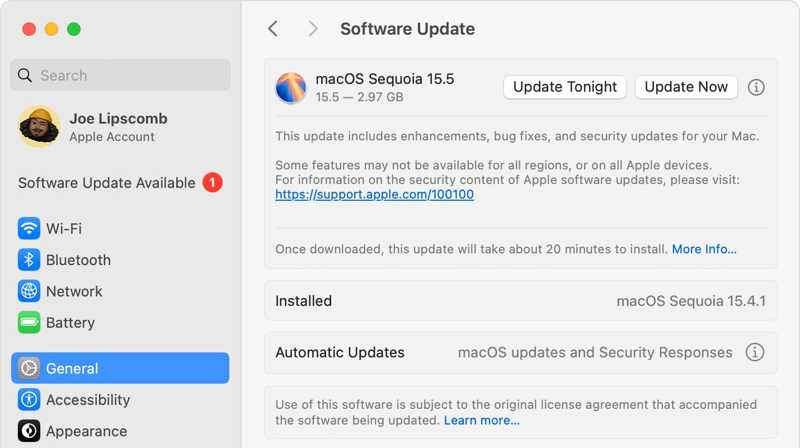
Step 1. Click the Apple menu and choose System Settings or System Preferences.
Step 2. When Software Update starts, it automatically checks for new updates.
Step 3. If an update is available for your Mac, click the Update button to install it.
Step 4. When it is done, Finder will update to the latest version.
Solution 2: Try DFU Mode
If iPad won't go into Recovery Mode, you can also put your device in DFU mode for troubleshooting. DFU stands for Device Firmware Update, which can resolve serious software troubles on iPad.
Step 1. Hook up your iPad to a computer with a USB cable.
Step 2. Run iTunes or Finder.
Step 3. Long-press the Top, Power, or Sleep/Wake button until the power-off screen appears.
Step 4. Move the slider to shut down your device.
Step 5. Put your iPad in DFU mode:
For an iPad Without a Home Button
Quickly press and release the Volume Up button.
Quickly press and release the Volume Down button.
Hold the Power button until your screen goes black.
Keep holding the Power button and press the Volume Down button for 5 seconds.
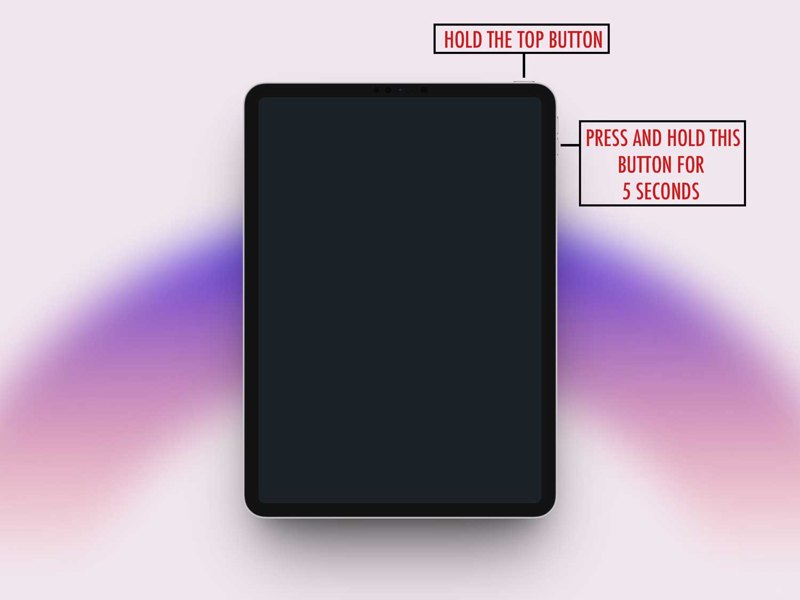
Release the Power button while holding the Volume Down button until iTunes or Finder detects your iPad.
For an iPad with a Home Button
Press and hold the Home and Sleep/Wake buttons together.
When your screen goes black, release the Sleep/Wake button while keeping pressing the Home button.
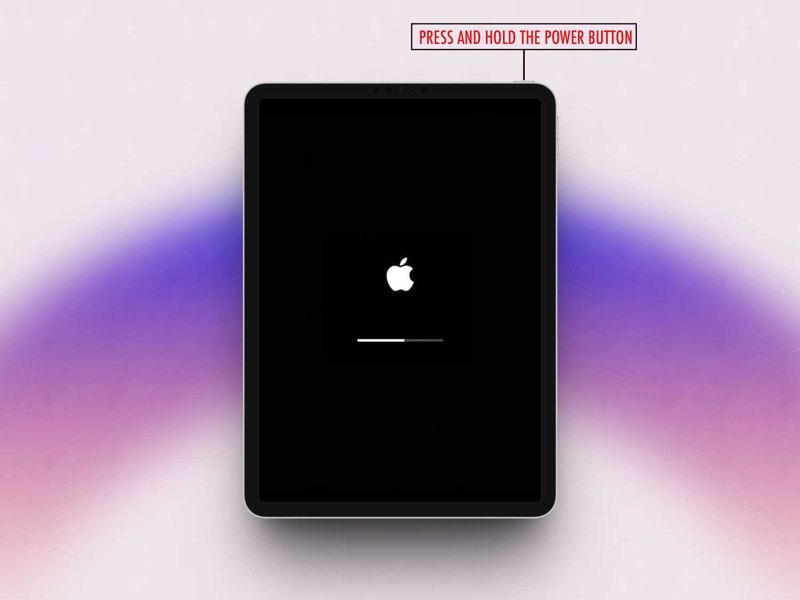
Once iTunes or Finder recognizes your device, release the button.
Step 6. Then, update or restart your iPad.
Part 4: How to Recover Data from iPad After Restoring in Recovery Mode
iPad Recovery Mode is used to restore or update an iPad for troubleshooting. If your data is lost during the process, Apeaksoft iPhone Data Recovery can help you recover it without a backup.
The Best Data Recovery Software for iPad After Restoring in Recovery Mode
- Recover data from iPad memory directly.
- Extract lost files from iTunes or iCloud backup.
- Preview iPad data for selectively recovering.
- Compatible with the latest models of iPad.
Secure Download
Secure Download

How to Recover Data from an iPad Without Backup
Step 1. Connect to your iPad
Launch the best iPad data recovery software after installing it on your computer. Connect your iPad to a computer with the Lightning cable. Go to the Recover from iOS Device tab, and click the Start Scan button.
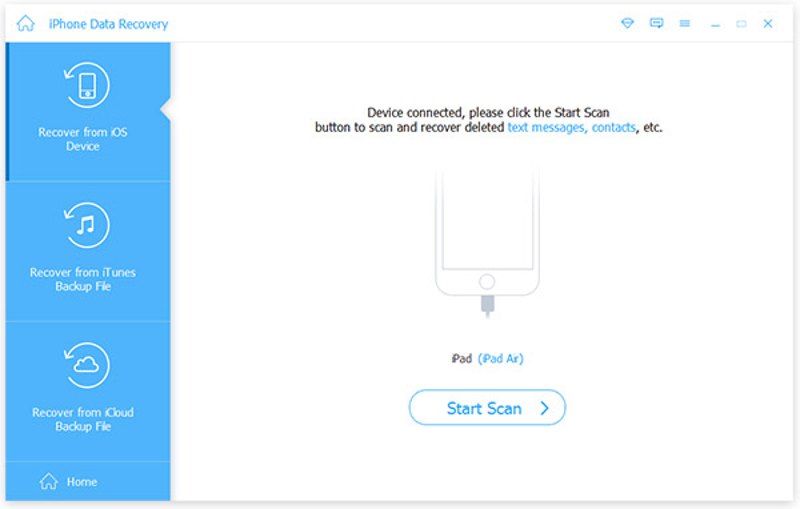
Step 2. Preview iPad data
Once iPad scanning finishes, your data will be organized by type. Check the data types you want to view, like Camera Roll, Messages, Contacts, etc.
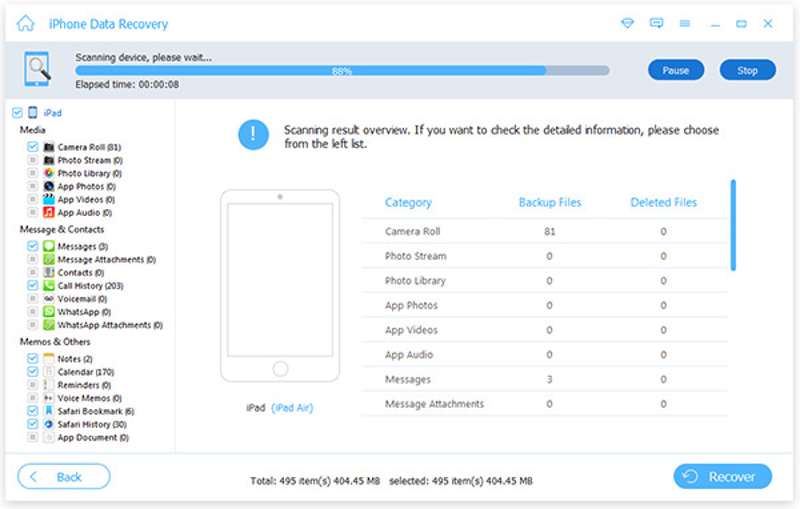
Step 3. Recover data from iPad
Select the files and items you want to recover and click the Recover button. Set an output folder and hit Recover.
Conclusion
This guide explained what iPad Recovery Mode is and how to put your iPad in Recovery Mode. Furthermore, we demonstrated what you can do if your iPad gets stuck or won't enter Recovery Mode. Apeaksoft iPhone Data Recovery helps you recover data if you lose iPad files during troubleshooting in Recovery Mode.
Related Articles
Is your iPad stuck on Apple logo? Are you wondering why your iPad stuck on the Apple logo? This post will show you detailed reasons and concrete solutions!
If you want to get rid of mobile device management and get full control of your device, here is how to remove MDM on iPad.
Whether you want to factory reset your iPad or restore iPad from backup, such as iCloud or iTunes, you can find detailed guides in this post.
If you are locked out of an iPad, you can reset it using iTunes, iCloud, Recovery mode, DFU mode, or a professional unlocking tool like Apeaksoft iOS Unlocker.



