


[Tested] Is It Possible to Unlock an iPhone with a Calculator

Key Takeaways
- Most calculator tricks to unlock iPhone on YouTube and TikTok are scams.
- They usually rely on Face ID, Touch ID, or video editing tricks.
- Rare successes exist, but they're caused by system glitches.
- The reliable way to unlock an iPhone is via Find My iPhone or trusted third-party software.
As a high-end smartphone, the iPhone equips advanced security measures, which makes it very difficult to gain access to your device without permission. However, there are viral videos on TikTok and YouTube claiming that you can unlock an iPhone using a Calculator. Are they real? This post will reveal the truth behind these tricks and explain whether it's really possible to unlock an iPhone with a calculator.
PAGE CONTENT:
Part 1: Viral Ways to Unlock an iPhone with a Calculator
To be honest, it is impossible to open an iPhone without using the passcode or Face ID/Touch ID. How do the viral videos make it to unlock an iPhone with a Calculator? Below are the overall guide:
Step 1. Tap the Home, Side, or Sleep/Wake button to wake the lock screen.
Step 2. Enter the Control Center. The gesture is different depending on your iPhone model. Disable Bluetooth and Wi-Fi while enabling the Airplane. Plus, turn off the Portrait Orientation Lock option. Choose the Calculator app.
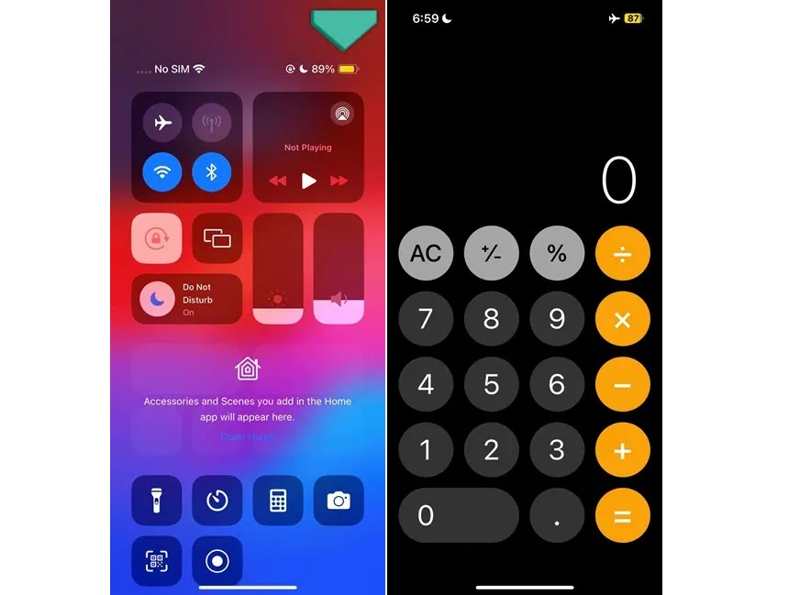
Tips: If you didn’t add Calculator to Control Center, swipe right to the left on the lock screen to access the Camera app. Then, swipe down to reveal the keypad and launch the Calculator app.
Scenario 1: According to the TikTok trick of unlocking an iPhone with a Calculator:
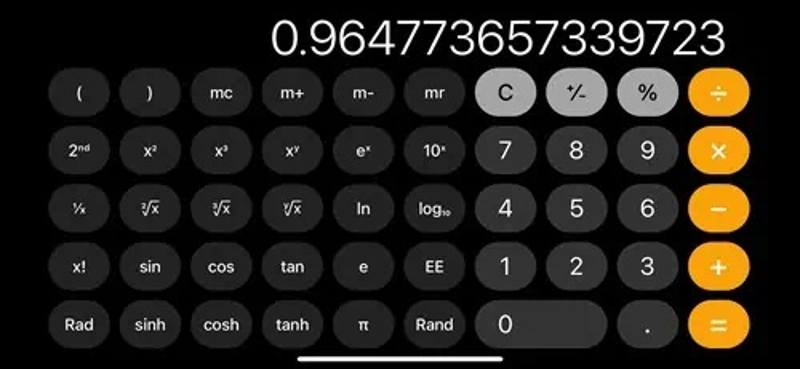
Step 3. Rotate your device to enter the Scientific mode.
Step 4. Type 7 and input +, type 4 and press +, tap the Euler’s number or e on the Calculator, and hit In and tap Rand.
Step 5. Swipe up from the bottom of your screen to enter the App Switcher. Touch each app and swipe upward to close it.
Step 6. Then, you will arrive on the home screen.
Scenario 2: Popular Calculator Trick to Unlock iPhone in YouTube:
Step 3. Enter the digits and symbols below in a row.
+/*+/*+<<<>>>*1110*
Step 4. Next, swipe up from the bottom of your screen to bring up the Emergency Call screen. In fact, it opens the Phone app in the background.
Step 5. Tap Cancel to exit emergency mode to enter the Phone app. Tap Contacts and add a new contact.

Step 6. When it is done, your home screen becomes accessible for a brief few seconds. If fast enough, you can tap other apps during the short unlocked period. Then, your iPhone will re-lock after 30 to 60 seconds.
Step 7. Using a Calculator, you can repeat the process to unlock your iPhone without the passcode or Face ID.
Part 2: Does the YouTube/TikTok Calculator Trick to Unlock iPhone Work
Does it really work to unlock an iPhone with a calculator? Unfortunately, no, at least we were unable to unlock any device using this method based on our tests.
We tested this calculator trick to unlock iPhone X (iOS 16.7), iPhone 11 (iOS 17.0), iPhone 12 (iOS 17.1), iPhone 13 (iOS 17.2), iPhone 14 (iOS 18), and even iPhone 18 Pro (iOS 27). None of them worked.
Of course, we also reviewed reports from other testing sites that claimed they made it.
"In our test, we used an iPhone 13 running iOS 17.2.1 and successfully bypassed the screen lock. However, the trick failed on an iPhone 8 (iOS 16.7.2) and an iPhone 6 (iOS 12.5.7)."----from TunesKit
Strictly speaking, there may be a very small chance, but even then, it's usually caused by system glitches, which may no longer work on newer iOS versions.
So, why do so many videos online appear to unlock iPhones with a Calculator effortlessly? Here, we summarize several key points:
- They've used Face ID beforehand
- Touch ID was used secretly
- They've merged two separate clips
- Old iOS bug
Part 3: Alternatives to the Calculator Unlock Trick
Since it is almost possible to unlock an iPhone with a calculator, are there true and reliable ways to unlock an iPhone without passcode? The answer is Yes. Here, we will introduce two proven ways to help you unlock iPhone without passcode.
Way 1: Unlock iPhone via Find My
Find My is Apple's official way to unlock an iPhone remotely, even if you've forgotten the passcode. This method is completely safe and 100% working. But before you go, make sure Find My is enabled and you know your Apple ID password.
Step 1. Visit iCloud.com and sign in with your Apple ID account.
Step 2. Click Find My.
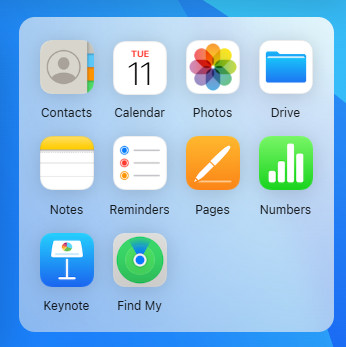
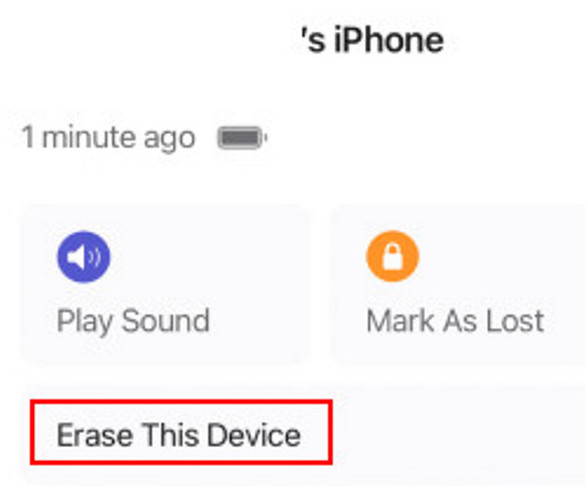
Step 3. Choose your locked iPhone, and then click Erase This Device.
Way 2: Use third-party unlocking software
If Find My iPhone is unavailable, or you forget your Apple ID, third-party tools like Apeaksoft iFoneKit iOS Unlocker can help you as well.

Downloaded by over 1,000,000 users
- Unlock your iPhone or iPad without the passcode.
- Work for digit passcodes, Face IDs, and Touch IDs.
- Offer bonus features, like Screen Time passcode bypass.
- Support the latest versions of iOS and iPadOS.
Secure Download
Secure Download

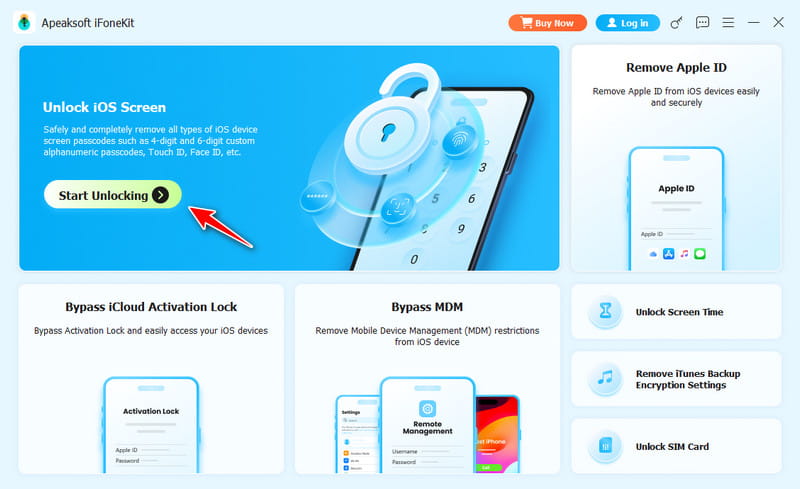
Step 1. Detect your device
Open the best iPhone unlocking software after you install it on your computer. Choose the Unlock iOS Screen mode. Connect your iPhone to your computer with a Lightning cable. Click the Start Now button after the software detects your iPhone.
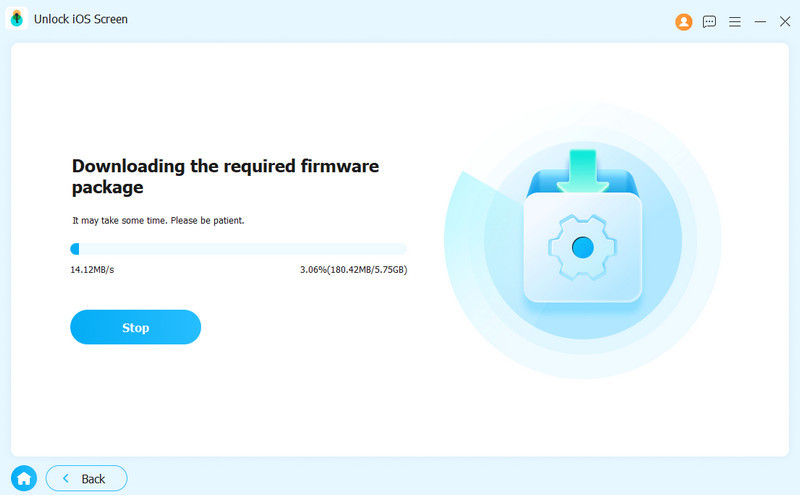
Step 2. Download firmware
Then, check your device information. If any item is wrong, correct it. Click the Start button to download the necessary firmware package.
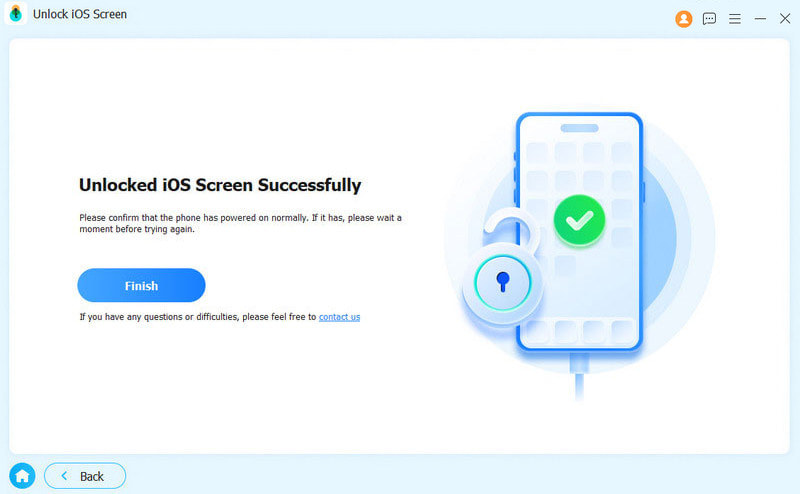
Step 3. Unlock your iPhone
When downloading is done, click the OK button to begin unlocking your iPhone without Calculator. If prompted, click Confirm Again and confirm the unlocking. During the process, keep your iPhone connected. You can also remove MDM profile with it.
Conclusion
While the Calculator trick to unlock iPhone continues to go viral on TikTok and YouTube, our testing found there is no reliable way to unlock an iPhone using a calculator. Even in the rare cases where this function seems to work properly, the result is usually caused by a system glitch rather than the calculator itself.
If you need to regain access to a locked iPhone, trusted solutions such as Find My or Apeaksoft iFoneKit iOS Unlocker are much more dependable.
 Apeaksoft iFoneKit
 Unlock all types of iOS passwords from iPhone, iPad and iPod.
Secure Download
Secure Download
Related Articles




