

From iOS 18 to iOS 26: What’s New, Pros & Cons, and Upgrade Tips

With Apple's official release of iOS 26 in mid-September, many people have begun to prepare to upgrade to the latest iOS system.
Honestly, it is not always beneficial to update to the latest iOS system, as some new features may not appeal to you, and sometimes it can cause inconvenience.
Therefore, it is crucial to determine whether the change is worthwhile. iOS 26 vs iOS 18 - this post will introduce iOS 26's new features, break down the biggest differences between the two versions, and analyze whether it is worth upgrading to the new iOS 26.
PAGE CONTENT:
Part 1: iOS 26 vs iOS 18 - Key Differences You Should Know
Below, we will introduce what's new on iOS 26.
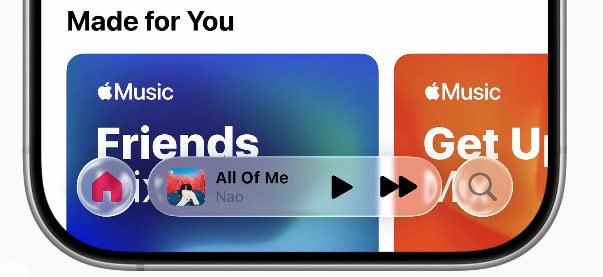
Design Language and Interface - Liquid Glass design and 3D effect wallpaper.
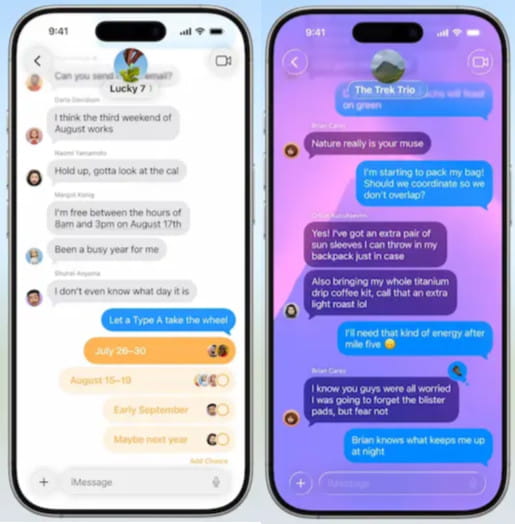
Messages - Group polls, custom backgrounds, and improved spam filtering.
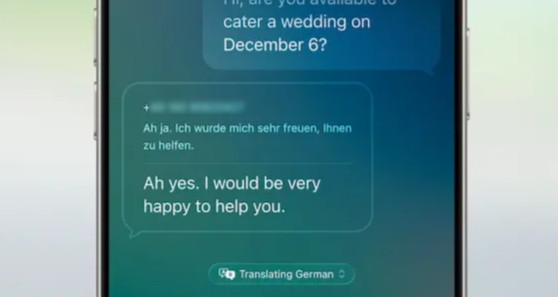
Phone - Real-time call translation and Call filter.
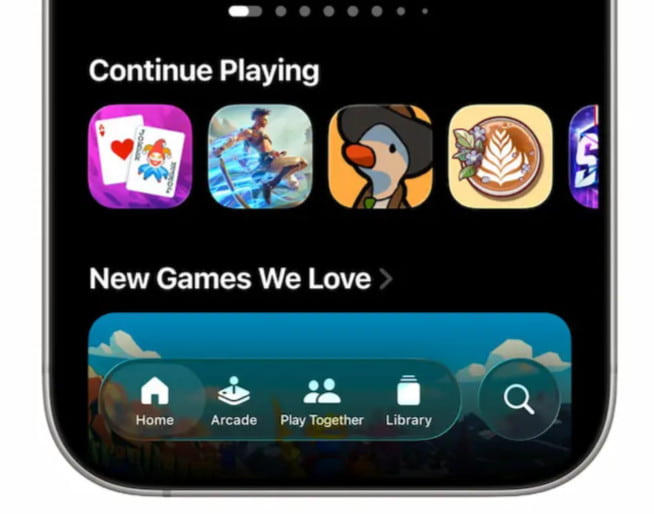
Apple Games - New Apple Games app and Apple Arcade
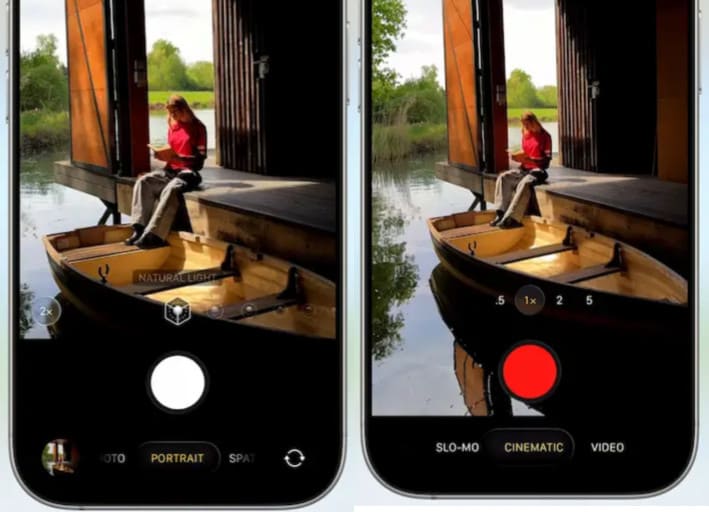
Camera - A cleaner UI that only shows the photo and video.
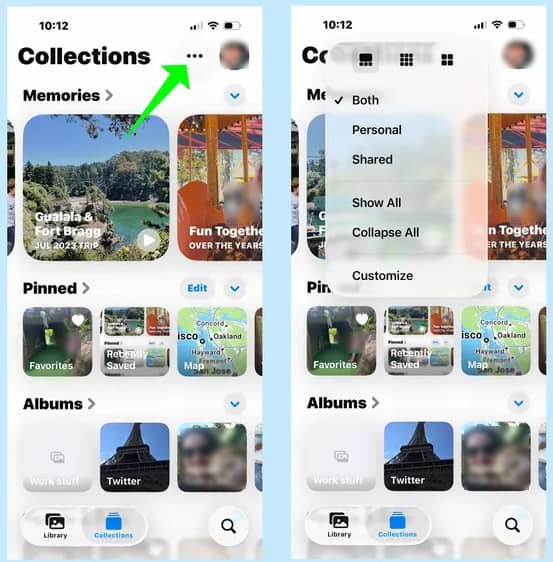
Photos - New Collections view and event-based sorting feature.
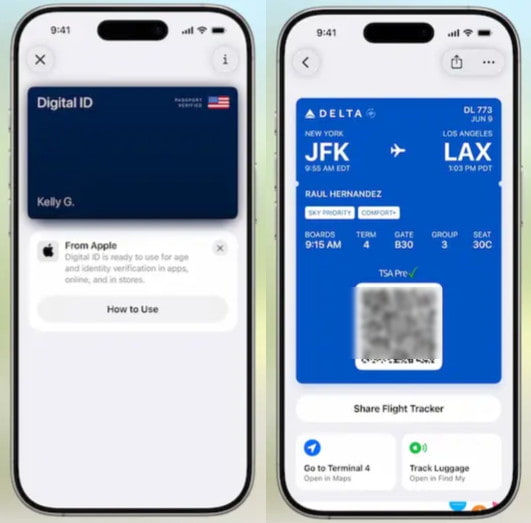
Wallet - Digital IDs, enhanced boarding passes, and AI order tracking.
CarPlay - Display optimization and call banner.

Apple Music - Lyric translation and pronunciation guide.

Part 2: Should I Upgrade to iOS 26 - Pros and Cons Explained
Whether upgrading to iOS varies from person to person. For some users, they may prefer the design and look of iOS 18, while other may pursue iOS 26's new features and performance. Here, we analyze the key pros and cons of iOS for your reference.
- More advanced AI features. AI translation makes communication more efficient, and visual intelligence makes life simpler.
- Interface and operation optimization. The liquid glass design, adaptive lock screen time, and 3D effect lock screen wallpaper provide you with an unprecedented and astonishing experience.
- Privacy enhancement. The newly added easy-to-understand privacy dashboard displays which apps are accessing sensitive tools, such as the microphone, camera, or location clearly, and notifies you in real time.
- Integration with other iOS devices. Enhance seamless integration with the latest Apple devices, such as Vision Pro and Apple Watch Ultra 2, through features like a unified interface and gesture interaction.
- You may not be familiar with the new changes, such as the Camera and Photo redesign. Or, in other words, you may prefer the previous look. At the first stage, you may find it extremely uncomfortable.
- New features might increase battery consumption, especially in the first few days after updating.
- It may occupy more space with so many new features.
- Some features, like AI translation when making phone calls or sending text messages, may lead to privacy leaks.
Part 3: Pro Tips - Always Back up Your iPhone Before Updating
If you have finished reading our post and are ready to update to the new iOS 26, there is one important point that you cannot overlook - backing up your iPhone.
Although most iPhone updates will be successfully performed, there are subtle chances that you may encounter problems like a failed installation, iPhone stuck on update, corrupted data, or unexpected bugs, which will cause severe data loss.
Once you've backed up your iPhone to your computer or iCloud, you can easily restore your important data, like photos, messages, etc., to your iPhone, no matter what happens during the update.
Here, you can use a dedicated iPhone backup and restore software - Apeaksoft iOS Data Backup & Restore.
One-Stop Solution for iPhone Backup & Restore
- Backup your iPhone in one click.
- Support various data types, like photos, messages, call logs, etc., without data loss.
- You can set a password for your backup.
- Preview and restore backup without overwriting.
Secure Download
Secure Download

Free download this software by the corresponding button above.
Step 1. Click the iOS Data Backup & Restore option on the main interface and connect your iPhone to your computer using a USB cable.
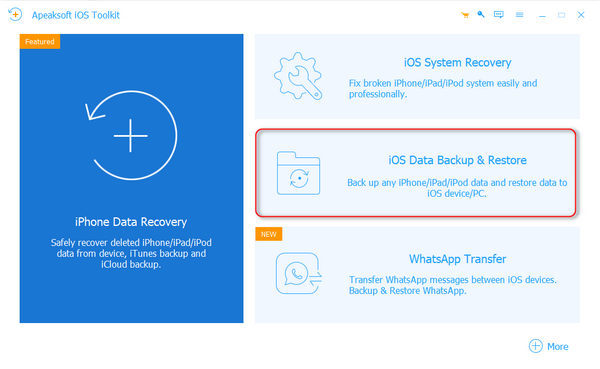
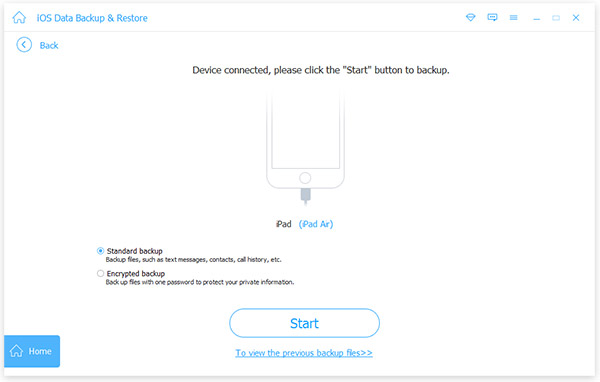
Step 2. Click the first iOS Data Backup option and choose a backup mode for your iPhone. Click Start to move on.
Tips:
Standard backup: Back up files, such as text messages, contacts, call history, etc.
Encrypted backup: Back up files with a password to protect your privacy information. Keep your password safe, as you will need it when you want to restore data from an encrypted backup.
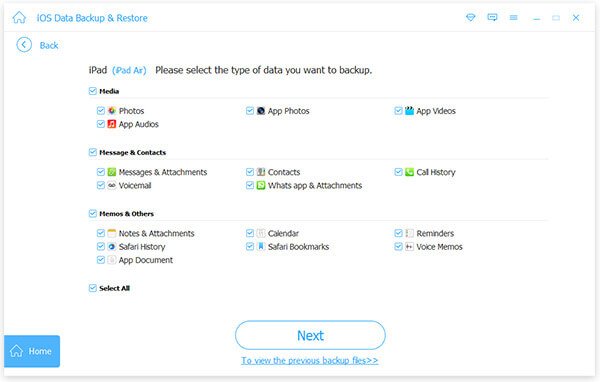
Step 3. Choose the data type you want to back up. Check them and click the Next button. Then, your data backup process will start.
Tips: If your iPhone is iOS 13 or above, you need to enter your screen passcode an extra 2-4 times following the pop-up screen instructions on the iOS screen.
Conclusion
Should I update to iOS 26? We believe that after reading our post, you may have a further understanding of the new iOS 26. Upgrading to iOS 26 may bring many new and advanced features and performance improvements, but potential early-stage compatibility issues and increased battery usage should not be overlooked.
At last, always remember to back up your iPhone in case your iPhone software update fails, if you are ready to upgrade to iOS 26.
Related Articles




