

How to Turn off and Disable iPhone or iPad Screen Lock

To protect your data and privacy, Apple added a screen lock to all iOS devices. iOS is able to display the screen lock automatically if you don't touch your screen for a period. The next time you want to access your device, you need to enter your passcode, Face ID, or Touch ID. However, every coin has two sides. So does iPhone screen lock. This tutorial shares multiple ways to turn off the screen lock on your iPhone or iPad.
PAGE CONTENT:
Part 1: One Easy Way to Disable iPhone Screen Lock
Disabling the lock screen switch on an iPhone is a breeze if you know where to find the setting. It means that you need your iPhone passcode or Apple ID password to change the relevant setting. Thankfully, Apeaksoft iOS Unlocker is able to complete the job without any prerequisites. Plus, the intuitive design makes it easy to learn.
One Easy Way to Completely Disable iPhone Screen Lock Without a Password
- Turn off the iPhone lock screen without a password.
- Deliver a high success rate.
- Available for lock screen passcodes, Face IDs, and Touch IDs.
- Offer bonus features, like MDM bypass.
- Support the latest versions of iOS and iPadOS.
Secure Download
Secure Download

How to Disable iPhone Screen Lock Without a Password
Step 1. Install iPhone Unlocker
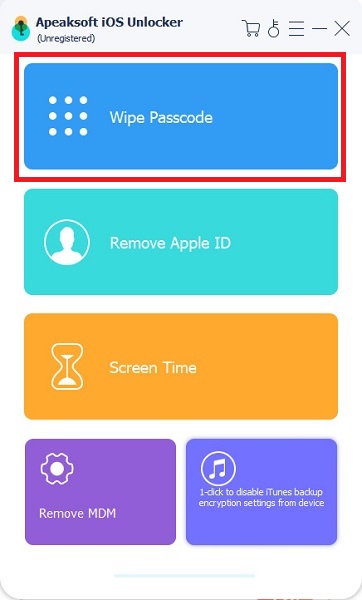
Install the iPhone unlocking software on your PC and then launch it. There is another version for Mac. Choose the Wipe Passcode mode, and click the Start button to proceed.
Step 2. Check the device information
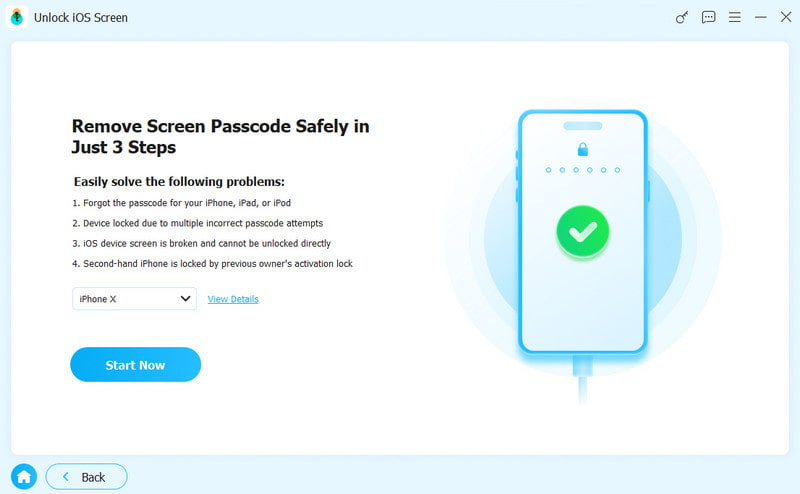
Connect your iPhone to your PC with a Lightning cable. Once the software detects your device, select your device information on the form.
Step 3. Take the lock screen off
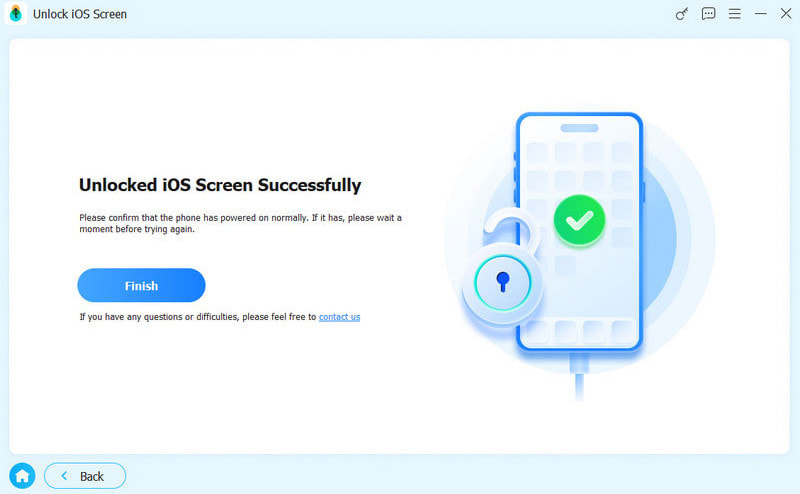
Next, click the Start button to begin downloading the firmware. When it is done, the software will initiate taking off the screen lock on your iPhone immediately. You can also remove Apple ID from your iPhone.
Part 2: How to Turn off Lock Screen in Settings
If you can access your iPhone, there are two ways to turn off the iPhone lock screen: preventing the lock screen from appearing and disabling your screen lock. The former won't display the iPhone lock screen, while the latter won't lock your screen with a passcode.
How to Disable Lock Screen Switch
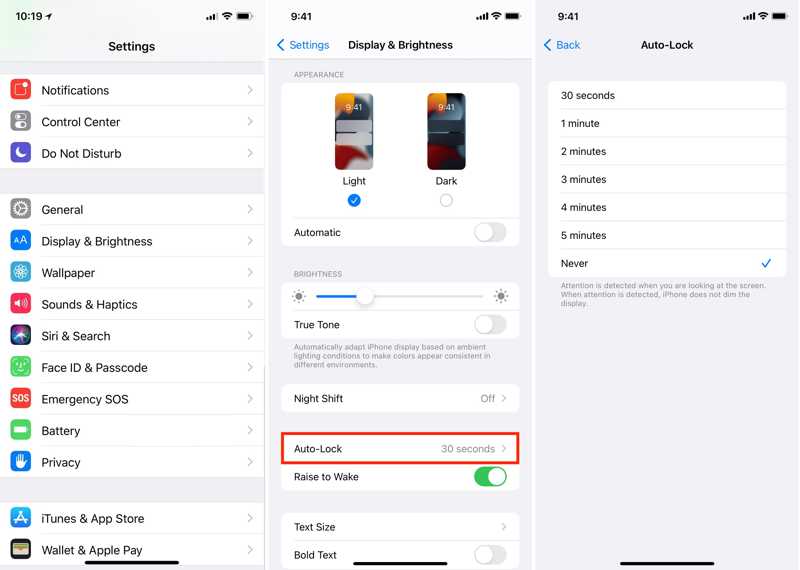
Step 1. Open the Settings app on your iPhone.
Step 2. Go to Display & Brightness, and tap Auto-Lock.
Step 3. Select Never to prevent your iPhone screen from locking.
How to Turn off Screen Lock on iPhone
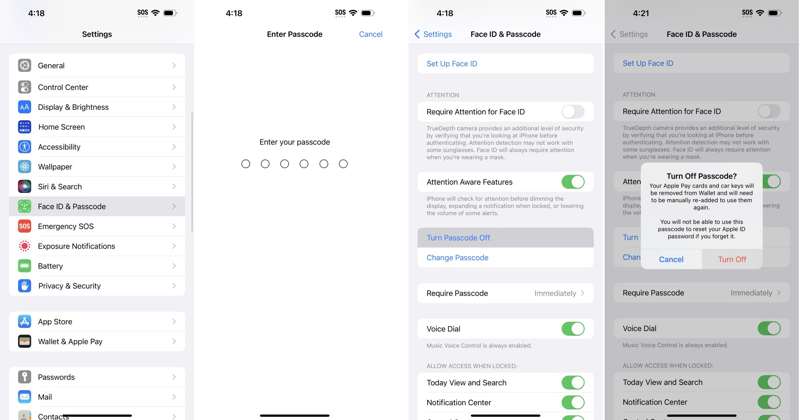
Step 1. Run your Settings app.
Step 2. Go to Face ID & Passcode and enter your passcode.
Tips: For an iPhone with a Home button, go to Touch ID & Passcode.
Step 3. Tap Turn Passcode Off and choose Turn Off if prompted.
Step 4. Input your Apple ID password and confirm it.
Part 3: How to Take the Lock Screen off With Find My
Apple's Find My feature enables you to take the lock screen off on your device remotely if you have enabled Find My iPhone or Find My iPad. It allows you to erase your device and remove the lock screen passcode.
How to Disable iPhone Screen Lock Online
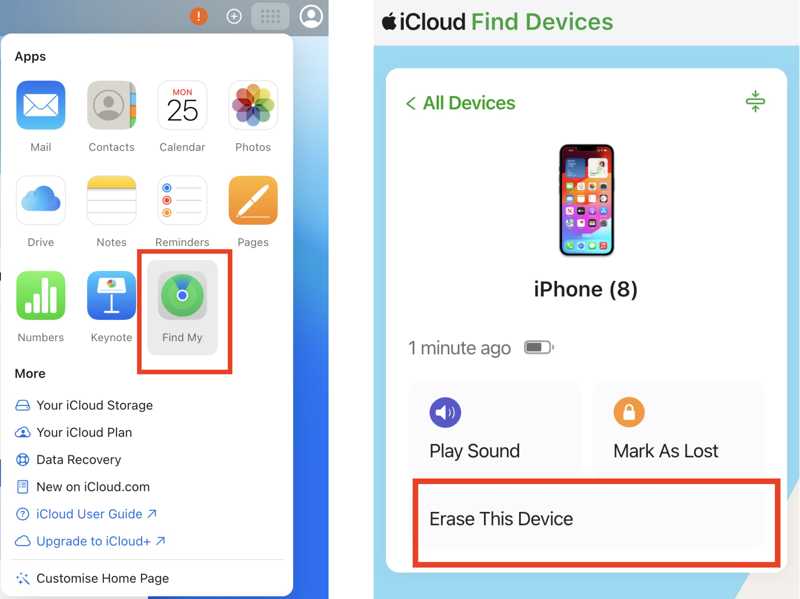
Step 1. Go to www.icloud.com in a browser and sign in with your Apple ID and password.
Step 2. Choose Find My.
Step 3. Pick your iPhone from the All Devices list.
Step 4. Then, click the Erase This Device button.
Step 5. If prompted, enter your phone number or ignore it.
Step 6. Then, click Erase and confirm the action.
How to Turn off Screen Lock on iPad with Another iOS Device
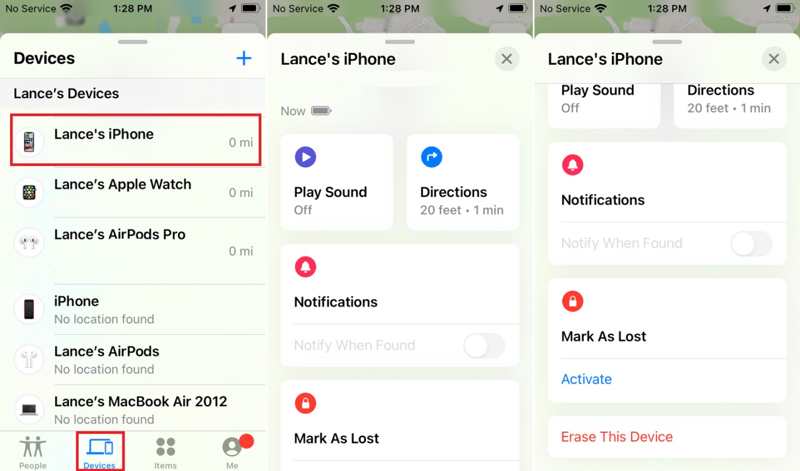
Step 1. Run the Find My app on another iOS device.
Step 2. Go to the Devices tab and choose your iPhone.
Tips: If you cannot find your iPhone, tap the Add button, choose Add AirTag, and discover your iPhone.
Step 3. Expand the bottom toolbar, and tap Erase This Device.
Step 4. Follow the onscreen instructions to turn off the screen lock on your iPhone.
Part 4: How to Disable Lock Screen with iTunes/Finder
Another way to disable the lock screen on your iPhone or iPad is to restore your device with iTunes or Finder. This way requires a computer, the latest version of iTunes or Finder, and a USB cable.
Step 1. Connect your device to your computer with a compatible cable.
Step 2. Open iTunes or Finder, depending on your operating system:
On Windows, open iTunes.
On macOS Mojave or earlier, open iTunes.
On macOS Catalina or newer, open Finder.
Situation 1: Your device is accessible
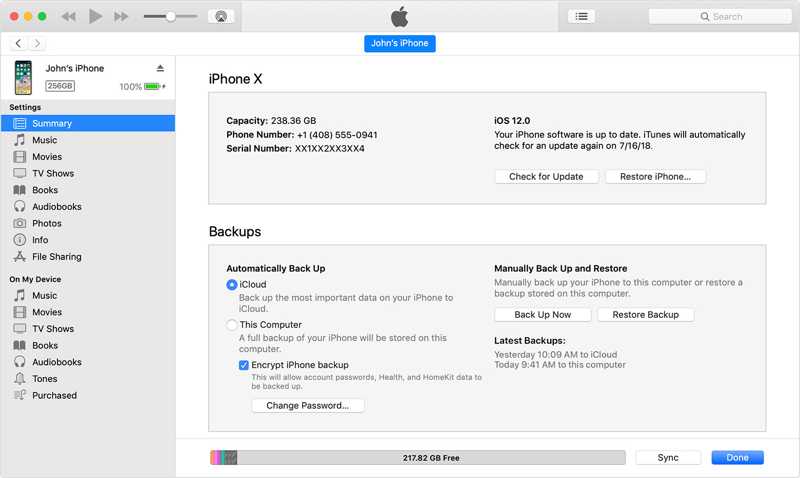
Step 3. Click the Phone button in iTunes after your device is detected. In Finder, click your device name.
Step 4. Go to the Summary or General tab.
Step 5. Click the Restore iPhone button and follow the onscreen instructions to begin taking the lock screen off.
Situation 2: Your device is disabled
Step 3. Place your iPhone or iPad in Recovery Mode:
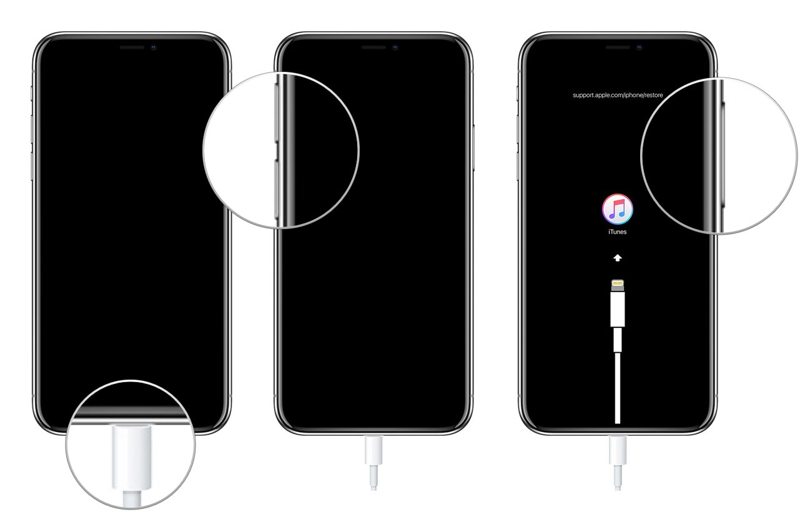
For iPhone 8 or later, iPad without a Home button
Quickly press and release the Volume Up button.
Quickly press and release the Volume Down button.
Long-press the Side button until your device enters Recovery Mode.
For iPhone 7/7 Plus
Press and hold the Volume Down + Side buttons together.
Release the buttons when your device enters Recovery Mode.
For iPhone 6s or earlier, iPad with a Home button
Hold down the Home + Sleep/Wake buttons at the same time.
Once the Recovery Mode screen appears, release the buttons.
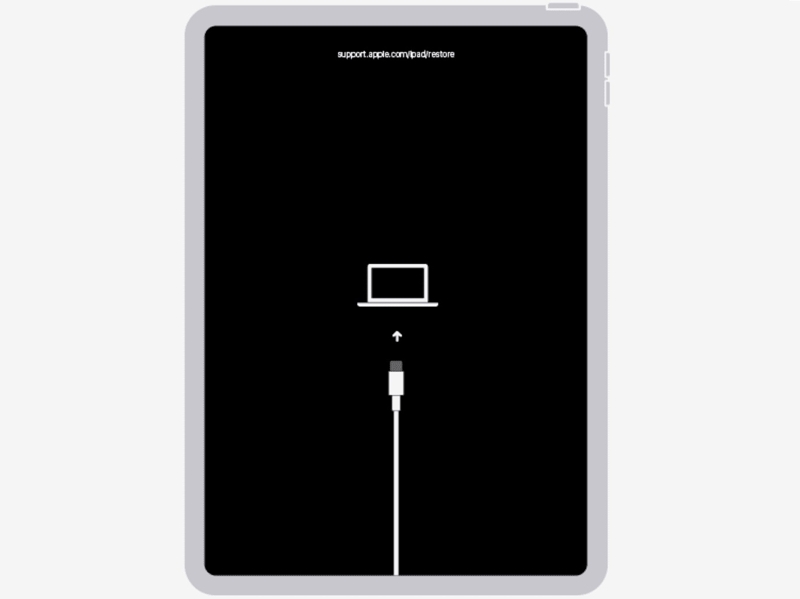
Step 4. When iTunes or Finder detects your iPhone in Recovery Mode, click the Restore button on the dialog.
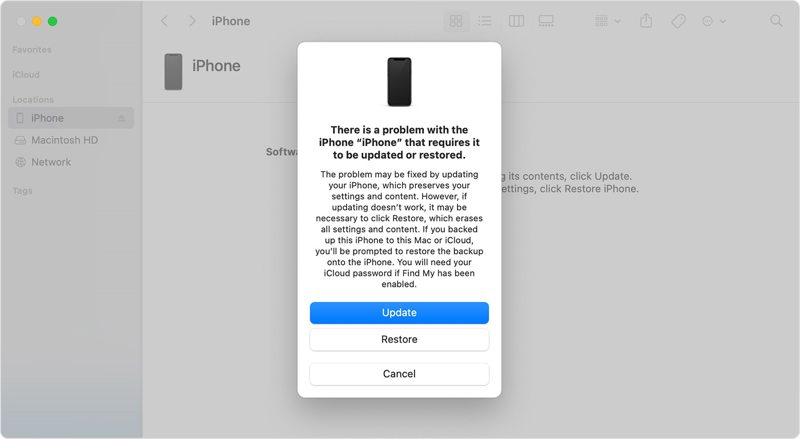
Step 5. Wait for the process to finish and disconnect your device.
Step 6. Next, set up your iPhone or iPad after disabling the iPhone screen lock.
Conclusion
This guide shared multiple ways to disable the lock screen switch on your iPhone or iPad. You can pick an appropriate method according to our share and your situation. If your device is accessible, you can set it in the built-in Settings app. Find My allows you to set it remotely. Apeaksoft iOS Unlocker is a good option if you forgot your iPhone passcode and Apple ID password.
Related Articles




