


How to Quickly Remove Apple ID from Your iPhone or iPad

There are several scenarios when you have to remove an Apple ID from an iPhone. If you get a gifted iPhone from the owner and the old Apple ID is still on the device, for instance, you have to ask for the owner;s password and sign out of the account. If you stop using the account, you also need to remove it from your device. This article shares four proven methods to get rid of an Apple ID account.
PAGE CONTENT:
Part 1: What Happens After Removing Apple ID from iPhone
Before removing the Apple ID from your iPhone, you;d better learn what will happen. Moreover, you must sign out of the account from all associated services, subscriptions, and devices to avoid errors.
What Happens After Removing Apple ID from the iPhone
- 1.All your information associated with your Apple ID is still available.
- 2.You can sign in to the account on another Apple device.
- 3.Your apps are still available, but you will be logged out of the apps associated with your Apple ID.
- 4.You are not able to access the App Store, iMessage, FaceTime, and iCloud on your device.
- 5.The photos, notes, and other data synced to iCloud will be removed from your iPhone.
- 6.Find My iPhone is disabled, and you cannot track your device.
- 7.All music and playlists stored in Apple Music or iTunes will be removed from your iPhone.
- 8.Other services, like Apple Pay and Family Sharing, will no longer work.
Part 2: How to Remove Apple ID from iPhone
With the Apple ID password, you can remove the Apple ID from your iPhone. You can complete the process within the Settings app. The precondition is that you remember the iPhone passcode and your device is still accessible.
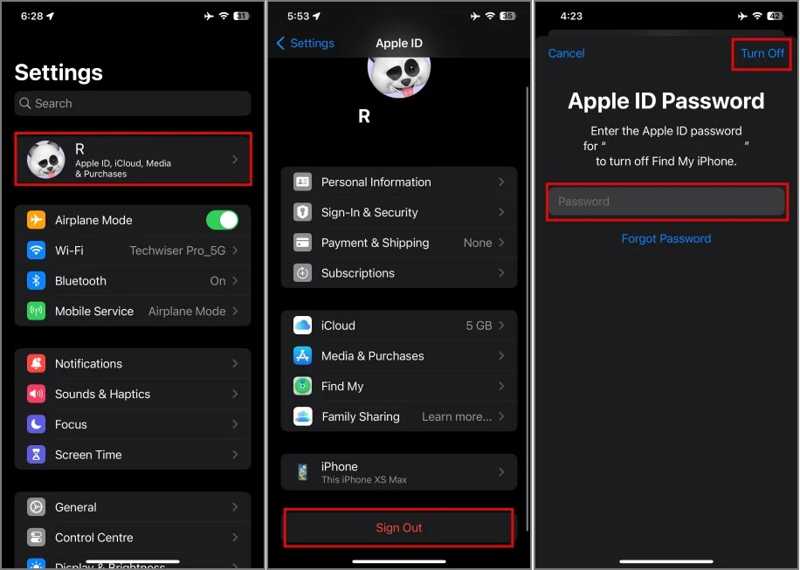
Step 1. Open the Settings app on your iPhone.
Step 2. Tap on your profile.
Step 3. Scroll down and tap the Sign Out button.
Step 4. Type in the Apple ID password and tap Turn Off.
Step 5. Keep a copy of your data or ignore it.
Step 6. Tap the Sign Out button and choose Sign Out.
Part 3: How to Remove Apple ID from iPhone Online
Can you remove Apple ID from iPhone without a password? If you forgot your Apple ID password, you have to reset it on iForgot and then remove the account from your iOS device with the new password.
Reset Apple ID Password
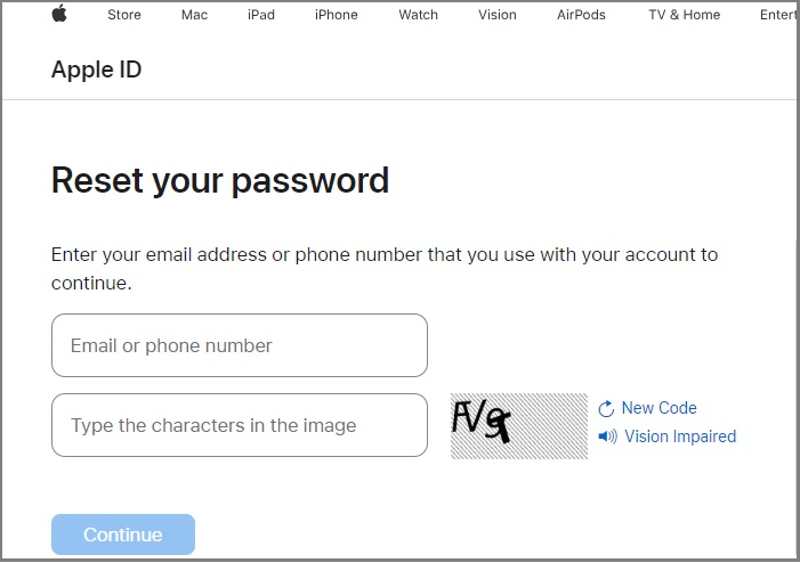
Step 1. Go to iforgot.apple.com in a browser.
Step 2. Click the Reset Password button.
Step 3. Enter your Apple ID email, input the characters in the image, and click Continue.
Step 4. Follow the onscreen instructions to verify your ownership according to your situation.
Step 5. Set a new password and confirm it.
Remove Apple ID from iPhone Online
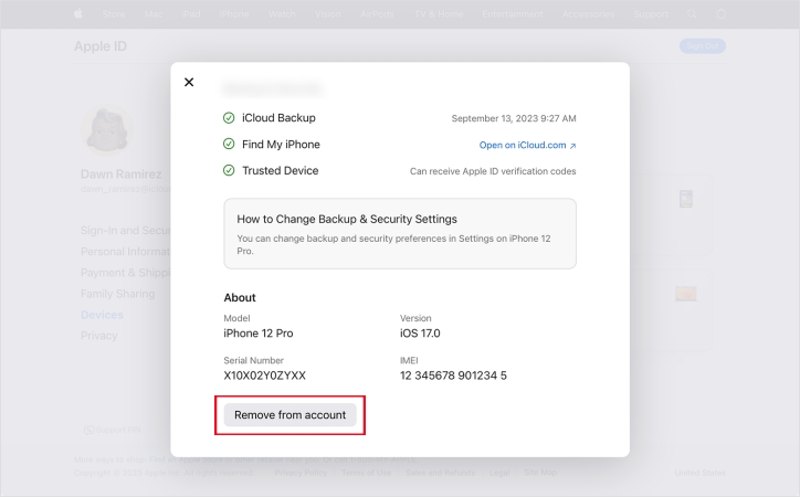
Step 1. Visit account.apple.com in your browser.
Step 2. Log in with your Apple ID and new password.
Step 3. Click your iPhone under the Devices section.
Step 4. Next, click the Remove from account button on the context menu.
Step 5. Read the warning on the dialog and choose Remove this iPhone again.
Part 4: How to Remove Apple ID from iPhone Remotely
Even if the device is not in the owner's hand, the owner can remove the Apple ID from the iPhone. The precondition is that you have logged in with the account on multiple Apple devices. In other words, you can complete the process on another iPhone/iPad or Mac computer.
How to Remove Apple ID from iPhone on Another iPhone
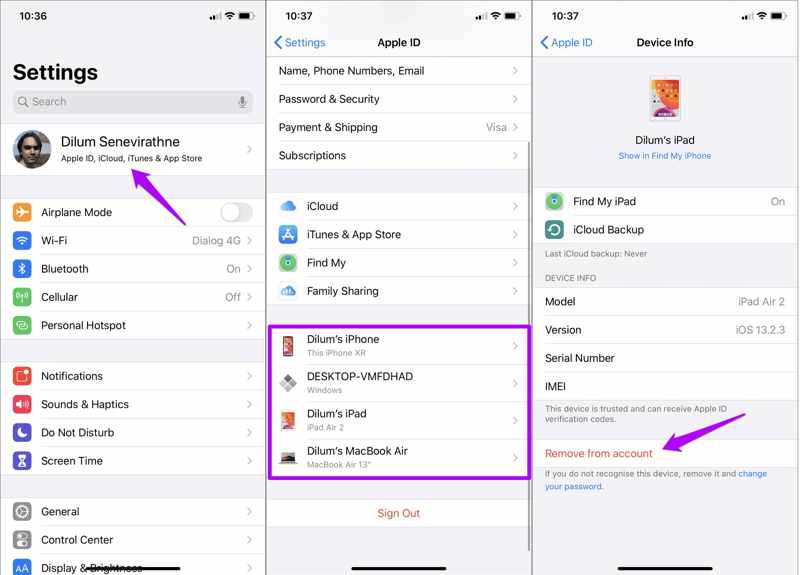
Step 1. Run the Settings app.
Step 2. Tap on the profile.
Step 3. Scroll down and choose your iPhone from the list.
Step 4. Tap the Remove from account button.
Step 5. When prompted, choose Remove again to confirm it.
How to Erase Apple ID from iPhone on Mac
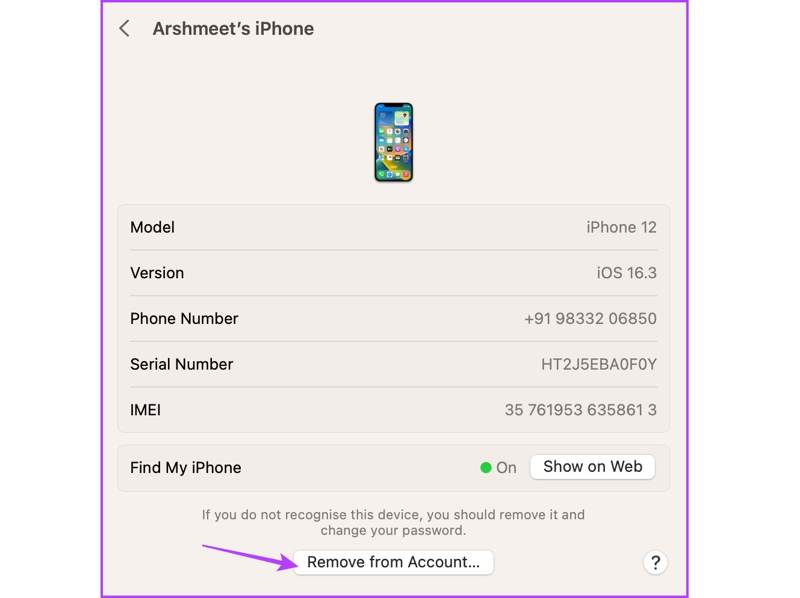
Step 1. Click the Apple menu and choose System Settings or System Preferences.
Step 2. Click Apple ID or Apple Account.
Step 3. Choose the desired device under the Devices section.
Step 4. Click the Remove from Account button.
Step 5. Choose Remove and confirm your action.
Part 5: How to Erase Apple ID from iPhone Without Password
Apeaksoft iFoneKit iOS Unlocker is a simple way to erase Apple ID from iPhone without a password. It is able to remove the old Apple account from an iOS device with no restrictions. More importantly, the user-friendly design makes it easy to use without technical skills.

Downloaded by over 1,000,000 users
- Remove the old Apple ID from an iPhone in three steps.
- Won't ask iPhone passcode or Apple ID password.
- Available to a locked or disabled Apple account.
- Offer bonus features, like MDM removal.
- Support a wide array of iPhone and iPad models.
Secure Download
Secure Download

How to Erase Apple ID from Your iPhone Without a Password
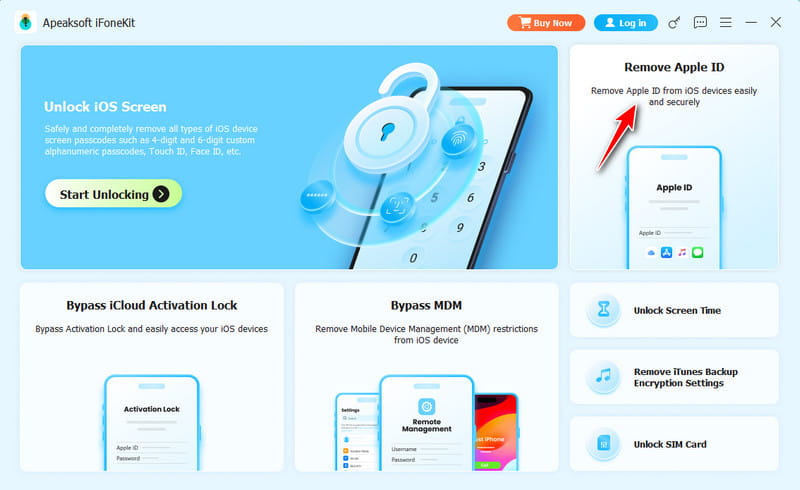
Step 1. Install Apple ID remover
Launch the Apple ID removal software once you install it on your PC. There is another version for Mac. Choose the Remove Apple ID mode to continue.
Step 2. Link your device
Connect your iPhone to your PC with a Lightning cable. If prompted, tap Trust on your screen to trust this PC. The software will detect your device immediately and load the device information.
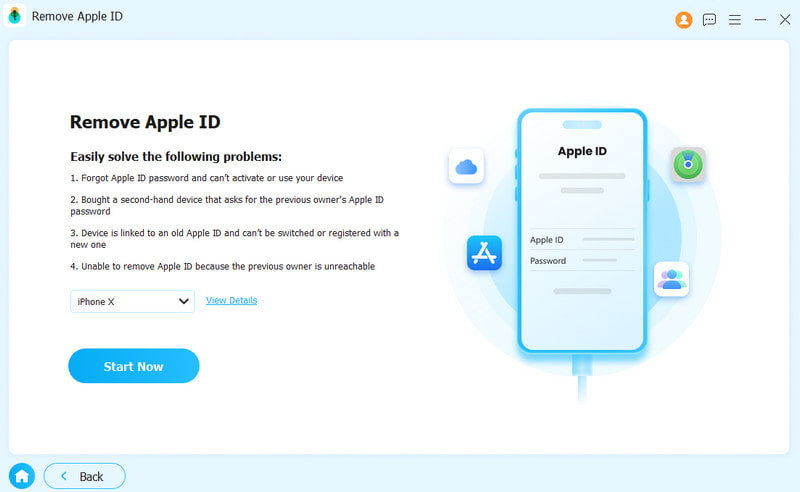
Step 3. Erase Apple ID
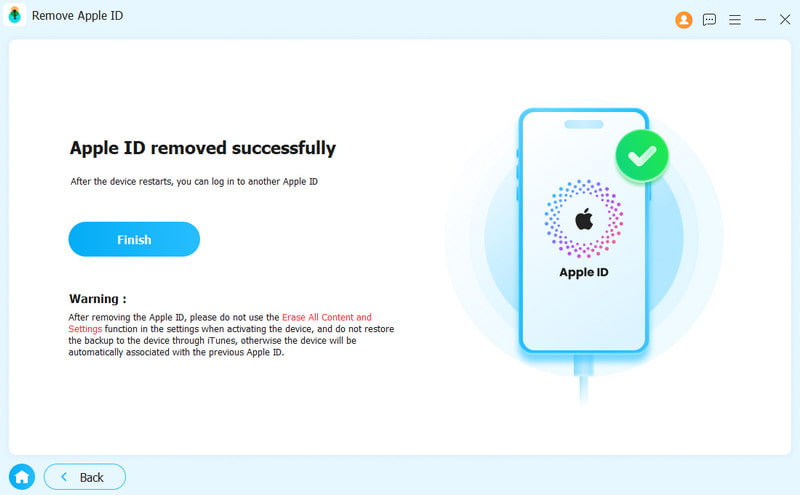
Next, click the Start Now button to begin erasing Apple ID from your iPhone without the password if Find My is disabled. If you have turned on Find My on your device, reset all settings following the onscreen instructions. Click OK, and hit Confirm Again to initiate the process.
Further Reading
Conclusion
This guide shared multiple ways to remove Apple ID from iPhone with or without the password. You can access your device and sign out of the account within the Settings app. If you forgot your Apple ID password, reset it first, and then sign out of the account. If you have multiple Apple devices, you can remove the account remotely. Apeaksoft iFoneKit iOS Unlocker allows you to get rid of the Apple account without a password.
 Apeaksoft iFoneKit
 Unlock all types of iOS passwords from iPhone, iPad and iPod.
Secure Download
Secure Download
Related Articles




