Where Is Recently Deleted Folder on iPhone and iPad

Accidentally deleting files is a common challenge among iOS users. Therefore, Apple released the Recently Deleted feature. It lets you restore photos, videos, messages, documents, and more that were deleted within 30 days on an iPhone. However, the location of the Recently Deleted folder is a little different in various services. This guide explains where recently deleted photos, messages, and more on your iPhone to get data recovery.
PAGE CONTENT:
- Part 1: Where Is the Recently Deleted Photo on iPhone
- Part 2: Where Is the Recently Deleted Message on iPhone
- Part 3: Where Is the Recently Deleted App on iPhone
- Part 4: Where Is the Recently Deleted Folder on iPhone
- Part 5: Where Is the Recently Deleted Note on iPhone
- Part 6: How to Recover Permanently Deleted Data on iPhone
Part 1: Where Is the Recently Deleted Photo on iPhone
If you accidentally delete photos from the built-in Photos app on your iPhone, you can find them in the Recently Deleted album before they are permanently removed. Where are Recently Deleted photos on iPhone are different, depending on the version of iOS.
On iOS 18 to iOS 26/27
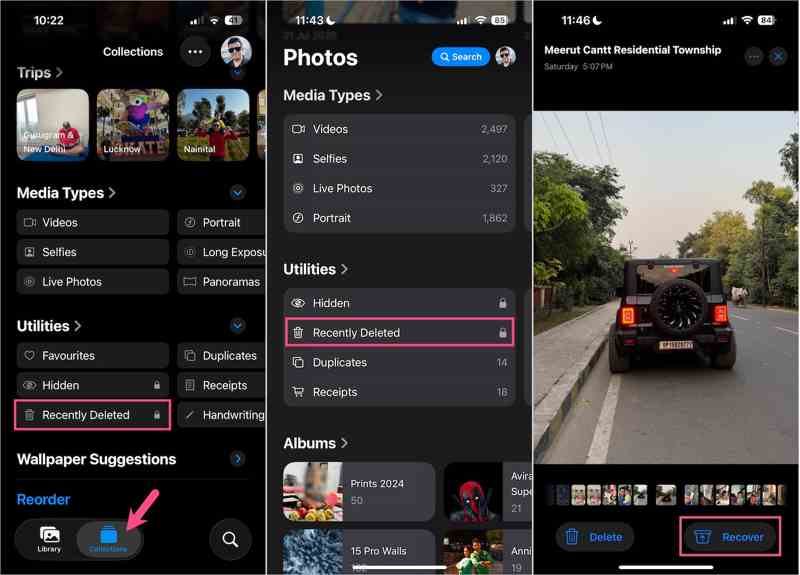
Step 1. Open the Photos app on your iPhone.
Step 2. Tap the Collections tab, locate the Utilities section, and choose Recently Deleted.
Step 3. Tap View Album and access Recently Deleted photos on iPhone with your Face ID or Touch ID.
Step 4. Tap the deleted photo or video you want to recover, tap the Recover button, and select Recover Photo.
If you want to permanently delete photos, tap Delete, and choose Delete From This iPhone.
Note: If you want to recover multiple photos at one time, tap Select, choose the desired items, tap the Ellipsis button, and choose Recover.
On iOS 17 to iOS 8
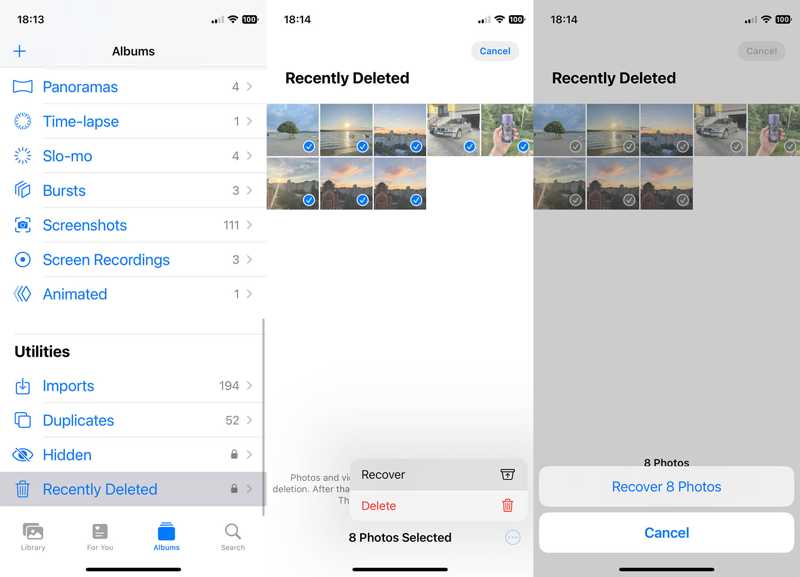
Step 1. Run the Photos app from your home screen.
Step 2. Go to the Albums tab at the bottom.
Step 3. Choose the Recently Deleted album under the Utilities section.
Step 4. Select the photos you wish to recover or delete, and tap the More button with a three-dot icon.
Step 5. Choose Recover or Delete, and confirm the action.
Part 2: Where Is the Recently Deleted Message on iPhone
Apple introduced the Recently Deleted folder in the Messages app when launching iOS 16. It stores the recently deleted messages on your iPhone for up to 30 days. It is available to both texts and iMessages.
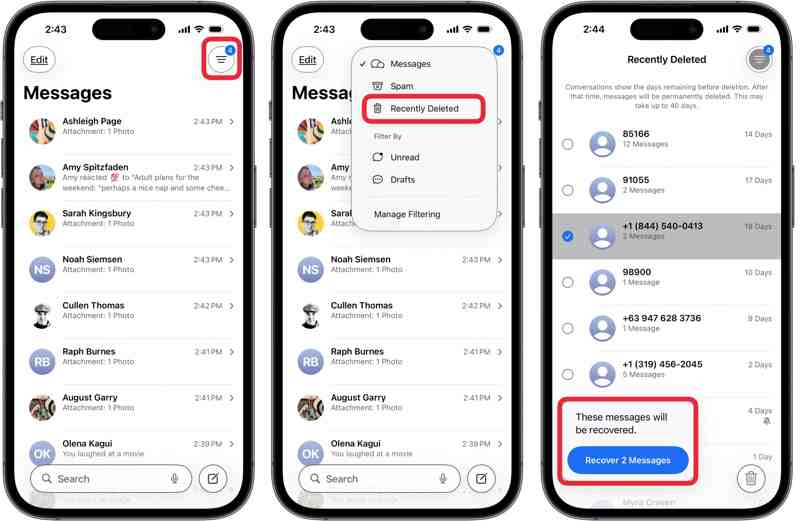
Step 1. Run the Messages app and tap the Filter button on the top ribbon.
Tips: On iOS 18, tap Edit instead.
Step 2. Choose the Recently Deleted folder from the context menu.
Step 3. Now, you will see all deleted messages.
Step 4. Pick a contact, and select the messages you want to edit.
Step 5. Tap Recover N Messages.
Further Reading
Part 3: Where Is the Recently Deleted App on iPhone
Unlike recently deleted texts on iPhone, the App Store keeps all apps you have installed on your device through your Apple ID, including uninstalled apps. In other words, you can find recently deleted apps on the iPhone’s App Store.
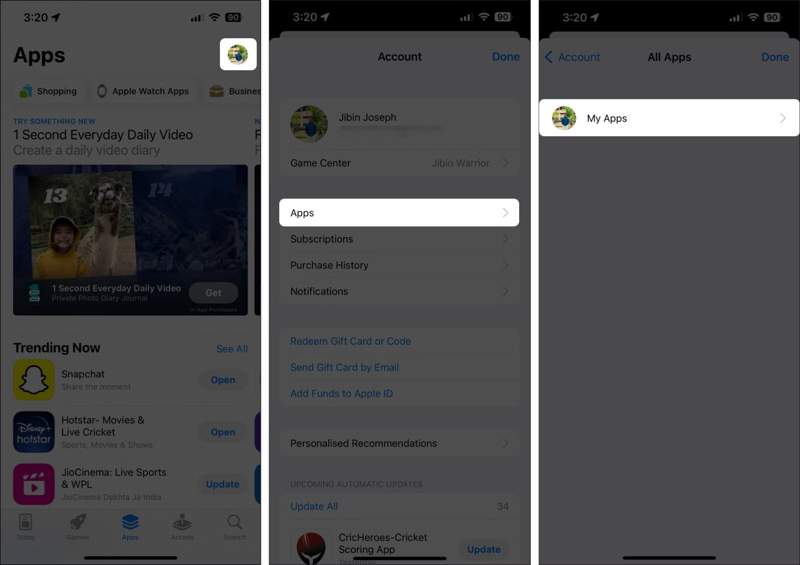
Step 1. Run your App Store and tap on your profile.
Step 2. Go to the Apps tab, and tap My Apps to view all apps installed on your iPhone.
Step 3. Switch to the Not on this iPhone tab to find uninstalled apps.
Step 4. If you want to reinstall an app, tap the Download button.
Step 5. Enter your Apple ID password or Face ID to download it again.
Note: This way only recovers recently deleted apps on your iPhone, but does not include app data.
Part 4: Where Is the Recently Deleted Folder on iPhone
If you have saved files and documents in the Files app and delete them by mistake, you can recover files within 30 days. However, where is the recently deleted folder on iPhone? Here, you can locate the deleted files.
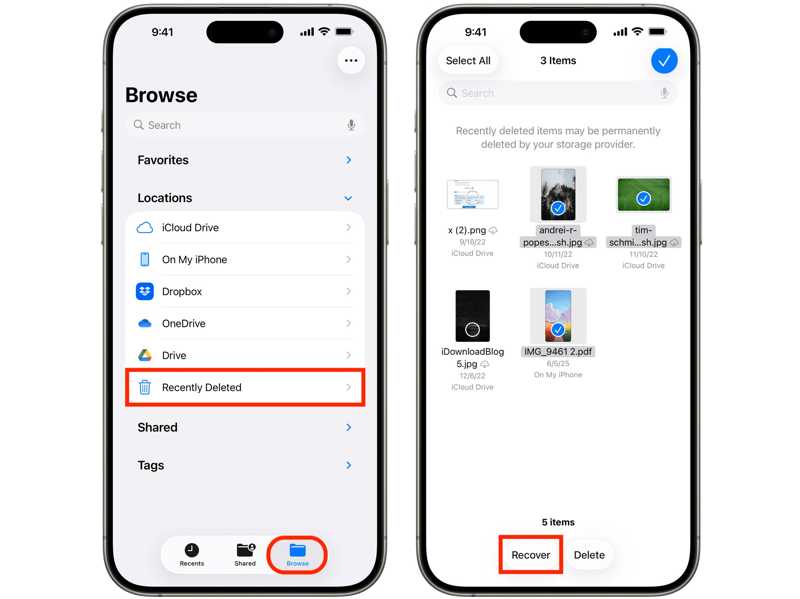
Step 1. Start the Files app on your iPhone, and go to the Browse tab.
Step 2. Choose the Recently Deleted folder under the Locations section.
Step 3. Now, you can find recently deleted files on your iPhone.
Step 4. Select the desired files and recover or delete them.
Part 5: Where Is the Recently Deleted Note on iPhone
Another service includes the Recently Deleted folder in the built-in Notes app on an iPhone. Therefore, you can find the recently deleted notes and attachments on your iOS device within 30 days.
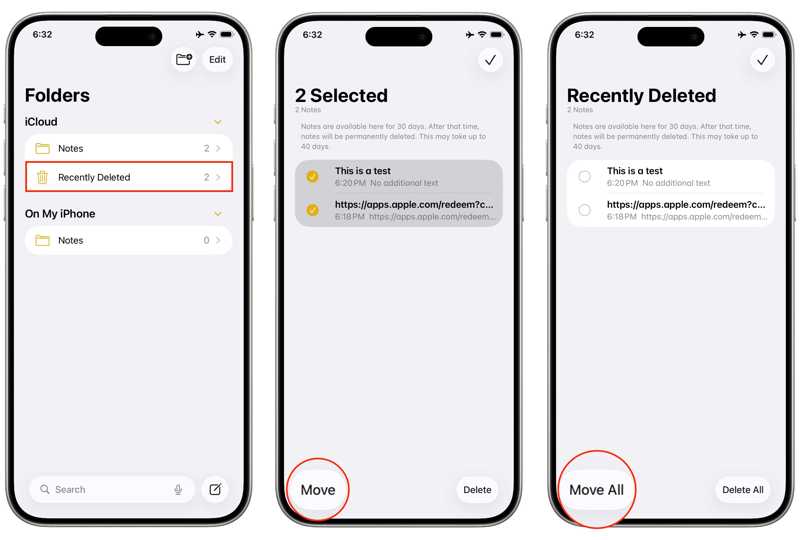
Step 1. Run the iOS Notes app.
Step 2. Tap the Back button to view all folders.
Step 3. Choose the Recently Deleted folder.
Step 4. Here, you can recover or permanently delete your notes.
Part 6: How to Recover Permanently Deleted Data on iPhone
As mentioned previously, the Recently Deleted folder only enables you to recover data deleted within 30 days. If you cannot find the desired data in the Recently Deleted folder, Apeaksoft iPhone Data Recovery can help you retrieve your files.
A Quick Way to Recover Permanently Deleted Data on iPhone
- Recover deleted data on your iPhone without backup.
- Work on recently and permanently deleted files.
- Preview deleted files for selective recovery.
- Won’t interrupt existing data on your iPhone.
- Support all iOS and iPadOS versions.
Secure Download
Secure Download

How to Recover Deleted Data on Your iPhone
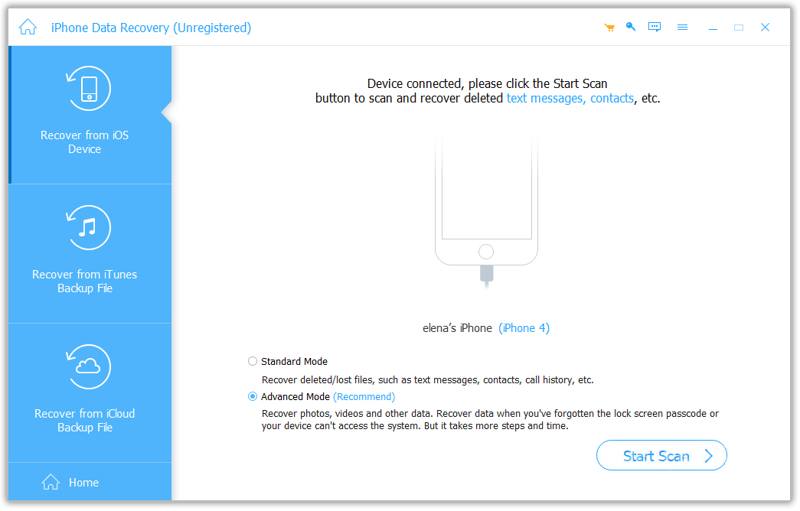
Step 1. Scan your iPhone
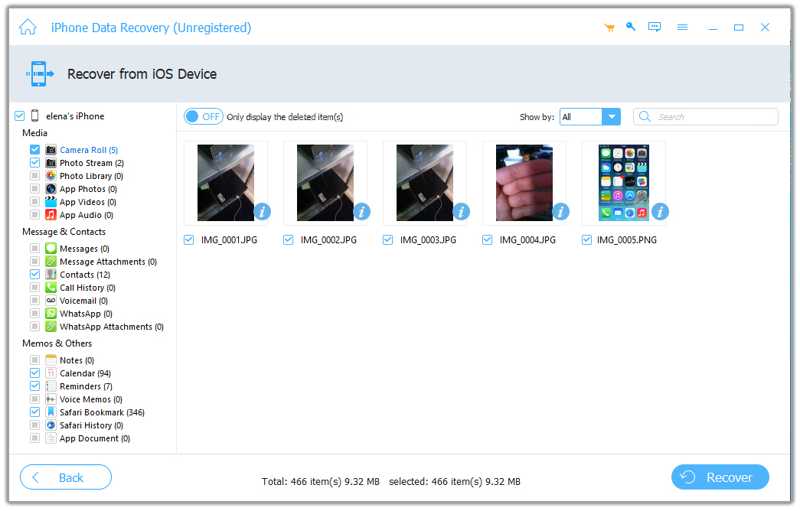
Launch the deleted data recovery software after installing it on your PC. There is another version for Mac. Connect your iPhone to your PC with a Lightning cable. Choose the Recover from iOS Device tab and click the Start Scan button to begin scanning your iPhone.
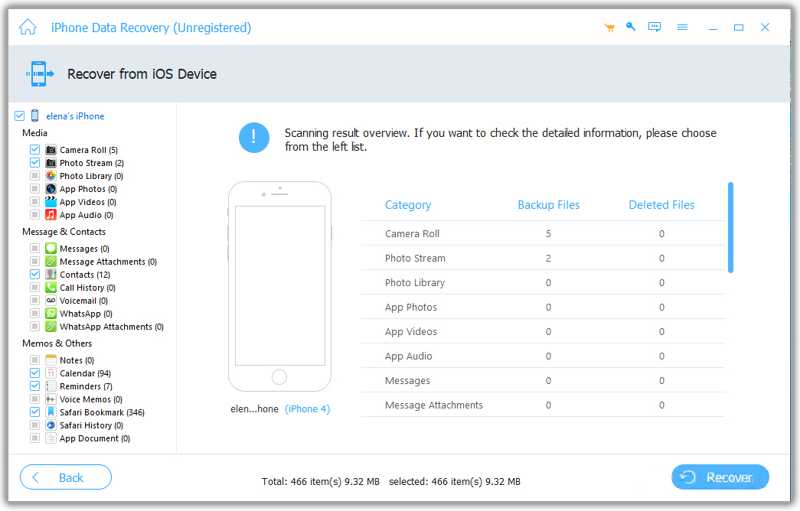
Step 2. Preview deleted files
Once device scanning finishes, you can view your data by type. Choose Show Deleted Only from the top option to view deleted files on your device.
Step 3. Recover deleted files
Select the deleted photos, messages, videos, contacts, and more you want to retrieve. Click the Recover button at the bottom, set an output folder, and click Recover again.
Conclusion
This guide discussed where to find recently deleted photos, apps, and messages on iPhone. You can find your data that was deleted within 30 days and recover or permanently remove it. Plus, you can follow our guide to restore deleted apps from your App Store. If you cannot find your data in the Recently Deleted folder, Apeaksoft iPhone Data Recovery enables you to get back permanently deleted files without backup. Plus, it is easy to use.
 Apeaksoft iPhone Data Recovery
 Recover deleted or lost data from iOS Devices, iTunes, and iCloud backup.
Secure Download
Secure Download
Related Articles