


How to Restore Your iPhone With or Without a Backup

Restoring an iPhone to factory settings or from backup is a crucial skill for Apple customers. It might sound scary, but it is not as complicated as it seems. According to our research, some iPhone users are confused about this concept. In this comprehensive guide, you can learn what the concept actually means, when you should use it, and how to do it with the right method in various situations safely.
PAGE CONTENT:
Part 1: What Does Restore iPhone Mean
When we talk about restoring an iPhone, it actually refers to two things: restoring an iPhone from backup and factory resetting an iPhone. The former will overwrite your iPhone with an iCloud, iTunes, or Mac backup file. Current data on your iPhone will be completely removed. The latter will wipe your iPhone clean and reinstall the latest version of iOS. Of course, your data and personal settings will be deleted. Therefore, lost data recovery is indispensable after you restore your iPhone from backup or to factory settings.
Part 2: Which Restore Method Should You Choose
Since restoring an iPhone from backup or to factory status is totally different, you need to perform it in various situations. We explain which restore method you should choose, respectively.
When to Restore Your iPhone from Backup
- 1.You accidentally delete important data.
- 2.You lose media files or documents due to software glitches.
- 3.You want to set up a new iOS device from an old iPhone.
- 4.You need to transfer data between iOS devices.
When to Restore iPhone to Factory Settings
- 1.Before you sell or give away your iPhone.
- 2.Your iPhone gets stuck, glitchy, or won't turn on.
- 3.You want to start fresh with no leftover clutter.
- 4.Software update failed.
- 5.Your iPhone is disabled or locked.
Part 3: How to Restore iPhone from Backup
Apple allows users to back up their iPhones to iCloud, Windows, and Mac. In other words, you can restore an iPhone from iCloud backup, iTunes backup, or Mac backup, depending on your situation.
How to Restore iPhone from iCloud Backup
Step 1. Open the Settings app on your iPhone.
Step 2. Tap on your profile, choose iCloud, and select iCloud Backup.
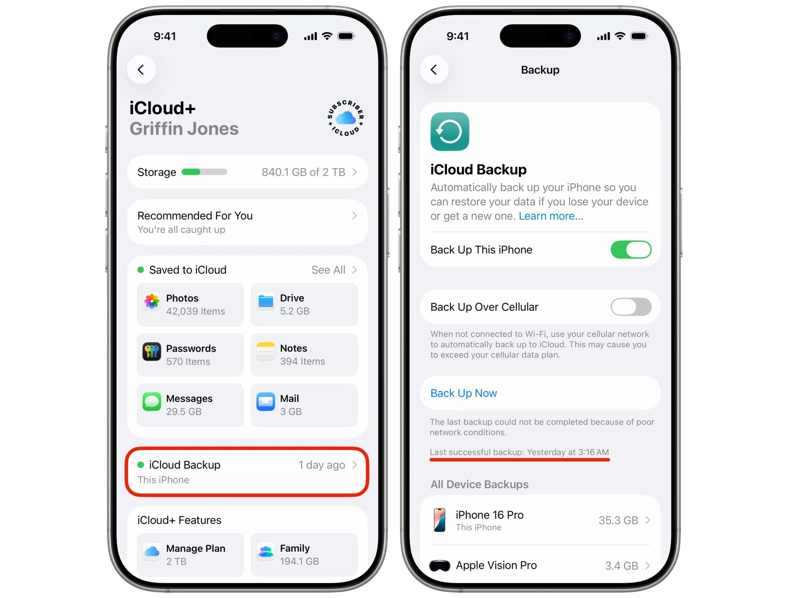
Step 3. Check the last successful backup.
Step 4. If you don't have a right backup, tap the Back Up Now button.
Step 5. Go back to the Settings app.
Step 6. Navigate to General and Transfer or Reset iPhone.
Step 7. Tap Erase All Content and Settings, read the warning, and tap Continue.
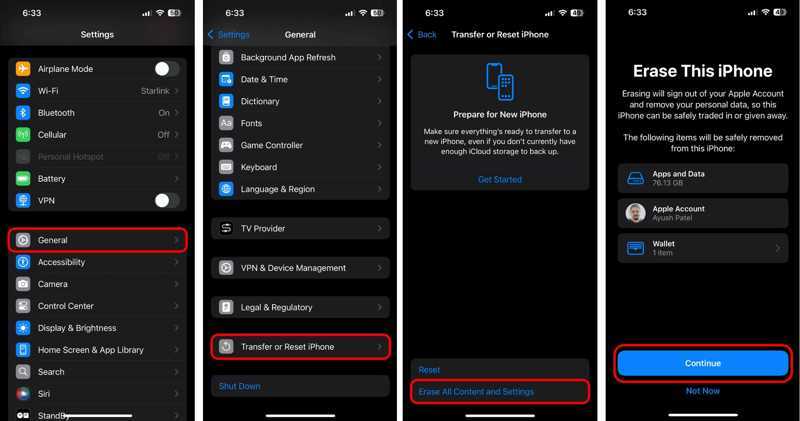
Step 8. Hit Erase iPhone to factory reset your iPhone.
Step 9. When your iPhone restarts, set it up.
Step 10. Make sure to connect to a Wi-Fi.
Step 11. Once you reach the Transfer Your Apps & Data screen, choose From iCloud Backup.
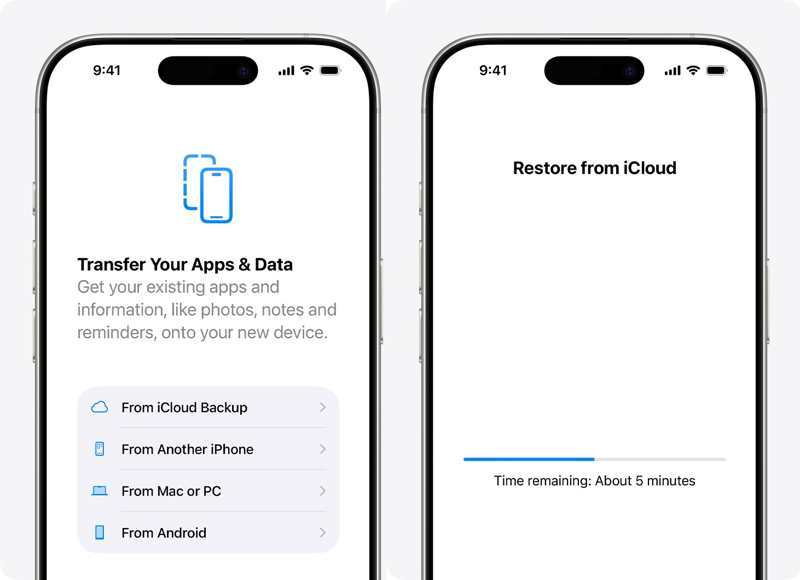
Step 12. Enter your Apple Account and password.
Step 13. Choose the last backup to begin restoring the iPhone from iCloud backup.
Step 14. Then, complete the setup.
How to Restore iPhone from iTunes Backup
Step 1. Connect your iPhone to a computer with a USB cable.
Step 2. Open the latest version of iTunes on your PC. iTunes is available on macOS Mojave or earlier, too.
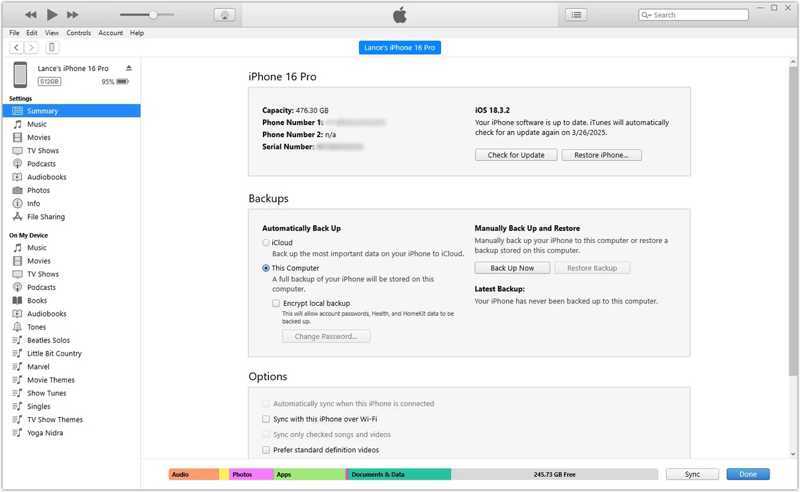
Step 3. Click the Phone button at the top left side after your iPhone is detected.
Step 4. Go to the Summary tab and move to the Backups heading.
Step 5. Click the Restore Backup button.
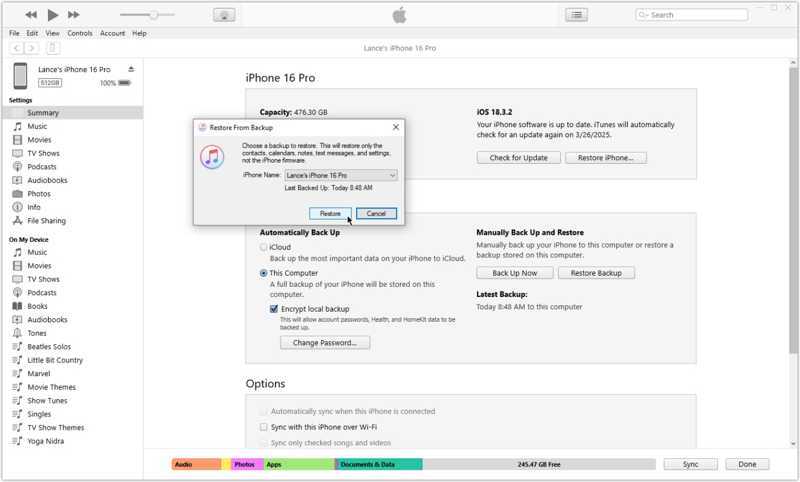
Step 6. Next, choose the last backup from the dropdown option and click Restore.
Note: If the backup is encrypted, you need to offer the password to restore your iPhone from the backup.
How to Restore iPhone from Mac Backup
Step 1. Run the Finder app if your computer runs macOS Catalina or later.
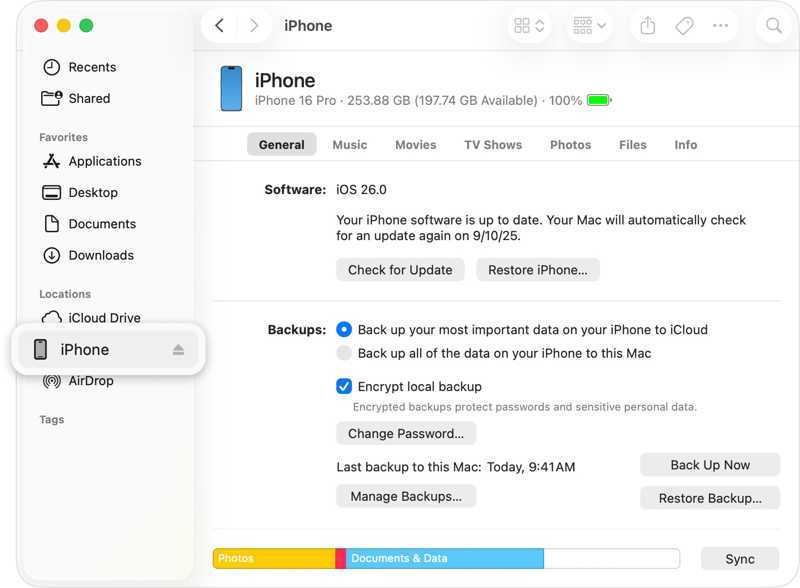
Step 2. Plug your iPhone into your Mac with a compatible cable.
Step 3. Click your device name on the sidebar.
Step 4. Head to General and locate the Backups section.
Step 5. Click the Restore Backup button.
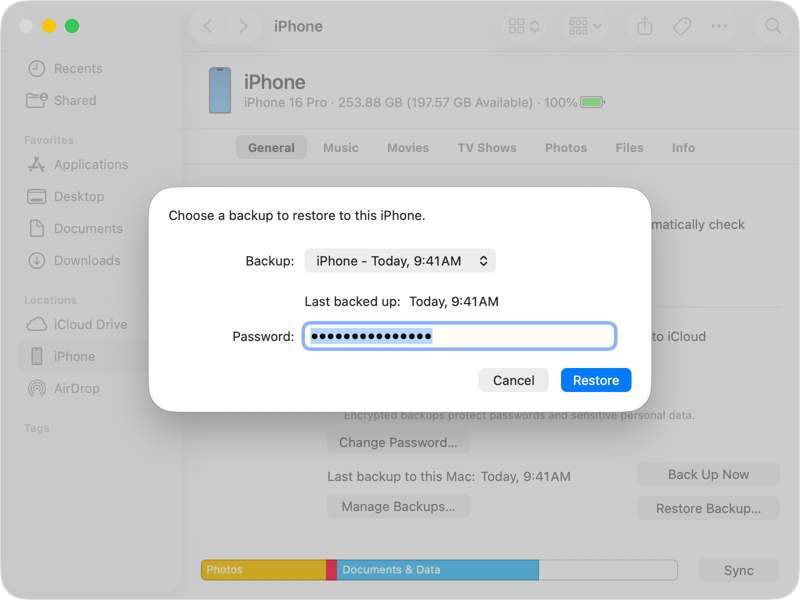
Step 6. Pick the last backup, enter the password, and hit Restore.
How to Restore iPhone from iPhone
Step 1. Turn on a new iPhone and set it up by following the onscreen instructions.
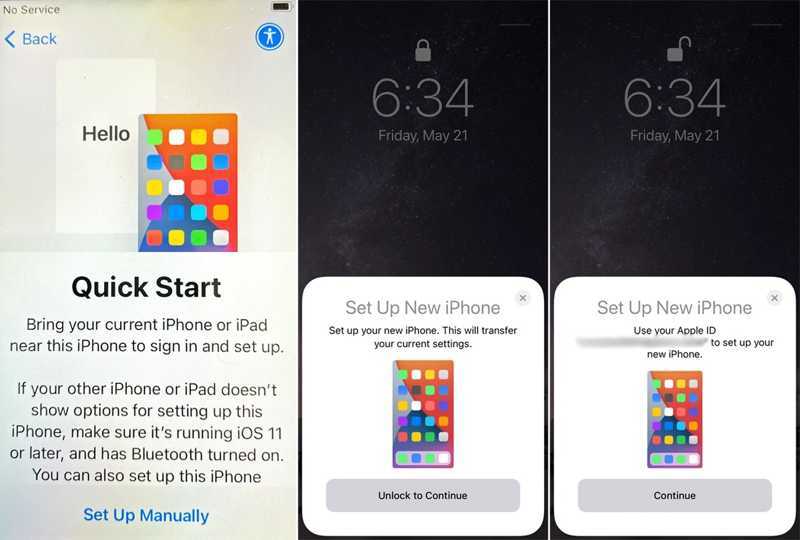
Step 2. When you see the Quick Start screen, bring your old iPhone close.
Step 3. Once the old iPhone detects your action, tap Continue on the Set Up New iPhone box.
Step 4. Hold the old iPhone and scan the code on the new iPhone screen.
Step 5. Next, enter the passcode of the old iPhone on the new device.
Step 6. After verification, tap Continue to move on.
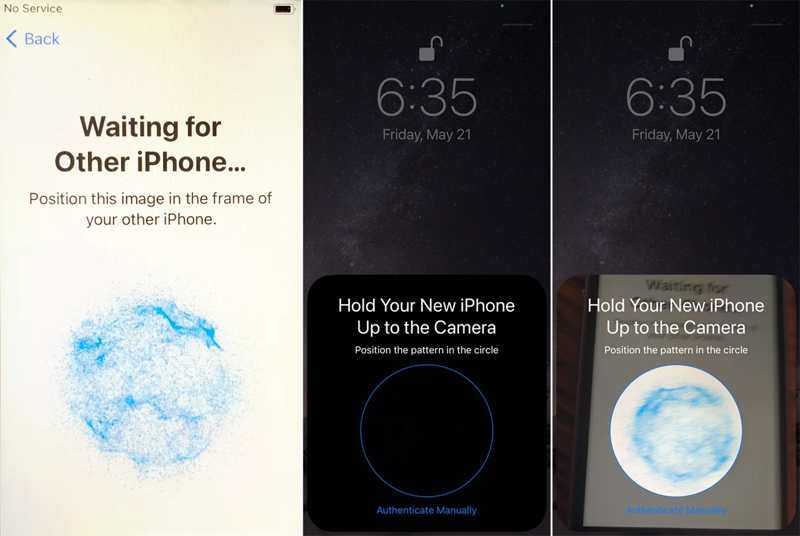
Step 7. Read the notification and agree to the terms and conditions.
Step 8. Finally, tap Continue to begin restoring iPhone from iPhone.
Part 4: How to Restore iPhone to Factory Settings
As mentioned previously, restoring an iPhone to factory settings is a crucial way of troubleshooting software glitches. You have multiple ways to complete the process, even if your iPhone is disabled or freezing.
How to Restore iPhone to Factory Settings
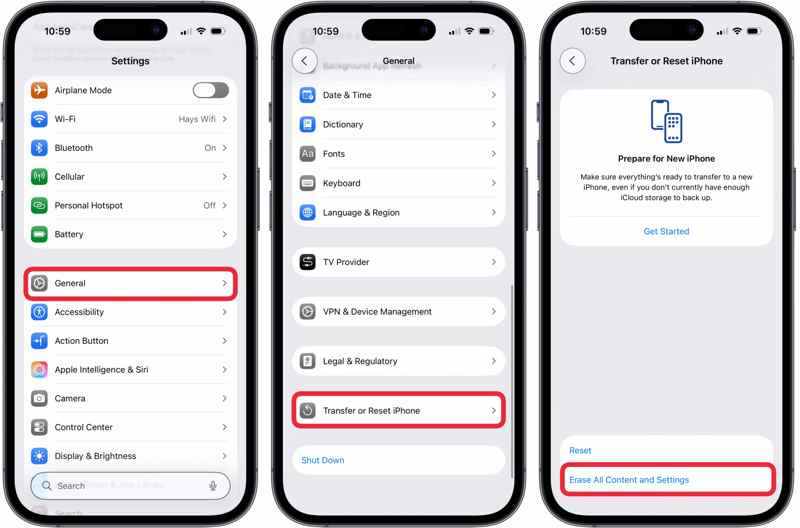
Step 1. If your iPhone is accessible, turn it on and run your Settings app.
Step 2. Go to General and Transfer or Reset iPhone.
Step 3. Tap Erase All Content and Settings.
Step 4. Read the message and tap Continue to proceed.
Step 5. Next, choose Erase Data, Keep eSIM and Erase Data, or Delete eSIM and Erase Data.
Step 6. Enter your iPhone passcode to confirm restoring your iPhone to factory settings.
Note: If you have turned on Find My iPhone, make sure to disable it before the process. Otherwise, you will be asked to enter your Apple Account password when setting it up.
How to Restore iPhone Using iTunes/Finder
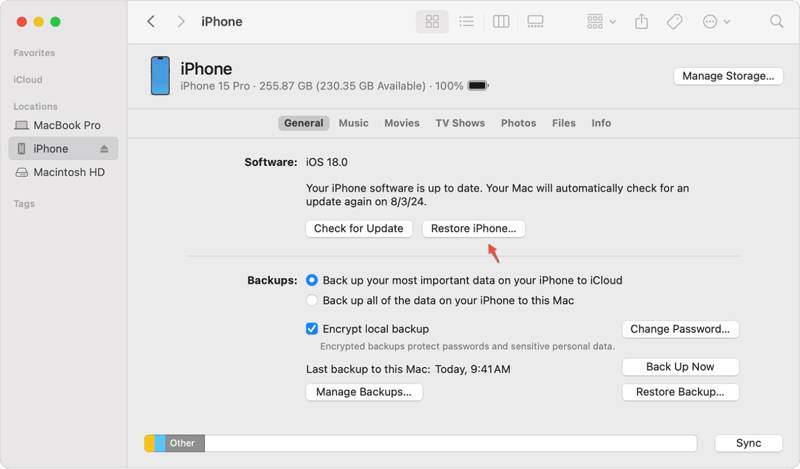
Step 1. Open iTunes, Finder, or Apple Devices according to your operating system.
Step 2. Hook up your iPhone to your computer with a compatible cable.
Step 3. In iTunes, click the Phone button and go to the Summary tab.
In Finder or Apple Devices, click your device name, and head to the General tab.
Step 4. Next, click the Restore iPhone button.
Step 5. Follow the onscreen instructions to restore your iPhone using iTunes immediately.
How to Restore a Disabled iPhone
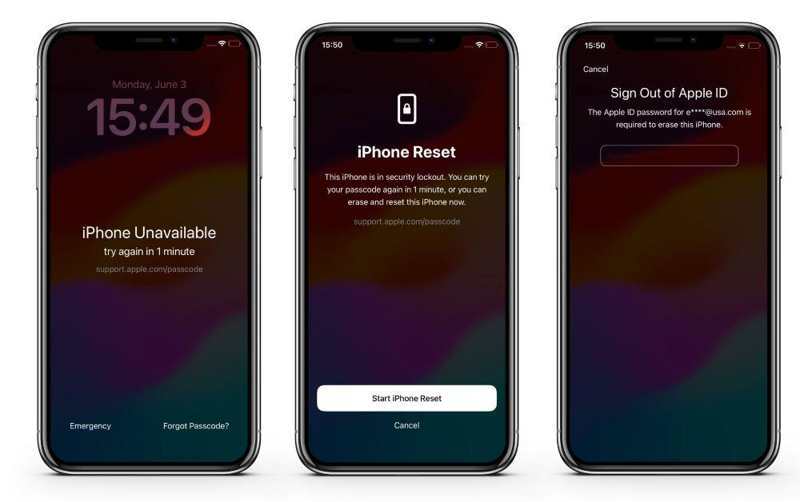
Step 1. If you are locked out and see support.apple.com on your iPhone, tap the Forgot Passcode button.
Step 2. Choose Start iPhone Reset.
Step 3. Enter your Apple ID password to begin restoring your device.
Note: If your iPhone is running iOS 15.2 to 16, tap Erase iPhone, hit Erase iPhone, and type your Apple ID password.
How to Restore an iPhone in Recovery Mode
Step 1. If you forgot your Apple ID password and need to restore your iPhone, connect it to your computer.
Step 2. Run the latest version of iTunes or Finder.
Step 3. Put your iPhone in Recovery Mode:
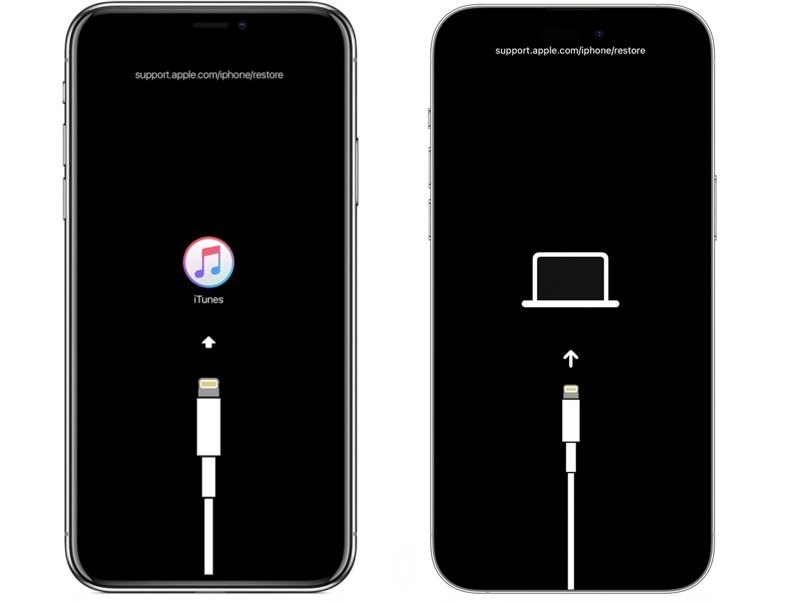
On an iPhone with Face ID
Press the Volume Up button and release it quickly.
Press the Volume Down button and release it.
Press and hold the Side button until your iPhone enters Recovery Mode.
Tip: You can see the message of support.apple.come/iphone/restore on the Recovery Mode screen.
On an iPhone 7/7 Plus
Hold down the Volume Up + Side buttons together.
Release the buttons when your iPhone enters Recovery Mode.
On an iPhone with a Home button
Long-press the Home + Power buttons simultaneously.
Once your device is in Recovery Mode, let the buttons go.
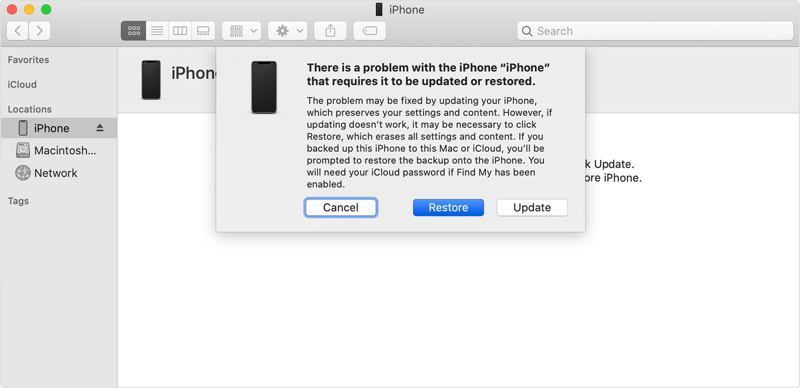
Step 4. If iTunes or Finder detects your iPhone in Recovery Mode, click the Restore button to start restoring your device to factory settings.
How to Restore iPhone Using iCloud
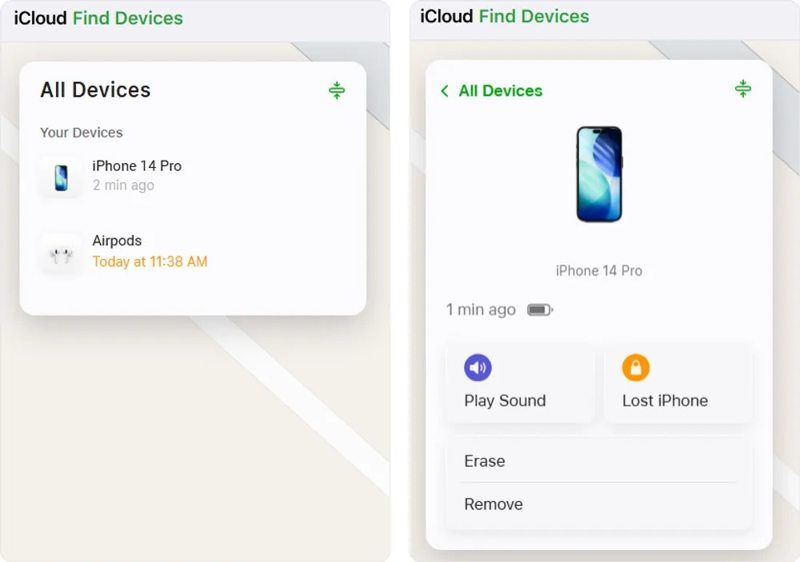
Step 1. Access www.icloud.com/find in a browser if you have set up Find My iPhone.
Step 2. Choose your iPhone on the All Devices list.
Step 3. If your device is online, the location will be tracked on the map.
Step 4. Click the Erase button on the dialog.
Step 5. When prompted, enter your phone number and hit Erase to restore your iPhone to factory settings remotely.
How to Restore iPhone via Find My
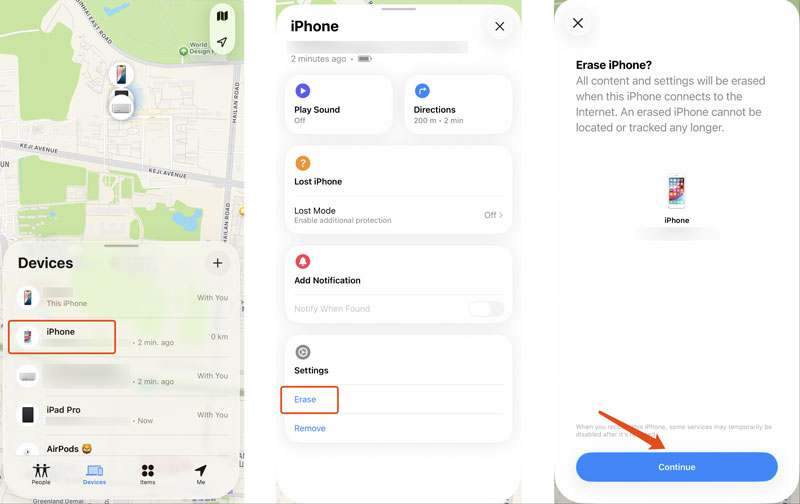
Step 1. Install the Find My app on a borrowed Apple device if Find My iPhone is enabled.
Step 2. Log in with your Apple Account and password.
Step 3. Go to the Devices tab at the bottom and choose your iPhone.
Step 4. Expand the toolbox and hit the Erase button.
Step 5. Read the warning and hit Continue.
Step 6. Next, follow the onscreen instructions to restore your iPhone to factory settings.
Part 5: Can You Restore an iPhone Without a Backup
After you delete important data on your handset, a backup can assist you in retrieving it quickly. What about if you don't have a backup? Can you restore iPhone data without a backup? In fact, the deleted files are still in your memory before they are overwritten. However, you need a powerful data recovery tool to read it, such as Apeaksoft iPhone Data Recovery. The software is able to scan your memory and restore lost data. More importantly, the concise design makes it available to beginners.

Downloaded by over 1,000,000 users
- Restore data from your iPhone without a backup.
- Extract data from iTunes/iCloud backup without resetting your iPhone.
- Preview lost data by type for selective restoring.
- Work for disabled and frozen iOS devices.
- Support almost all iPhone and iPad models.
Secure Download
Secure Download

How to Restore iPhone Data Without a Backup
Step 1. Scan your iPhone
Download and install iPhone restoring software on your PC. There is another version for Mac. Launch it when you need to restore iPhone data without a backup. Choose the Recover from iOS Device tab. Next, link your iPhone to your PC with a Lightning cable. If prompted, tap Trust on your screen to trust your PC. Click the Start Scan button to start scanning your memory.

Step 2. Preview lost data
After data scanning, you will be presented with the preview window. Select the data types you want to restore on the sidebar. If there are too many files, choose Show Deleted Only from the top dropdown option. Plus, you can locate specific files by entering the keyword in the Search bar and hitting the Enter key on your keyboard.
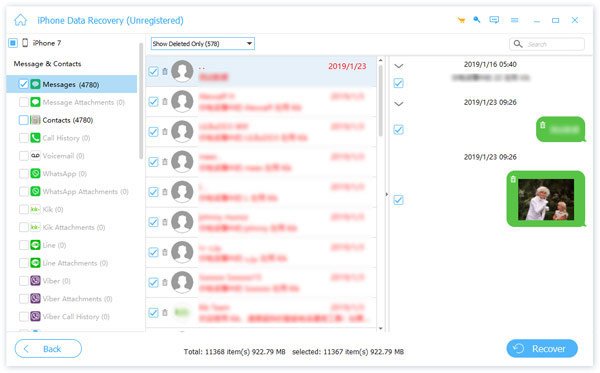
Step 3. Restore iPhone without backup
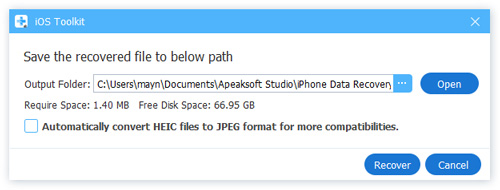
Finally, select all files and items you want to restore and click the Recover button at the bottom. Set an output folder and hit Recover again to initiate the process.
Further Reading
Conclusion
This guide shared how to restore your iPhone to factory settings or from a backup. You can learn the two relevant concepts and which one you should choose according to your situation. Plus, you can pick the right method and follow our detailed workflow to restore your data or your device. We also recommended Apeaksoft iPhone Data Recovery, which is a simple way to restore your lost data from your iOS device, even if you don't have a backup.
 Apeaksoft iPhone Data Recovery
 Recover deleted or lost data from iOS Devices, iTunes, and iCloud backup.
Secure Download
Secure Download
Related Articles




