How to Take a Screenshot on Roblox and Find Roblox Screenshots

Roblox-screenshots are an easy way to save interesting moments while playing. This guide will show you how to take a screenshot on Roblox using its built-in capture feature and screenshot tools. We will also introduce where to find Roblox screenshots after capturing them as well.
PAGINA-INHOUD:
Part 1: How to Take a Screenshot on Roblox
This section will provide detailed step-by-step guides to take a screenshot on Roblox using Roblox's built-in screenshot feature, your device's screenshot tool, or a professional screenshot tool. Keep reading.
Method 1: Use the Roblox Screenshot Button
If you want to take a screenshot directly in Roblox, you can use the built-in Capture feature.
Stap 1. Open Roblox and enter the game you want to capture.
Stap 2. Click the menu button in the upper-left corner.
Stap 3. Selecteren Legt in het menu.
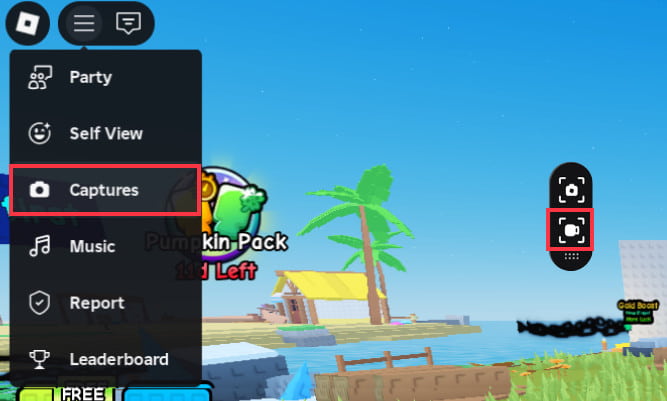
Stap 4. The capture icon will appear on the right side of the screen. Click the capture icon to take a Roblox screenshot.
Method 2: Use Your Device's Screenshot Tool
Different devices provide their own built-in screenshot features. You can check the table below and see how to take a Roblox screenshot with ease.
| Platform | Methode |
| Windows | Druk op de PrtScn key to capture the screen, then paste the screenshot into an image editor such as Schilder and save it as an image. |
| Mac | Media Command + Shift + 3 om het hele scherm vast te leggen of Command + Shift + 4 to select an area if you want to take a Roblox screenshot op Mac. |
| iPhone / iPad | Press the Side button and Volume Up button at the same time |
| Android | Press the Power and Volume Down buttons at the same time to take a screenshot. But the exact shortcut may vary on some devices. |
Method 3: Use a Professional Screenshot Tool to Take a Roblox Screenshot
If you want more control over the screenshot area or need to edit the image after capturing it, Apeaksoft Screen Recorder provides a dedicated Screen Capture feature for Windows and Mac. It lets you select the area you want to capture and add text, arrows, shapes, numbers, and other annotations before saving the image. What's more, it also enables you to take a scrolling screenshot.
This tool supports common screenshot formats, including PNG, JPG/JPEG, GIF, TIFF, and BMP. It also provides screenshot hotkeys and a project history for quickly accessing captured files.
Follow the guide below to learn how to take a Roblox screenshot for free:
Stap 1. Download and install Apeaksoft Screen Recorder on your computer.
Veilige download
Veilige download
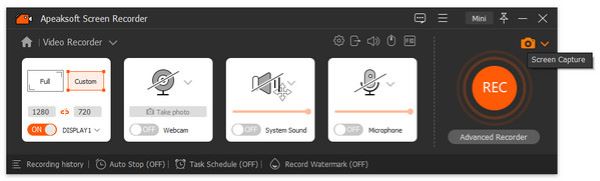
Stap 2. Open the program and click the drop-down menu in the top-left corner.
Stap 3. Selecteren Screen Capture.
Stap 4. You will see a crosshair. Drag your mouse to select the Roblox area you want to capture.
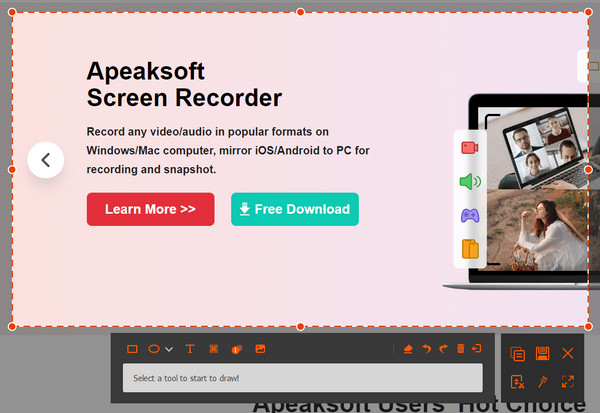
Stap 5. Edit the screenshot if needed. You can add text, arrows, shapes, or other annotations.
Stap 6. Klik op de Opslaan button and choose a location to save your Roblox screenshot.
Tips: If you want to capture gameplay as a video instead of taking a single Roblox screenshot, Apeaksoft Screen Recorder also includes a Game Recorder for recording gameplay and taking snapshots while recording.
Part 2: Where Are Roblox Screenshots Saved
If you have taken a Roblox screenshot but cannot find it, check the Roblox Captures gallery first. Roblox stores screenshots in its app storage by default rather than immediately saving every screenshot to your regular photo or picture folder.
Where to Find Roblox Screenshots in Roblox
Stap 1. Open any Roblox experience.
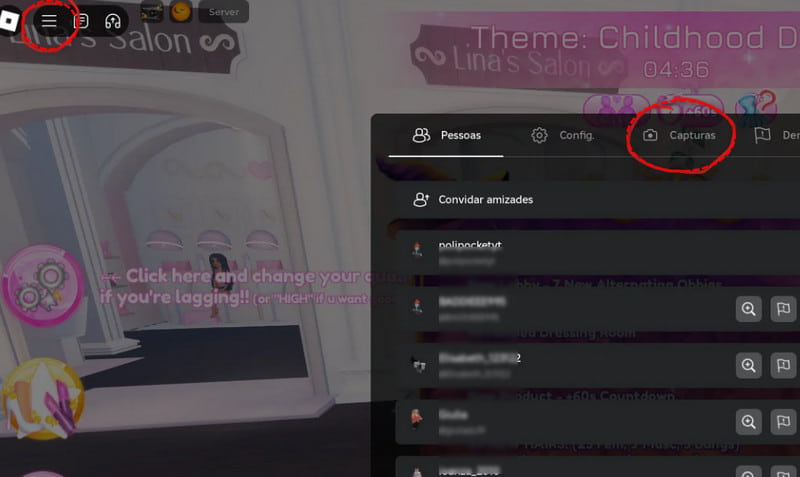
Stap 2. Click the Roblox menu in the upper-left corner.
Stap 3. Selecteren Legt.
Stap 4. Select a screenshot to open the screenshot gallery. From there, you can view your Roblox screenshots and save a selected screenshot to your device.
Where Are Roblox Screenshots Saved Using Other Ways
If you use different methods to take Roblox screenshots, the save location may vary. Check the table below to find where your screenshots are saved on different devices and with Apeaksoft Screen Recorder.
| Platform | Where Roblox Screenshots Are Saved |
| Windows | De Foto's map |
| Mac | Usually the Desktop |
| iPhone / iPad | De Foto's gebruiken |
| Android | De Galerij or Foto's gebruiken |
| Apeaksoft Screen Recorder | The folder you select when saving the screenshot. |
Tips: Keep in mind that Roblox says screenshots stored only in the app can be deleted if you uninstall Roblox. Screenshots that you have already saved to your device's camera roll or Pictures folder are not affected in the same way.
Part 3: FAQs About Roblox Screenshots
Why is my Roblox screenshot low quality?
The screenshot quality can depend on your display resolution and the screenshot method you use. If you need to capture a specific area in high quality, you can use a desktop screenshot tool such as Apeaksoft Screen Recorder.
Can I take screenshots in Roblox Studio?
Yes. Roblox Studio's View tools include a screen Shot feature, which enables you to take a screenshot while working in Studio.
Can I take a screenshot without the Roblox screenshot button?
Yes. You can use your computer or mobile device's built-in screenshot function instead.
Why is my Roblox taking screenshots when I press 1?
You may have set the 1 key as a screenshot shortcut in Roblox or another screenshot tool on your computer.
Conclusie
Taking a Roblox screenshot is simple. You easily make it with the built-in Captures feature, your device's screenshot tools, or a dedicated tool such as Apeaksoft Screen Recorder. If you cannot find your screenshots, open the Roblox Captures gallery first and save the images to your device.
 Apeaksoft Screen Recorder
 Neem video en audio op met uw telefoon of computerscherm.
Veilige download
Veilige download
Gerelateerde artikelen