

Hoe exporteer je contacten van je iPhone naar een ander apparaat?

Er zijn situaties waarin u contacten van uw iPhone moet exporteren. U kunt bijvoorbeeld een back-up maken van uw iPhone-contacten voordat u ruimte vrijmaakt of uw toestel tweedehands verkoopt. Daarnaast kan het nodig zijn om... contacten exporteren vanaf een iPhone naar een ander mobiel apparaat als je overstapt naar een nieuwe iPhone of Android-telefoon. In dit artikel worden in ieder geval de beproefde methoden gedeeld en de workflow stap voor stap uitgelegd.
PAGINA-INHOUD:
Deel 1: Een flexibele manier om iPhone-contacten te exporteren
Tegenwoordig gebruiken steeds meer mensen meerdere apparaten tegelijk. Ze hebben meer dan één digitaal apparaat, zoals een iPhone, iPad, Android-telefoon, tablet, computer, laptop, Chromebook, enzovoort. Daarom raden we een flexibele manier aan om contacten van je iPhone te exporteren: Apeaksoft iPhone-overdrachtHet is mogelijk om je iPhone-contacten snel over te zetten naar een ander mobiel apparaat of een computer.
Een flexibele methode om contacten van je iPhone te exporteren.
- Exporteer snel contacten vanaf een iPhone.
- Verplaats iPhone-contacten naar elk ander apparaat.
- Bekijk en beheer iPhone-contacten.
- Exporteer iPhone-contacten als CSV, vCard en meer.
- Ondersteunt een breed scala aan iPhone-modellen.
Veilige download
Veilige download

Hoe u contacten van uw iPhone kunt exporteren
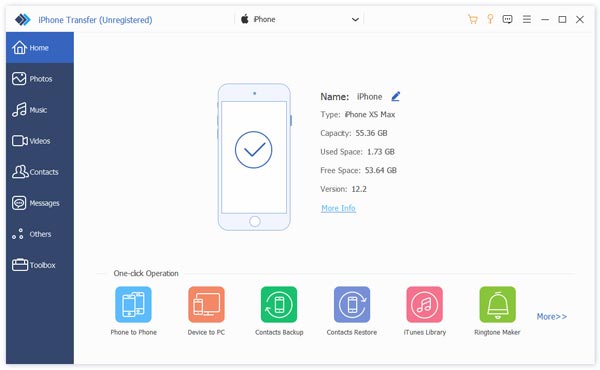
Stap 1. Koppel je iPhone
Wanneer je iPhone-contacten wilt exporteren, installeer je iPhone Transfer op je pc en start je het programma. Er is ook een versie voor Mac-gebruikers. Verbind je iPhone met je pc via een Lightning-kabel.
Tips: Als u contacten van een iPhone naar een iPad of een andere iPhone wilt exporteren, sluit u beide apparaten aan op uw computer.
Stap 2. Voorbeeld van iPhone-contacten
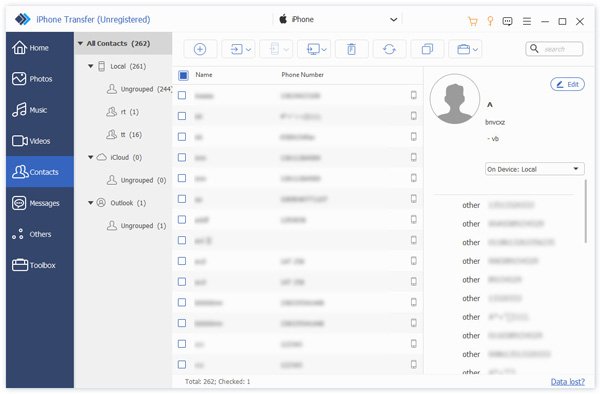
Nadat uw apparaat is gedetecteerd, gaat u naar de Contacten Ga naar het tabblad in de zijbalk. Daar kunt u alle contacten op uw apparaat bekijken. Hier kunt u iPhone-contacten beheren, groeperen of verwijderen.
Stap 3. Exporteer contacten op je iPhone
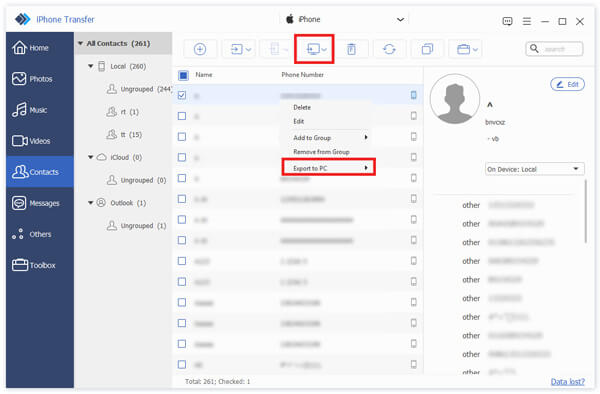
Selecteer de contacten die u wilt exporteren. Om contacten van uw iPhone naar uw computer te exporteren, klikt u op de PC knop op het bovenste lint, kies Exporteren naar pcen stel een uitvoermap in. Als u contacten naar een ander iOS-apparaat wilt exporteren, klikt u op de Telefoonnummer knop en kies het doelapparaat.
Deel 2: Contacten exporteren vanuit de Contacten-app op je iPhone
Met de ingebouwde Contacten-app op je iPhone kun je contacten exporteren van je iPhone naar Android, een andere iPhone of een iPad. Deze methode vereist geen extra software of hardware.
Stap 1. Open de Contacten app op je iPhone.
Stap 2. Druk op Vorige knop en druk op Lijst toevoegen.
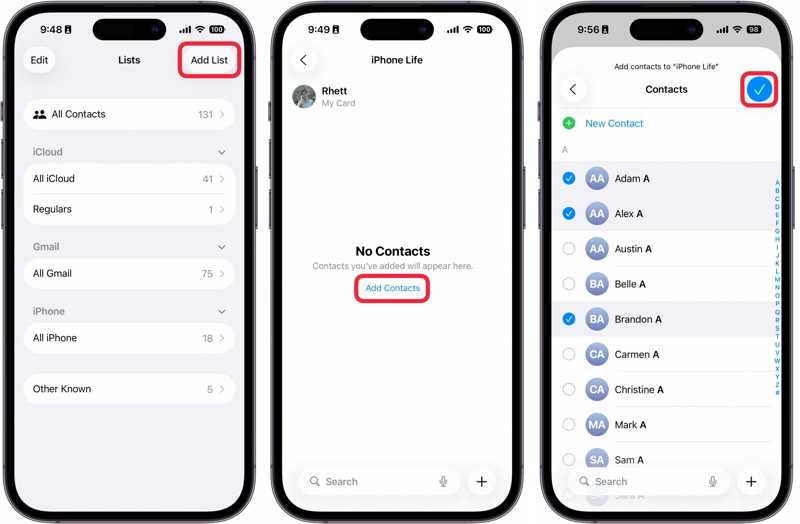
Stap 3. Kies iPhone or iClouden geef de nieuwe groep een naam.
Stap 4. Tik op de nieuwe groep en druk op Contacten toevoegenen selecteer de contacten die u wilt exporteren.
Stap 5. Tik op de knop als je klaar bent. Klaar knop.
Stap 6. Houd de groep ingedrukt totdat het contextmenu verschijnt en kies vervolgens Exporteren.
Nu worden er twee scenario's weergegeven:
Scenario 1: iPhone-contacten exporteren naar een computer
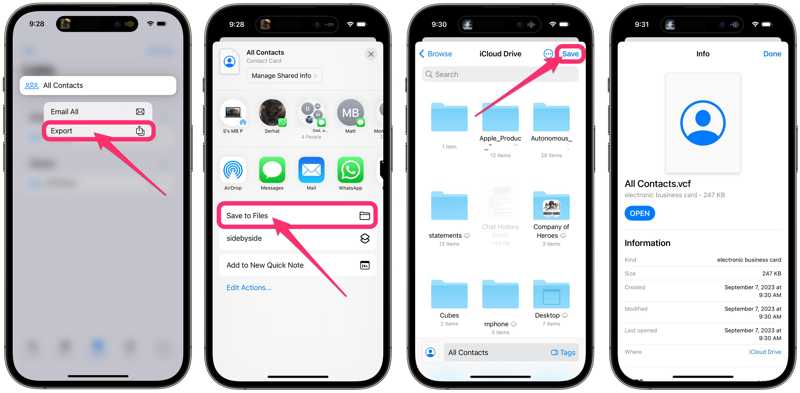
Stap 7. Kies Opslaan naar bestanden, toegang iCloud Driveen tik op Opslaan.
Stap 8. Ga in een browser naar www.icloud.com en meld u aan met uw Apple-gegevens.
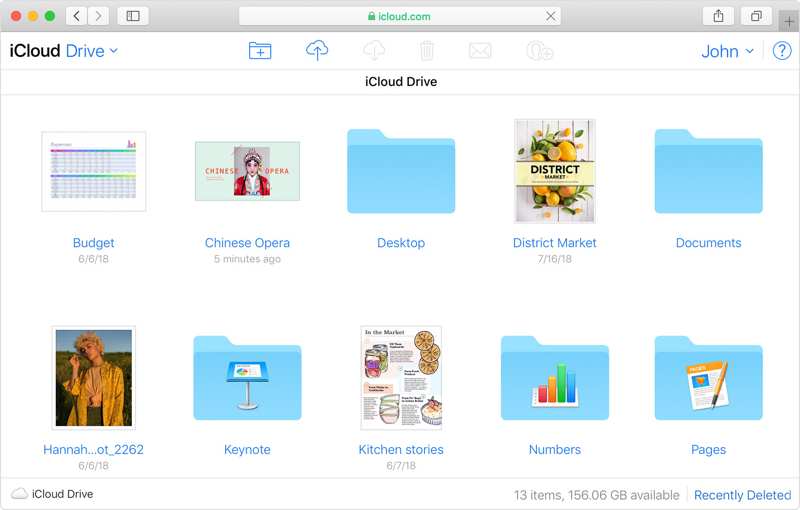
Stap 9. Kies iCloud Drive en download het VCF-bestand.
Scenario 2: Contacten exporteren van iPhone naar Samsung of een andere iPhone
Stap 7. Kies een app voor instant messaging, zoals WhatsApp.
Stap 8. De ontvanger ontvangt vervolgens de geëxporteerde iPhone-contacten.
Deel 3: Hoe u iPhone-contacten via iCloud exporteert
iCloud is een andere manier om contacten draadloos van een iPhone naar een computer te exporteren. Je kunt al je iPhone-contacten synchroniseren met iCloud en ze vervolgens exporteren als een vCard-bestand. Deze methode wordt gebruikt om alle contacten op je apparaat te exporteren. Uiteraard kun je ook specifieke contacten of lijsten overzetten.
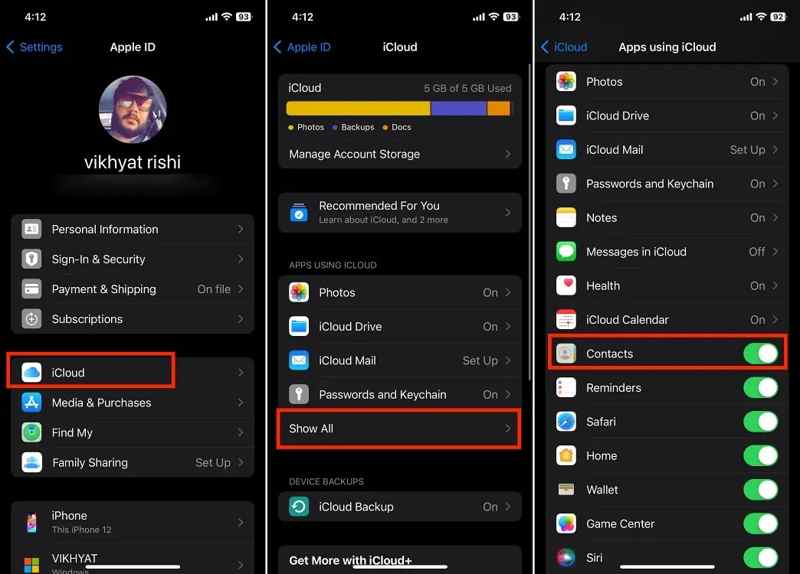
Stap 1. Voer de ... uit settings app op je iPhone.
Stap 2. Tik op je profiel en tik vervolgens op Lees meer onder de Apps met iCloud pagina.
Stap 3. Schakel de Contacten optie.
Stap 4. Verbind uw iPhone met een internetverbinding.
Stap 5. Nadat je contacten met iCloud zijn gesynchroniseerd, ga je verder op je computer.
Stap 6. Ga naar www.icloud.com in een webbrowser en log in met je Apple ID en wachtwoord.
Stap 7. Vouw de Apps paneel en kies Contacten.
Stap 8. Selecteer alle contactpersonen die u wilt exporteren en klik op de Delen knop.
Tips: Druk op de Ctrl toets op pc of commando Druk op de toets op de Mac en selecteer onderbroken contacten. Om meerdere doorlopende contacten te selecteren, drukt u op de toets. Shift toets op het toetsenbord.
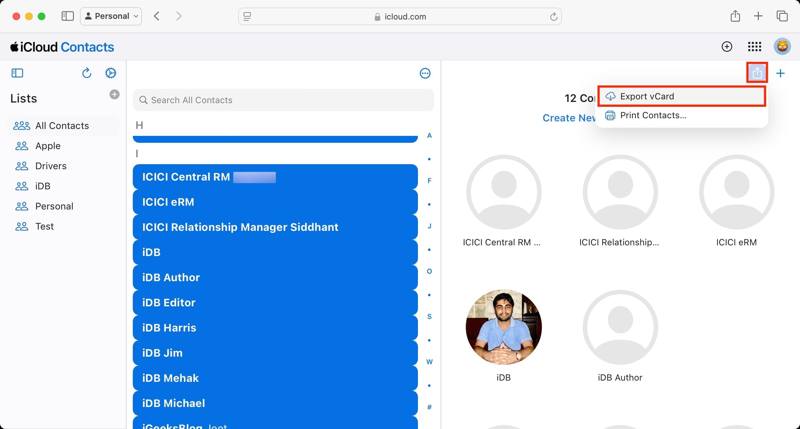
Stap 9. Kies de Exporteer vCard Selecteer de optie, kies een uitvoermap en exporteer het bestand.
Als je contacten van je iPhone naar je Mac wilt exporteren, wordt je gevraagd of je de contacten aan de Mac wilt toevoegen. Contacten app. Klik op de Toevoegen knop om te bevestigen. Als u iPhone-contacten als bestand wilt exporteren, kiest u Annuleer.
Verder lezen
Deel 4: Contacten exporteren van iPhone naar Excel
Als je contacten van een iPhone naar Excel wilt exporteren, kun je iTunes gebruiken. Hiermee kun je iPhone-contacten synchroniseren met Windows Contacten. Vervolgens kun je de contacten exporteren als CSV-bestand. MS Excel kan CSV-bestanden openen.
Stap 1. Sluit je iPhone met een USB-kabel aan op je pc.
Stap 2. Klik op de Telefoonnummer knop linksboven.
Stap 3. Ga naar uw Info tabblad in de zijbalk.
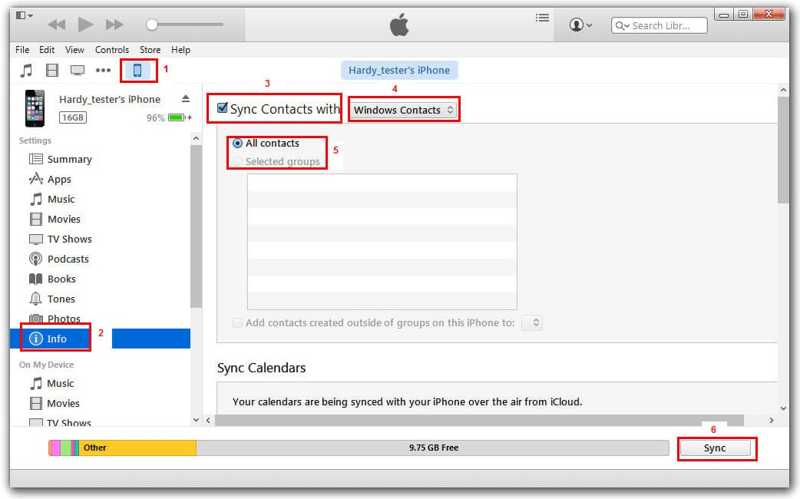
Stap 4. Check Contacten synchroniseren mee en kies Windows Contactpersonen uit de vervolgkeuzelijst.
Stap 5. Selecteer de gewenste groepen of Alle contacten.
Stap 6. Klik op de Synchroniseren or Toepassen om het te bevestigen.
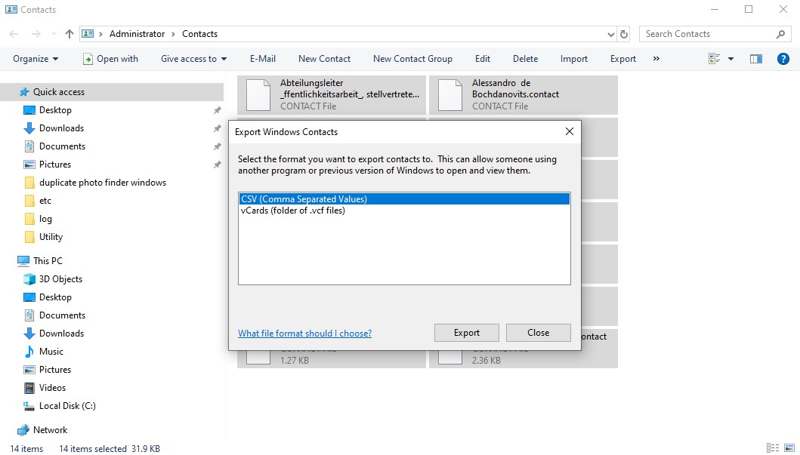
Stap 7. Open de file Explorer en toegang tot de Contacten map.
Stap 8. Selecteer je iPhone-contacten en klik op de Exporteren menu.
Stap 9. Kies CSV en druk op Exporteren.
Stap 10. Selecteer een uitvoermap en sla het CSV-bestand op.
Stap 11. Start MS Excel vanaf uw bureaublad en open het CSV-bestand direct.
Conclusie
Deze gids laat vier manieren zien om Exporteer contacten vanaf je iPhoneMet de vooraf geïnstalleerde Contacten-app kunt u contacten exporteren naar een ander mobiel apparaat of computer. U kunt iPhone-contacten ook synchroniseren met iCloud en uw contacten exporteren. iTunes biedt de mogelijkheid om contacten te synchroniseren met Windows Contacten en ze te exporteren naar Excel. Apeaksoft iPhone-overdracht Dit is een flexibele manier om contacten te exporteren vanaf je iOS-apparaat.
Gerelateerde artikelen




