How to Smoothly Record Your Screen on an iPhone or iPad

Screen recording on iPhone is easier than ever before since Apple released iOS 11. This feature is useful when trying to capture a web page, an issue, a presentation, and more on an iOS screen. However, it is unavailable for all content on your screen. It makes sense that someone found a black screen when recording YouTube videos. This guide walks you through how to enable the feature and capture what you want.
PAGE CONTENT:
Part 1: How to Record iPhone Screen with Built-in Screen Recording
As mentioned previously, the screen recording feature is built into all iPhones running iOS 11 and later. By default, it is hidden, and you need to activate screen recording on your iPhone manually.
How to Add Screen Recording to Control Center
In Settings
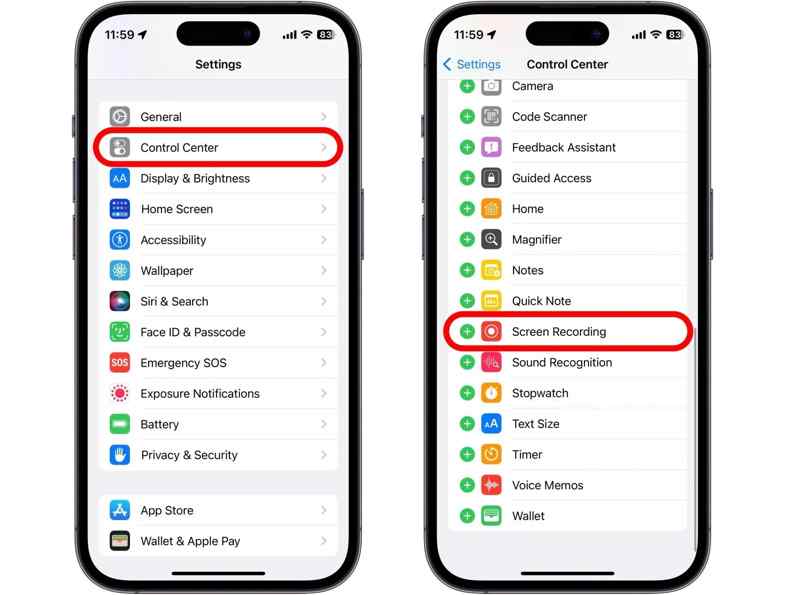
Step 1. Open the Settings app.
Step 2. Choose the Control Center tab.
Step 3. Locate the Screen Recording option and tap the Plus button.
In Control Center
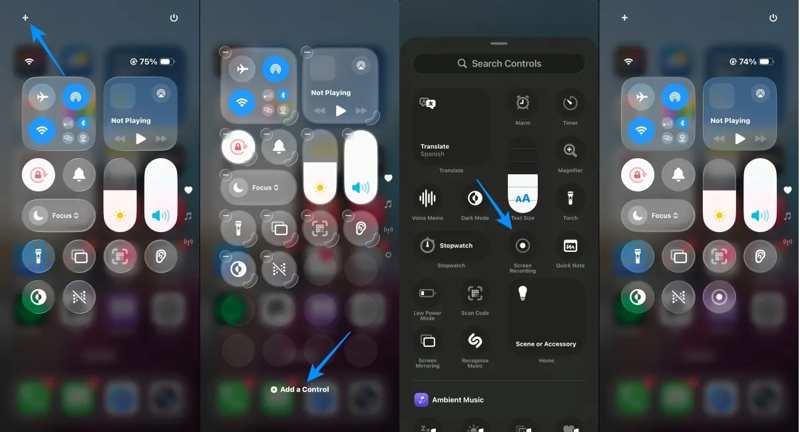
Step 1. Enter your Control Center on iPhone 15 or later.
Step 2. Tap the + button at the top left side.
Step 3. Tap the Add a Control button.
Step 4. Next, select Screen Recording from the list to add it.
How to Set up Screen Record Format on iPhone
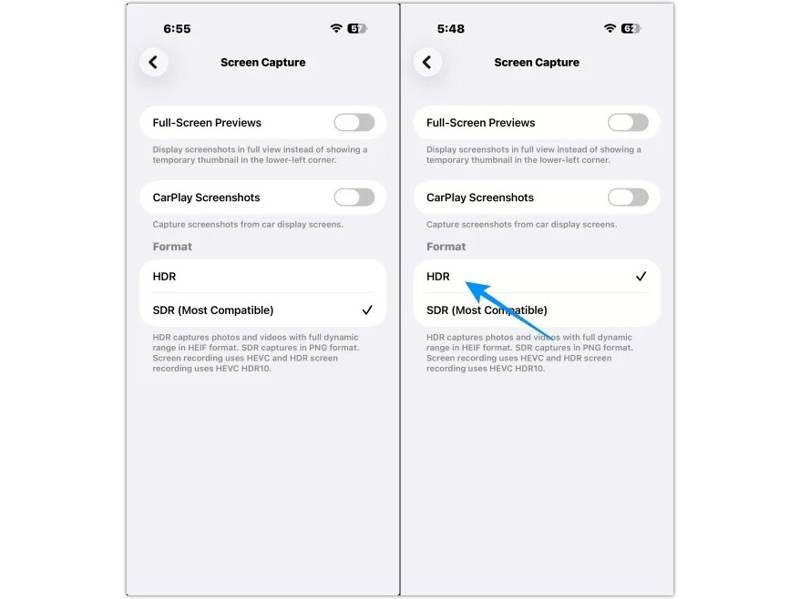
Step 1. Go to the Settings app.
Step 2. Navigate to General and Screen Capture.
Step 3. Choose HDR or SDR to set up screen recording on your iPhone. HDR offers better picture quality and a wider dynamic range.
How to Turn on iPhone Screen Recording
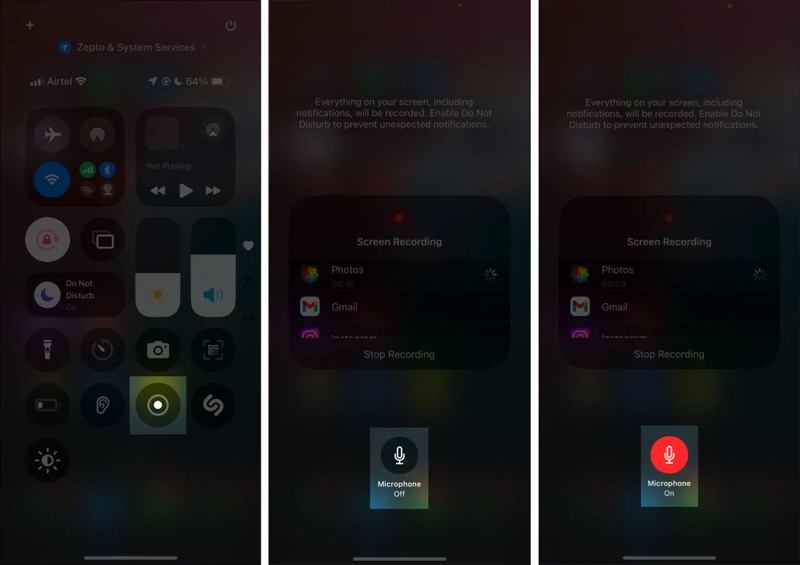
Step 1. Go to the Control Center pane.
Step 2. Tap the Screen Recording button.
Step 3. To turn on iPhone Screen Recording with audio, tap Microphone to enable it.
Step 4. Tap the Start Recording button.
Step 5. When starting recording, you will see the indicator at the top of the screen.
How to Stop Screen Recording on iPhone
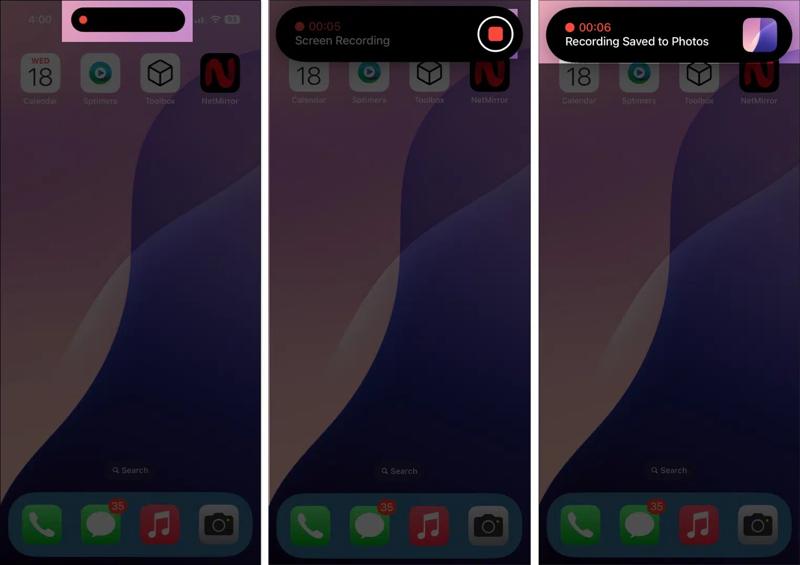
Step 1. When you want to stop screen recording on your iPhone, tap the Red Indicator at the top of the screen.
Step 2. Tap the Stop button to finish it.
How to Find Screen Recording on iPhone
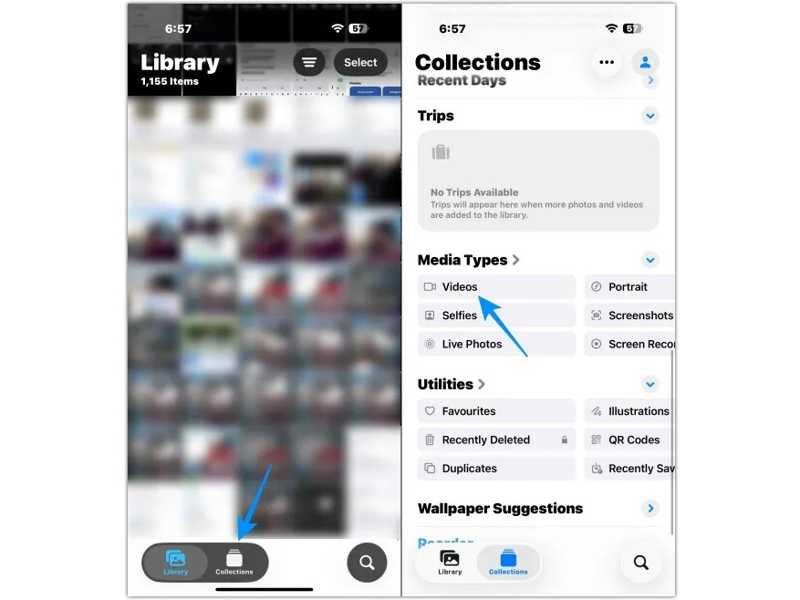
Step 1. Open the Photos app.
Step 2. Go to the Collections tab.
Step 3. Choose the Videos option under the Media Types section.
Step 4. Find the screen recordings on your iPhone.
Part 2: What to Do If Screen Recording Is Not Working on iPhone
Some users reported that they only capture a black screen after enabling screen recording on an iPhone. In fact, users may encounter various issues when using the built-in feature on iOS. Here is how to fix it:
Solution 1: Check Compatibility
Due to the copyright protection, iPhone screen recording cannot capture Netflix, Apple TV+, Disney+, and other streaming platforms. If you record a Netflix video, the feature still runs, but the video will show a black screen with sound.
Solution 2: Restart Your iPhone
If you intend to take a screen recording on iPhone but the feature doesn’t work, you’d better restart your device. Software glitches may lead to this problem. Restarting the iPhone can refresh iOS and the screen recording feature.
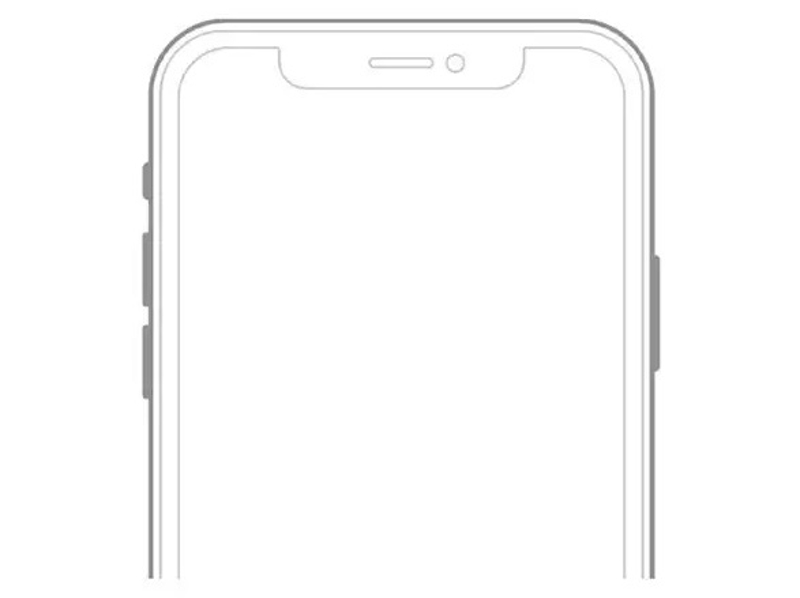
Step 1. For an iPhone with Face ID, hold down one of the volume buttons + Side button together. For an iPhone without Face ID, press and hold the Power button.
Step 2. When the power-off screen appears, release the buttons.
Step 3. Move the slider and shut down the device.
Step 4. A few minutes later, press and hold the Side or Power button until you see the Apple logo.
Solution 3: Free up Storage
Video recording on an iPhone screen requires a lot of storage and resources. If your device is low on storage, the feature will work abnormally, or the video will fail to save. Therefore, you should check the available storage.
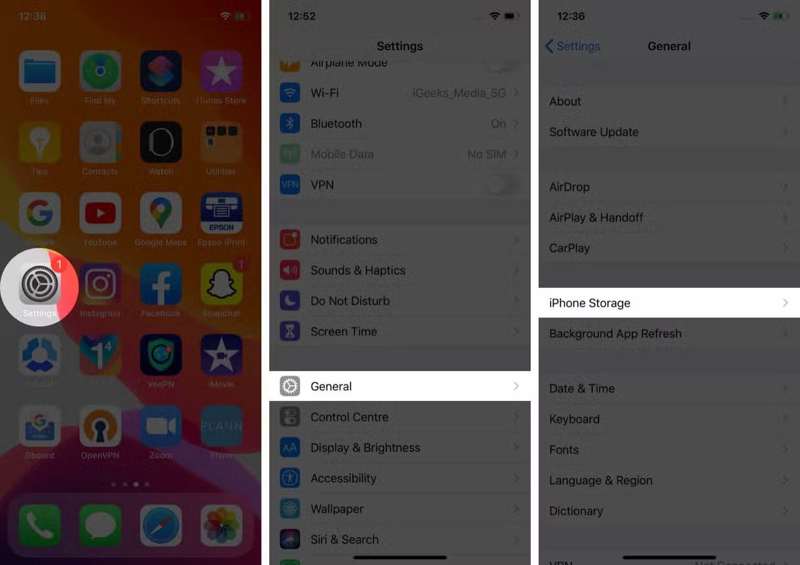
Step 1. Run your Settings app.
Step 2. Go to General and choose iPhone Storage.
Step 3. Check the free storage on the top of the screen. If you are running low, uninstall useless apps and remove old files.
Solution 4: Disable Screen Time Restrictions
If you find the Screen Recording button turns grayed in the Control Center, it is restricted by parental control. You can disable the restriction and fix this problem in your Settings app directly.
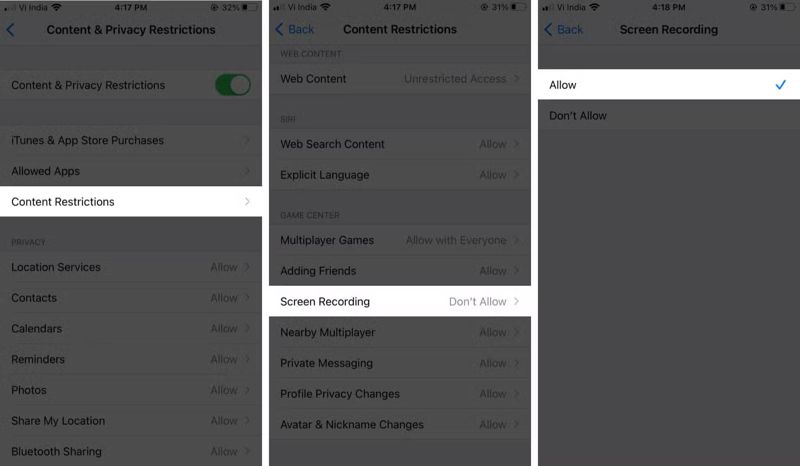
Step 1. Head to Settings and Screen Time.
Tips: If you set up Screen Time on the organizer’s Apple device, you need to disable the restriction on it.
Step 2. Choose the Content & Privacy Restrictions option.
Step 3. Enter your Screen Time passcode if prompted.
Step 4. Choose the Content Restrictions entry.
Step 5. Tap Screen Recording under the Game Center heading.
Step 6. Choose Allow.
Step 7. Now, enter your Control Center and check if the Screen Recording button is available.
Solution 5: Turn off Low Power Mode
Low Power Mode was introduced for the iPhone with iOS 9. The functionalities that require high resources, such as Screen Recording, will become unavailable. You’d better turn off Low Power Mode and fully charge your device before doing a screen recording on an iPhone.
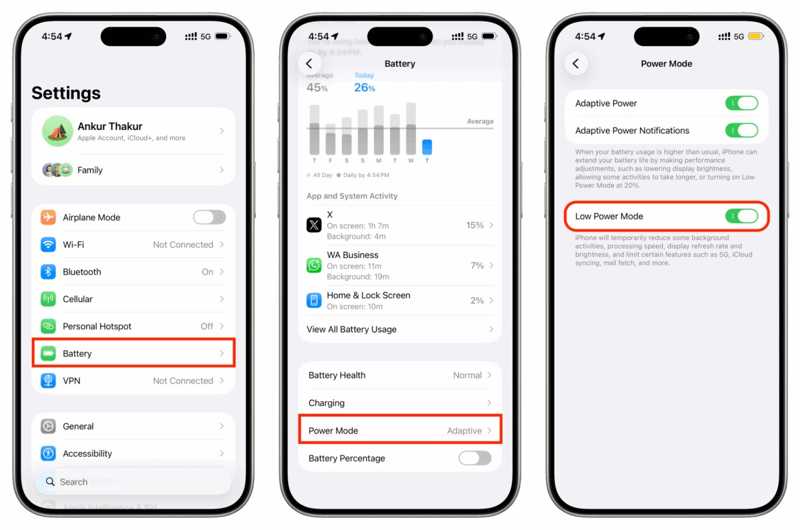
Step 1. Open your Settings app.
Step 2. Head to Battery and Power Mode.
Step 3. Toggle off Low Power Mode.
Step 4. Charge your iPhone.
Step 5. Then, run Screen Recording on your device.
Solution 6: Reset All Settings
Another solution worth trying is resetting all settings when fixing screen recording that is not working on an iPhone. Then, you can add Screen Recording to Control Center and try the feature again.
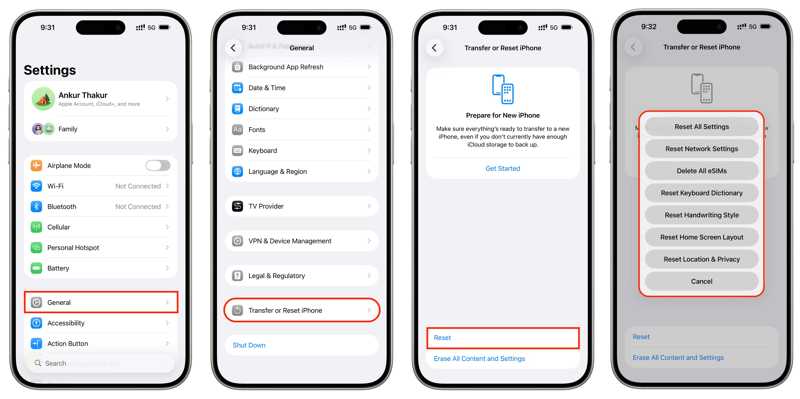
Step 1. Choose the General option in your Settings app.
Step 2. Tap the Transfer or Reset iPhone option.
Step 3. Tap the Reset button.
Step 4. Choose Reset All Settings.
Step 5. Enter your iPhone passcode.
Step 6. Next, choose Reset All Settings to confirm it.
Step 7. Then, add Screen Recording to Control Center and try it again.
Further Reading
Part 3: Top 5 Screen Recorder Apps on iPhone
Top 1: Record It
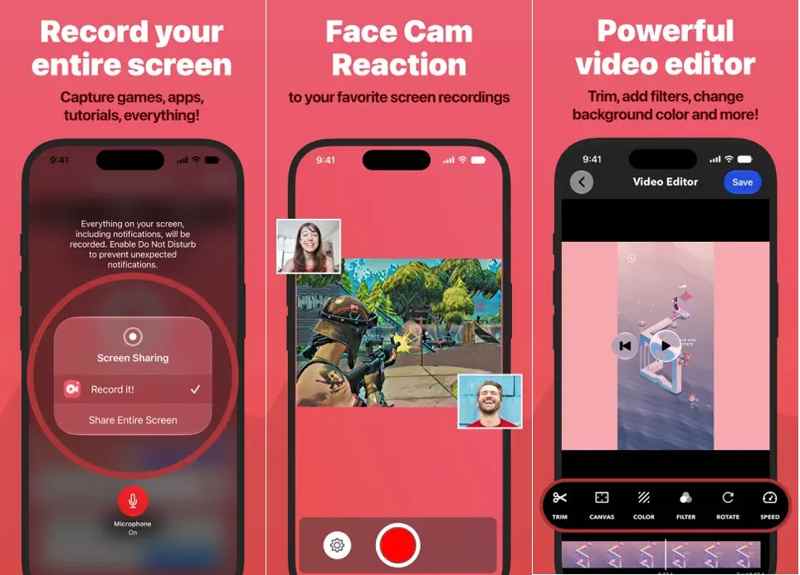
As its name indicates, Record It enables you to record your iPhone screen with one tap. It captures almost anything on your screen, including games, app demos, tutorials, training videos, and more.
- One tap to start recording the entire screen.
- Configure bitrate, audio channels, and quality.
- Keep the recording status visible.
- Overlay camera live while recording the screen.
- Audio sync issues.
- The free version is limited.
Top 2: Loom for iOS
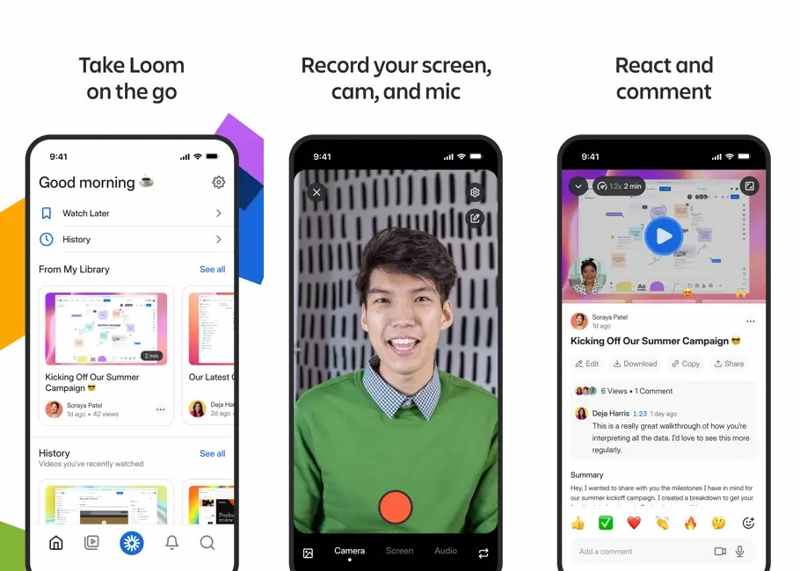
Loom is a reputable screen recording brand. It comes with an app for iPhone and iPad devices. If you want to record content on the go, it is a good option. Currently, there are 14 million users.
- Record iPhone screen easily.
- Capture camera, microphone, and internal audio.
- Save recordings to the cloud.
- Adjust video playback speed.
- Free plan with length limits.
- Expensive.
Top 3: Screen Recorder from Cleaner LLC

For people who wish to record iPhone screen in 4K videos, Screen Recorder from Cleaner LLC is a nice choice. It is widely used for creating facecam reaction videos, live stream games on YouTube, and more.
- Record screen up to 4K.
- Record facecam reactions.
- Go live with a camera or a screen.
- Record video with a scrolling script.
- Premium features require in-app purchases.
- Cannot overlay FaceCam on screen recording.
Top 4: Screen Recorder Voice & Video
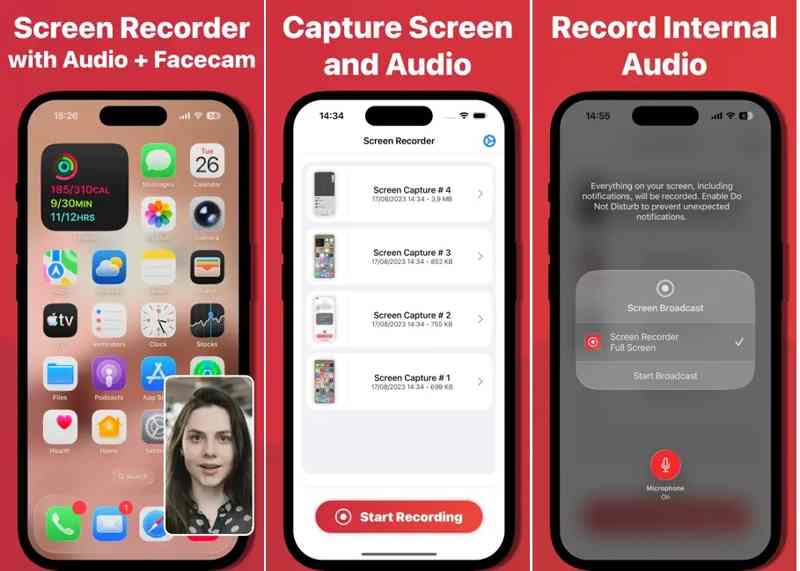
Screen Recorder Voice & Video is an all-in-one solution to take a screen recording on iPhone. The app empowers users to effortlessly record content, tutorials, gameplay, presentations, and more.
- Support high-quality screen recording.
- Add voiceover.
- Overlay FaceCam on the screen recording.
- Share recordings with one touch.
- Require a premium subscription.
- Inconsistent crashes.
Top 5: Go Record
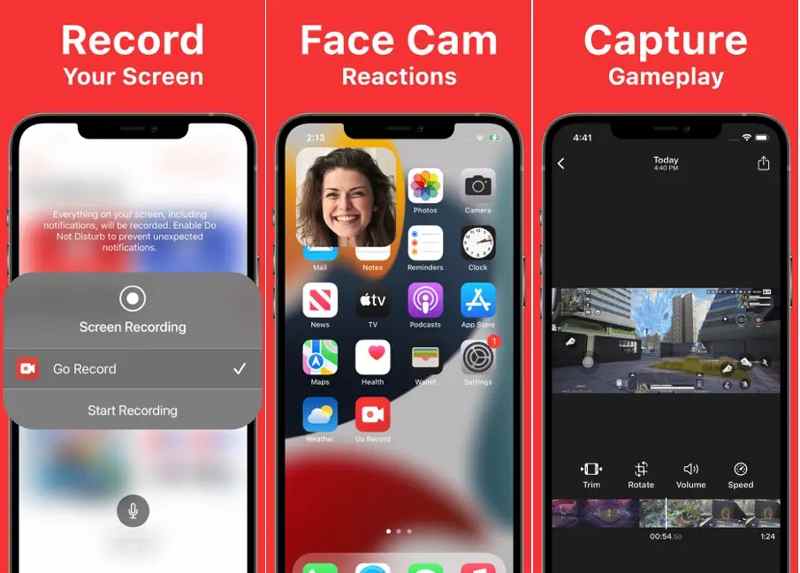
Go Record is another simple way to do screen recording on an iPhone when playing games, making tutorials, or giving presentations. It makes the screen recording easy. Plus, it comes with a video editor.
- Record iPhone screen in high quality.
- Add FaceCam and voice commentary.
- Trim, rotate, and adjust audio.
- Export recordings to other apps.
- The video editor is limited.
- There are ads.
Part 4: How to Record iPhone Screen on Mac
In addition to the built-in Screen Recording feature, you can do screen recording on an iPhone with a Mac computer or laptop. QuickTime Player allows you to complete the process without extra apps.
Step 1. Connect your iPhone to your Mac with a compatible USB cable.
Step 2. If you are prompted, tap Trust on your screen to trust this computer.
Step 3. Run QuickTime Player from the Applications folder or using Spotlight.
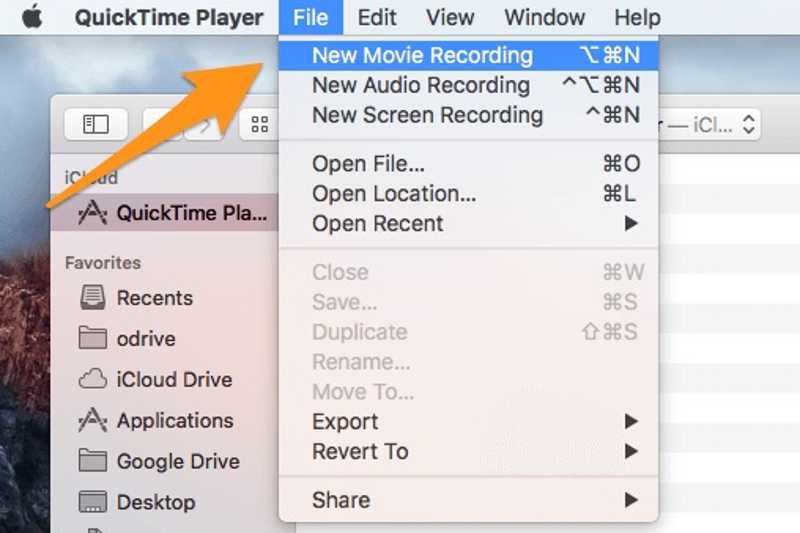
Step 4. Go to the File menu and choose New Movie Recording.
Step 5. Then, you will see your iPhone screen.
Step 6. Click the Arrow button next to the Record button.
Step 7. Select your iPhone under the Camera heading, and choose iPhone or microphone under the Microphone heading.
Step 8. Set the quality and other options.
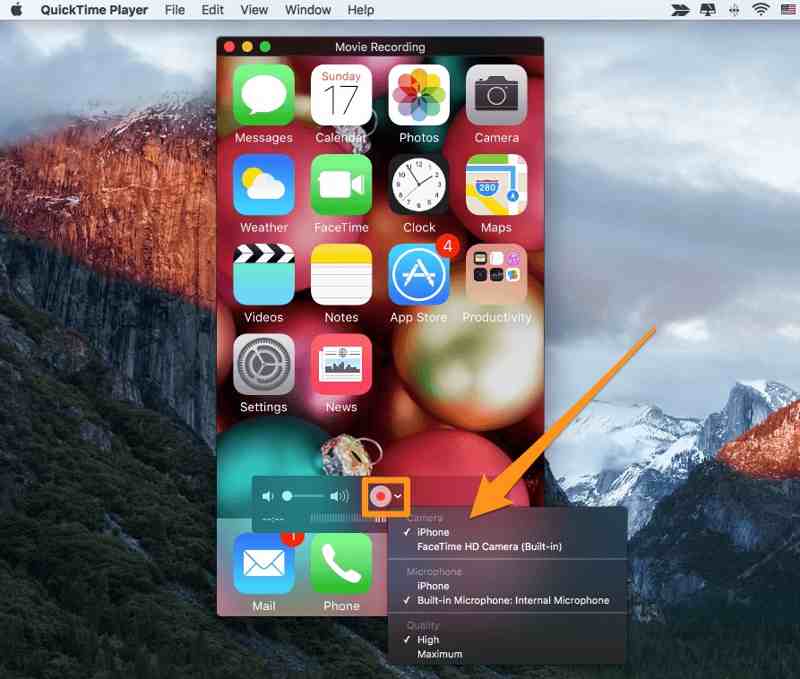
Step 9. Next, click the Record button to begin taking a screen recording on your iPhone.
Step 10. When you finish, click the Record button again.
Step 11. Finally, go to the File menu and choose Save to export the recording.
Part 5: How to Record iPhone Screen with a Computer
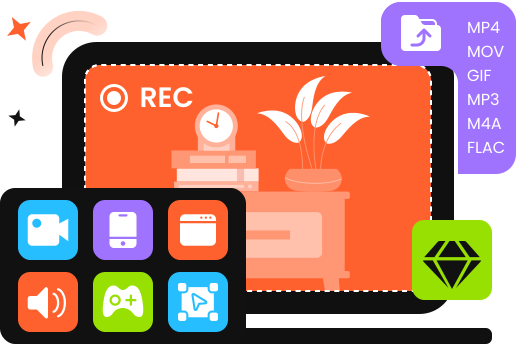
Apeaksoft Screen Recorder is the ultimate way to record your screen on an iPhone. It works on either a PC or a Mac computer. More importantly, the built-in AI feature can optimize iPhone screen recordings automatically. The intuitive design makes the software easy to use.

Downloaded by over 1,000,000 users
- Record iPhone screen with a computer.
- Smooth the screen recording with hardware acceleration.
- Preview screen recordings with the built-in media player.
- Offer a basic video editor.
- Support the latest versions of iOS, iPadOS, and Android.
Secure Download
Secure Download
How to Record iPhone Screen with a PC
Step 1. Step 1: Connect to your iPhone
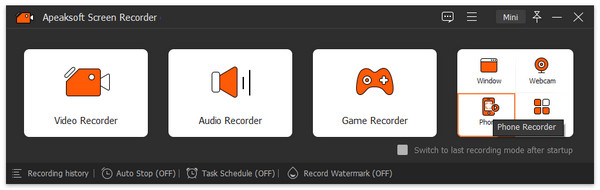
Launch the phone recording software after you install it on your computer. Choose the Phone Recorder mode and select iOS Recorder. Link your iPhone to your computer with a Lightning cable. In the Screen mirroring tab, follow the instructions to mirror your iPhone screen.
Step 2. Step 2: Record iPhone screen
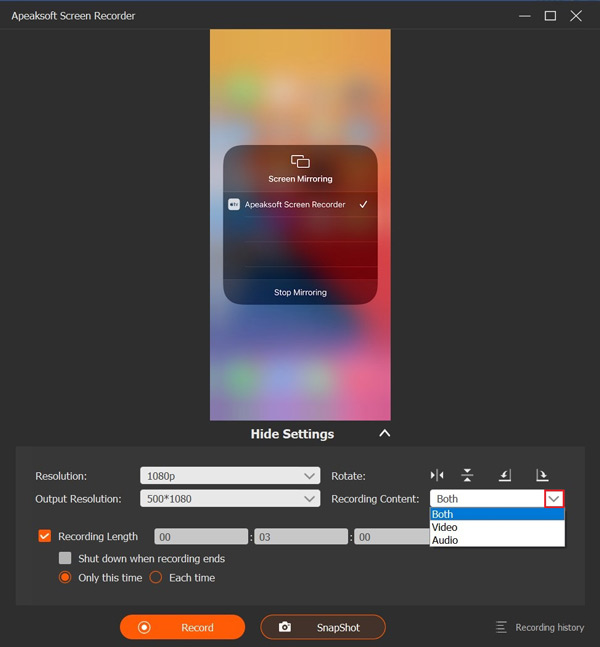
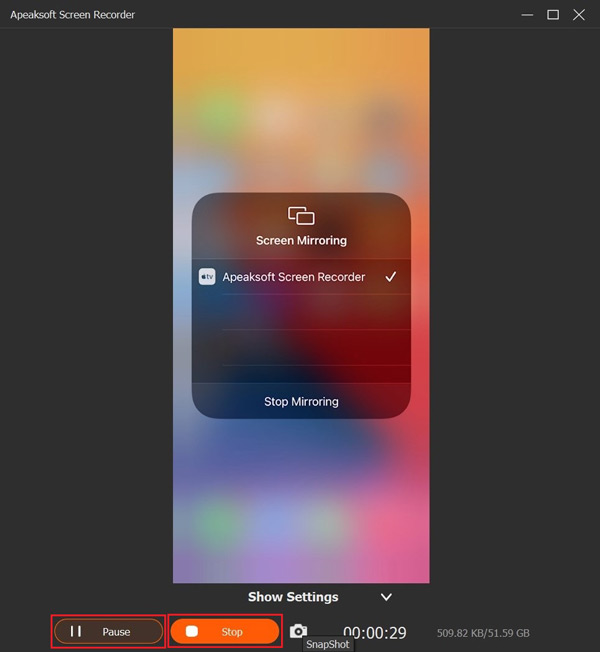
Set the Resolution, Output Resolution, and Recording Content. To get other settings, click Hide Settings. Once you are ready, click the Record button to initiate recording the screen on your iPhone.
Step 3. Step 3: Export screen recording
When screen recording finishes, click the Stop button to save the recording immediately. Then, you can edit it with the built-in video editor.
Conclusion
This comprehensive guide explained how to record the screen on your iPhone using the built-in feature. You should understand how to activate the feature, enable recording, stop it, and find the recording on your iOS device. Moreover, you should learn what to do if the Screen Recording feature is not working properly. Apeaksoft Screen Recorder allows you to capture an iPhone screen with a PC or a Mac computer.
 Apeaksoft Screen Recorder
 Record any video and audio on phone and computer screen.
Secure Download
Secure Download
Related Articles