How to Record a Video on Roblox on Windows and Mac

As an online game platform, Roblox allows users to program and play games created by themselves and other users. Simply playing a game is boring. It makes sense that more and more players record on Roblox for sharing gameplay with other players and followers. This guide walks you through the quick ways and the right recording tools to keep your Roblox gameplay smooth and cinematic. You can learn the proven methods and detailed steps.
PAGE CONTENT:
Part 1: How to Record on Roblox
Roblox comes with a native recording feature. It allows you to record a video on Roblox without extra software or hardware. The downside is that this feature lacks custom options or bonus functionalities.
Step 1. Open your web browser and go to Roblox's official website.
Step 2. Log in with your account.
Step 3. Navigate inside the game page, find the desired game, and click the Play button.
Step 4. Click the Open Roblox button and load the game in the Roblox player.
Step 5. Press the Esc key or Roblox button inside the game to trigger the game menu.
Step 6. Click on the Record tab.
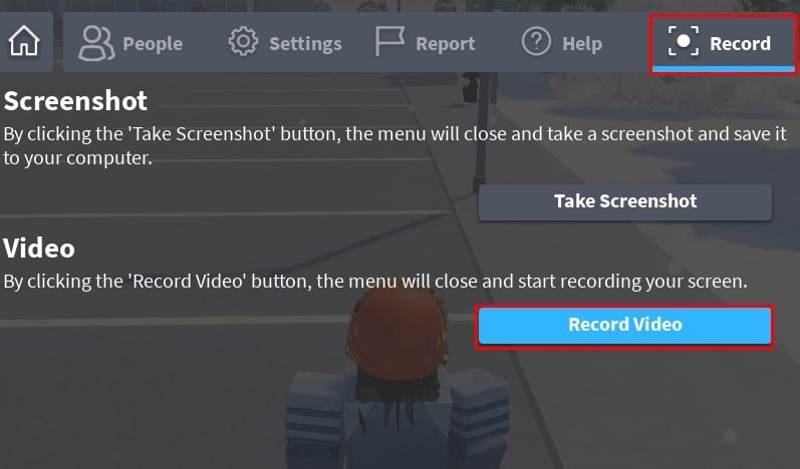
Step 7. Move to the Video section and click the Record Video button.
Step 8. Now, recording Roblox will start immediately.
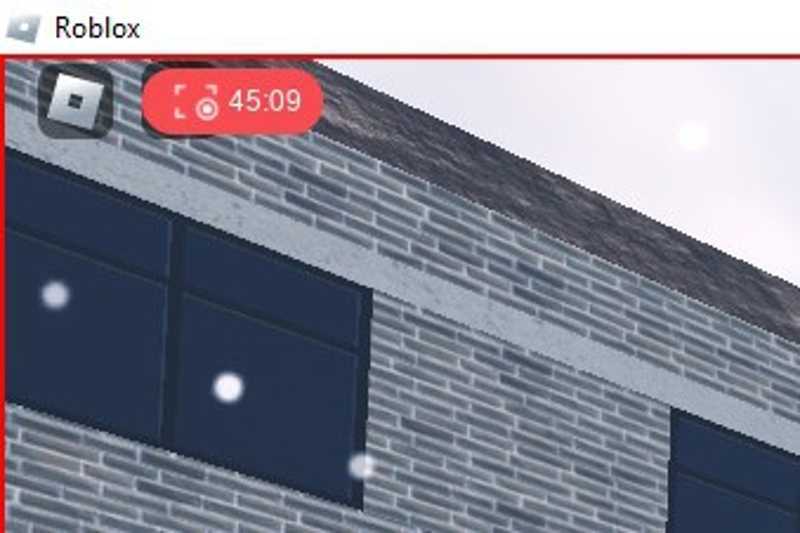
Step 9. Top stop Roblox recording, click the red indicator.
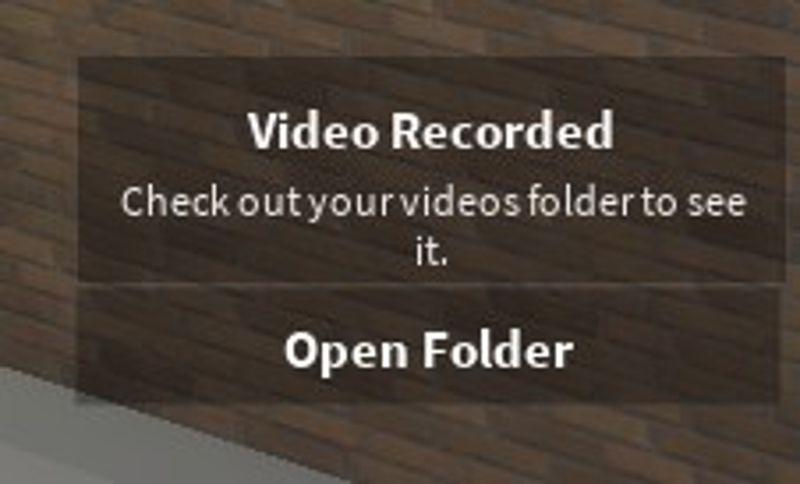
Step 10. Once the notification pops up, click the Open Folder button to view your recording.
Part 2: How to Record Roblox with OBS
The built-in recording feature is too simple. The alternative solution is to record Roblox with OBS. The open-source game recorder is available on Windows, macOS, and Linux. Plus, it offers a lot of custom options.
Step 1. Install OBS Studio on your computer and open it.
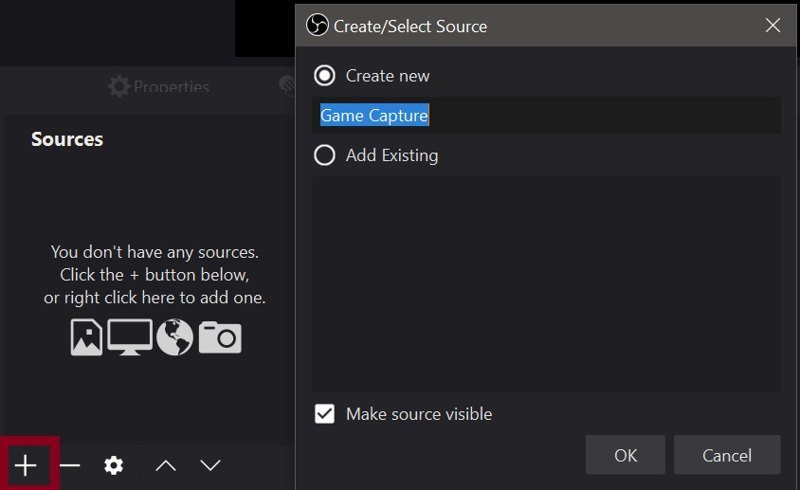
Step 2. Locate the Source section, click the Add button, and select Game Capture.
Step 3. Leave a name in the field and click OK.
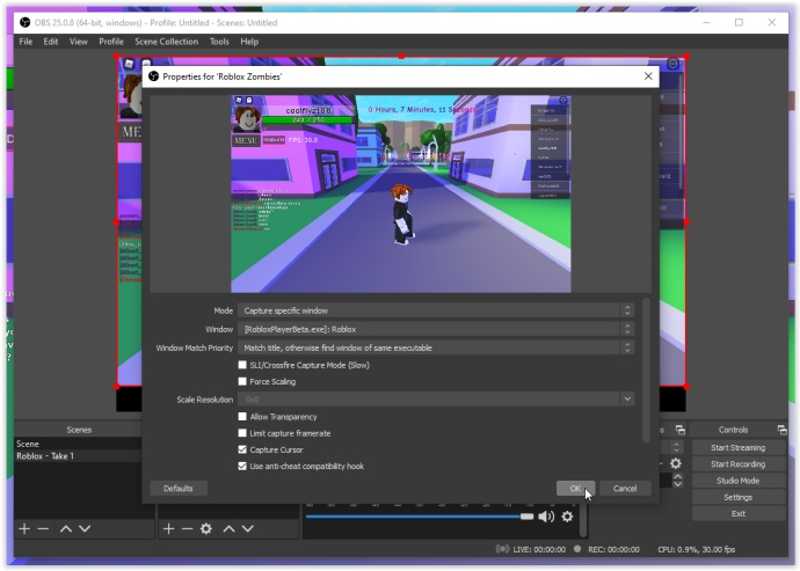
Step 4. Then, set the properties according to your preferences and hit OK.
Step 5. Click the Settings button and go to the Audio tab.
Step 6. Configure the audio capture settings.
Step 7. Next, go to the Video tab and type 120 in the Integer FPS Value option.
Step 8. Click the Apply button.
Step 9. Test Audio Mixer before recording.
Step 10. Visit Roblox and play the desired game.
Step 11. Click the Start Recording button in OBS to begin recording Roblox with OBS.
Step 12. To stop it, click the OBS window and hit Stop Recording.
Part 3: How to Record Roblox on Mac
If you want to record Roblox on Mac, the built-in screen recording feature in QuickTime Player is a good option. It is completely free to use. While it offers basic custom options, the app is enough.
Step 1. Run QuickTime Player from the Applications folder.
Step 2. Go to the File menu and choose New Screen Recording.
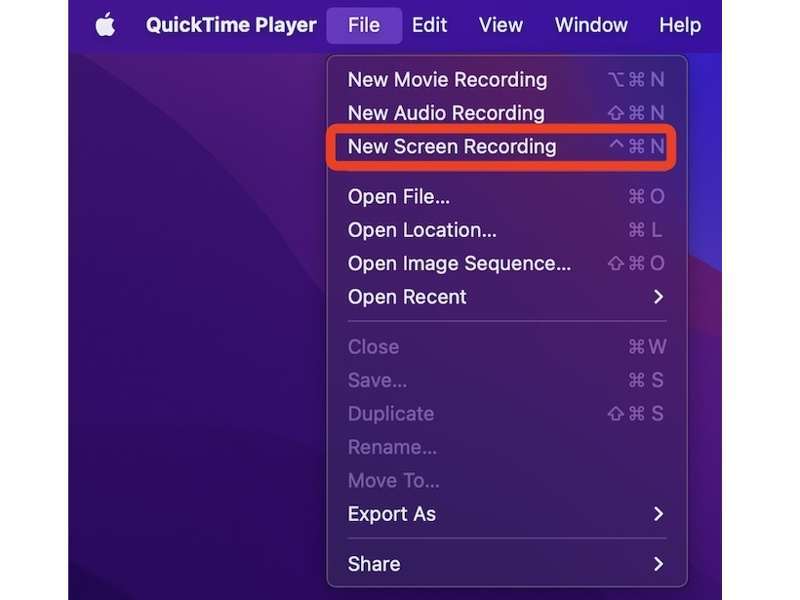
Step 3. Choose from Record Entire Screen or Record Selected Portion according to your situation.
Step 4. Next, click the Options on the toolbar.
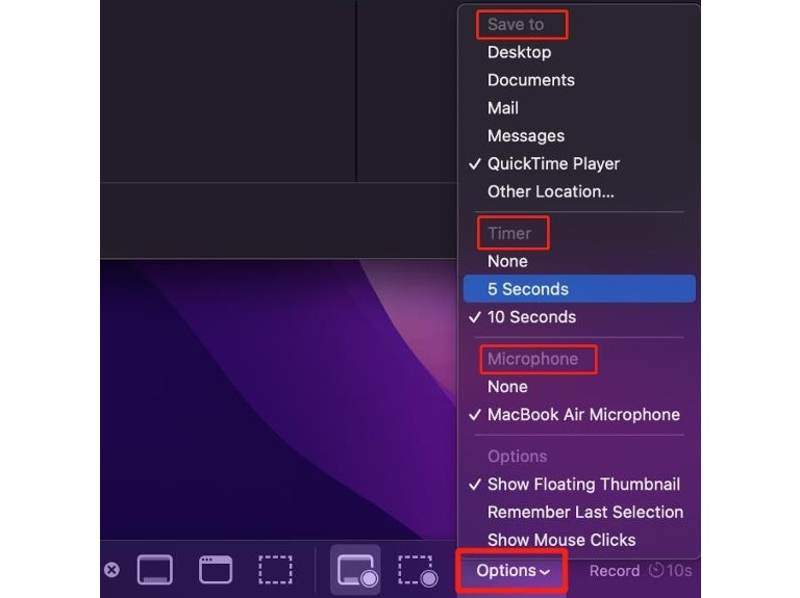
Step 5. Set the Timer, select your microphone, and more.
Step 6. Click the Record button.
Step 7. Open the game you want to record on Roblox.
Step 8. After the timer, the game recording will initiate.
Step 9. When you want to stop recording Roblox, click the Stop button.
Step 10. The recording will open in QuickTime Player. Save it as a video file.
Part 4: How to Record Roblox on PC
If you intend to record Roblox in high quality on Windows 11/10, the built-in Game Bar is an easy option. By default, it is the game recorder feature on Xbox. Currently, it has been migrated to new PCs.
Step 1. Open the Settings app from the Start menu.
Step 2. Choose the Gaming option on the sidebar and click Captures.
Step 3. Toggle on Record what happened and set the record settings.
Step 4. Open the Roblox game you want to record.
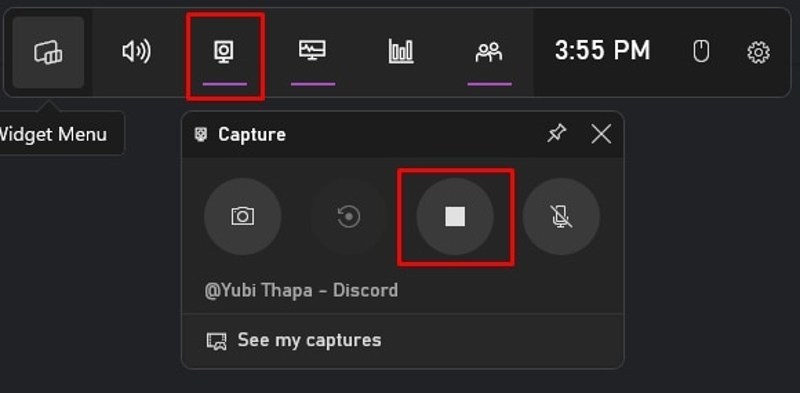
Step 5. Press Windows + G keys on your keyboard to activate the Game Bar.
Step 6. If prompted, click Got It.
Step 7. Click the Capture button to run the recording widget.
Step 8. Hit the Record button to begin recording Roblox on PC.
Part 5: How to Record Roblox in High Quality
If you want to get more tools when recording Roblox in high quality, Apeaksoft Screen Recorder is a good option. It comes with a dedicated game recorder for capturing gameplay smoothly. Moreover, it provides lots of useful tools and custom options.

Downloaded by over 1,000,000 users
- Record Roblox games without lagging.
- Capture your reactions and voice at the same time.
- Add stickers and captions to gameplay recordings.
- Preview recordings with the built-in media player.
- Save gameplay recordings in high-quality videos.
Secure Download
Secure Download
How to Record Roblox in High Quality
Step 1. Install Roblox recorder
Download and install the Roblox screen recorder on your computer. It is available on Windows 11 and earlier, Mac OS X 10.13 or above. Launch the software and choose the Game Recorder mode.
Step 2. Record on Roblox
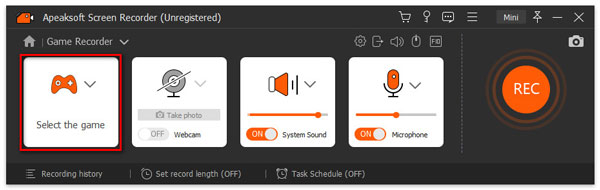
Open Roblox and find the desired game. Click Select the game and choose the game window. Turn on System Sound and adjust the volume. If you want to add your action, turn on the Webcam and Microphone options. Once the gameplay starts, click the REC button.
Step 3. Save the Roblox recording
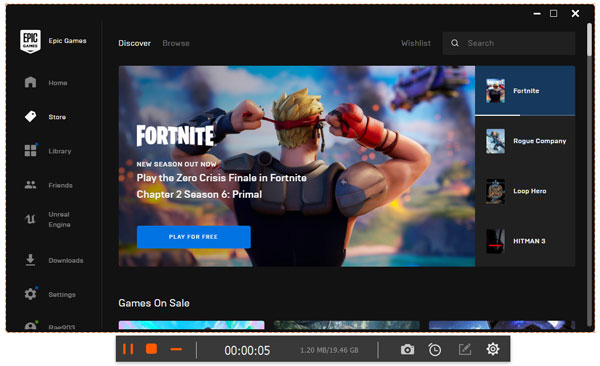
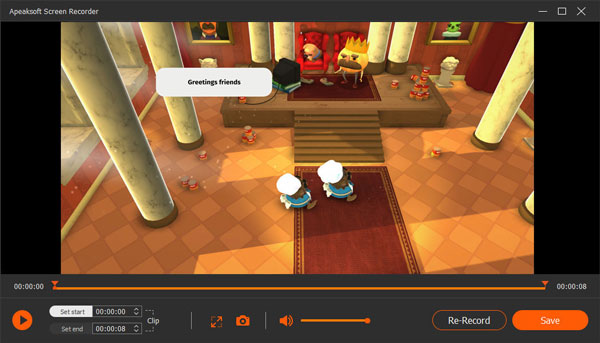
When you want to stop Roblox recording, click the Stop button. Then, view the recording in the preview window. If you are satisfied, click the Save button to export it. If not, remove the unwanted frames with the Clip tool and then save it.
Further Reading
Conclusion
This guide shared multiple ways to record in Roblox Studio. The built-in record capability is a simple way to save your favorite gameplay. If it is unavailable, you can use the pre-installed screen recording features on Windows 11/10 and macOS to capture your gameplay. Plus, OBS is a free way to save your gameplay. Apeaksoft Screen Recorder is a good option if you want to get more features and custom options.
 Apeaksoft Screen Recorder
 Record any video and audio on phone and computer screen.
Secure Download
Secure Download
Related Articles