How to Record Program, Live Show, and Game on YouTube TV

YouTube TV is a popular streaming service offering any content in 4K resolution. It enables you to watch live and on-demand shows from major broadcast and popular cable networks. The live sports and shows are engaging. If you don’t want to miss a show, sports, event, or movie, you can record your favorite content to your personal library. This guide shares the proven methods to record on YouTube TV.
PAGE CONTENT:
Part 1: Can You Record on YouTube TV
Can you record programs on YouTube TV? Yes, YouTube TV gives you the ability to record and save programs, shows, movies, and sports broadcasts directly to the cloud DVR. In other words, the built-in DVR allows you to record content without storage space limits. Bear in mind that certain sporting events may not be available.
YouTube TV is a subscription streaming service. It has updated its monthly prices for 2026. The base plan now costs $82.99 per month. For new users, the monthly price is $59.99 for the first two months.
Benefits of the YouTube TV DVR Feature
- 1.Record almost everything, like the upcoming movies, TV shows, one-time events, programs, live shows, and more.
- 2.Unlimited storage space. The DVR feature can record unlimited programs and save them to the cloud. It won’t occupy the local storage space.
- 3.No extra fee. Once you subscribe to a basic plan, you will be entitled to access the DVR feature unless you wish to view the recorded content in offline mode.
Part 2: How to Record on YouTube TV with the DVR Feature
As mentioned previously, you can record shows on YouTube TV on the web page, mobile app, and smart TV using the DVR feature. We demonstrate the workflows to help you understand them clearly.
How to Record a Show on YouTube TV on the Web
Step 1. Visit tv.youtube.com/welcome/ in a web browser.
Step 2. Log in with your Google account.
Step 3. To record a show on YouTube TV, enter the name in the search bar and open it from the result.
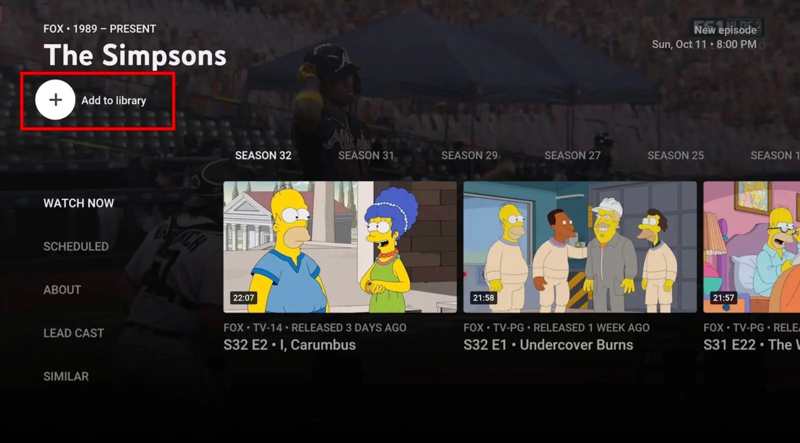
Step 4. Click the Add to Library button.
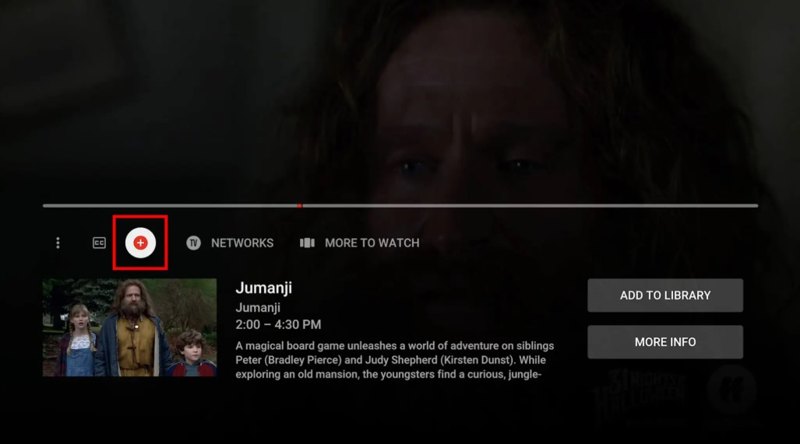
Tips: If you want to record a live show on YouTube TV, go to the LIVE tab, click the desired title, and click the + button to begin recording the show.
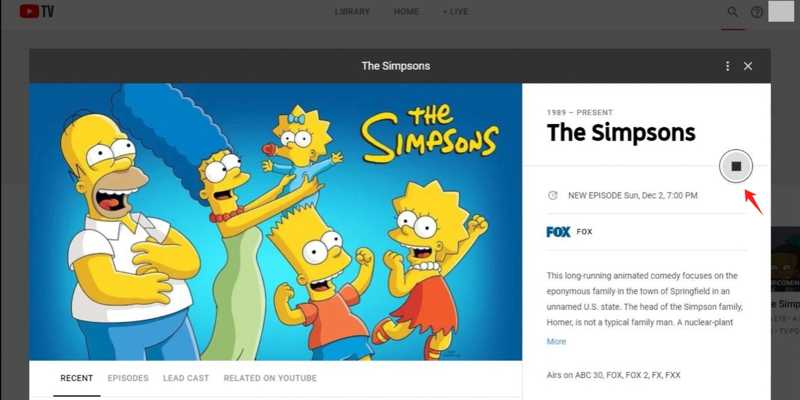
Step 5. By default, YouTube TV stops recording it when the show finishes. If you want to stop recording on YouTube TV manually, click the Stop button.
Note: After recording, the shows will be available in your library for up to nine months.
How to Record a Program on YouTube TV on Mobile
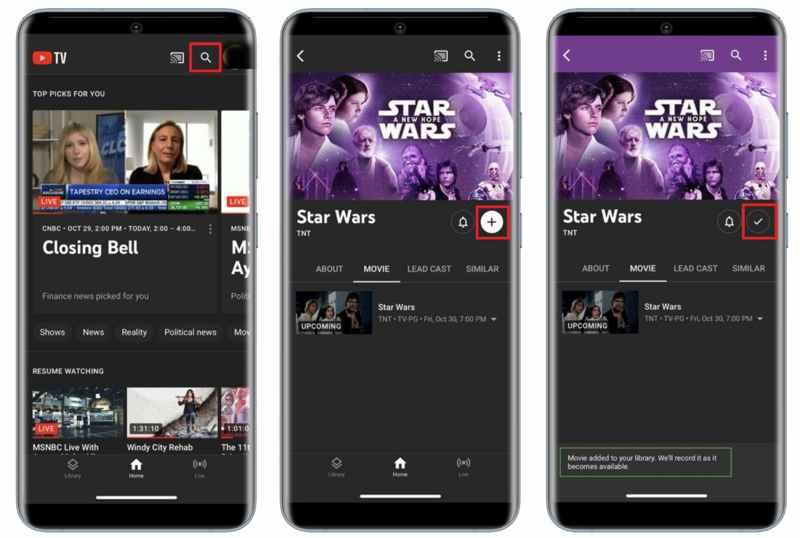
Step 1. Open the YouTube TV app on your mobile device.
Step 2. Tap the Search button in the upper-right corner.
Step 3. Input the name of the desired show in the search box and search for it.
Step 4. Tap the title from the result.
Step 5. Next, tap the Add button to start recording the program on the YouTube TV app.
Step 6. When recorded successfully, you will see the checkmark on the title.
How to Record a Show on YouTube TV on Your TV
The YouTube TV app is available on Roku, Apple TV, and Fire TV Stick. If you want to record a game on YouTube TV on a smart TV, you can use the built-in DVR feature on all compatible devices.

Step 1. Run the YouTube TV app on your TV.
Step 2. Sign in with your YouTube TV account.
Step 3. Locate a game, show, or program you want to record with the Search feature.
Step 4. Press the Add button to record it on your smart TV.
Part 3: How to Manage Recordings on YouTube TV
Since YouTube TV recordings are stored on the cloud, you can watch them across devices with your YouTube TV subscription. To watch the saved recordings of your favorite TV shows, follow the steps below:
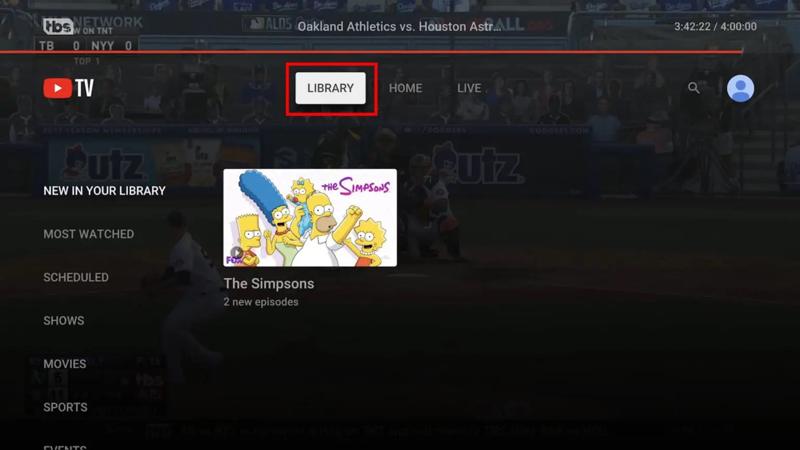
Step 1. Go to the YouTube TV web page or app.
Step 2. Log in with your account.
Step 3. Then, you will see three options at the top of the screen. Choose the LIBRARY option.
Step 4. The recordings are categorized by New in Your Library, Most Watched, Scheduled, Sports, and more.
Step 5. Find the video, open it, and begin playing it.
Step 6. If you want to delete a recording, select it and hit Added to library.
Part 4: How to Fix YouTube TV Recorded Content Issue
Some YouTube TV users reported being unable to access their recorded programs. Google has confirmed that the bug that prevented the playback of recorded content has been fixed. If you still cannot watch your YouTube TV recordings, follow the tips below:
- 1.DVR saves your recordings for up to nine months. If the content has expired, you have to record it again.
- 2.If you cannot find some recordings, they might not have aired on YouTube TV yet. You will find them in the Scheduled category of your library.
- 3.Even if you have recorded YouTube TV, you need an internet connection to watch the recordings since they are stored in the cloud, but not in local storage. If you want to watch recordings offline, you must have the 4K plugs add-on, which requires an extra cost of $10 per month.
Part 5: How to Record a Live Show on YouTube TV
If you want to record a live show on YouTube TV and watch it offline, you’d better use a powerful video recording tool, such as Apeaksoft Screen Recorder. It is able to capture any shows on YouTube TV, including the copyright-protected content, and save them on your local hard drive.

Downloaded by over 1,000,000 users
- Record shows on YouTube TV with one click.
- Available to programs, live shows, and future content.
- Save YouTube TV content in high-quality videos.
- Add stickers, texts, shapes, and captions to recordings.
- Support a wide range of video formats.
Secure Download
Secure Download
How to Record a Live Show on YouTube TV
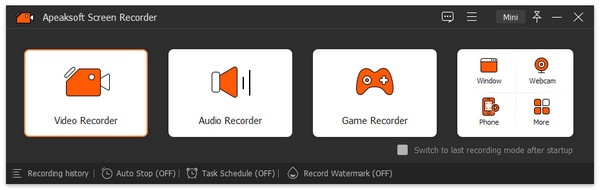
Step 1. Install YouTube TV recorder
Launch the YouTube TV recording software once you install it on your computer. It is compatible with Windows 11/10/8/7/XP/Vista and Mac OS X 10.13 or above. Choose the Screen Recorder option. If you want to record YouTube TV on your phone, choose Phone Recorder, and connect your phone to your computer with a compatible cable.
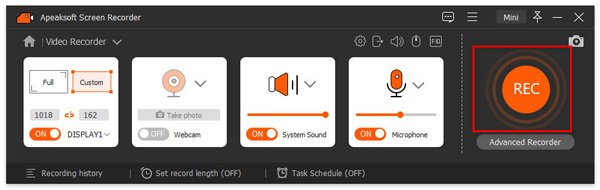
Step 2. Record a show on YouTube TV
Turn on Recording Area and set the recording area according to YouTube TV. Toggle on System Sound and adjust the volume. Once the show starts playing, click the REC button to begin recording it.
Tip: If you need to record a future show on YouTube TV, click Take Schedule and set it up.
Step 3. Save the YouTube TV recording
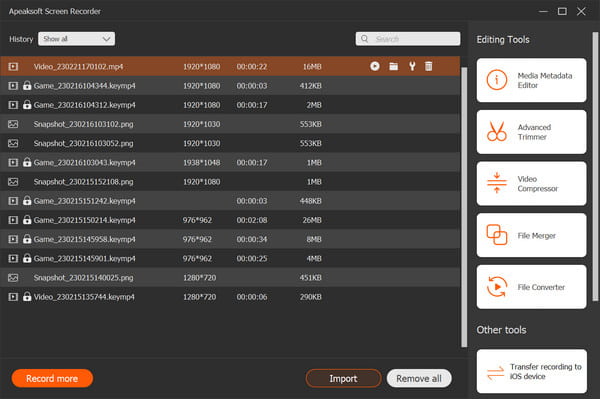
Once the show finishes, click the Stop button. Then, the preview window will appear. View the recording and click the Save button if you are satisfied.
Further Reading
Conclusion
This guide explained how to record on YouTube TV on your desktop, mobile device, or smart TV. You can pick a proper platform and follow our steps to capture your favorite shows. Moreover, you can learn how to find the recordings in your library. Apeaksoft Screen Recorder is a good option to record any shows on YouTube TV to your local storage.
 Apeaksoft Screen Recorder
 Record any video and audio on phone and computer screen.
Secure Download
Secure Download
Related Articles