How to Screen Record on TikTok Step by Step in High Quality

Some TikTok videos and LIVE streams cannot be downloaded directly. If you want to save interesting videos or revisit your favorite LIVE streams later, recording your TikTok screen is a simple way. This tutorial will show you how to screen record on TikTok on different devices in high quality.
PAGE CONTENT:
Part 1: How to Screen Record on TikTok on iPhone/iPad
Apple provides a built-in screen recording feature for iPhone and iPad users to capture TikTok videos or LIVE streams for free. If you want to know how to screen record on TikTok, follow the steps below:
Step 1. Open a TikTok video or LIVE stream you want to record.
Step 2. Swipe down from the top-right corner and tap the Screen Recording button.
Tips: If the screen recording option is not available, you can long-press an empty area in Control Center, tap Add a Control at the bottom, and select Screen Recording to add it.
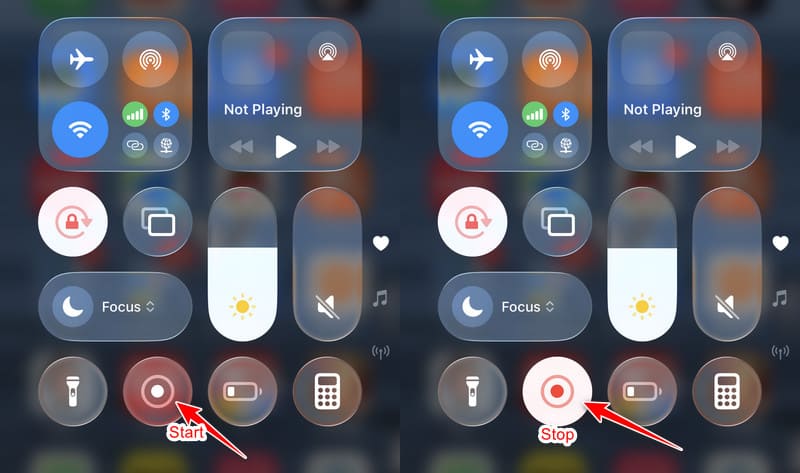
Step 3. After the countdown finishes, you can play the TikTok video or LIVE stream.
Step 4. When you finish recording, swipe down from the top right again and tap the red button to stop recording.
Step 5. The recorded TikTok video will be saved automatically to the Photos app.
Part 2: How to Record on TikTok on Android
Android devices also offer built-in screen recording features that let you capture TikTok videos and LIVE streams. Follow the steps below to know how to record on TikTok using an Android phone:
Step 1. Open TikTok and find the video or LIVE stream you want to record.
Step 2. Swipe down from the top of the screen, and then tap Screen Recorder.
Tips: The name and location may vary depending on your device model.
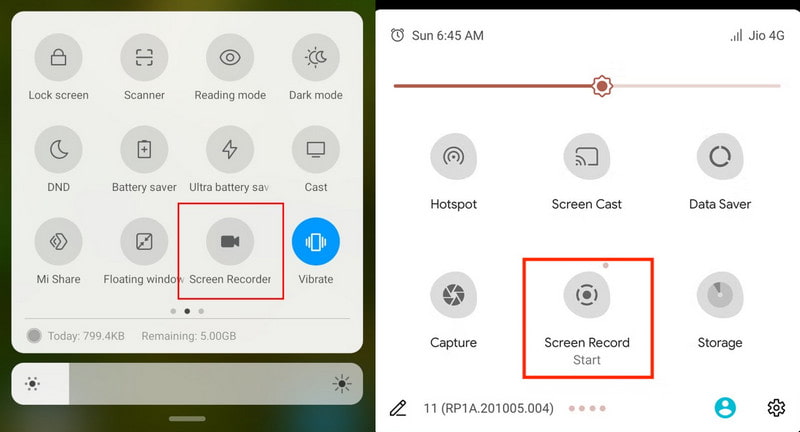
Step 3. Adjust the recording settings, such as sound and video quality, then tap Start recording.
Step 4. Wait for the content to be playing.
Step 5. Tap the stop button when finished. The recorded TikTok video will be saved to your Gallery or Photos app.
Part 3: How to Screen Record on Windows
If you are using TikTok on a Windows PC or Mac, don't worry. There are also built-in tools and third-party screen recording software to record TikTok videos and live streams on Windows or Mac.
Method 1: Use the Built-in Xbox Game Bar to Record TikTok on Windows
Xbox Game Bar is a built-in screen recording tool for Windows. It enables you to capture TikTok videos and LIVE streams for free without installing extra software.
Step 1. Open the video or LIVE stream you want to record.
Step 2. Press Windows + G to open Xbox Game Bar, then click the camera-like button, and then click the Record button in red.
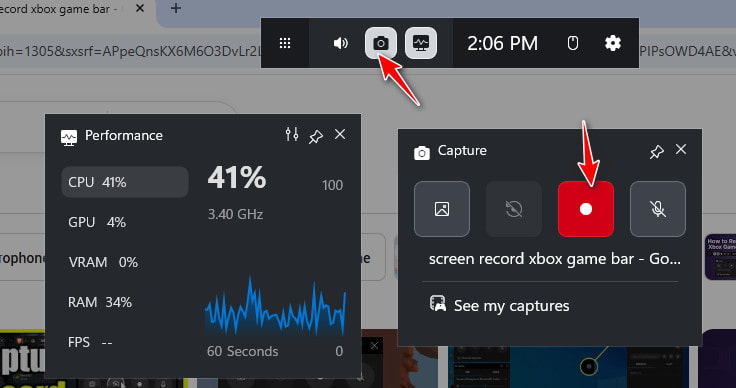
Step 3. Play the TikTok video or LIVE stream.
Step 4. Click the Stop button in the top-right corner or press Windows + Alt + R to finish recording.
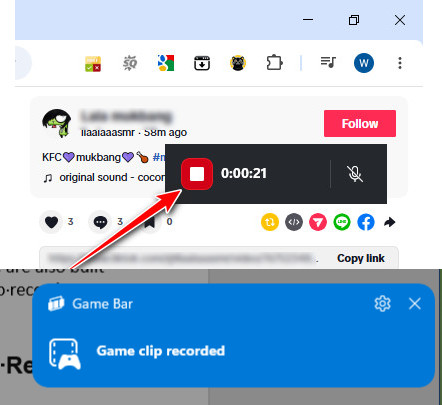
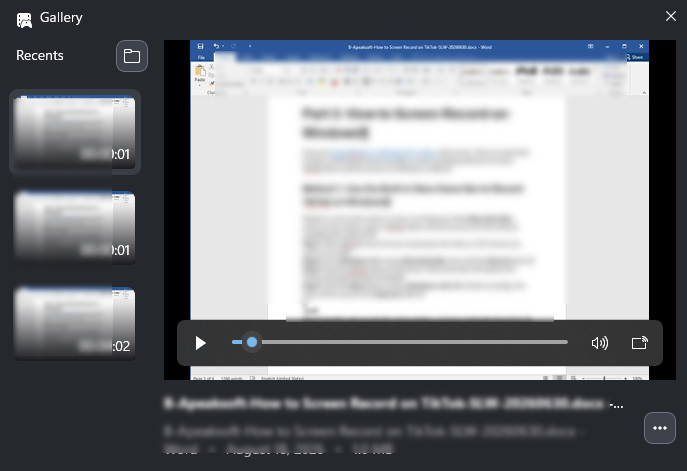
Step 5. Click the blue prompt to preview your capture.
Method 2: Use Apeaksoft Screen Recorder to Record TikTok on Windows
Xbox Game Bar only records the specific window rather than the custom screen area. If you need more flexible recording options, such as recording a specific area and higher-quality output, a dedicated screen recorder may be a better choice. Apeaksoft Screen Recorder is a powerful TikTok recorder that allows you to capture TikTok videos and LIVE recordings in high quality.

Downloaded by over 1,000,000 users
- Record TikTok videos and TikTok LIVE recordings in high quality.
- Use an auto TikTok live recorder to schedule recordings automatically without waiting or staying up late.
- Customize the recording area to capture only what you need.
- Add highlights, text, arrows, and annotations while recording.
- Preview recordings before saving them.
Secure Download
Secure Download
Step 1. Click the button above to download this TikTok recorder for free.
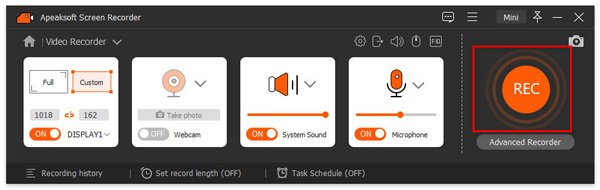
Step 2. Open the target TikTok window. Select a specific area to record, then adjust the webcam, system sound, and microphone settings.
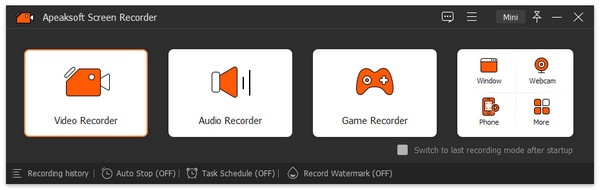
Tips: If you want to record audio only, click the downward arrow in the top-left corner and choose your target option. There are Screen Recorder, Audio Recorder, Screen Capture, Game Recorder, Window Recorder, Webcam Recorder, and Phone Recorder to choose from.
Step 3. Click the REC button to start recording on TikTok.
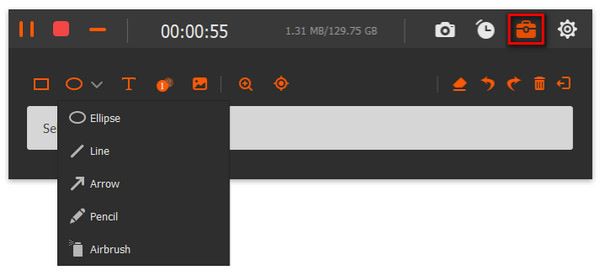
Step 4. You can add an ellipse, line, arrow, or other captions while recording.
Step 5. Once finished, just click the end button in the red square.
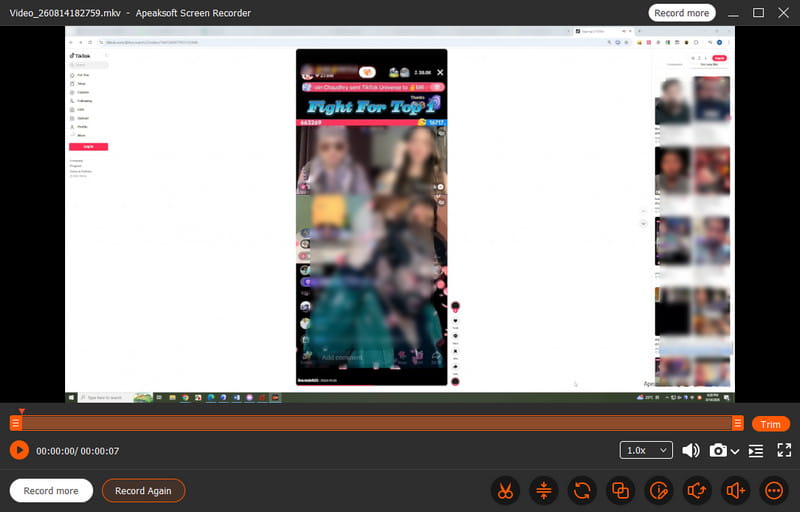
Step 6. You can then preview, edit, and save the recordings.
Part 4: How to Record TikTok on Mac
Mac users can use built-in tools or third-party screen recorders to capture TikTok videos and LIVE streams. If you want to know how to record on TikTok using a Mac, follow the methods below to save your favorite content with ease.
Step 1. Open TikTok in your browser and prepare the video or LIVE stream you want to record.
Step 2. Press Command + Shift + 5 to open the Screenshot toolbar.
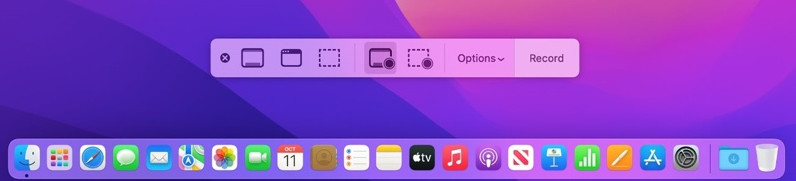
Step 3. Select Record Entire Screen or Record Selected Portion, then click Record.
Step 4. Play the TikTok video or LIVE stream.
Step 5. Click the Stop button in the menu bar when finished. The recording will be saved automatically.
Tips: You can also use Apeaksoft Screen Recorder to screen record on Mac in high quality.
Part 5: FAQs About Screen Recording on TikTok
Does TikTok Notify When You Screen Record?
No. TikTok does not notify users when you screen record their videos or LIVE streams.
Can You Screen Record TikTok Videos Without the Download Button?
Yes. If a TikTok video does not enable you to download, you can use your device's built-in screen recorder or a third-party screen recorder to save the content.
Does Screen Recording TikTok Reduce Video Quality?
It depends. Built-in screen recording tools are enough for basic needs. If you want to capture TikTok videos in higher quality, a professional TikTok screen recorder like Apeaksoft Screen Recorder may be a better choice.
Conclusion
Recording the TikTok screen can help you save videos and LIVE streams that cannot be downloaded directly from TikTok. Whether you use an iPhone, Android phone, Windows computer, or Mac, you can follow the methods above to screen record TikTok content easily.
 Apeaksoft Screen Recorder
 Record any video and audio on phone and computer screen.
Secure Download
Secure Download
Related Articles