[2026 Tested & Reviewd] What Is Icecream Screen Recorder

Most recording apps either throw too many settings at you or eat up more system resources than they should. Icecream Screen Recorder keeps things simple, so we put it through a few real recording tests to see how it holds up.
PAGE CONTENT:
Part 1. Detailed IceCream Screen Recorder Review
If you need to record a tutorial or presentation without dealing with a complicated setup, Icecream Screen Recorder keeps the process simple and easy to follow.
Key Features
- Record your screen by choosing the full display, a window, or a custom area.
- Add arrows, numbers, and text to your recording as you go.
- Include your webcam and capture both system and microphone audio.
- Trim the start and end of recordings before saving or uploading them.
- Set timers to start and stop recordings automatically for streams and webinars.
Pros
Beginner-Friendly: Start recording right away without having to read through a manual.
Instant Markup: Drawing directly on the screen eliminates the need for basic post-production editing.
Low Resource Usage: It runs quietly in the background without causing system lag on everyday hardware.
Fast Hotkeys: Use custom shortcuts to control recordings without interrupting your work.
Cons
Free Version Limits: The free version puts a limit on recording time and leaves a watermark on your videos.
Audio Drift: Longer recordings may sometimes cause the audio to go out of sync on mid-range PCs.
Mac Version Limits: The app on Mac has fewer features and output options than the Windows version.
Part 2. How to Use IceCream Screen Recorder
Using Icecream Recorder is actually pretty easy, even if you've never used a screen recorder before. Everything you need is right there on the main screen. Here is how to get your first recording done in a few simple steps.
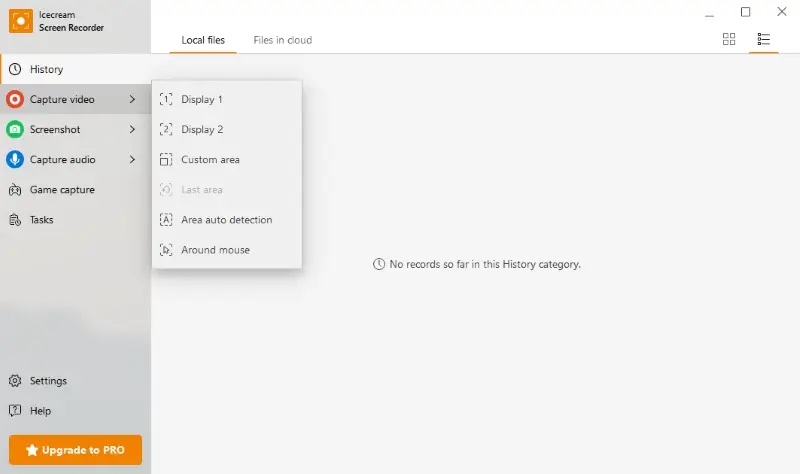
Step 1. Open the software and click Capture Video. From there, choose whether to record your whole screen or use click-and-drag to select a specific window or area.
Step 2. On the small toolbar that pops up, turn on System audio to record computer sound, and turn on Microphone if you want to talk over it. If you want your face in the corner of the video, just click the Webcam button.
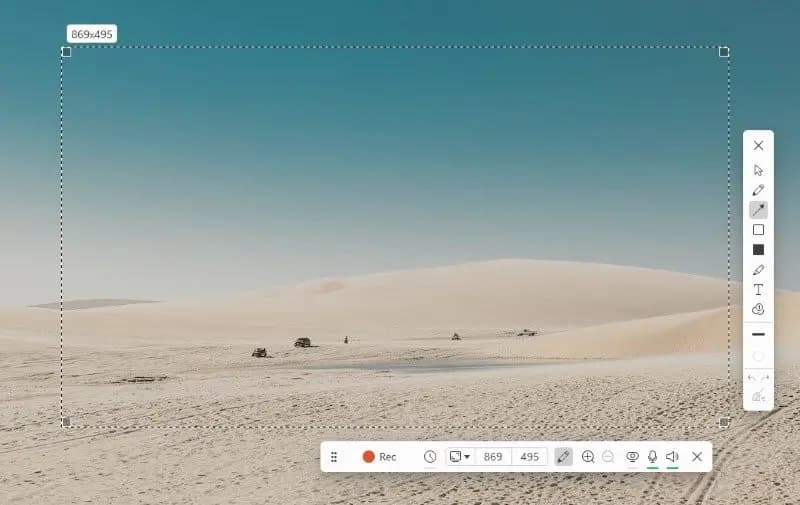
Step 3. Hit the red Rec button. You'll see a 3-second countdown before it starts. While you record, you can click the Draw tool to sketch arrows, circle things, or add text right on the screen.
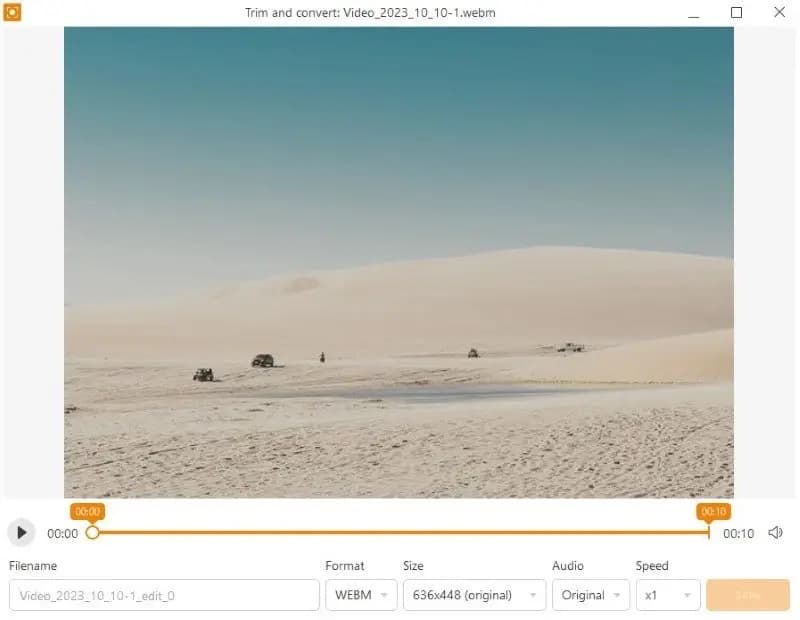
Step 4. When you're done, click the Stop button. A window will open where you can cut out the messy parts at the start or end and save your file. If you want to take it further—like adding background music, captions, or fun transitions for YouTube or TikTok—you can drag the saved clip into a great vlog editor to finish it up.
Part 3. Best Alternative Tool for IceCream Screen Recorder
If the limits on IceCream Screen Recorder get in your way, Apeaksoft Screen Recorder is hands down one of the best alternatives to try. It gives you full recording freedom without forcing tight time limits or slapping a watermark on your work.
| Feature / Aspect | Icecream Screen Recorder | Apeaksoft Screen Recorder |
| Free Version Cap | ⚠ Stops recording after 5 minutes | ⚠Saves up to 3 minutes per file |
| Watermark (Free/Trial) | ⚠ Watermark applied on output | ✅ No watermark added |
| Phone Mirroring & Recording | ❌ Not supported | ✅ Supports iOS & Android |
| Audio Noise Reduction | ⚠ No dedicated mic noise cancellation | ✅ Built-in mic noise cancellation |
| Post-Processing Tools | ✅ Trim, mute & speed change | ✅ Trim, compress, merge & convert |
| Scheduled / Task Recording | ✅ Supported | ✅ Supported |
| Hardware Acceleration | ✅ Supported (GPU) | ✅ Supported (GPU) |

Downloaded by over 1,000,000 users
- No time limits: Record for as long as you need without getting cut off.
- Lag-free recording: Capture high-quality video up to 4K without putting too much strain on your computer.
- Multiple recording modes: It features dedicated options for your desktop, gameplay, webcam, audio, and even phone screens.
- Clean audio capture: It records system sound and microphone audio with built-in noise cancellation.
- Built-in editing and toolbox: You can trim, convert formats, or downsize files directly inside the software.
Secure Download
Secure Download
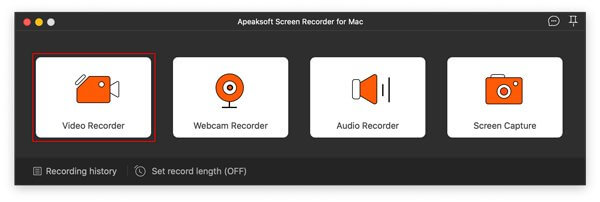
Step 1. Download, install, and open the software on your computer. From the main interface, choose Video Recorder.
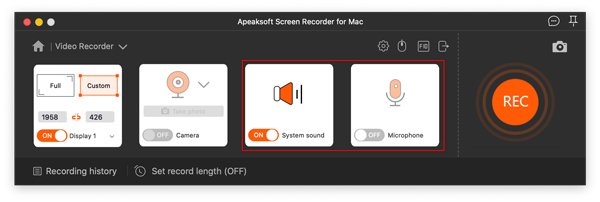
Step 2. Select your capture area by choosing Full to capture the entire screen, or Custom to drag a box over a specific window. Turn on your Camera, System Sound, or Microphone as needed.
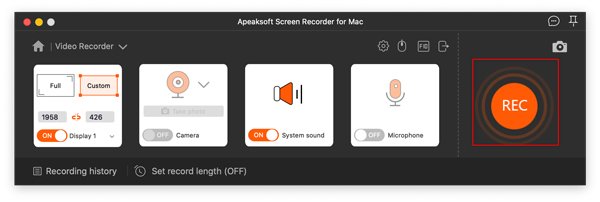
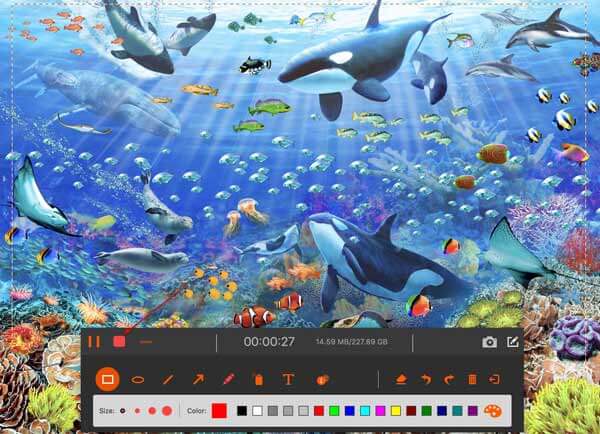
Step 3. Click the orange REC button to start recording. You can use the floating toolbar to draw arrows, highlight content, or pause the recording anytime
Step 4. When you are done, click the red Stop button. Preview your clip, trim any unwanted parts, or use the built-in compressor to reduce the size of mp4 files to save disk space, then click Done to save.
Conclusion
Tired of running into recording caps? While quick fixes can only get you so far, switching to a reliable Icecream Screen Recorder alternative like Apeaksoft Screen Recorder is hands down the easiest way out. It simply lets you capture whatever you need in top quality—no cutoffs, no watermarks, and no headaches.
 Apeaksoft Screen Recorder
 Record any video and audio on phone and computer screen.
Secure Download
Secure Download
Related Articles