Movavi Screen Recorder: A Comprehensive Review 2026

Have you ever wondered how YouTubers create those engaging reaction videos online? Do they really edit them frame by frame? The truth is, most of them don't. Instead, they simply record their computer screens. And that's exactly why Movavi Screen Recorder becomes so popular.
You can use it to record your screen, webcam, system audio, and microphone at the same time! How incredible and easy to create reaction videos in one take! No complicated editing and no switching between tools! This review will break down all the tips to use this software!
PAGE CONTENT:
Part 1. Overview & First Impressions
First, let's start with the basics of Movavi Screen Recorder.
What is it?
Movavi Screen Recorder is an all-in-one desktop screen recording tool designed for fast and easy content creation. It combines screen recording, audio recording, webcam capture, schedule recording, basic video editing, and one-click sharing in one program. You can easily make tutorials, record Skype video calls, and share the recorded files via YouTube, Telegram, WhatsApp, Google Drive and Email without switching between multiple apps.
Platforms & Installation
Platforms: Movavi Screen Recorder supports Windows and Mac. It is not available for Linux OS, Android, or iOS.
Installation: Download from Movavi's official website, launch it and follow the setup prompts. A trial version is available for 7 days, though it adds a watermark to videos.
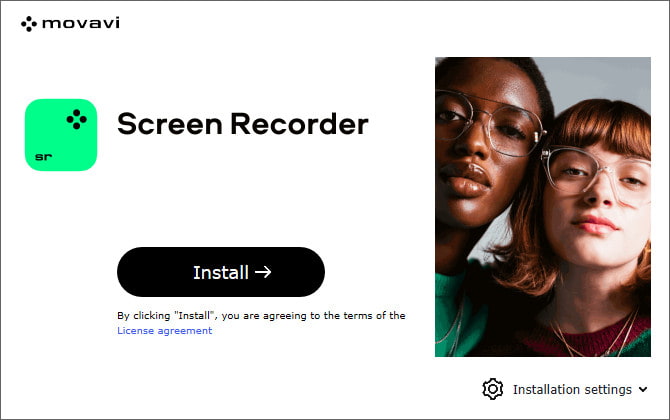
Interface & Ease of Use
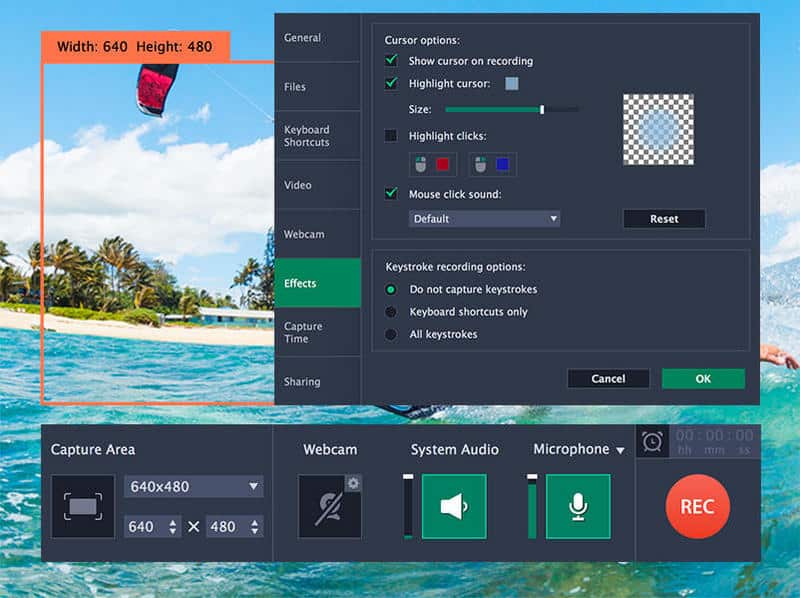
The main interface is clean and intuitive. The button icons are clear, and all key settings are displayed in the left sidebar and easy to adjust. Even beginners can get started quickly!
Part 2. Core Features & Performance Deep Dive
Now, let's dive into the core features of Movavi Screen Recorder!
Recording Capabilities
- Record full screen or a custom area.
You can choose to capture your entire screen for game streams or online classes, or drag to select a custom area when you only need to show a specific app window. No need to crop videos after recording! - Support schedule recording.
Just set the start time, duration, and target area in advance, and the software will kick off recording automatically while you're away from your desk. - Capture webcam and draw on recordings in real time.
This feature is perfect for tutorials or reaction videos, because you can turn on your webcam to show your face while recording. Plus, you can draw arrows, circles, or add text right on the screen in real time, and you don't have to pause or edit later. - Highlight the mouse cursor and keystrokes.
With mouse cursor highlight and keystroke display, viewers can clearly see where you click, which menu you open, and even which keyboard shortcuts you use, so they can follow along without getting lost. - Record system audio and your voice.
You can record system audio and your voice via a microphone separately or together. Real-time volume slider can balance them properly, so your voice won't be covered by background noise, and you don't have to do audio post-production.
Editing Tools (In-App)
Movavi Screen Recorder offers basic editing tools, like trimming clips or saving the current frame. However, the editing tools are not powerful enough. If you have additional editing requirements, it's better to use a professional video editor to get it done.
Output & Export Options
Movavi Screen Recorder supports HD and 4K resolution recording. It can export files in any format as you need:
- Video formats: MP4, MKV, MOV, AVI, GIF, WMV, FLV, WebM, M4V.
- Audio formats: MP3, AAC, WAV, FLAC, OGG, WMA.
- Image formats: PNG, JPG, BMP, TIFF.
Performance & User Feedback
We conducted a series of performance tests and collected the most common user feedbacks.
1. CPU/Memory Usage Test (1080p, 60fps)
We tested Movavi Screen Recorder on both Windows and Mac while recording at 1080p, 60fps. The results are below:
- Windows 11 (Intel i7, 16GB RAM)
Average CPU usage: 18%-25%
Peak CPU usage: around 30%
Memory usage: 350-500 MB - Mac (Apple Silicon M1)
Average CPU usage: 12%-18%
Memory usage: 300-450 MB
2. Recording File Size Test (5-Minute Video)
Under default recording settings, a 5-minute 1080p/60fps screen recording produced a file size of approximately 420-480 MB. The file size is reasonable for high-quality screen capture.
3. Export Speed Test
We also tested export time for common output formats:
- MP4: 35-45 seconds
- MOV: 45-55 seconds
- AVI: 50-65 seconds
Among all formats, MP4 offered the fastest export speed. We recommend using MP4 for uploading or sharing recordings online.
4. Compatibility Test (Windows & Mac)
Movavi Screen Recorder showed strong compatibility across multiple systems, including Windows 10, Windows 11, macOS Ventura and macOS Sonoma. Installation, recording, and exporting worked smoothly on the tested versions without major compatibility issues.
5. User Experience Review
- The installation process is clean with no forced bundled software.
- The interface is clear and easy to use.
- Recording runs smoothly with no lags, frame drops, or crashes.
- Output videos stay sharp and smooth at 1080p.
Part 3. Pricing & Value Assessment
The price of each option is below:
| Plan | Price | Features |
| 1-month subscription | $19.95 | Full recorder features |
| 1-year subscription | $44.95 | Full recorder features |
| Lifetime (Recorder + Editor) | $89.95 | All the features of recording and editing |
| Trial version | Free (7 days) | Watermark on videos |
Part 4. Pros & Cons
After an in-depth review of Movavi Screen Recorder, do you have a better understanding of the software? Let's quickly sum up its pros and cons!
- Intuitive interface and easy for beginners
- Powerful recording features:
- Good format support and direct sharing options.
- Allows automatic recording at specific times.
- Not available for Linux OS, Android, and iOS.
- Watermarks in free trial.
- Editing features are limited.
Part 5. Best Alternatives to Movavi Screen Recorder
Overall, Movavi Screen Recorder is a solid option for users, but it still has some limitations and may push some users to look elsewhere. Actually, there are plenty of great screen recorders you don't know. They all come with a full set of basic features, and each has its own unique strengths to meet your needs in different scenarios. Here are the best alternatives to Movavi Screen Recorder!
Apeaksoft Screen Recorder
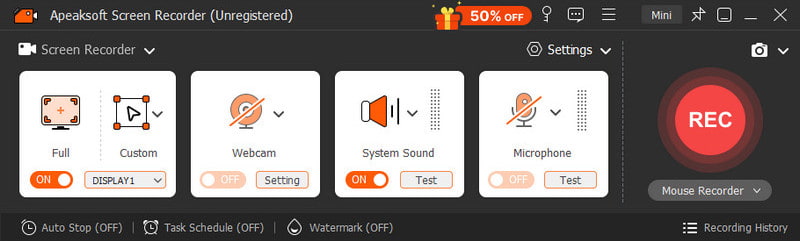
Apeaksoft Screen Recorder is a simple and user-friendly screen recording tool for Windows and Mac. It allows users to record the screen, system sound, microphone, and webcam at the same time. You can choose full screen or a custom area to start your recording. And this software has many kinds of default settings, like audio recorder, game recorder, window recorder and more, greatly saving your time to adjust them. And it can export recordings in all formats as you like!
Secure Download
Secure Download
- Simple and user-friendly interface.
- Supports screen, webcam, system sound and microphone recording simultaneously.
- Various kinds of default settings simplify your recording.
- Detailed output settings with all file formats available.
- Not suitable for complex post-recording production.
- The free version has limitations.
WonderShare Democreator
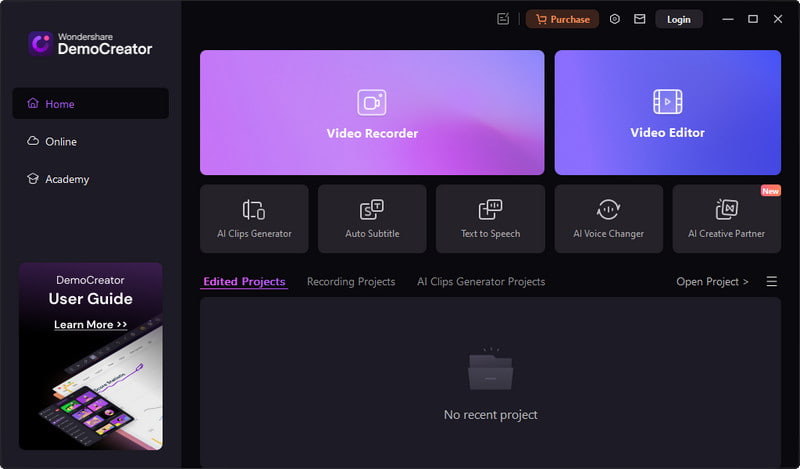
Wondershare is an all-in-one tool for recording and editing. Users can record screen, webcam and audio together, then edit it with a multi-track timeline. It allows on-screen annotations, so that you can add shapes, spotlight effects and cursor enhancements to your recording. Besides, users can upload recorded videos to the cloud or share directly on a social media platform.
- Full features of on-screen annotations.
- Multi-track timeline editing for content creators.
- Provides AI tools, including auto subtitles and smart editing.
- Higher system requirements.
- Not suitable for beginners.
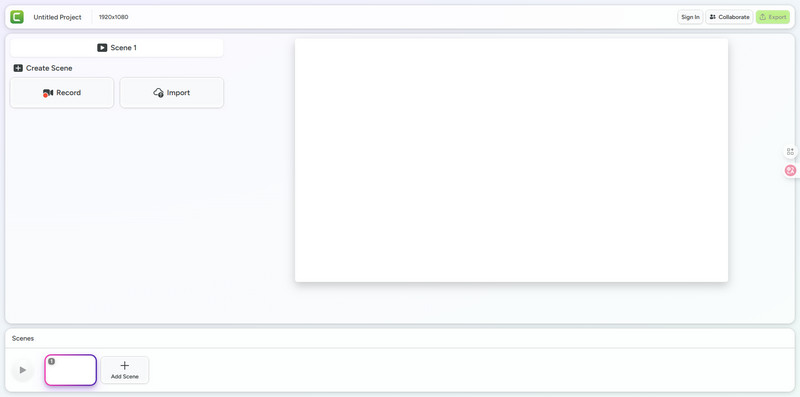
Camtasia
Camtasia is a professional screen recording and video editing tool. It can capture your screen with 4K resolution, making your videos pop! This software tracks cursor data, so that you can adjust your cursor even after recording! What's more, Camtasia ensures that your recording video remains a professional quality. And it supports recording online!
- Excellent for tutorials and educational content, such as recording a Webex meeting.
- Allows editing the cursor after recording.
- Stable recording with professional output 4K quality.
- High price to most screen recorders.
- Heavy software that may slow down older computers.
Conclusion
From this Movavi Screen Recorder review, we know why this software is ideal for beginners and widely used worldwide. But the alternatives above also have their own strengths. Whether you want to try something new or you're just getting started with screen recording, just pick one and give it a try. You might be surprised that one of them fits you best!
Related Articles