


iPhone Restore from iCloud Taking Forever? Here's How to Fix It

When switching devices, recovering lost data, or setting up a new phone, many users wonder: how long does it take to restore from iCloud? Small backups may take less than an hour, while large backups can take several hours. In this guide, we'll explain why restores sometimes take longer than expected, show easy ways to fix slow restores, and share tips and tools to help you get your data back faster.
PAGE CONTENT:
Part 1: How Long Does It Take to Restore from iCloud
How long does restoring from iCloud take? Usually, the process takes around 20-40 minutes. However, the exact time it takes to restore from iCloud will depend on several factors.
- Amount of Data: The larger the backup, the longer the restore will take. For backups exceeding 10 GB, it can take 2 hours or more.
- Internet Speed: A fast, stable Wi-Fi connection can speed up the restore process, while a slow or unstable network may cause delays.
- Restore Device Performance: Older iPhones may take longer to restore because they process data more slowly than newer models. Low storage or limited memory can also slow down the process.
Part 2: Why Does iPhone Restore from iCloud Time Remaining Estimating
- Weak Internet Connection: A weak Wi-Fi network can hinder data transfer.
- Large Backup File Size: If your backup contains many apps and files, it may take longer to estimate the restoration time.
- Outdated Software: Running an older iOS version can slow down the estimating.
- iCloud Server Issues: Sometimes Apple's iCloud servers are busy, which can affect the restore speed.
- Insufficient Storage Space: If your device lacks sufficient free space, the restore process may stall or freeze.
Part 3: How to Fix When Restoring from iCloud Takes Forever
If your iPhone restore from iCloud seems to take forever, don't panic. You can try the following fixes to resolve common issues:
1. Connect to a Strong Wi-Fi Network
First, check your internet connection, then disconnect and reconnect to your network. If the connection remains unstable, switch to a more reliable network. Avoid using mobile hotspots or public Wi-Fi, as these are often unstable and slow.
2. Optimize Backup File Size
Large backups take longer to restore. Review your backup content and delete duplicated items, unwanted files, and expired documents to speed up the restore process.
3. Free up Storage Space
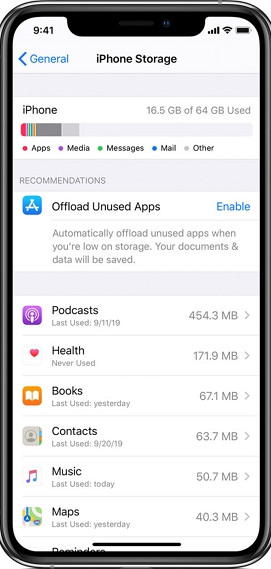
Before restoring, make sure that you have enough space to accommodate the backup file. To check storage space, go to Settings > General > iCloud Storage. If necessary, clear iCloud storage by deleting unused apps, old photos, or large files.
4. Force Restart Your Device
If your device is stuck on the time estimation screen, a simple force restart can refresh the system and fix minor glitches. Quickly press and release the Volume Up button, then the Volume Down button, and finally press and hold the Side button until the Apple logo appears.
5. Stop Restoring from iCloud
If your iPhone remains stuck on the restore screen, you may need to stop the restore and factory reset your device. During the new setup, you can skip iCloud restore and manually select a backup to restore. Follow these steps:
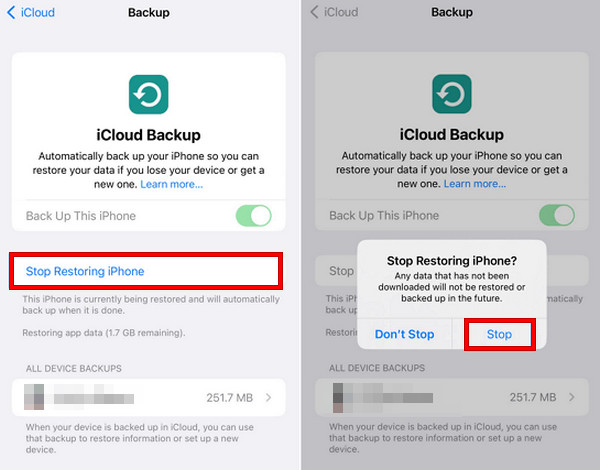
Step 1. Go to Settings > iCloud > Backup.
Step 2. Tap Stop Restoring iPhone, then tap Stop to pause the restore process.
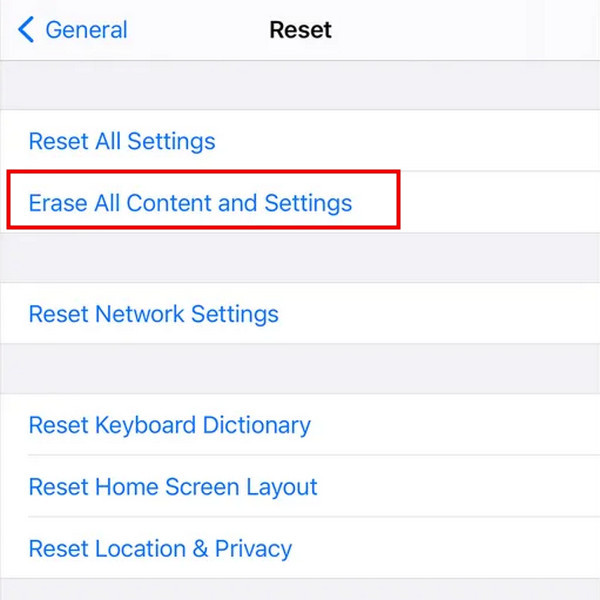
Step 3. Go back to Settings > General > Transfer or Reset iPhone, then tap Erase All Content and Settings to reset your device to factory settings.
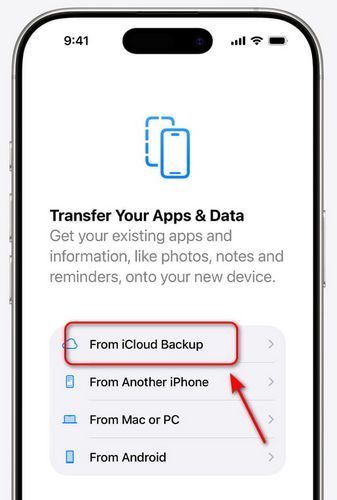
Step 4. Set up your iPhone again, but skip iCloud restore during setup.
Step 5. Once the setup is complete, go to Settings > iCloud > Restore from iCloud Backup and choose the backup manually.
Part 4: How to Restore iPhone from iCloud Backup Faster
Restoring an iPhone from an iCloud backup can sometimes be time-consuming, especially if your backup is large. If you don't want to delete anything in your backup but want a faster way, you can use special recovery software.
Apeaksoft iPhone Data Recovery is a reliable tool that allows you to restore data from iCloud faster and more flexibly. You can choose the types of data you want, preview them, and recover only what you need. This can save a lot of time compared with restoring the whole backup.

Downloaded by over 1,000,000 users
- Recover iPhone from iCloud and iTunes backups quickly.
- Retrieve accidentally deleted data without a backup.
- Recover lost data from a damaged or cracked iPhone easily.
- Support all iOS versions and models (iOS 26/27, iPadOS 26/27).
Secure Download
Secure Download

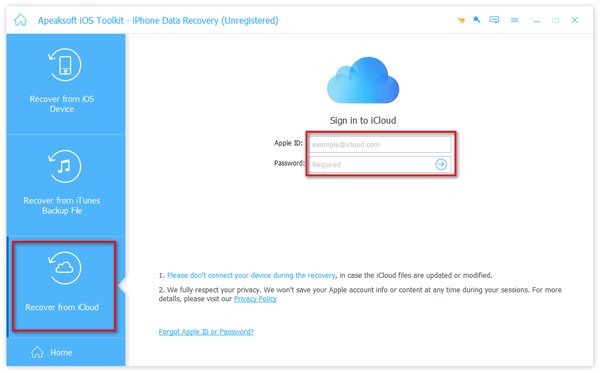
Step 1. Launch the program on your computer. Connect your iOS device to your computer and tap Trust on your device. Choose Recover from iCloud from the interface.
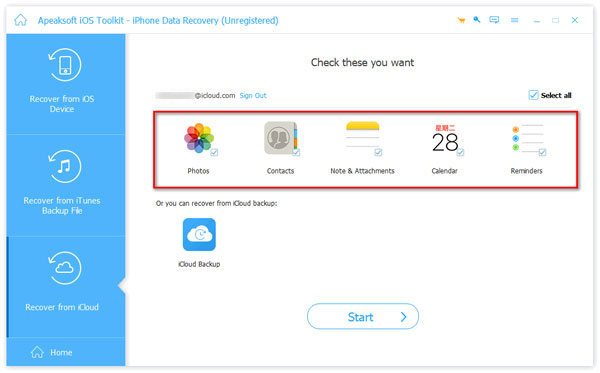
Step 2. Check the data type you want to scan. Click Start to proceed.
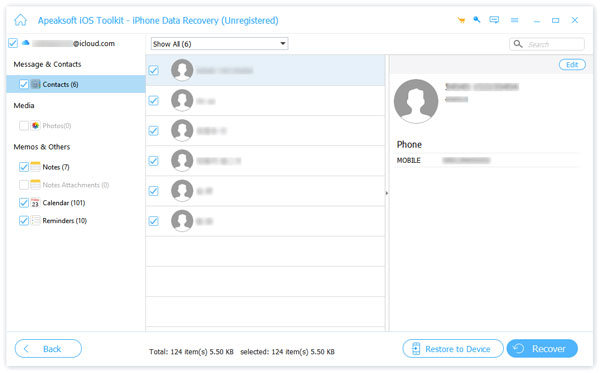
Step 3. Now you can view all of your iCloud data. Select the data you want to recover and click Recover in the bottom-right corner.
Conclusion
To sum up, when your iPhone shows restore from iCloud time remaining estimating, you can try these fixes: switch to a strong Wi-Fi network, free up iPhone storage space, restart your iPhone, pause and recover from another backup, or use a professional recovery tool. What's more, always check that your iCloud backup is complete and up to date before starting the restore!
 Apeaksoft iPhone Data Recovery
 Recover deleted or lost data from iOS Devices, iTunes, and iCloud backup.
Secure Download
Secure Download
Related Articles




