


How to Find Blocked Phone Numbers on Your iPhone and Unblock

Blocking a phone number or contact on an iPhone stops unwanted calls, messages, FaceTime calls, and emails permanently or temporarily. That can filter the spam, marketing, or annoying calls and messages. However, every coin has two sides. So does the phone number blocking feature. If you don't want to miss phone calls or information, you need to check and find blocked numbers on your iPhone. You can learn five ways to find them quickly.
PAGE CONTENT:
- Part 1: How to Find Blocked Numbers on iPhone
- Part 2: How to Find Blocked Message Numbers on iPhone
- Part 3: How to Find Blocked FaceTime Numbers on iPhone
- Part 4: How to Find Blocked Email Contacts on iPhone
- Part 5: How to Find Blocked Phone Numbers on iOS 26
- Part 6: Bonus Tip: How to Find Deleted Numbers on iPhone
Part 1: How to Find Blocked Numbers on iPhone
Once you block a phone number or contact on your iPhone, you won't receive phone calls from it. However, you can find numbers you blocked on your iPhone and unlock any number easily.
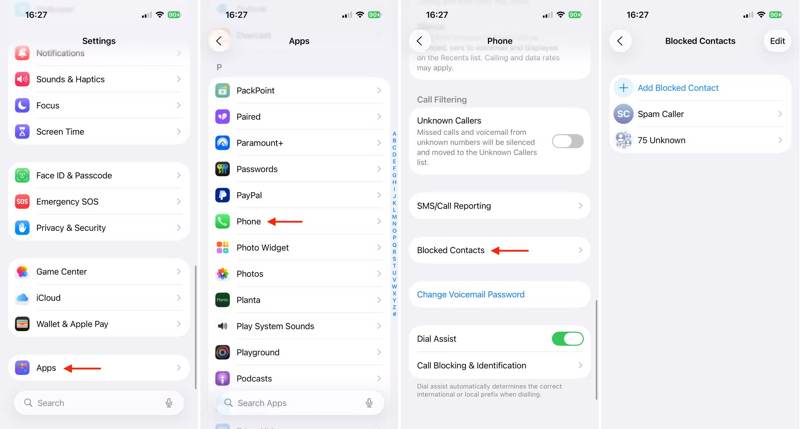
Step 1. Open the Settings app on your iPhone.
Step 2. Choose the Apps option and select the Phone app.
Step 3. Tap the Blocked Contacts button to move on.
Step 4. Here, you can check the blocked contacts. To find phone numbers, tap Unknown.
Step 5. Optionally, if you want to unlock a number, swipe left on the entry and tap Unblock.
Note: Another way to unlock a phone number is through Recent Calls. Go to the Phone app, choose the Recents tab at the bottom, tap the Info button for a number, and choose Unblock this Caller.
Part 2: How to Find Blocked Message Numbers on iPhone
In addition to phone call numbers, you can block numbers for messages on an iPhone. If you want to find blocked numbers on your iPhone for text messages and unblock them, try the steps below:
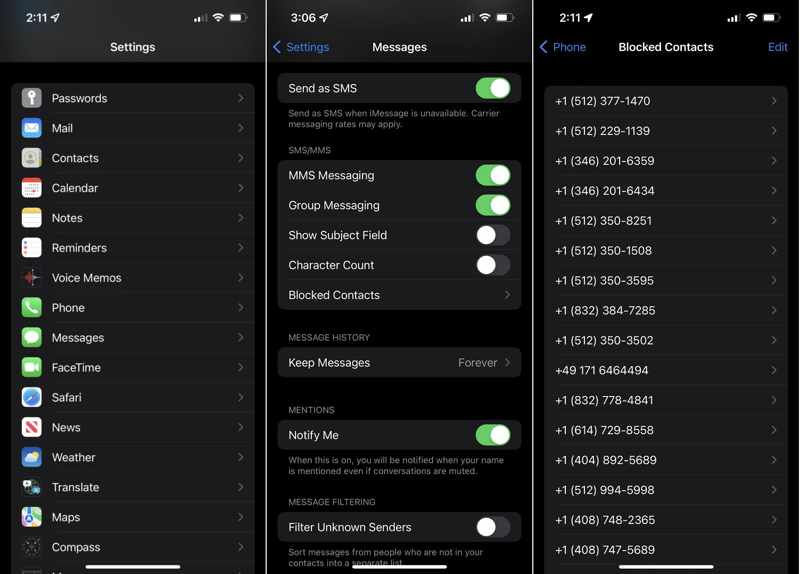
Step 1. Run your Settings app from the home screen.
Step 2. Go to the Apps entry, scroll down, and choose the Messages app.
Step 3. Tap the Blocked Contacts option to find a list of blocked numbers on your iPhone.
Step 4. If you hope to unblock a number, swipe left on it and tap the Unblock button. To unblock multiple numbers, tap the Edit button, and hit the Unblock button on each entry.
Part 3: How to Find Blocked FaceTime Numbers on iPhone
FaceTime is the built-in video call service on iPhones. It allows you to make video calls with other contacts who are using iPhones or iPad devices for free. If you wish to find blocked phone numbers on iPhone for FaceTime, here is the process:
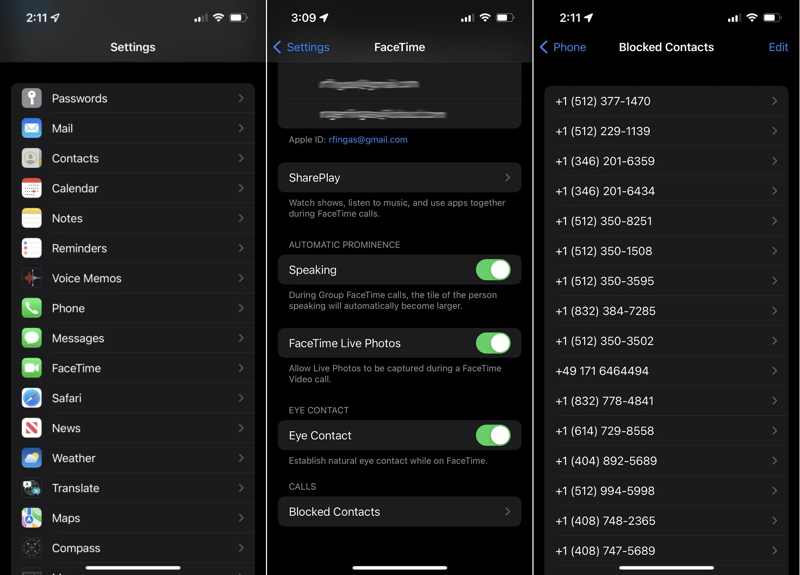
Step 1. Start your Settings app.
Step 2. Navigate to Apps and FaceTime.
Step 3. Tap the Blocked Contacts option under the Calls section.
Step 4. Now, you can check all blocked numbers for FaceTime calls.
Step 5. Optionally, swipe left on an entry and tap Unblock to unblock the contact.
Part 4: How to Find Blocked Email Contacts on iPhone
Besides, Apple enables users to block contacts and numbers for Mail to stop receiving emails from specific senders. Similarly, you can find blocked numbers on your iPhone for emails in the Settings app.
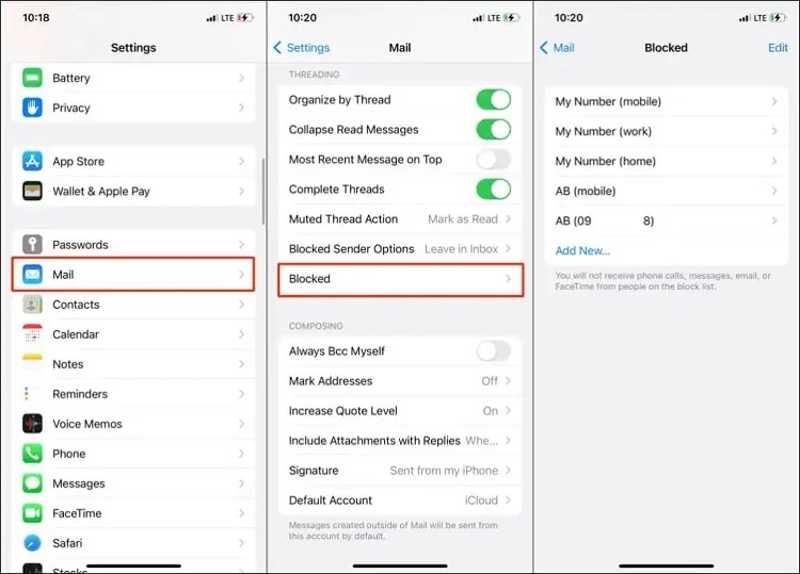
Step 1. Go to the Settings app.
Step 2. Choose the Apps option and pick the Mail app.
Step 3. Head to the Blocked entry to view all blocked addresses and contacts.
Step 4. Optionally, tap the Edit button and press the Unblock button on the desired contact to unblock it.
Part 5: How to Find Blocked Phone Numbers on iOS 26
Apple added new features and made changes to iOS 26. One crucial change is centralizing blocked numbers into one location, making it easier than ever to find blocked phone numbers on your iPhone.
Step 1. Open the Settings app on your iPhone.
Step 2. Go to the Privacy & Security tab.
Step 3. Choose Blocked Contacts.
Step 4. Then, view all blocked phone numbers, contacts, and email addresses.
Note: You can block a phone number for phone calls, FaceTime calls, text messages, or emails. However, the blocked contact will still be able to leave voicemail messages, depending on carrier support.
Further Reading
Part 6: Bonus Tip: How to Find Deleted Numbers on iPhone
If you cannot find blocked phone numbers on your iPhone, chances are that they have been deleted. According to Apple, iCloud and iTunes backups include the blocked phone numbers. However, they will erase or overwrite your device. Fortunately, Apeaksoft iPhone Data Recovery can help you resolve this trouble. It is able to look for blocked phone numbers in your iPhone's memory after they are removed. Plus, the user-friendly design makes it easy to navigate.

Downloaded by over 1,000,000 users
- Recover deleted phone numbers on an iPhone without backups.
- Retrieve lost numbers from a backup without resetting the device.
- Compatible with a wide variety of data types.
- Preview lost phone numbers before recovering.
- Work for the latest versions of iOS and iPadOS.
Secure Download
Secure Download

How to Find Blocked Phone Numbers on Your iPhone
Step 1. Connect to your device
Launch the phone number recovery software once you install it on your PC. It is available on Windows 11/10/8/7/XP/Vista. There is another version for Mac. Plug your iPhone into your PC with a Lightning cable. Make sure to trust this PC and authenticate with your iPhone passcode.
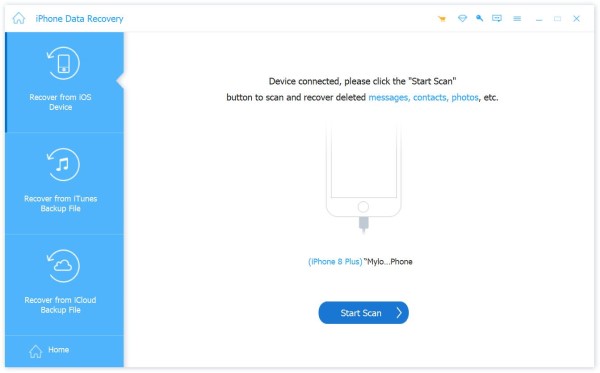
Step 2. View numbers on your iPhone
Go to the Recover from iOS Device tab and click the Start Scan button to start looking for lost data on your device. When it finishes, select the Call History option to preview all phone numbers. To view deleted entries, pick Show Deleted Only from the top option.
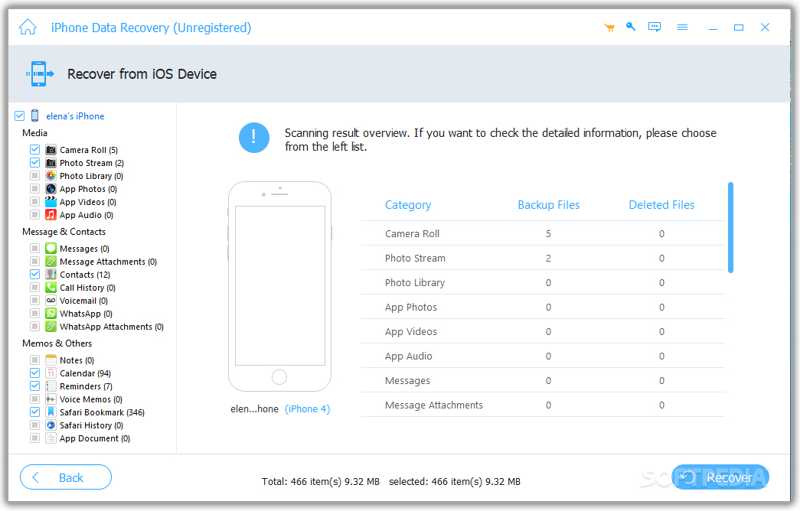
Step 3. Find blocked numbers
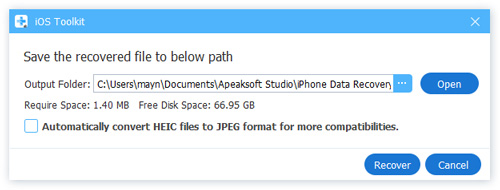
Finally, select the blocked numbers that you want to retrieve. Click the Recover button, select an output folder, and hit Recover again. During the process, keep your iPhone connected.
Conclusion
This guide discussed how to find blocked numbers on your iPhone. Following our concrete guide and detailed steps, you can find the blocked numbers and addresses for phone calls, text messages, FaceTime, and emails on your iOS device. Furthermore, you can learn the workflow on iOS 26. If the common methods are unavailable, try Apeaksoft iPhone Data Recovery. It can get back deleted phone numbers on your iPhone without a backup.
 Apeaksoft iPhone Data Recovery
 Recover deleted or lost data from iOS Devices, iTunes, and iCloud backup.
Secure Download
Secure Download
Related Articles




