

How to Find and Recover Shift Deleted Files on PCs

Since Windows 95, Microsoft has added the Recycle Bin to all Windows machines. When you delete a file or document by simply pressing the Delete key on your keyboard, it will go to the Recycle Bin. Before you empty the Recycle Bin, you can recover the deleted files at any time. However, Microsoft also introduced the Shift + Delete key combination. It permanently deletes your file directly. This guide demonstrates multiple ways to recover permanently deleted files on Windows 11/10 and earlier.
PAGE CONTENT:
- Part 1: Ultimate Way to Recover Permanently Deleted Files on PC
- Part 2: How to Restore Shift-Deleted Files from File History
- Part 3: How to Find Permanently Deleted Files from Backup
- Part 4: How to Bring back Shift-Deleted Files from OneDrive
- Part 5: How to Recover Permanently Deleted Files by Windows File Recovery
Part 1: Ultimate Way to Recover Permanently Deleted Files on PC
Apeaksoft Data Recovery is a quick way to bring back permanently deleted files without backup. It is able to scan your hard drive and get back lost files before they are overwritten from your device.
A Quick Way to Bring back Permanently Deleted Files on Windows
- Recover Shift-deleted files without backup.
- Compatible with a wide range of file types.
- Preview deleted files for selective recovery.
- Support Windows 11/10/8/7/Vista/XP and macOS 10.7 or above.
Secure Download
Secure Download

How to Recover Permanently Deleted Files on Windows
Step 1. Install Data Recovery
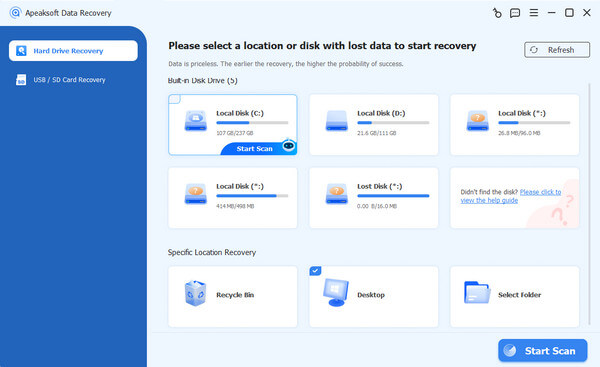
Run the Data Recovery software after installing it on your PC. To recover permanently deleted files on Mac, install the Mac version. Go to the Hard Drive Recovery tab, select the desired drive, and click Start Scan.
Step 2. Preview deleted files
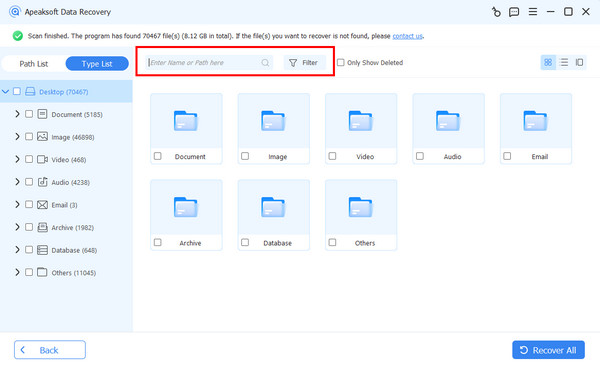
After a quick scan, the software will perform a deep scan. Then, go to the Type List or Path List tab and check Only Show Deleted to view deleted files. You can quickly locate a file with the Filter option. For example, if you want to recover Word documents, just select Document.
Step 3. Recover Shift-deleted files
Select the deleted files you want to recover and click the Recover button. Set an output folder and confirm file recovery.

Part 2: How to Restore Shift-Deleted Files from File History
The built-in File History is a fast way to restore permanently deleted files in Windows 11/10. If you have enabled Automatically back up my files feature, Windows will back up your files regularly.
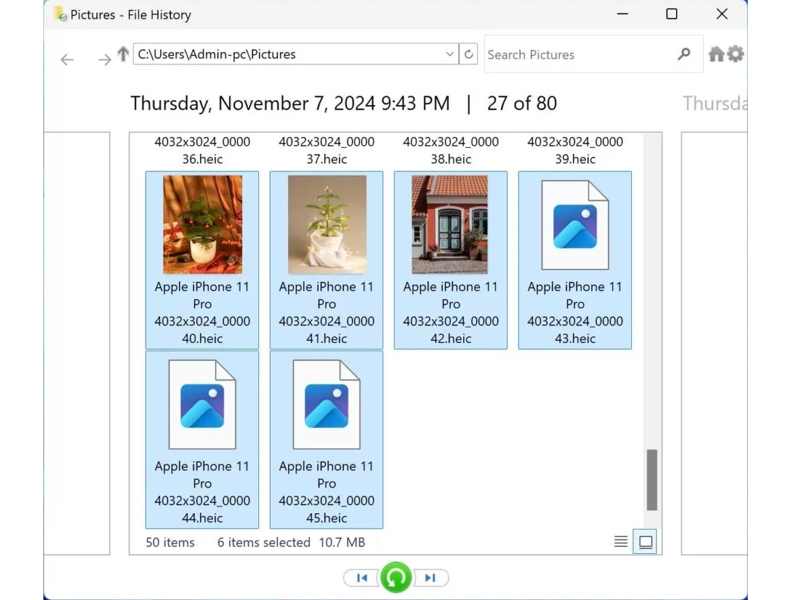
Step 1. Locate the folder where the Shift-deleted files are.
Step 2. Right-click on it and choose Restore previous versions.
Tips: Or click Save backup copies of your files with File History under System and Security on the Control Panel.
Step 3. Select a proper version, click the Arrow button next to Open, and pick Open in File History.
Step 4. Next, highlight the permanently deleted files and click the Restore button.
Further Reading
Part 3: How to Find Permanently Deleted Files from Backup
Backup-and-Restore is another option to undelete permanently deleted files on Windows. The prerequisite is that you have set up this feature before you shift-deleted the files on your computer.
Step 1. Right-click the Start menu and choose Control Panel.
Step 2. Click Backup and Restore(Windows 7) under System and Security.
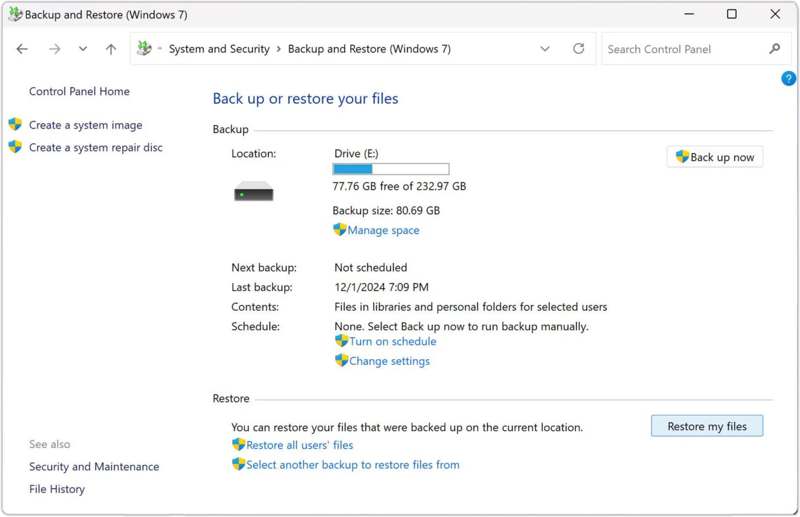
Step 3. Click Restore my files and hit Browse for files or Browse for folders to locate the desired file or folder.
Step 4. Choose the folder, select Add folder, and hit Next.
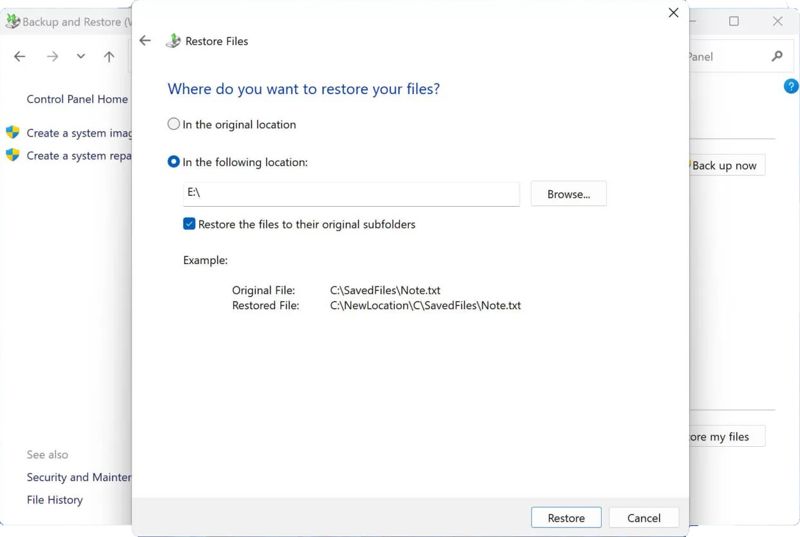
Step 5. Then, set an output location and click Restore.
Part 4: How to Bring back Shift-Deleted Files from OneDrive
Another backup feature is OneDrive. It is also a way to find permanently deleted files on Windows 11 or 10. When setting up Windows, you may enable OneDrive for backup documents and other files.
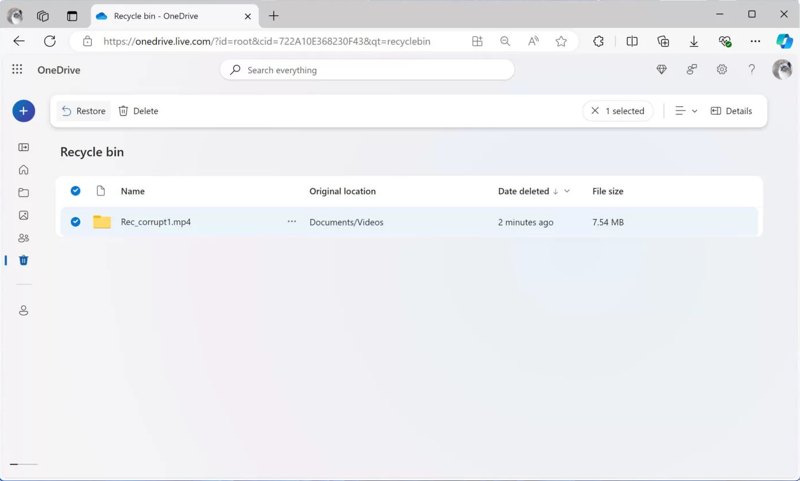
Step 1. Access OneDrive in the Windows System Tray or a web browser.
Step 2. Go to the Recycle Bin and find the deleted files.
Step 3. Select them and click the Restore button.
Step 4. Then, go to the original location to find the deleted files.
Part 5: How to Recover Permanently Deleted Files by Windows File Recovery
Windows File Recovery was released by Microsoft for file recovery on Windows. While it is not built into PCs, you can download it from the Microsoft Store for free. The drawback is that you must have somewhat technical skills since it works through command lines.
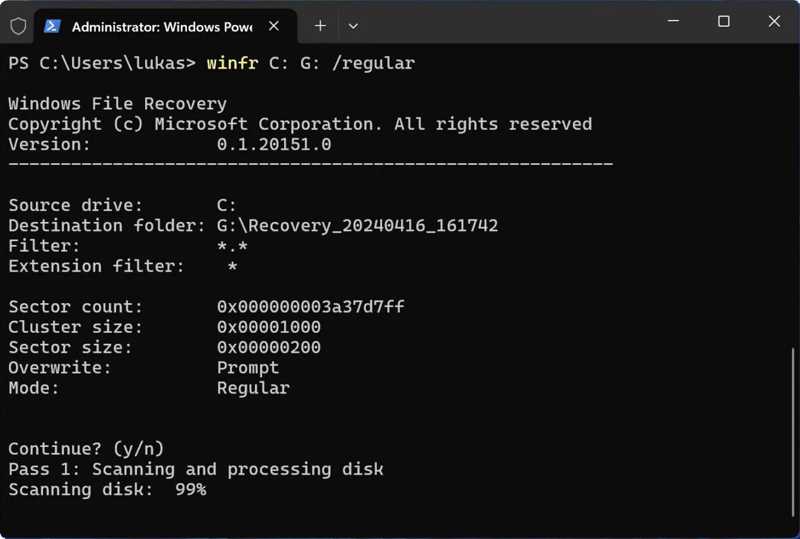
Step 1. Install Windows File Recovery from the Microsoft Store.
Step 2. Make sure to run it as an administrator.
Step 3. Type winfr C: E: /regular /n UsersusernamDocuments in the command prompt window, and press the Enter key on your keyboard to execute it.
Tips: Replace C: with the drive where your files were stored, and E: with the destination drive. Replace UsersusernamDocuments with the original path.
Step 4. If prompted, type Y and press the Enter key.
Conclusion
This guide shared five ways to restore permanently deleted files on Windows 11/10/8/7/XP/Vista. Microsoft has added a few features to bring back your files even if you permanently deleted them, such as Backup and Restore, File History, and OneDrive backup. You can also try Windows File Recovery to recover your files with command lines. Apeaksoft Data Recovery is the ultimate option to retrieve permanently deleted files quickly.
Related Articles




