

What Is Windows File Recovery and How to Use the Program

In addition to the built-in features, Microsoft also released a few useful programs for Windows users. Windows File Recovery, for example, lets you recover lost files that have been deleted from your storage device, like internal drives, external hard drives, USB devices, and more. However, there are questions about this program. This comprehensive guide shares everything you need to know about it, including how to use it and an alternative solution.
PAGE CONTENT:
Part 1: What Windows File Recovery Is
According to Wiki, the Windows File Recovery tool is a command-line software utility released by Microsoft in 2020. It is freely available for Windows 10 2004 and later. It can retrieve files from a local hard disk, USB flash drive, memory card, and more.
Key Features of Windows File Recovery
1. Recover data on Windows 11/10 for free.
2. Support JPG, PDF, PNG, MP3, MP4, ZIP, etc.
3. Work for NTFS, FAT, exFAT, and ReFS file systems.
4. Available to internal and external HDD, USB drive, SD card, etc.
5. Offer three modes: Default, Segment, and Signature.
6. Retrieve files and folder structure.
7. Provide excellent scan and recovery performance.
8. Completely safe and free to download and use.
Further Reading
Review of Windows File Recovery
- Users can download Windows File Recovery from the Microsoft Store for free.
- It can create decent results with recently deleted files on NTFS.
- It supports partial recovery from BitLocker drives.
- It can recover data from both internal and external hard drives.
- It doesn't have a GUI.
- It only works to some extent with SSD.
- Users cannot preview files before recovery.
- It mainly supports NTFS.
- The command-line interface is not friendly to ordinary people.
- It is only available in English.
How Long Does Windows File Recovery Take?
Windows File Recovery does work for data recovery, but the length of time is determined by how many files are on your drive and other aspects, like your file size.
Part 2: How to Install Windows File Recovery
To use Windows File Recovery, your PC must run Windows 10 2004 or above. Furthermore, your hard drive must have enough space to install the program and save the recovered files and documents. We tested Windows File Recovery with the full setup:
OS: Windows 11
CPU: Intel Core i7
Memory: 16GB
Version: Windows File Recovery v0.1.20151
Here are the steps to download free Windows File Recovery software and install it on a PC:
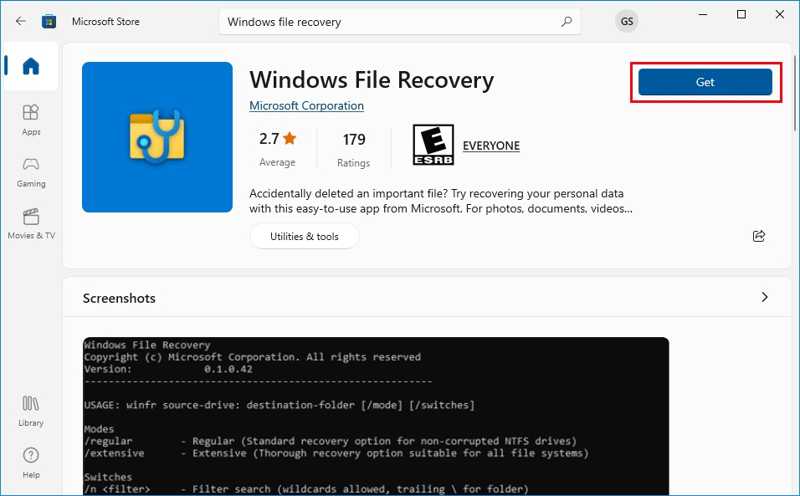
Step 1. To get started, open the Microsoft Store.
Step 2. Search for Windows File Recovery and click the link.
Step 3. Check the system requirements and version, and click the Get or Install button.
Step 4. Once installation is done, check it on your desktop.
Note: If it is not on your desktop, go to the Start menu, search for File Recovery, and you should see Windows File Recovery in the result list.
Part 3: How to Use Windows File Recovery
Since it works through command lines, using Windows File Recovery on Windows 11/10 is difficult for beginners. Moreover, it integrates multiple modes for different situations. We demonstrate how to below:
Step 1. Locate the drive where your lost files are stored.
Step 2. Right-click on the drive and choose Properties.
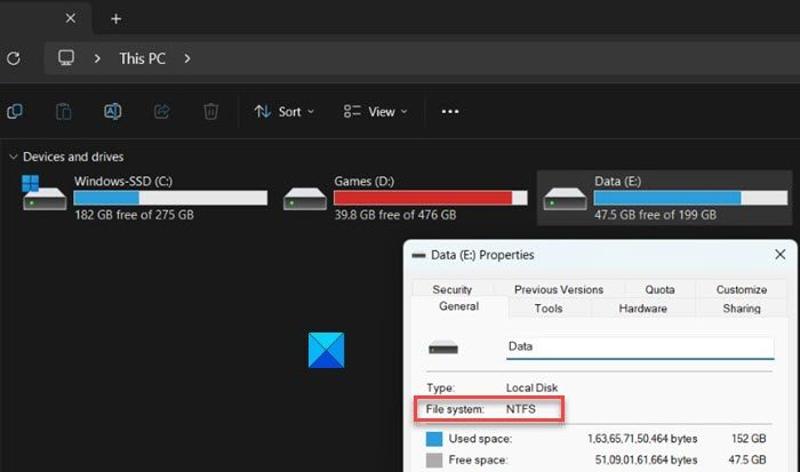
Step 3. Check the File system, and pick the right mode accordingly.
| Situation | Mode |
| Recover recently deleted files on NTFS | Default mode |
| Recover files from formatted NTFS | Segment mode |
| Recover files deleted a while ago | Segment mode |
| Recover data from a corrupted NTFS drive | Segment mode |
| Recover files from FAT, exFAT, or ReFS | Signature mode |
Step 4. Right-click on the Start menu.
Step 5. Choose Command Prompt(Admin) or Windows PowerShell(Admin).
Step 6. The basic command is winfr source-drive: destination-drive /mode /switches.
Scenario 1: Use Windows File Recovery in Default Mode
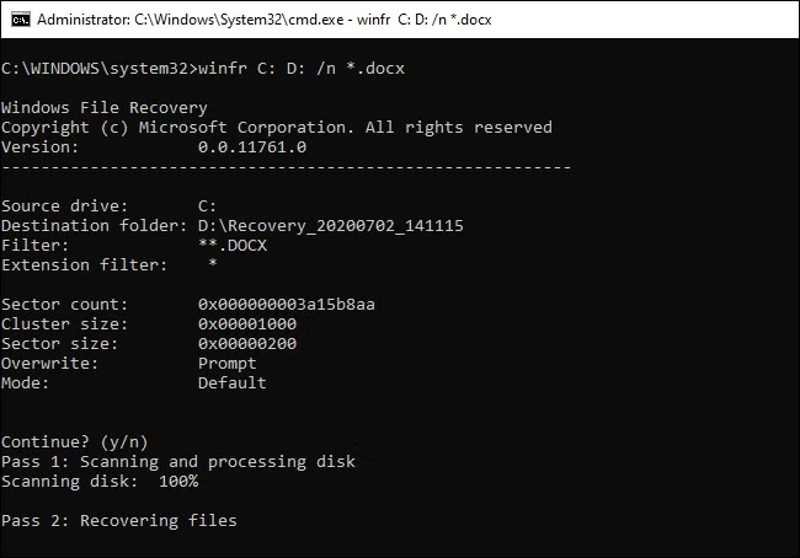
The command line: winfr source-drive: destination-drive /n /switches.
For example, to recover videos using Windows File Recovery from drive C and save the files to drive D, type in winfr C: D: /n *.mp4.
If you remember the filename and accurate path, input winfr C: D: /n Videosvideoname.mp4. It means to recover a video file called videoname in the Videos folder on drive C.
Scenario 2: Use Windows File Recovery in Segment Mode
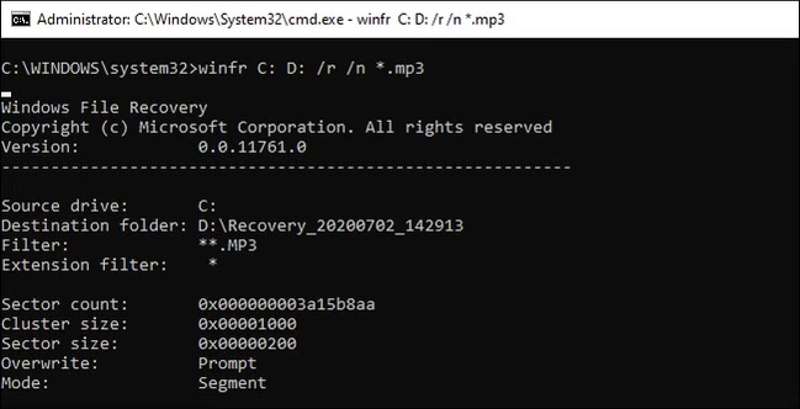
The command line: winfr source-drive: destination-drive /r /n /switches.
The Segment mode works like the Default mode. All you need to do is add /r into the command line.
For example, to recover music files using Windows File Recovery from drive E and save them to drive D, type in winfr E: D: /r /n *.mp3.
Scenario 3: Use Windows File Recovery in Signature Mode
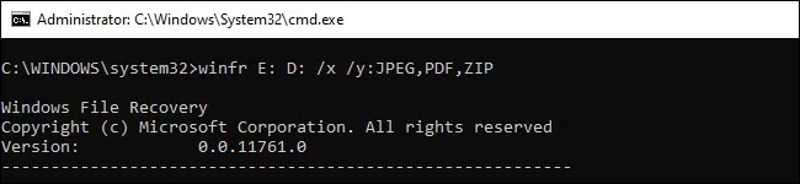
The command line: winfr source-drive: destination-drive /x /y:[file types].
| File type | File extensions |
| ASF | wma, wmv, asf |
| JPEG | jpg, jpeg, jpe, jif, jfif, jfi |
| MP3 | mp3 |
| MPEG | mpeg, mp4, mpg, m4a, m4v, m4b, m4r, mov, 3gp, qt |
| PNG | png |
| ZIP | zip, docx, xlsx, pptx, odt, ods, odp, odg, odi, odf, odc, odm, ott, otg, otp, ots, otc, oti, otf, oth |
For example, to recover files using Windows File Recovery from drive E, including images and PDFs, type in winfr E: D: /x/y:JPEG, PDF.
Step 7. Next, type y to continue.
Step 8. When it is done, you can find the recovered files in the destination drive named Recovery_[date and time].
Part 4: A Great Alternative to Windows File Recovery
Obviously, Windows File Recovery is a good starting point to recover recently deleted files on Windows 11/10. However, it has a few downsides, like the low success rate and lack of a GUI. Fortunately, Apeaksoft Data Recovery is a great alternative solution.
A Great Alternative to Windows File Recovery
- Recover any files on Windows and macOS.
- Compatible with hundreds of file types and formats.
- Preview lost files before recovery.
- Available for a wide range of situations.
- Fast and offer a high success rate.
Secure Download
Secure Download

How to Use Windows File Recovery Alternative
Step 1. Install file recovery software
Launch the alternative to Windows File Recovery after installing it on your PC. There is another version for Mac. Go to the Hard Drive Recovery tab, select the target drive, and click Start Scan.

Step 2. Preview lost files
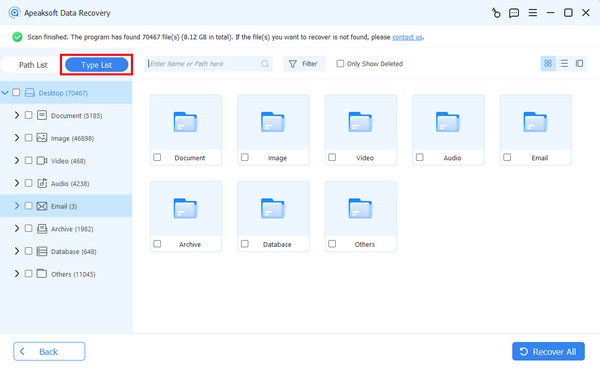
When the data scan is complete, go to the Type List tab and select the desired types to view your files. If you wish to view files by path, go to the Path List tab. To view deleted files, check Only Show Deleted on the top ribbon. Plus, the Filter option enables you to quickly locate specific files.
Step 3. Recover deleted files
Finally, select the files you would like to retrieve and click Recover. Select an output folder and confirm file recovery.

Conclusion
This article shared an introduction to Windows File Recovery. Now, you should understand what the program can do, its advantages and disadvantages, and how to use it to recover your files in various situations. More importantly, we shared an alternative to Windows File Recovery: Apeaksoft Data Recovery. It is not only easier to use but also able to get back more files.
Related Articles




