


How to Find Deleted Messages on iPad (SMSs and iMessages)

Accidentally deleting an important text message can be very stressful. Whether it is a message from a family member, a work chat, or an important code, losing it is frustrating. If you are wondering how to find deleted messages on iPad, do not worry.
Most of the time, your texts are not gone forever. Apple has built-in features to help you get them back. This guide will show you exactly how to recover deleted messages on an iPad using simple, easy-to-follow steps.
PAGE CONTENT:
Part 1: Quick Ways to Find Deleted Messages on iPad
When your iPad messages are deleted, don't panic or try recovering them so quickly. Maybe you can find them via the two methods below:
1. Check the Recently Deleted Folder
If you just deleted a chat by mistake and need to know how to retrieve deleted text messages on iPad, this is the first place you should look. Just like a trash can on a computer, your iPad keeps deleted messages for about 30 days before erasing them completely.
- 1.Open the Messages app on your iPad.
- 2.Tap the Filters option in the top-right corner of the screen.
- 3.Tap Recently Deleted from the menu.
- 4.You will see a list of conversations you deleted recently. Next to each chat, it shows how many days are left before it disappears forever.
- 5.Tap the circle next to the messages you want to bring back. Tap Recover at the bottom right, and confirm it.
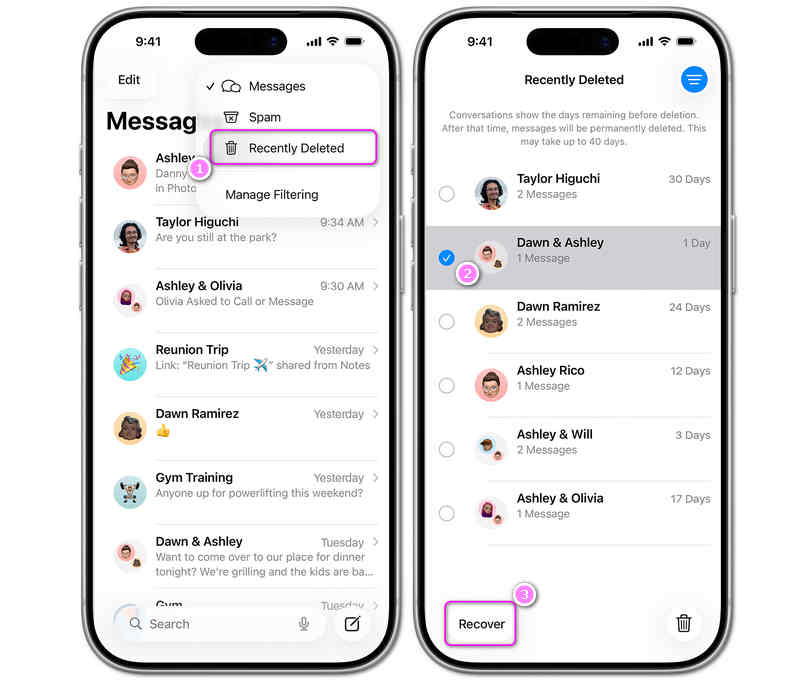
The messages will go right back to your normal inbox. This is the best choice for anyone looking for how to restore deleted messages on an iPad without losing any other files.
2. Fix a Syncing Problem with iCloud
Sometimes, your messages might just be hidden because of a small sync glitch. If you want to know how to retrieve deleted messages on an iPad using the cloud, you can try turning the message sync off and on again.
- 1.Open the Settings app on your iPad.
- 2.Tap your Name at the very top of the screen.
- 3.Tap iCloud, then tap Show All under the apps list.
- 4.Find Messages and look at the switch next to it.
- 5.If it is turned off, turn it on. Your old messages should start downloading.
- 6. If it is already turned on, turn it off. Choose Keep on My iPad when asked. Wait a minute, and then turn it back on. This refreshes your messages.
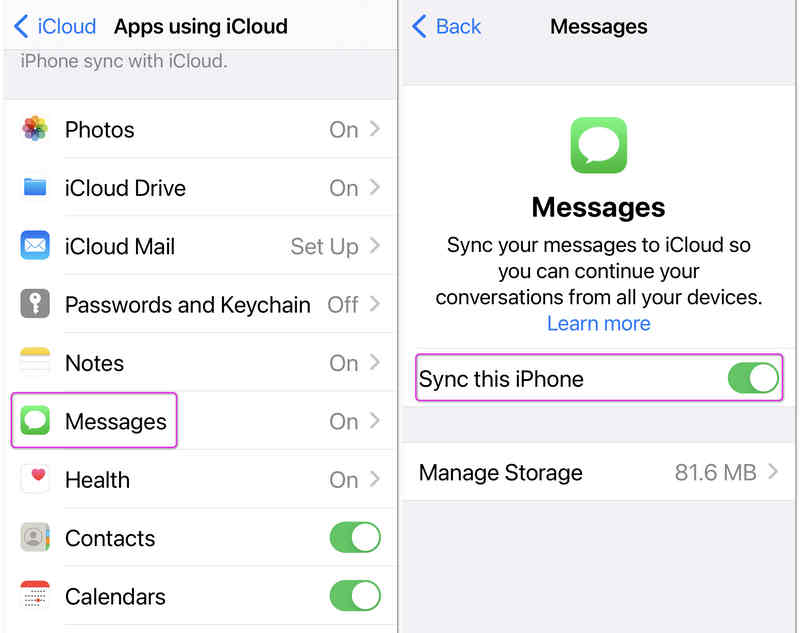
This simple trick can help you fix the problem if you want to know how to see deleted messages on your iPad without deleting anything else.
Part 2: How to Recover Deleted Messages on iPad
If the simple quick methods above cannot help you find the deleted messages and iMessages on your iPad, you'll need to following three methods to recover the deleted messages.
1. Apeaksoft iPhone Data Recovery
Most so-called recovery methods, like iCloud and iTunes, can only recover your lost iOS data from a backup. Still, Apeaksoft iPhone Data Recovery can easily recover deleted messages on an iPad, even if you don't have any backup files. It can quickly scan your iPad and then analyze and extract the lost data, including messages, iMessages, contacts, photos, videos, and many other types of files and info. Moreover, it will keep your data and privacy with military-level encryption. Just feel free to use Apeaksoft iPhone Data Recovery to retrieve the lost SMSs and iMessages on iPad or iPhone.

Downloaded by over 1,000,000 users
- Connect your iPad to your computer to start device scanning fast.
- Mark the lost messages, iMessages, and other files in red for your quick selection.
- Allow you to quickly recover files during the scanning process.
- Full protect your iPad device and data security.
Secure Download
Secure Download

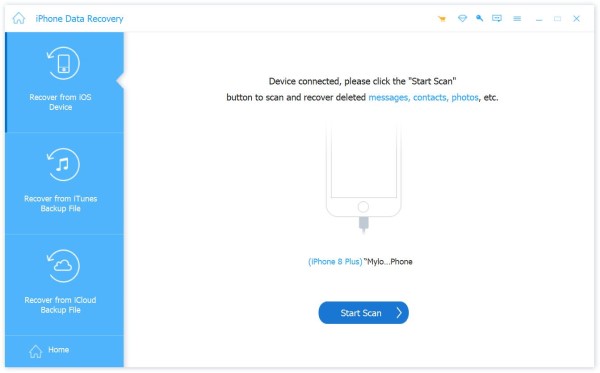
Step 1. Connect Your iPad to Computer and Start Scanning
Download, install, and launch Apeaksoft iPhone Data Recovery. Then, connect your iPad to your computer. Apeak will recognize your iPad. Then, click the Start Scan button.
Step 2. Check and Recover Deleted Messages on iPad
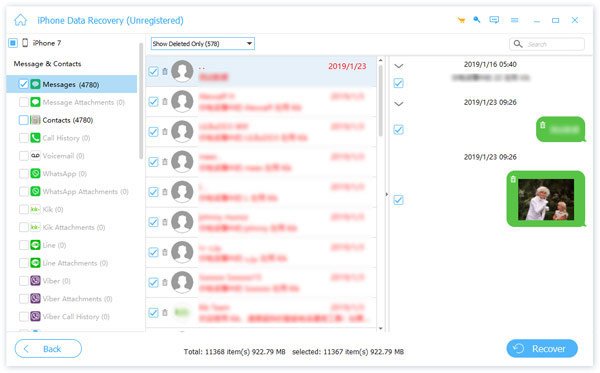
Apeaksoft iPhone Data Recovery will scan your iPad. During the scanning process, you can check the lost files and data, including messages. When the scanning process is over, all the lost messages will be retrieved.
You just need to click the Messages and iMessages categories to select your desired messages and then click the Recover button to recover the deleted messages on your iPad.
Further Reading
2. Recover Deleted Messages from iCloud
If your messages are not in the trash folder, you might be able to find them in an old automatic backup. If your iPad backed up your data to iCloud before you deleted the texts, you can reset your iPad to that exact day.
Warning: To use this method, you have to erase your iPad completely and set it up again. Make sure you save any important new photos or files before you start.
Step 1. Check your last backup date
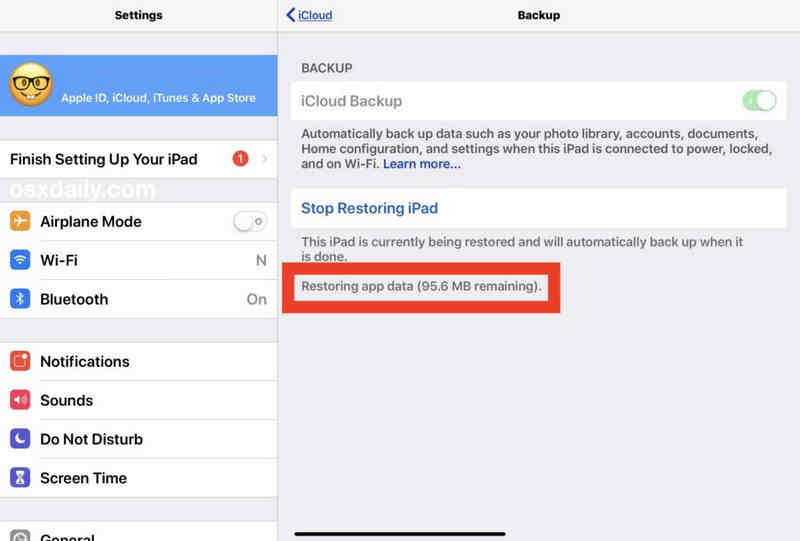
Before you erase anything, check if you have a good backup. Go to Settings > [Your Name] > iCloud > iCloud Backup. Look at the date of the last successful backup. If the backup was made before you deleted your messages, you can move to the next step.
Step 2. Erase your iPad
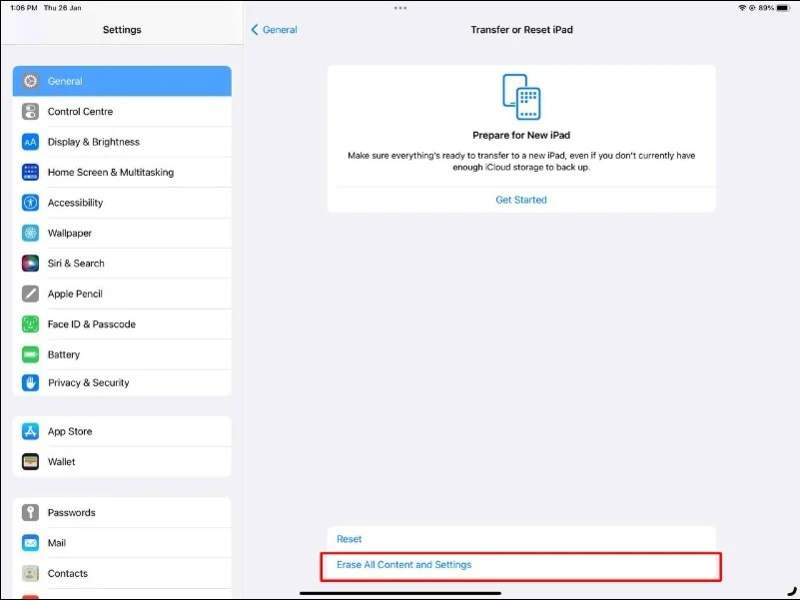
If you are ready to find out how to get deleted messages back on iPad, wipe the device: Go to Settings > General > Transfer or Reset iPad. Tap Erase All Content and Settings and enter your passcode.
Step 3. Put the backup onto your iPad
- 1.Wait for the iPad to turn back on. You will see the main "Hello" setup screen.
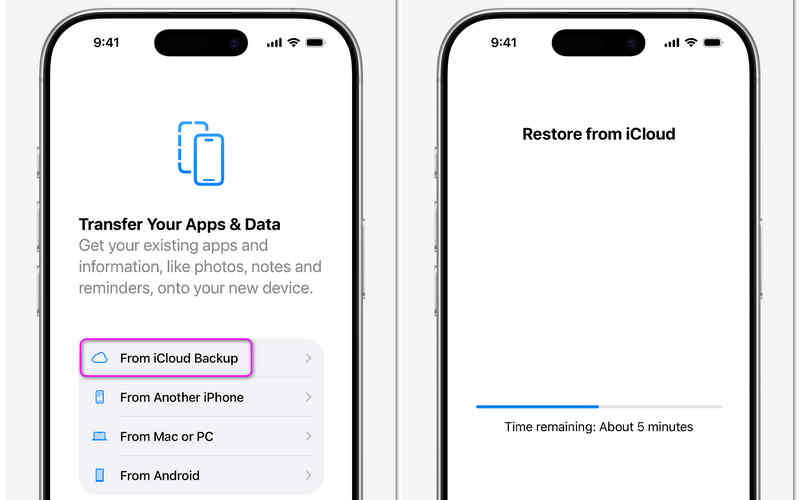
- 2.Follow the setup steps on the screen until you see the Transfer Your Apps & Data screen.
- 3.Tap From iCloud Backup.
- 4.Log in with your Apple ID and password.
- 5.Choose the backup file from the list (pick the one from before the messages were deleted).
- 6.Keep your iPad connected to Wi-Fi and plugged into a charger until it finishes. Once it is done, open your Messages app, and your old texts will be back.
3. Get Messages Back Using a Computer (Mac or Windows PC)
If you do not use iCloud but you regularly plug your iPad into a computer, you might have a local backup stored there. This is another safe way to learn how to get deleted messages on an iPad.
Step 1. Connect Your iPad to Windows or Mac
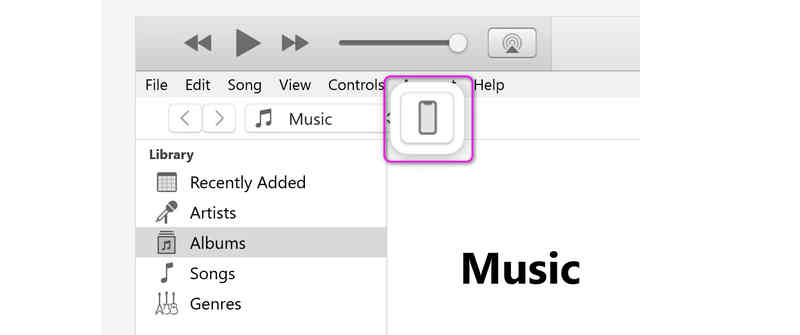
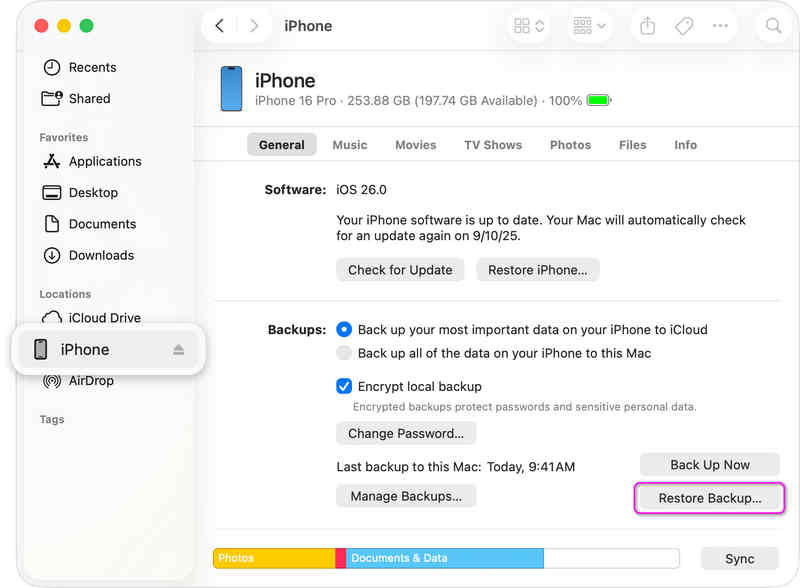
Connect your iPad to you computer via USB cable. Then, you need to open iTunes on Windows (or legacy MacBooks) or Finder on a Mac.
On Mac, you can directly select your iPad on the left side.
But on Windows, you need to click the Device button on the top left side.
Step 2. Restore Your iPad from iTunes/Finder Backup
Then, you just need to click the Restore Backup in the Backups section (whether on Windows iTunes or Mac Finder). Then, just wait for the process to finish. After that, you will bring back the deleted messages on your iPad.
Part 3: Quick Comparison: Which Method Should You Choose?
Check this quick comparison table. You can choose the proper method based on the situation you encounter.
| Method | Best For | Will I Lose New Data? | Do I Need a Computer? |
| Apeaksoft iPhone Data Recovery | Users who lost messages and don’t have any backup | No | Yes |
| Recently Deleted Folder | Mistakes made in the last 30 days | No | No |
| iCloud Sync Switch | Small system glitches | No | No |
| iCloud Backup | Older messages (Requires a reset) | Yes (Changes after backup date) | No |
| Computer Backup | People who back up to a PC/Mac | Yes (Changes after backup date) | Yes |
Part 4: FAQs of Deleted Messages on iPad
How do I retrieve deleted items on my iPad?
Many lost items can be retrieved through iCloud backup. However, if your iCloud Backup is off or doesn't have enough storage, you can try Apeaksoft iPhone Data Recovery. It can recover deleted items even without previous backup.
Is there a recycle bin on an iPad?
iPad doesn't have a recycle bin to keep all the deleted items. But some services and apps have dedicated recycle bins, named Recently Deleted, like Messages, Photos, Notes, etc.
Is there any way to recover after deleting from recently deleted?
You can resort to iTunes or iCloud backups. If you don't have the backups, you can use Apeaksoft iPhone Data Recovery. This program can recover the lost files and info from iOS devices without needing a backup.
Conclusion
This article shows you how to find deleted messages on iPad in 5 ways. The simple way is to check the Recently Deleted folder. The advanced method is to use iCloud or iTunes Backup. The ultimate solution is Apeaksoft iPhone Data Recovery. It allows you to directly recover lost messages and iMessages without previous backups.
 Apeaksoft iPhone Data Recovery
 Recover deleted or lost data from iOS Devices, iTunes, and iCloud backup.
Secure Download
Secure Download
Related Articles




