

Recover Disappeared Messages on iPhone: Step-by-Step Guide

One day, you suddenly notice something in your iPhone is missing - a meaningful photo, an important text message, or a voice message you needed. You open your iPhone, check again, and realize it has vanished. Really frustrating! Why do messages on iPhone disappear? How to find disappeared iPhone messages back? In this guide, we'll explore the causes, how to recover and what you can do to avoid this issue.
PAGE CONTENT:
Part 1. Why Do Messages & Photos Disappear from iPhone?
You didn't delete anything, yet when you open your iPhone, some messages are missing without any warning. Photos and text messages are nowhere to be found. What led to this? There are several common reasons:
- Auto-deletion Settings: If Messages are set to keep for 30 days or 1 year, your phone will permanently delete older messages.
- iOS Software Glitches: The iOS update, optimization and bugs may hide the messages or make them display incorrectly.
- iCloud Sync Issues: Wrong configure, network instability or full iCloud storage can make new messages fail to sync to your iPhone; maybe your messages are visible on other devices.
- iPhone Storage Limits: If your iPhone has poor storage, it possibly fails to save new messages.
- Accidental Deletion: You might have deleted your text messages or photos without realizing while swiping through your messages.
Part 2. How to Recover Disappeared Messages & Photos
Do these messages or photos really vanish and never to be found back? Absolutely not. In most cases, they're not permanently lost – they're simply hidden, unsynced, or removed accidently, which still allows recovery. Try these methods below, and you may recover lost messages on your iPhone.
1. Check Recently Deleted
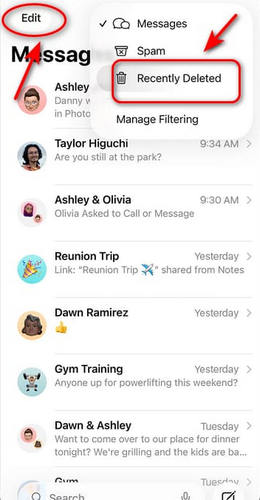
In Messages, iOS stores the deleted messages in the past 30 days in the Recently Deleted folder. If you notice some messages are missing, open the Messages and check the Recently Deleted folder to recover them within this time limit.
Step 1. Open Messages on your iPhone.
Step 2. In Messages, tap the Filters button or tap Edit on the top-left corner.
Step 3. Tap Show Recently Deleted to see deleted messages in the last 30 days.
Step 4. Select the messages you need and tap Recover.
2. Restore from an iCloud Backup
If you back up your iPhone with iCloud regularly, this method is your best bet to restore lost messages on iPhone.
Step 1. Go to Settings and tap Your Name to select iCloud. See if Messages is turned on. Tap Backup to confirm you have a recent backup.
Step 2. Back to Settings, select General > Reset > Erase All Content and Settings.
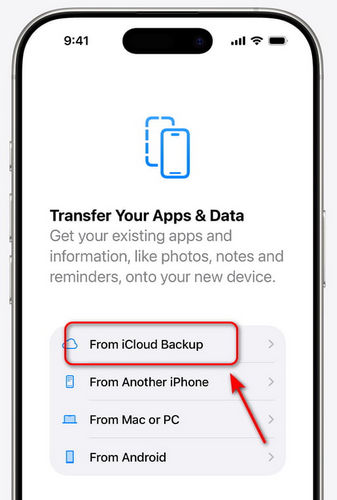
Step 3. Finish the setup steps, reach the Transfer Your Apps & Data screen, then choose From iCloud Backup.
3. Restore from an iTunes/Finder Backup
If you work with an iTunes or Finder backup, you can recover the photos or messages not found on your iPhone by following these steps.
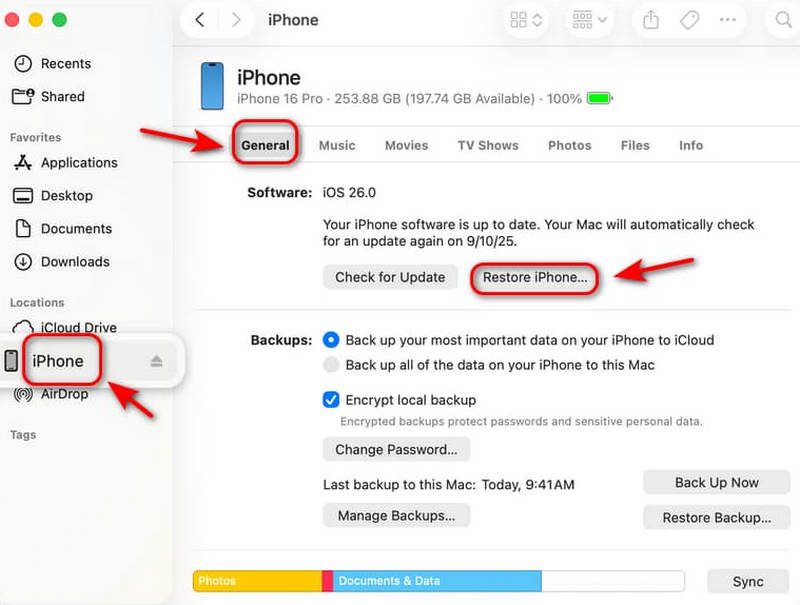
Step 1. Connect your iPhone to a computer and open Finder or iTunes.
Step 2. Click your iPhone icon to open the Summary page.
Step 3. Click Restore Backup. Your iPhone will restart automatically once the restore is done.
Note: Restoring from an iCloud, iTunes or Finder backup will erase all current data on your iPhone. Ensure that you have a recent iPhone backup before you do this!
4. Use Apeaksoft iPhone Data Recovery
If you don't have a backup or just don't want to overwrite existing data, Apeaksoft iPhone Data Recovery is a better choice for you to retrieve lost text messages on iPhone. It works with both Mac and Windows and can recover a variety of file types like photos, messages, contacts, Facebook, Line, WhatsApp chats and more.
A Full-Featured iPhone Data Recovery Software
- Recover missing data from iOS devices and iTunes/iCloud backup.
- Support multiple kinds of iOS data types.
- Provide a detailed preview of deleted and existing files before recovery.
- Compatible with all iOS devices and versions, including the newest.
Secure Download
Secure Download

Follow these steps to recover disappeared text messages on iPhone without backup:
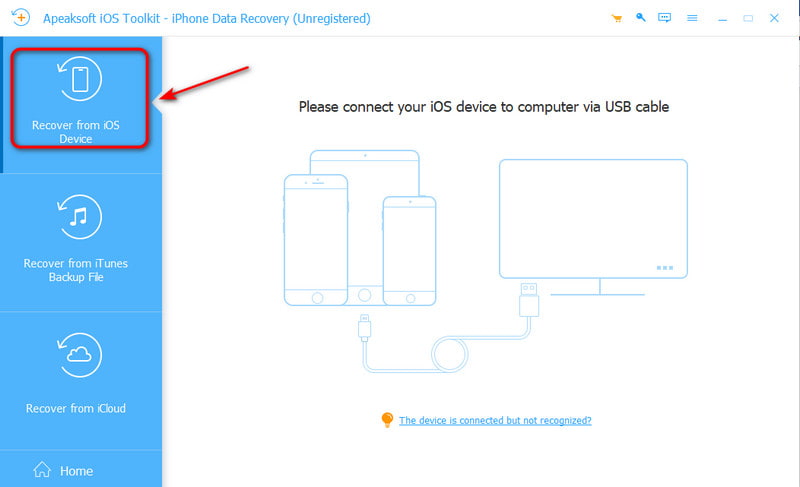
Step 1. On the interface, choose Recover from iOS Device, then connect your iPhone to the computer using a USB cable.
Step 2. Tap Trust, then click the Next button.
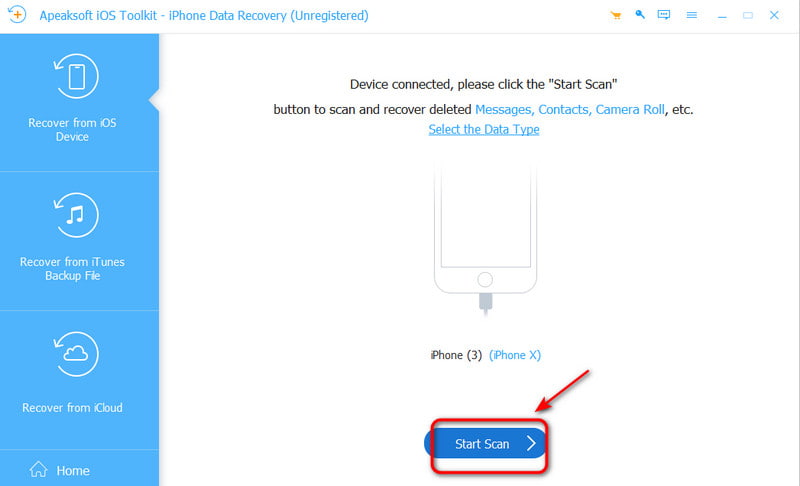
Step 3. Click the Start Scan button to scan all data on your iPhone.
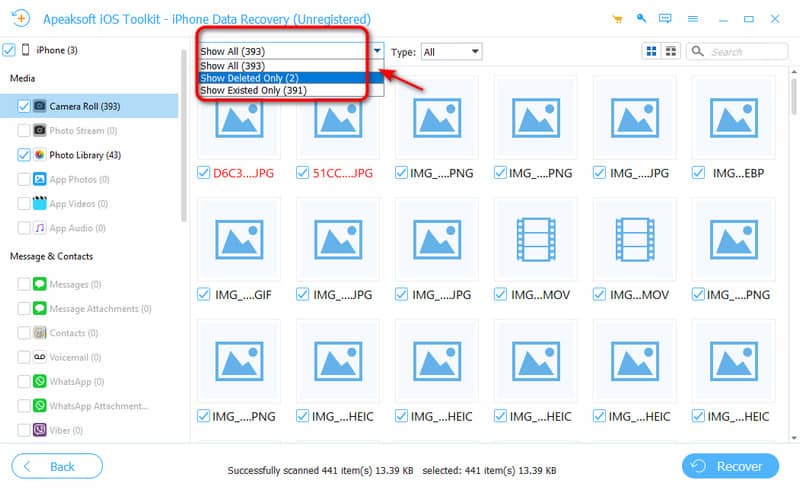
Step 4. You can select Show all or Show Deleted Only to preview deleted text messages. Select the data you want to recover.
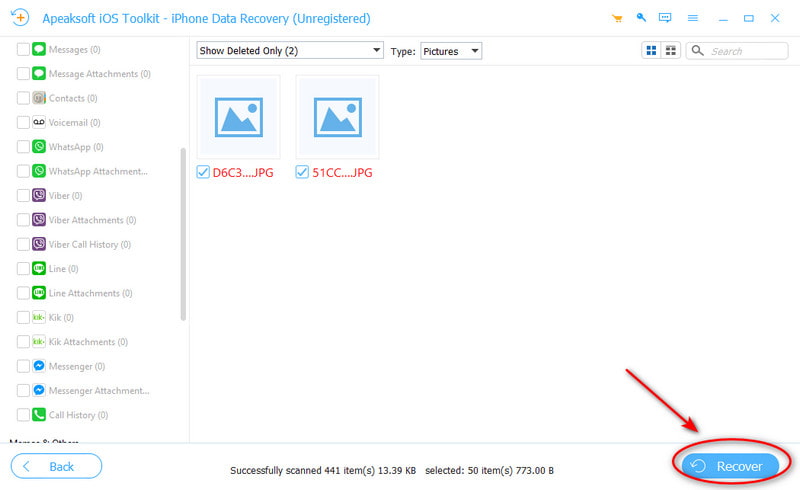
Click the Recover button to start, then set the save path for your data.
Part 3. Fixing Specific Media Issues
Not all disappeared messages are the same. Sometimes it's just photos, videos, or audio messages disappear, or you might see a sudden "Message Not Found" error. Below are quick fixes for these specific media issues:
1. Photos/Videos in Messages Disappear
Why do pictures disappear from text messages on iPhone? It might be caused by sync conflicts, system update bugs or low storage space. If you are always bothered by this issue, try these fixes to:
- Make sure iMessage is enabled: Settings > Messages > iMessage.
- Stop auto-deletion: Go to Settings > Messages > Keep Messages > select Forever.
- Free up iPhone storage: Clean large attachments and downloads, uninstall apps you rarely use, and back up photos and videos to other devices or cloud storage.
2. Audio Messages Expire or Disappear
Do voice messages disappear before being read on iPhone? Yes, once you have listened to the audio message, it will expire after 2 minutes unless you tap Keep. How to fix that:
- Go to Settings > Messages > Audio Messages > Set Expire to Never
3. "Message Not Found" Error
This issue usually happens when a message is deleted on one device and synced via iCloud, removed by the sender, or damaged after an iOS update.
- Restart your iPhone: Simple but efficient.
- Update your iOS to the latest version.
Part 4. How to Prevent Messages from Disappearing
iPhone messages disappearing can be frustrating, but many cases are preventable. Don't wait until important messages disappear again. Take a minute to review the key settings and habits below to protect your iPhone messages!
- Keep a stable network connection to ensure messages sync properly.
- Update your iPhone to the latest iOS version to avoid system bugs.
- Make sure iMessage is enabled anytime.
- Set Keep Messages to Forever to prevent auto-deletion.
- Manage iPhone storage space to avoid data loss.
- Back up your iPhone regularly to iCloud or iTunes/Finder.
Conclusion
Last time your iPhone messages disappeared, review the possible causes and try these fixes above. In many cases, these steps can help you recover lost messages on iPhone effortlessly. If the issue still isn't resolved, Apeaksoft iPhone Data Recovery can help! With the right steps and right tools, restoring the missing iPhone messages doesn't have to be a headache anymore!
Related Articles
Here are multiple approaches to restore your iPhone, iPad, or iPod Touch to factory settings with or without a computer.
Accidentally delete an app from your iPhone? Don't panic. Please check the App Library, reinstall it on the App Store, or recover it using iPhone Data Recovery.
Don't worry if you accidentally delete photos on your iPhone. This article offers 6 ways to recover deleted photos from iPhone easily.
Many people complain that photos disappeared from iPhone after iOS 26 update. So this post offers detailed ways to find disappeared/missing photos back.



