

Everything You Need to Know about Phoenix Photo Recovery

Accidentally deleting pictures is a disaster for people, particularly when they cannot be recovered from a backup or other sources. In the light of such scenarios, an efficient photo recover tool is a lifesaver. Stellar Phoenix Photo Recovery, for example, is a program designed for retrieving photos, audio, and video files in varied situations, including formatted drives or corrupted external hard devices. This article shares an honest review of the software.
PAGE CONTENT:
Part 1: Phoenix Photo Recovery Review
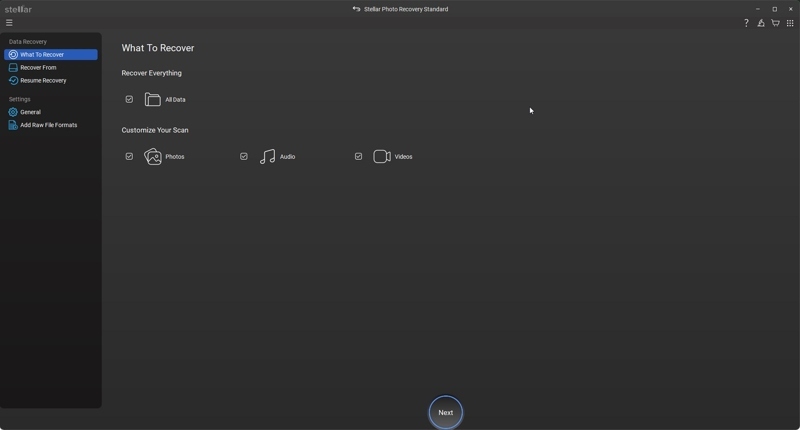
Phoenix Photo Recovery software was designed for photographers to recover lost media data on any form of media storage, such as SSD, HDD, memory card, and more. Being paranoid about data loss, we had to put the software to the test.
Main Features of Stellar Photo Recovery Software
1. Recover lost pictures, music, and video files.
2. Available for accidental deletion, formatting, and more.
3. Work with a variety of storage devices, including digital cameras.
4. Retrieve data on FAT, ExFAT, and NTFS file systems.
5. Provide the option to add file headers.
6. Equip with an interactive and user-friendly interface.
7. Support RAW recovery with advanced options.
8. Compatible with dozens of file formats.
9. Available on Windows 10/8/7/Vista/XP or macOS 10.13 and above.
10. Offer a free edition to recover photos up to 250MB.
11. Recover media files directly or create a disk image.
Phoenix Photo Recovery Review
- It can recover most multimedia files from hard drives and memory cards.
- Phoenix Photo Recovery can extract lost photos from formatted or damaged hard drives.
- The interface is straightforward to use.
- It integrates the deep scan functionality.
- It is compatible with the RAW digital format.
- Users can preview lost photos.
- It takes some time to work through a drive, although the program can run in the background.
- According to our test, it may lose the filename and folder name.
- The software is expensive compared to the features.
Price of Stellar Photo Recovery Software
Users can download Stellar Photo Recovery Software from the official website for free. Moreover, they can try the free demo to recover 250MB of data. If you want to get the full features, you need to purchase a license. It offers three versions: the Standard version costs $49.99 per year, the Professional license costs $59.99 per year, and the Premium license costs $69.99 yearly. Once you purchase a license, you will get a Stellar Photo Recovery activation key. Bear in mind that the license is specified for a single system.
Part 2: How to Use Phoenix Photo Recovery
Phoenix Photo Recovery software can recover photos, videos, and audio files in cases of deletion, formatting, virus infection, or corruption in a memory card, hard drive, digital camera, and more.
Step 1. Download the photo recovery software on your computer, and follow the onscreen instructions to install it.
Tips: If you install it on a Mac computer, add the program to the Applications folder.
Step 2. Open the software from your desktop or Applications folder.
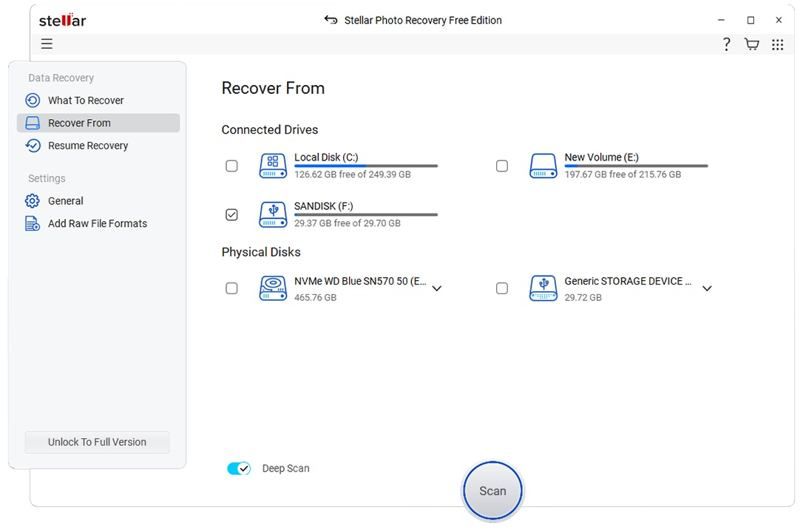
Step 3. Select the file type you wish to recover, like Photos.
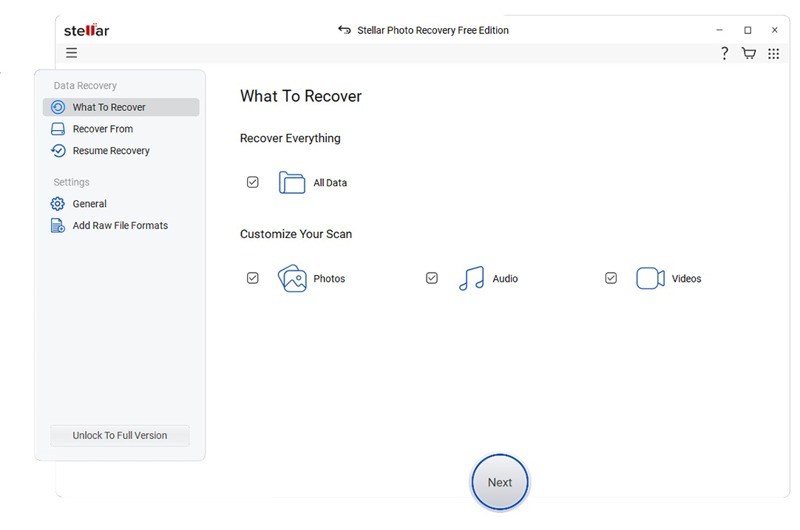
Step 4. Click the Next button to enter the next window.
Step 5. Tick the checkbox next to the disk or drive where photos were stored.
Tips: If you need to recover media files from an external hard drive, connect it to your computer, and select it on the Recover From window in the software.
Step 6. Click the Scan button at the bottom to start scanning media files on your drive.
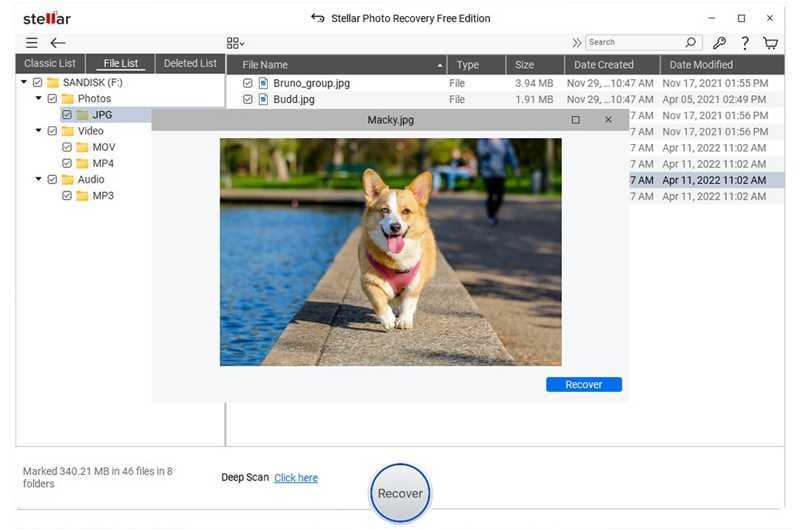
Step 7. Once the scanning ends, you will be presented with the preview window. Here, you can see the found photos and other media files.
Step 8. To recover an individual photo, double-click on it and click the Recover button. If you want to recover multiple files, select them and click Recover on the button.
Step 9. You can save the pictures either on your computer or on external media.
Further Reading
Part 3: A Fast Alternative to Phoenix Photo Recovery
If Phoenix Photo Recovery is unable to find your deleted photos or other media files, you’d better look for an alternative solution, such as Apeaksoft Data Recovery. It delivers a high success rate. Furthermore, the user-friendly design simplifies the workflow of photo recovery.
A Good Alternative to Phoenix Photo Recovery Software
- Retrieve photos, videos, and other file types quickly.
- Available to a wide range of situations, including corrupted drives.
- Compatible with almost all media file formats.
- Support both internal and external hard drives.
- Work on Windows 11 to XP, macOS 10.7 and later.
Secure Download
Secure Download

How to Use an Alternative to Phoenix Photo Recovery Software
Step 1. Scan your drive
Run the alternative to Phoenix Photo Recovery after installing it on your computer. Go to the Hard Drive Recovery tab, select the drive where your photos are stored, and click the Start Scan button.
Tips: If you need to recover photos from an external hard drive, connect it to your computer, go to USB / SD Card Recovery, select the drive, and click Scan Disk.

Step 2. Preview lost photos
When the data scan finishes, go to the Type List tab and select Image to view all found images. To view deleted photos, check Only Show Deleted. The Filter option can quickly locate a specific file by name or path.
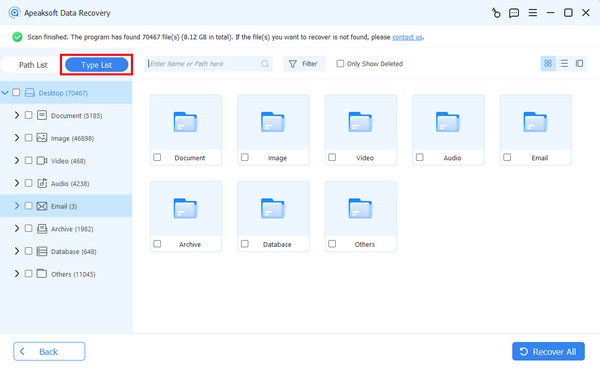
Step 3. Recover deleted photos
Finally, select the photos you want to restore and click the Recover button at the bottom right corner. Select an output folder and confirm photo recovery using the alternative to Phoenix Photo Recovery.

Conclusion
This article reviewed one of the best photo recovery software programs, Stellar Phoenix Photo Recovery. Now, you should understand what the software can do, its strengths and weaknesses, and other information you should know. Furthermore, you should learn how to use the software to recover photos from your digital device. Moreover, we recommended an alternative solution, Apeaksoft Data Recovery. It is easier to use and can find more multimedia files in any situation.
Related Articles




