


How to Recover Deleted Photos on Mac With or Without Backup

If you accidentally deleted important photos from your Mac or formatted a hard drive with pictures, don’t worry. In most cases, you have multiple ways to recover deleted photos on Mac, including permanently deleted pictures. However, using the right method and proper steps can increase the success of photo recovery. Otherwise, your photos may be lost forever. This guide shares the proven methods and detailed steps.
PAGE CONTENT:
Part 1: How to Recover Recently Deleted Photos on Mac
Apple has added the Recently Deleted album in the built-in Photos app. It stores the deleted photos and videos for up to 30 days. Before they are permanently removed, you can recover deleted photos on a Mac directly.

Step 1. Open the Photos app on your Mac.
Step 2. Go to the Recently Deleted album below Utilities on the sidebar.
Tips: If the Recently Deleted album is locked, click View Album and unlock it with your login password.
Step 3. Press the Command button and select the photos you want to retrieve.
Step 4. Next, click the Recover button.
Part 2: How to Recover Deleted Photos from Trash on Mac
If the Recently Deleted album is unavailable, you can recover deleted photos from Trash on Mac. Unlike the Recently Deleted album, Trash won’t remove deleted photos if you don’t manually empty them.
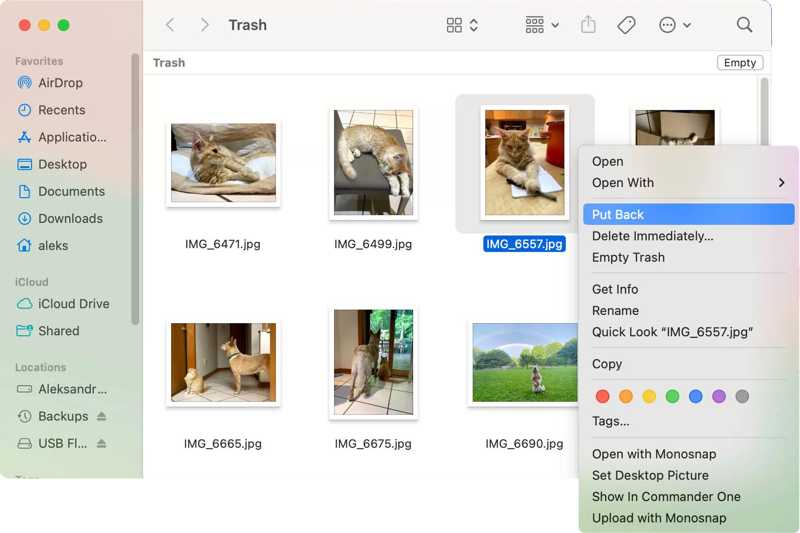
Step 1. Run the Trash app on the Dock bar.
Step 2. Locate the deleted photo. You can quickly find it with the Search feature.
Step 3. Right-click on the desired file and choose Put Back.
Note: If you wish to recover a deleted photo to another location, open the destination folder in Finder, drag and drop the photo.
Part 3: How to Recover Deleted Photos on Mac from iCloud
Can you recover deleted photos on a Mac if you cannot find them in Recently Deleted or Trash? Yes. You can try iCloud Photos if you have set it up on your MacBook. This way requires your Apple Account and password.

Step 1. Go to www.icloud.com in a web browser.
Step 2. Log in with your Apple Account and password.
Step 3. Choose the Photos option to access iCloud Photos.
Step 4. Head to the Recently Deleted album.
Step 5. Select all photos you want to retrieve and click the Recover button.
Part 4: How to Recover Deleted Photos on Mac from Backup
If you need to recover deleted photos on Mac after 30 days, a Time Machine backup is a simple option. The prerequisite is that you have made a backup before you delete your pictures.
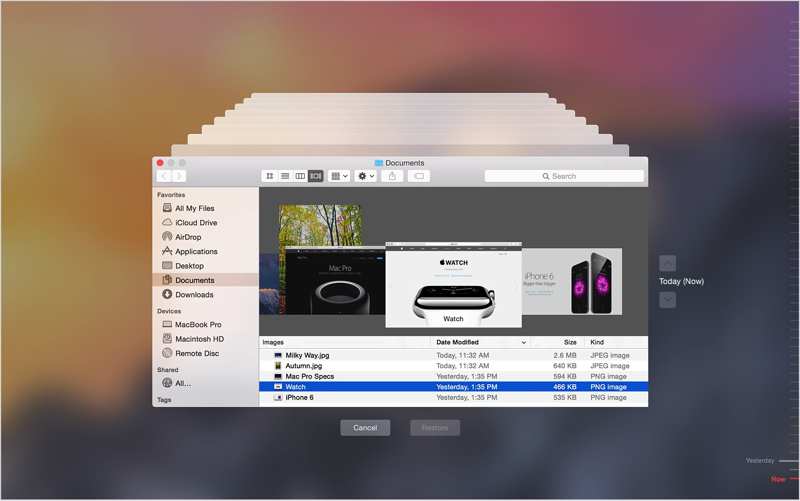
Step 1. Connect the backup device to your Mac.
Step 2. Open Finder and locate the folder where the lost photos were last stored.
Step 3. Click the Time Machine button on the menu bar and choose Browse Time Machine Backups.
Step 4. Adjust the timeline to locate the deleted photos.
Step 5. Make your selections and click the Restore button.
Further Reading
Part 5: Ultimate Way to Recover Deleted Mac Photos Without Backup
In fact, you can recover permanently deleted photos on Mac before they are overwritten by new data, even if you don’t have a backup. All you need is Apeaksoft Data Recovery. It is able to scan your hard drive and find the lost images on your MacBook.

Downloaded by over 1,000,000 users
- Recover deleted photos on Mac without backups.
- Compatible with all image formats.
- Preview recoverable photos on your Mac.
- Work on internal and external hard drives.
- Support Mac OS X 10.7 and above.
Secure Download
Secure Download

How to Recover Deleted Photos on Mac Without a Backup
Step 1. Scan photos
Launch the photo recovery application once you install it on your MacBook. If you need to recover photos on a PC, install the version for Windows. Select the desired file type, like Image. Next, choose the location where the deleted photos were stored. Click the Scan button to begin scanning photos on your Mac.
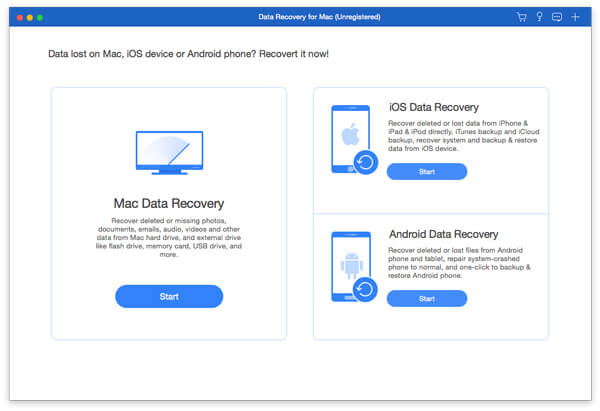
Step 2. Preview lost photos
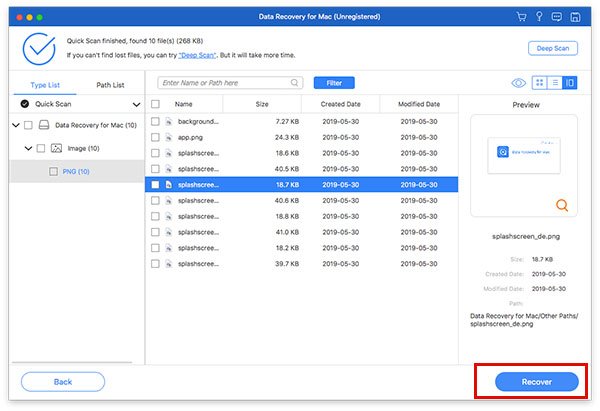
After data scanning, go to the Type List tab and select Image on the sidebar. Now, you can view recoverable photos on your Mac. The Filter option lets you quickly locate specific photos. To preview deleted photos, check Only Show Deleted at the top of the window.
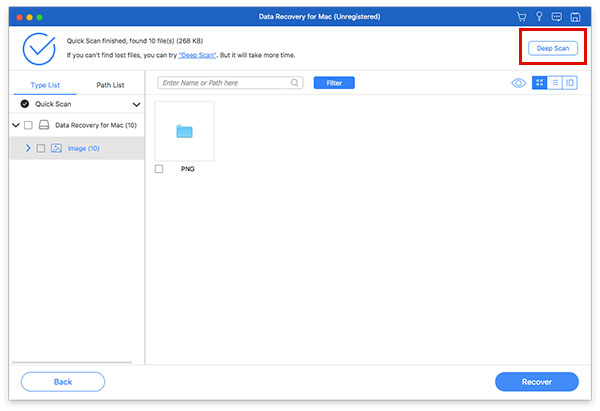
Step 3. Recover deleted photos
Select the deleted pictures you want to get back and click the Recover button at the bottom right corner. Set an output folder and confirm deleted photo recovery on Mac.
Conclusion
This guide shared five ways to recover deleted photos on Mac. The Recently Deleted album and Trash folder are quick methods to get back lost photos before they are permanently erased. iCloud Photos enables you to retrieve lost images if you have turned on the feature. A Time Machine backup is another option to recover lost files. Apeaksoft Data Recovery is the ultimate way to get back lost photos on Mac.
 Apeaksoft Data Recovery
 Recover deleted or lost data on Windows and Mac computer.
Secure Download
Secure Download
Related Articles




